
I recently helped a colleague who was locked out of a critical project file. The password was correct, but their account had been compromised, and the file was moved. It highlighted a common vulnerability we often overlook: a single password, no matter how complex, is a single point of failure. For truly sensitive documents, we need another layer of defense.
This is where the principles of multi-factor authentication come into play. While we're used to seeing it on our email or banking websites, applying the same level of security to individual files requires a slightly different approach. It's about creating a system where access demands more than just something you know (a password); it also requires something you have (like your phone or a hardware key).
Table of Contents
Why a Single Password Isn't Enough
Password-only protection is the standard for most documents, from encrypted PDFs to password-protected Word files. However, this method is fragile. Passwords can be guessed through brute-force attacks, stolen via phishing emails, or simply shared and forgotten. Once that single secret is out, your document's security is completely gone.
The core issue is that a password is just information. It can be copied, shared, and stolen without you ever knowing. This is why modern security practices emphasize layered defenses. Adding a second factor transforms security from a simple knowledge check into a possession check, which is significantly harder for a remote attacker to bypass.
How 2FA for Files Actually Works
Unlike a website login, you can't just enable a 2FA toggle on a standard PDF or DOCX file. These file formats don't have native support for multi-factor authentication. Instead, we implement two factor authentication documents security by placing the files inside a secure environment or container that *does* support multiple factors.
The Core Principle: Containerization
The strategy revolves around creating a secure, locked box for your files. To open this box, you need two keys. The first key is your password (something you know). The second key can be a physical device, a special file, or a code from an app (something you have). Your sensitive document resides safely inside this box, inheriting its robust security.
Types of Second Factors for Documents
For file security, the second factor often takes a different form than the typical SMS code. Common examples include:
- Keyfiles: A keyfile is any file on your computer or a USB drive that acts as a second key. Without both the password and the specific keyfile, the container won't open.
- Hardware Security Keys: Devices like a YubiKey can be used as a second factor in some advanced setups, often integrated with encryption software.
- Cloud Account 2FA: When using cloud storage, the 2FA is applied to the account itself. Accessing the folder containing your document requires both your account password and a code from your authenticator app.
Practical Methods to Secure Your Documents
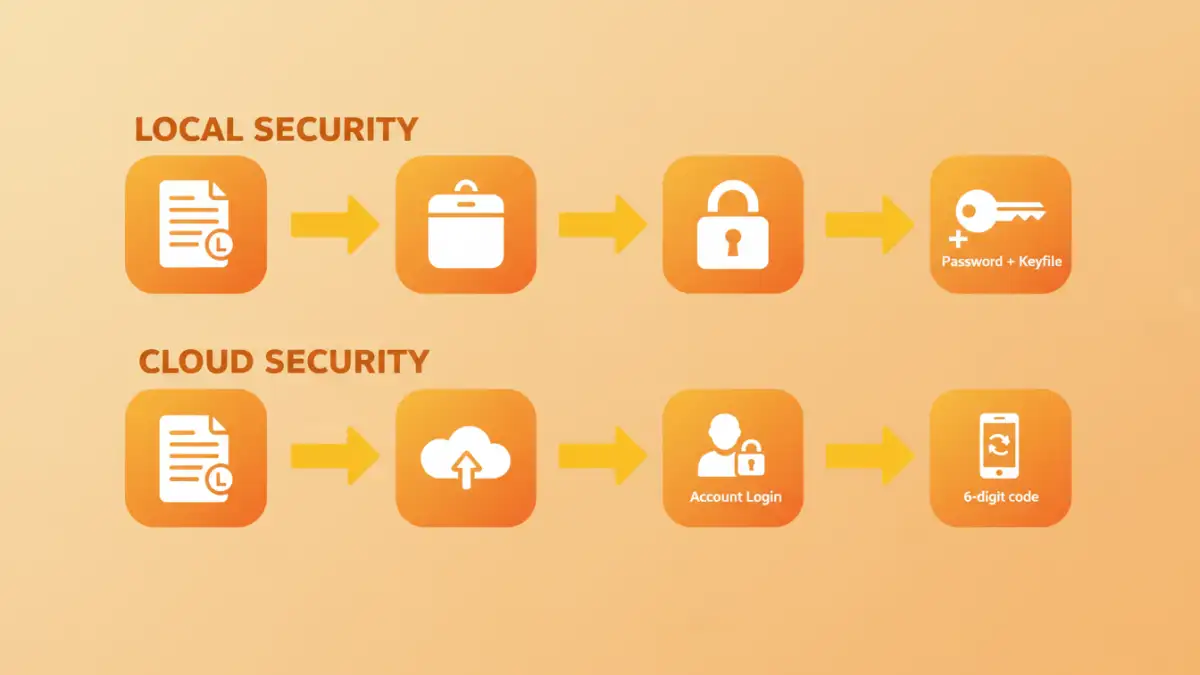
Implementing 2FA for files is achievable with free and accessible tools. The two most common and effective methods involve using local encrypted containers or leveraging secure cloud storage.
Method 1: Using Encrypted Containers with a Keyfile
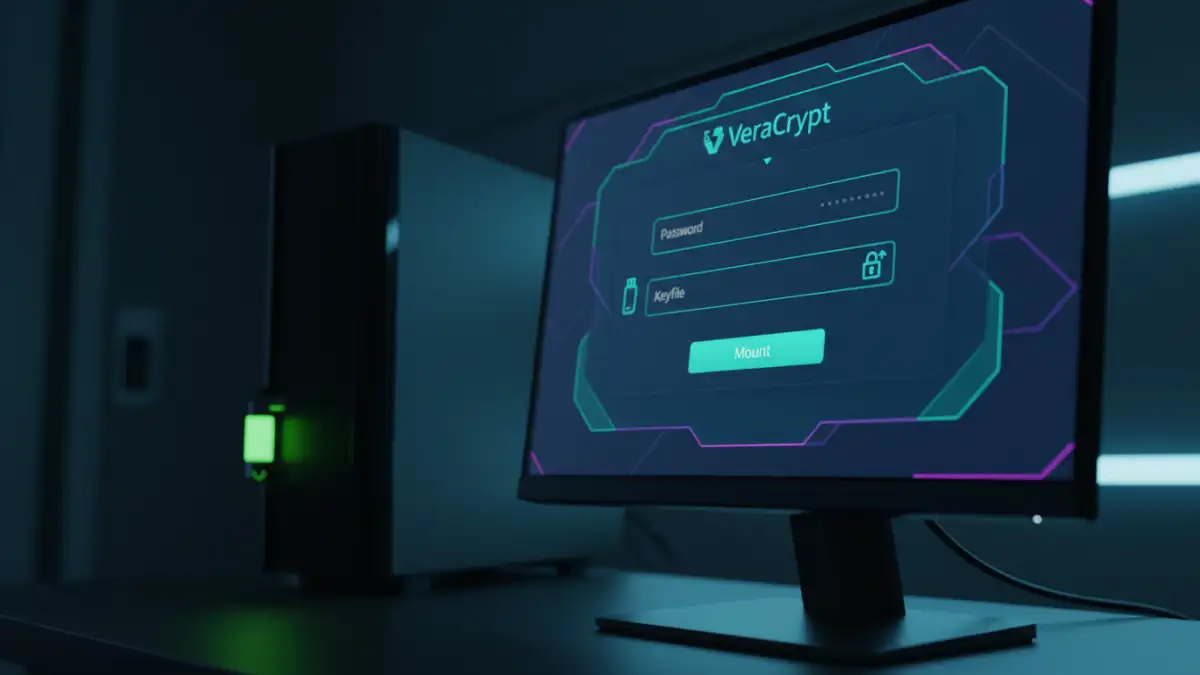
This is my preferred method for maximum local security. Tools like VeraCrypt (a free, open-source utility) allow you to create an encrypted virtual disk—a container—on your computer. During setup, you protect it with a password *and* a keyfile.
The process is straightforward: You create the container, format it, and then assign a strong password. In the next step, you specify a keyfile. This can be any file—an image, a text file, even an MP3. The software uses the unique data of that file as part of the decryption key. To access your documents, you must mount the container by providing the correct password and pointing the software to the correct keyfile, which you can store on a separate USB drive for enhanced file protection.
Method 2: Leveraging Secure Cloud Storage
For convenience and accessibility, using a major cloud provider is an excellent option. Services like Google Drive, Dropbox, and OneDrive offer robust 2FA for account access. By enabling 2FA on your cloud account, you are effectively placing a multi-factor lock on the portal to your files.
To make this work, you first need to enable 2FA in your account's security settings, linking it to an authenticator app like Google Authenticator or Authy. Then, you store your sensitive documents in a specific folder within that cloud storage. Anyone trying to access your cloud account from a new device will be stopped unless they can provide both the password and the time-sensitive code from your phone. This provides excellent document access security.
Advanced Strategies for Maximum Security
For those needing an even higher level of assurance, you can combine methods. For example, you can create a VeraCrypt container with a password and a keyfile, and then store that entire container file within your 2FA-protected Google Drive or Dropbox account. This creates three layers of defense.
An attacker would need to:
- Breach your cloud account password.
- Bypass your cloud account's 2FA.
- Download the container file.
- Crack the container's separate password.
- Somehow obtain the unique keyfile stored on your local USB drive.
This layered approach makes unauthorized access extraordinarily difficult. While it may be overkill for everyday files, it's a powerful strategy for protecting intellectual property, legal documents, or long-term financial records.
Comparison of Document 2FA Methods
| Method | How It Works | Pros | Cons |
|---|---|---|---|
| Encrypted Container (VeraCrypt) | Creates a local encrypted volume protected by a password and a keyfile. | Extremely high security; works offline; full control over data. | More complex setup; risk of losing the keyfile. |
| Secure Cloud Storage (Google Drive, etc.) | Protects the cloud account with 2FA, securing access to the files within. | Easy to use; accessible from anywhere; includes backup. | File is not 2FA-locked if downloaded; relies on third-party security. |
| Combined Method | Storing an encrypted container within a 2FA-secured cloud account. | Maximum possible security; multiple layers of defense. | Complex to manage; can be slow to sync large containers. |
| Enterprise DRM Solutions | Software that manages access rights and requires authentication to open files. | Granular control; centralized management; strong audit trails. | Very expensive; requires significant infrastructure. |