Sending a sensitive client contract or an internal financial report via email can be nerve-wracking. You hit 'send' and hope for the best, but a lingering question remains: is the document truly secure? While many free tools offer basic PDF password protection, it often feels like putting a simple padlock on a bank vault. This is where professional-grade software enters the conversation, raising the critical question of whether the investment is justified.
Table of Contents
The Security Baseline: What Free PDF Tools Offer
Most free PDF readers, including Adobe's own Acrobat Reader, are designed to consume content, not secure it. They can open password-protected files and respect the permissions set by the creator, but they lack the tools to create those protections themselves. If you need to apply a password, you're often forced to use a free online tool.
This presents a significant risk. Uploading a confidential document to a third-party website means you lose control over that data. You have no real guarantee it's deleted after processing. For any business handling sensitive information, this is an unacceptable gamble. This is the fundamental gap that premium PDF protection aims to fill.
Core Adobe Acrobat Pro Security Features
Acrobat Pro isn't just about adding a password; it's about creating a granular, multi-layered defense for your documents. The difference between its capabilities and free alternatives is substantial, providing peace of mind that goes beyond a simple entry barrier.
Password Protection and User Permissions
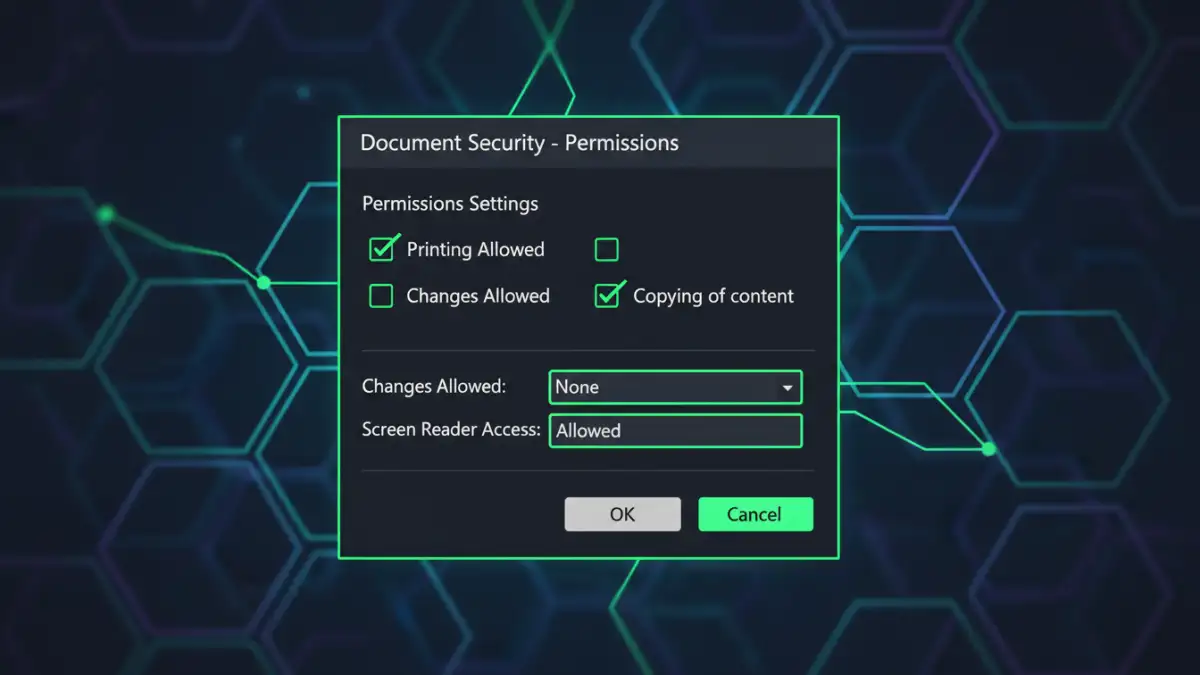
Acrobat allows you to set two distinct types of passwords. The first is a 'Document Open' password, which is straightforward—no password, no access. The second, and more powerful, is a 'Permissions' password. This allows a user to open the document but restricts specific actions.
For instance, I frequently send technical proposals that I want clients to review but not copy text from or print. With a permissions password, I can disable copying, printing, and editing. This ensures the integrity of the document while still allowing for necessary access, a level of control free tools simply don't provide.
Robust Acrobat Pro Encryption
When you set a password in Acrobat Pro, you're not just locking the door; you're scrambling the contents inside. The software uses high-level encryption standards, such as 256-bit AES (Advanced Encryption Standard). To put that in perspective, this is the same encryption grade used by banks and government agencies to protect their data.
This means that even if an unauthorized party intercepted the file, they couldn't make sense of the data without the password. The underlying code of the document is unreadable, making brute-force attacks incredibly difficult and time-consuming.
Advanced Protection: Beyond Simple Passwords
The real value of the Pro subscription becomes evident in its advanced security tools. These features are designed for professional workflows where document integrity and confidentiality are non-negotiable.
True Secure Document Redaction
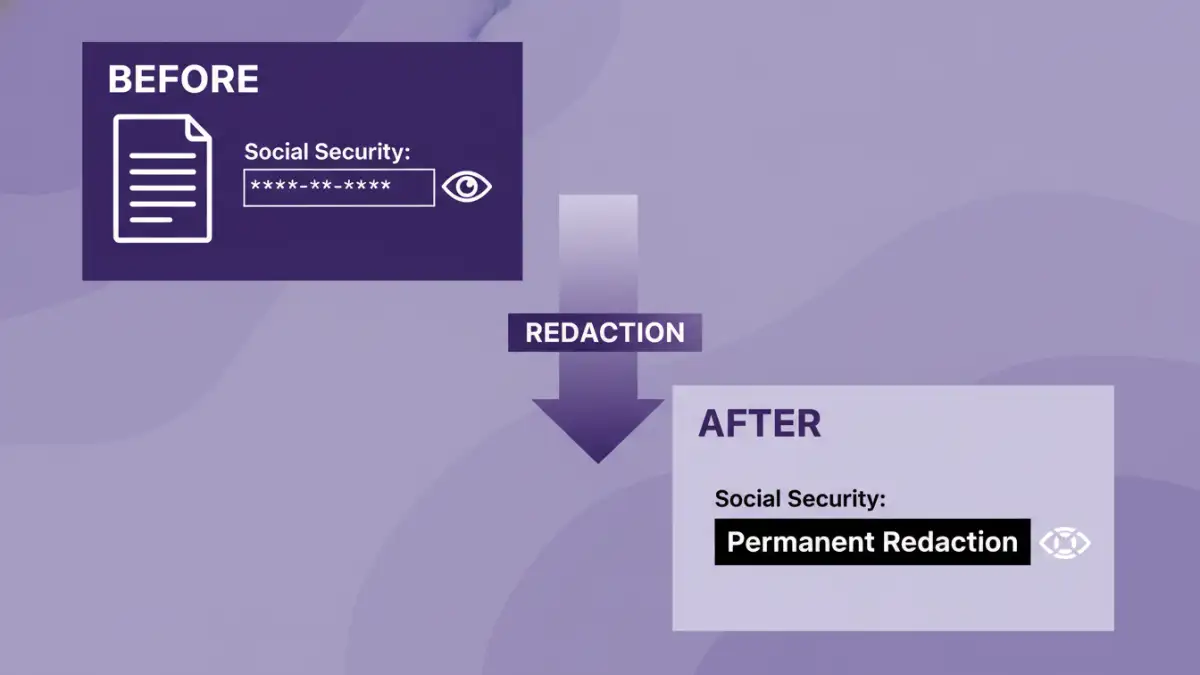
I once reviewed a legal document where someone had attempted to 'redact' information by drawing black boxes over the text. A simple copy-and-paste into a notepad file revealed all the hidden information. This is a common and dangerous mistake. Acrobat Pro's Redaction tool avoids this completely.
When you use the tool to mark and apply redactions, it permanently removes the underlying text, images, and metadata from the file. The data is gone, not just covered up. This is an essential function for legal, HR, and finance professionals who must share documents while protecting personally identifiable information (PII).
Digital Signatures and Certification
An electronic signature can be as simple as a scanned image of your handwriting. A digital signature, however, is a cryptographically secure tool that validates the signer's identity and confirms the document hasn't been altered since it was signed. Acrobat Pro provides robust tools for creating and validating these signatures.
Furthermore, you can 'certify' a document, which creates a final, authoritative version. After certification, you can control what, if any, changes are allowed, such as filling form fields or adding comments. This guarantees the document's authenticity and is crucial for contracts and official records.
The Verdict: Who Truly Needs This Level of Protection?
So, is the premium price tag worth it? The answer depends entirely on the sensitivity of your documents. For a student sharing lecture notes or an individual sharing a recipe, Acrobat Pro is overkill. The security risks are low, and free tools are sufficient.
However, for businesses and professionals, this adobe file security review concludes that the cost is a sound investment. If you are in the legal, financial, healthcare, or government sectors, or if you handle any form of PII, contracts, or intellectual property, the risk of a data leak far outweighs the subscription cost. The advanced features like permanent redaction and document certification aren't luxuries; they are essential components of modern risk management.
Security Feature Comparison: Acrobat Reader vs. Acrobat Pro
| Feature | Acrobat Reader (Free) | Acrobat Pro (Paid) | Primary Use Case |
|---|---|---|---|
| View and Print PDFs | Yes | Yes | Basic document consumption. |
| Set Passwords & Permissions | No | Yes | Controlling access and preventing unauthorized editing or printing. |
| Apply Encryption | No | Yes (up to 256-bit AES) | Securing sensitive data from interception. |
| Secure Document Redaction | No | Yes (Permanent removal) | Protecting PII and confidential information in shared documents. |
| Create & Validate Digital Signatures | Validate only | Yes | Ensuring document authenticity and integrity for legal contracts. |
| Certify Documents | No | Yes | Creating a final, authoritative version of a document. |