Sending an image file, whether it's a design proof, a personal photograph, or a scanned document, often feels like releasing it into the wild. Once sent, you have little control over who views, copies, or prints it. This is a common concern for photographers, designers, and anyone handling sensitive visual information. Simply sending a JPG or PNG offers almost no protection against unauthorized distribution.
The solution is to wrap that image in a more robust and controllable format. By converting an image into a secure PDF, you gain access to a suite of security features, from simple password protection to granular control over what the recipient can do with the file. It's a straightforward process that adds a critical layer of security to your visual assets.
Table of Contents
Why Use Secure PDFs for Images?
An image file like a JPG or PNG is just that—a collection of pixels. It has no built-in mechanism to prevent someone from saving, sharing, or editing it. A PDF, on the other hand, is a container document. This structure allows for metadata and security layers to be applied, transforming a simple image into a protected asset.
Key Security Benefits
The primary advantage is access control. You can require a password simply to open the document, ensuring only intended recipients can view the image. This is the first and most basic line of defense. Furthermore, you can prevent the file from being altered. This maintains the integrity of your original image, which is crucial for official documents or creative work where you want to prevent unauthorized edits.
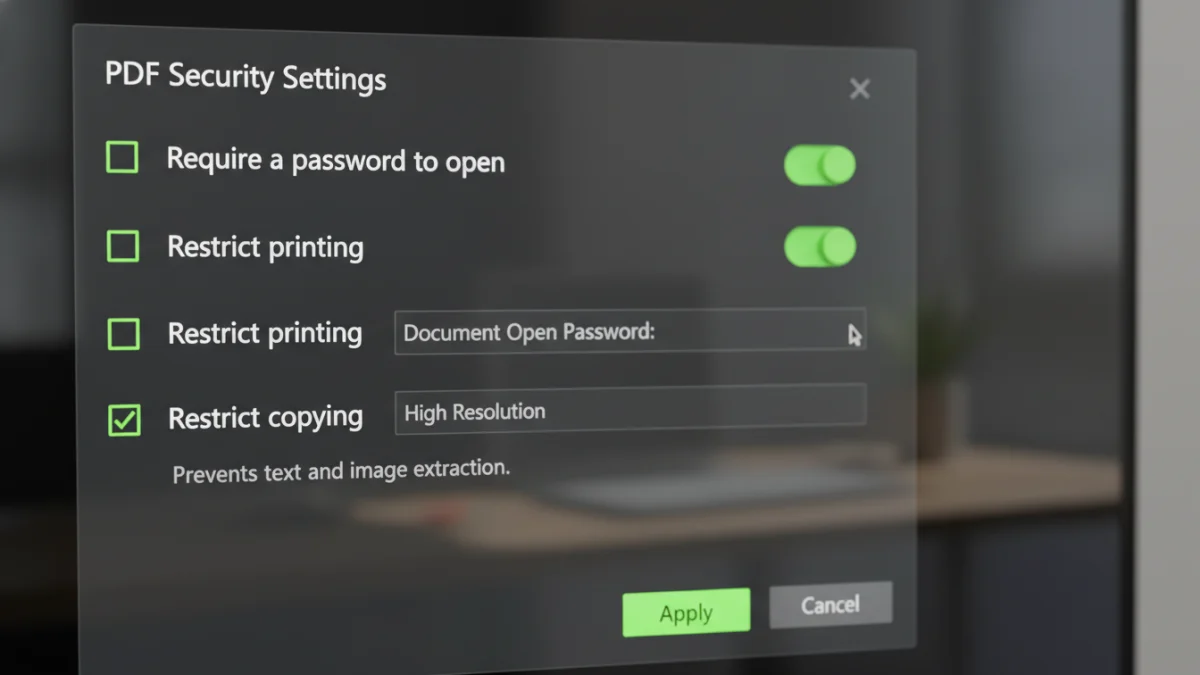
Another significant benefit is the control over permissions. You can block users from printing the document, copying the image or text within it, or making comments. This is particularly useful for artists sharing preview works or businesses sharing confidential design mockups.
Methods for Secure Image to PDF Conversion
There are several reliable ways to convert and secure your images. The best method often depends on your operating system, the sensitivity of the image, and your technical comfort level. Each approach offers a different balance of convenience, cost, and security.
Using Built-in Operating System Tools
Both Windows and macOS have native 'Print to PDF' functionalities that can be used for basic conversions. You can open an image in a default viewer like Photos (Windows) or Preview (macOS), select 'Print', and then choose 'Save as PDF' or 'Microsoft Print to PDF' as the printer. While this creates a PDF, the security options available directly in this workflow are often limited or non-existent. For instance, macOS's Preview app does allow you to add a password after saving the PDF by going to 'File' > 'Export' and selecting the 'Encrypt' option.
Leveraging Online Converters
Numerous websites offer free tools to convert images to PDFs. You upload your image, and the service converts it for you, often providing an option to add a password. While incredibly convenient for non-sensitive images, I always advise caution here. Uploading a confidential document to a third-party server introduces a privacy risk. Always read the privacy policy of these services to understand how they handle your data.
Dedicated Desktop Software
For the highest level of control and security, dedicated software like Adobe Acrobat Pro is the gold standard. These programs offer comprehensive tools to not only convert any image to a secure PDF but also to apply sophisticated security settings. You can set distinct passwords for opening the document versus changing permissions, apply certificate-based encryption, and even redact information. While this option typically involves a cost, it's the most professional and secure route for handling sensitive visual data regularly.
Going Beyond a Simple Password
True document security is about more than just a password to open a file. Professional PDF tools allow you to set two different types of passwords: a Document Open Password (or user password) and a Permissions Password (or owner password). The user password allows someone to view the file, while the owner password is required to change any of the security settings you've applied.
With a permissions password in place, you can fine-tune what a user can do. You can restrict printing entirely or allow only low-resolution printing. You can also disable the ability to copy text and images, preventing someone from easily lifting your content. These granular controls are what make the secure image sharing format so powerful for protecting intellectual property.
Best Practices for Securing Your Files
Creating a secure PDF is one thing; maintaining that security is another. First, always use strong, unique passwords. A weak password like '12345' undermines the entire process. Use a combination of upper and lower-case letters, numbers, and symbols.
Second, match the security tool to the sensitivity of the data. For a casual family photo, a free online tool is likely fine. For a sensitive legal document or proprietary design, investing in professional desktop software is a wise decision. Finally, remember to communicate the password to your recipient through a secure channel, like an encrypted messaging app or a phone call, rather than in the same email as the PDF itself.
Security Method Comparison
| Method | Ease of Use | Security Level | Best For |
|---|---|---|---|
| OS 'Print to PDF' | Very Easy | Low to Moderate | Quick, non-sensitive conversions. |
| Online Converters | Very Easy | Low (Privacy Risk) | Convenience with non-confidential images. |
| Adobe Acrobat Pro | Moderate | Very High | Professional use and sensitive documents. |
| Open-Source Software | Moderate to Difficult | High | Tech-savvy users on a budget. |