Have you ever sent a sensitive document and worried if it reached the right person securely? Whether it's a contract, financial records, or personal information, ensuring that only the intended recipient can open it is crucial. This is where encryption comes in, acting as a digital lock for your files.
Table of Contents
- Understanding the Basics of Document Encryption
- Symmetric vs. Asymmetric Encryption
- Choosing the Right Encryption Approach
- File-Level vs. Full-Disk Encryption
- Practical Steps for Encrypting Your Documents
- Best Practices for Maintaining Data Security
- Comparison of Popular Document Encryption Tools
- FAQs
- What is the difference between symmetric and asymmetric encryption?
- Is the encryption in Microsoft Office or Adobe PDF secure enough?
- How can I securely share an encrypted document?
Understanding the Basics of Document Encryption
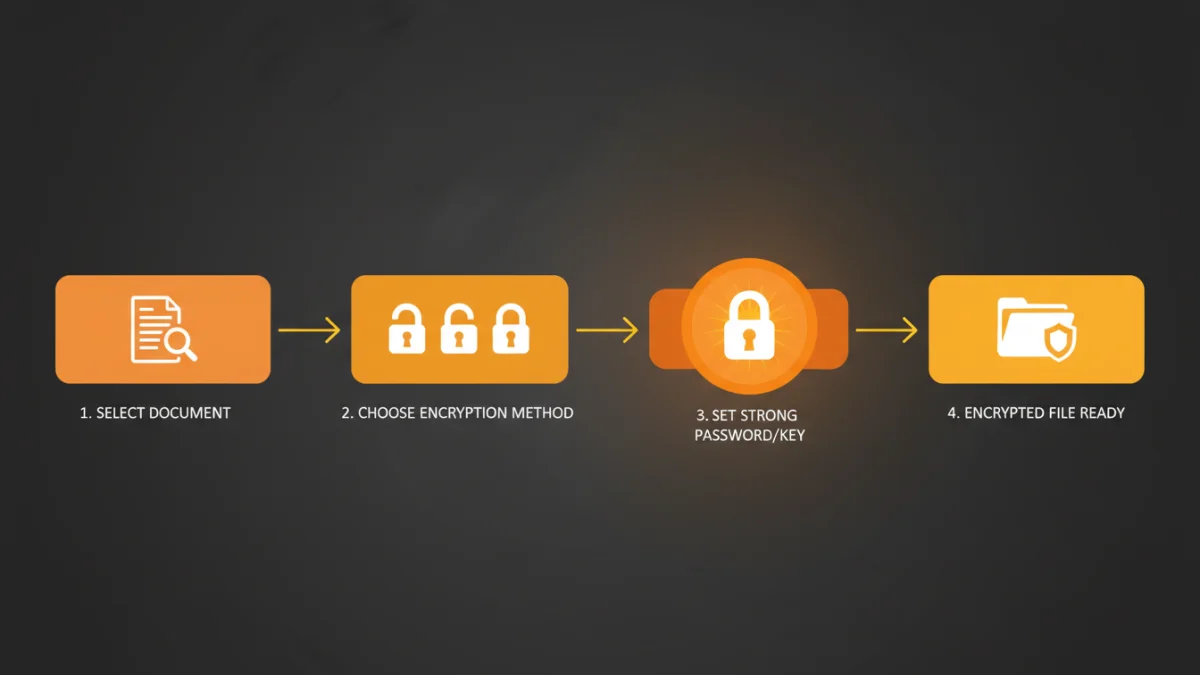
At its core, encryption is the process of converting your readable document into an unreadable format, known as ciphertext. Only someone with the correct key can reverse this process, decrypting the file back into its original state. Think of it as putting a letter in a locked box; without the specific key, the contents are inaccessible.
This process relies on complex algorithms to scramble the data. The strength of the encryption often depends on the algorithm used (like AES-256) and the length and complexity of the key or password. A longer, more random key is exponentially harder to crack.
Symmetric vs. Asymmetric Encryption
There are two primary types of encryption methods you'll encounter. Symmetric encryption uses a single key for both encrypting and decrypting a file. It's fast and efficient, making it ideal for personal use where you are securing files for yourself. However, sharing that single key securely with someone else can be a challenge.
Asymmetric encryption, on the other hand, uses a pair of keys: a public key and a private key. The public key can be shared freely and is used to encrypt the document. The corresponding private key, which is kept secret, is the only key that can decrypt it. This method is the foundation for most secure communication online and is perfect for sharing files with others.
Choosing the Right Encryption Approach
Not all encryption is created equal, and the right method depends on your specific needs. You might need to protect a single file, or you might need to secure an entire hard drive. Understanding the difference is key to implementing effective secure file protection.
File-Level vs. Full-Disk Encryption
File-level encryption allows you to encrypt individual files or folders. This is perfect for when you only need to secure specific documents that you plan to send via email or store in the cloud. Tools like AxCrypt or the built-in features of Microsoft Office and Adobe Acrobat operate at this level.
Full-disk encryption (FDE) encrypts everything on a storage device, including the operating system, applications, and all user files. Tools like BitLocker (Windows) and FileVault (macOS) provide FDE. It’s a powerful defense against physical theft, as the entire drive is unreadable without the password, but it doesn't protect files once they are moved off that specific device.
Practical Steps for Encrypting Your Documents
Getting started with document encryption doesn't have to be overly technical. Many tools you already use have built-in capabilities, and dedicated software can provide an even higher level of control and security.
Here are a few practical ways to implement it:
- Use Built-in Software Features: Both Microsoft Office (Word, Excel) and Adobe Acrobat allow you to password-protect documents. In Word, you can go to 'File' > 'Info' > 'Protect Document' > 'Encrypt with Password'. This is a simple and effective way to secure individual files.
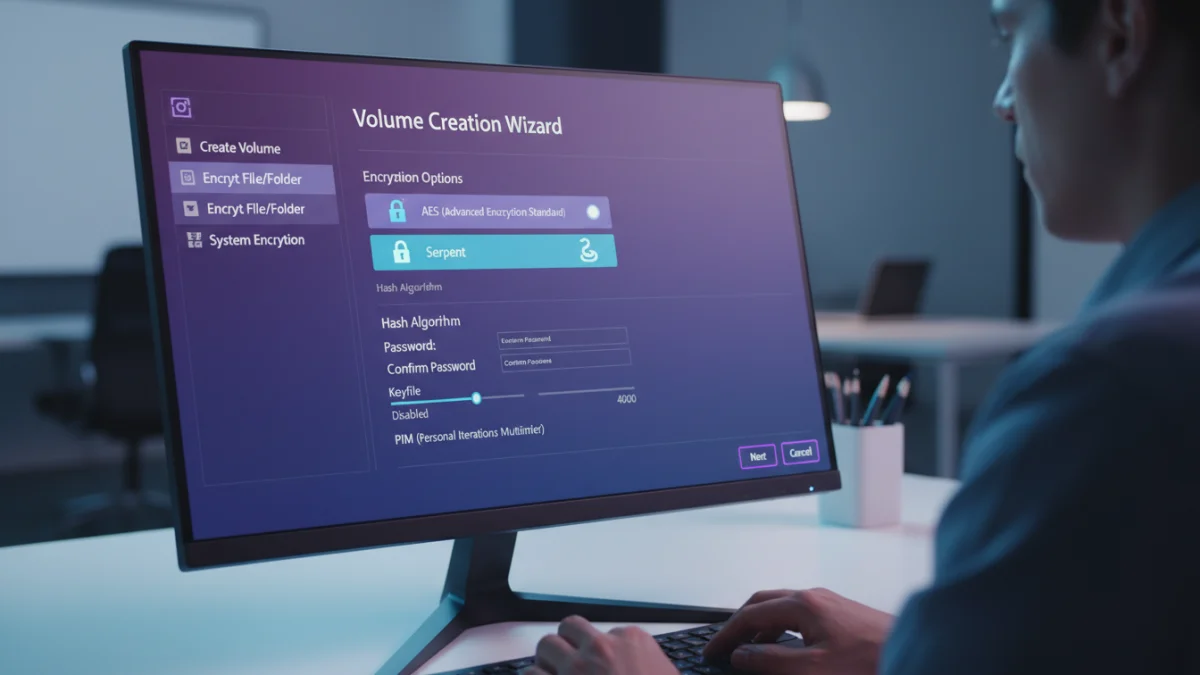
- Leverage Dedicated Encryption Software: For more robust options, tools like VeraCrypt and AxCrypt are excellent. VeraCrypt allows you to create encrypted 'containers'—virtual encrypted disks that appear as a regular drive when mounted. AxCrypt integrates with your file explorer, allowing you to right-click and encrypt any file.
- Utilize Secure Cloud Storage: Services like Proton Drive and Tresorit offer end-to-end encryption, meaning your files are encrypted on your device before being uploaded to the cloud. This ensures that not even the service provider can access your data.
Best Practices for Maintaining Data Security
Encryption is just one piece of the puzzle. To ensure comprehensive data security, you must also adopt good habits around managing your keys and passwords. A strong lock is useless if you leave the key under the doormat.
First, always use strong, unique passwords for your encrypted files. A password manager can be incredibly helpful here, as it can generate and store complex passwords for you. Second, manage your encryption keys carefully. If you're using asymmetric encryption, never share your private key. Store it in a secure location, and consider backing it up offline.
Finally, remember that no single solution is foolproof. A multi-layered approach that combines strong passwords, reliable encryption software, and cautious online behavior provides the best defense. This is the core principle behind effective document encryption security, ensuring your sensitive information remains confidential and protected.
| Tool | Encryption Type | Key Features | Best For |
|---|---|---|---|
| Microsoft Office | File-Level (Symmetric) | Built-in, password protection, AES-256 encryption. | Quickly securing individual Word, Excel, or PowerPoint files. |
| Adobe Acrobat Pro | File-Level (Symmetric) | Password and certificate-based security, granular permissions. | Protecting PDF documents and controlling user access. |
| VeraCrypt | Full-Disk & Container | Open-source, plausible deniability, multiple algorithms. | Creating highly secure encrypted volumes or encrypting entire drives. |
| AxCrypt | File-Level (Asymmetric/Symmetric) | Right-click integration, cloud storage awareness, key sharing. | Easy-to-use file encryption for individuals and teams. |
| BitLocker/FileVault | Full-Disk | Integrated with OS, transparent operation. | Protecting laptops and external drives from physical theft. |