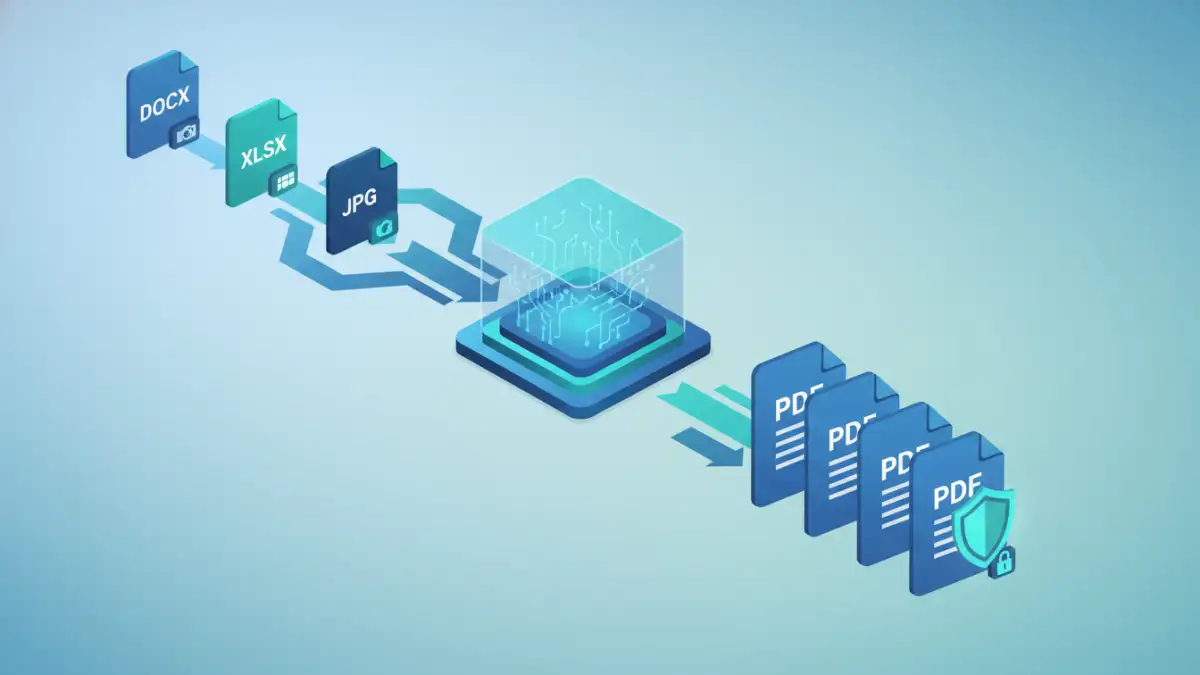
I remember a project where my team had to prepare hundreds of individual project files—Word documents, Excel spreadsheets, and high-resolution images—for a client handover. The requirement was clear: all files had to be in a standardized, non-editable format, and each one needed to be password-protected. Doing this one by one would have been a nightmare, consuming days of tedious, repetitive work. This is precisely the kind of bottleneck where automating the process becomes essential.
Converting files to PDF is standard practice, but handling them in bulk while applying consistent security settings is a different challenge. It's about more than just changing a file extension; it’s about creating an efficient, secure, and professional workflow that saves time and minimizes human error.
Table of Contents
Why Batch Conversion is a Workflow Game-Changer
The core benefit of batch processing is efficiency. Instead of opening, saving, and securing each file individually, you can process an entire folder of documents in a single operation. This is invaluable when dealing with project archives, client reports, or financial records that need to be standardized.
Beyond speed, it ensures consistency. Every PDF created will have the same security settings, formatting rules, and metadata. This uniformity is crucial for professional branding and compliance requirements. It also simplifies document management, as you're dealing with a single, universally accessible file format rather than a mix of different types.
Choosing the Right Tool for the Job
Not all conversion tools are created equal, especially when security is a priority. The choice between an online service and a desktop application often comes down to the sensitivity of your documents.
Desktop Software Solutions
For confidential or proprietary information, I always recommend dedicated desktop software. These tools process files locally on your machine, so your data never leaves your control. They typically offer more robust features, including advanced encryption, permission settings, and the ability to handle a wider range of file formats. Look for a quality bulk file to pdf converter that supports multi format document processing without file size or quantity limitations.
Online Converters and Cloud Services
Online tools are convenient for quick, non-sensitive tasks. You upload your files, and the service converts them on its servers before providing a download link. While many services claim to delete files after a few hours, the initial upload still poses a security risk. For any documents containing personal, financial, or business-critical information, I would advise against using public online converters.
A Practical Guide to Secure Batch Conversion
Let's walk through a typical process using a hypothetical desktop application. The specific steps might vary slightly between tools, but the core principles of a secure workflow remain the same. This is how you can batch convert documents to pdf efficiently and safely.
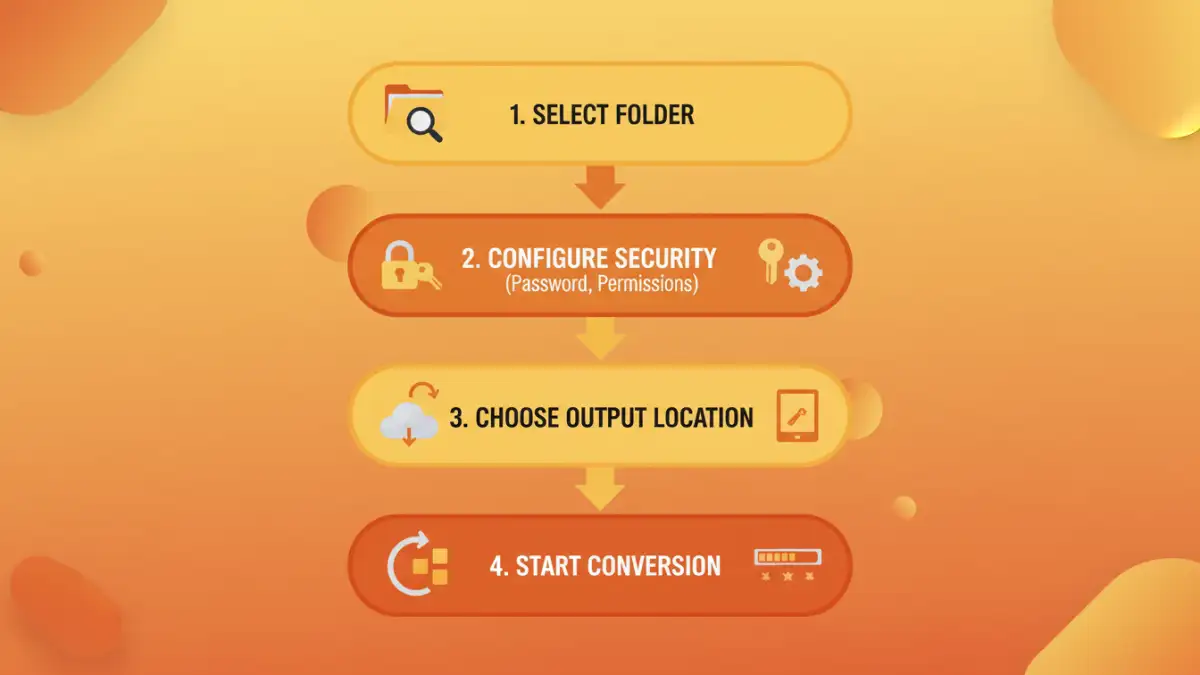
- Prepare Your Files: Organize all the source files (e.g., .docx, .xlsx, .pptx, .jpg) into a single folder. This makes it easy to add them to the conversion queue all at once.
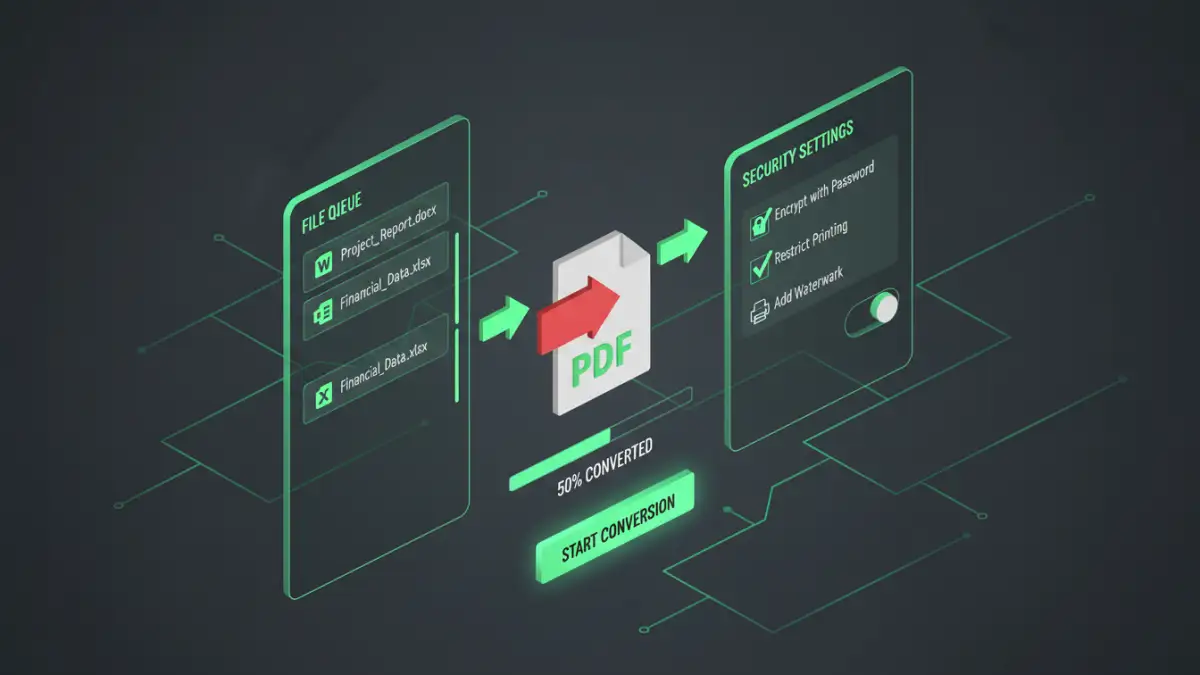
- Load Files into the Converter: Open your desktop conversion software and use the 'Add Folder' or 'Add Files' function to import all the documents you prepared. A good tool will display a list of all queued files.
- Configure Output and Security Settings: This is the most critical step for secure document conversion. Navigate to the settings or options panel. Here, you should be able to:
- Set an 'owner' password to restrict editing, printing, or copying.
- Set a separate 'user' password required to open the document.
- Choose the encryption level (AES-256 bit is the current standard for strong security).
- Apply watermarks with text like 'Confidential' or 'Draft'.
- Specify the Output Location: Choose a destination folder for the newly created PDFs. It's good practice to save them to a different location than the source files to avoid confusion.
- Run the Conversion: Start the process. The software will work through the queue, applying your specified settings to every file and creating a secure PDF for each one. Once complete, you'll have a folder of standardized, protected documents ready for distribution.
Beyond Conversion: Key Security Features to Implement
Creating a secure PDF involves more than just a password. Modern tools offer granular control over what recipients can do with your document. Understanding these features is key to protecting your information effectively.
Encryption and Password Protection
Encryption is the process of encoding the information within the PDF so that it can only be read by authorized parties. As mentioned, AES-256 is the industry standard and provides robust protection against brute-force attacks. Always use a strong, unique password that combines uppercase and lowercase letters, numbers, and symbols.
User Permissions and Access Control
Permissions dictate what a user can do after opening the document. You can prevent users from printing the file, copying text or images, or making any modifications. This is particularly useful for distributing read-only documents like contracts, reports, or intellectual property. By setting these restrictions, you maintain control over your content even after it has been shared.
Conversion Tool Feature Comparison
| Feature | Online Converters | Basic Desktop Software | Advanced Desktop Software |
|---|---|---|---|
| Processing Location | Cloud-based (on their servers) | Locally on your computer | Locally on your computer |
| Security | Potential privacy risk | Good (files stay local) | Excellent (local processing, advanced encryption) |
| Batch Processing | Often limited by file count or size | Basic functionality | Robust, handles thousands of files |
| Supported Formats | Limited to common types | Good range of office/image files | Extensive, including specialized formats |
| Advanced Security | Usually none or basic password | Password protection | Passwords, permissions, watermarking, redaction |
| Cost | Free (with ads/limits) or Subscription | One-time purchase or free versions | One-time purchase or subscription |