A few weeks ago, a project manager asked me for help. He was trying to send a CSV file with sensitive sales projections to a vendor but couldn't find a 'password protect' option anywhere. He was rightfully concerned about emailing the raw data without any protection. This is a common point of confusion I've seen many times, and it stems from the fundamental nature of what a CSV file is.
Unlike a Word document or an Excel spreadsheet, a Comma-Separated Values (CSV) file is just plain text. It has no built-in features for formatting, formulas, or, most importantly, encryption. But that doesn't mean you're out of options. You just need to use a different approach to ensure your csv file security before sharing it.
Table of Contents
Why You Can't Directly Password Protect a CSV File
The core issue is the format itself. A CSV file is one of the simplest data formats in existence, designed for maximum compatibility between different programs. It's just text characters and commas, readable by any text editor like Notepad or TextEdit. This simplicity is its greatest strength and its biggest weakness when it comes to security.
The Nature of Plain Text
Think of a CSV file like a postcard. Anyone who gets their hands on it can read the message instantly. There's no envelope to seal. Formats like Microsoft Excel (.xlsx) or Word (.docx) are more like a complex package. They are binary formats that contain not only your data but also metadata, formatting information, and hooks for features like encryption. This underlying structure allows them to support password protection natively.
Effective Methods to Secure Your CSV Data
Since the CSV file itself can't be locked, we have to place it inside a secure container or convert it to a format that supports protection. Here are the most practical and widely used methods to encrypt a CSV file.
Method 1: Compress and Encrypt with a ZIP Archive
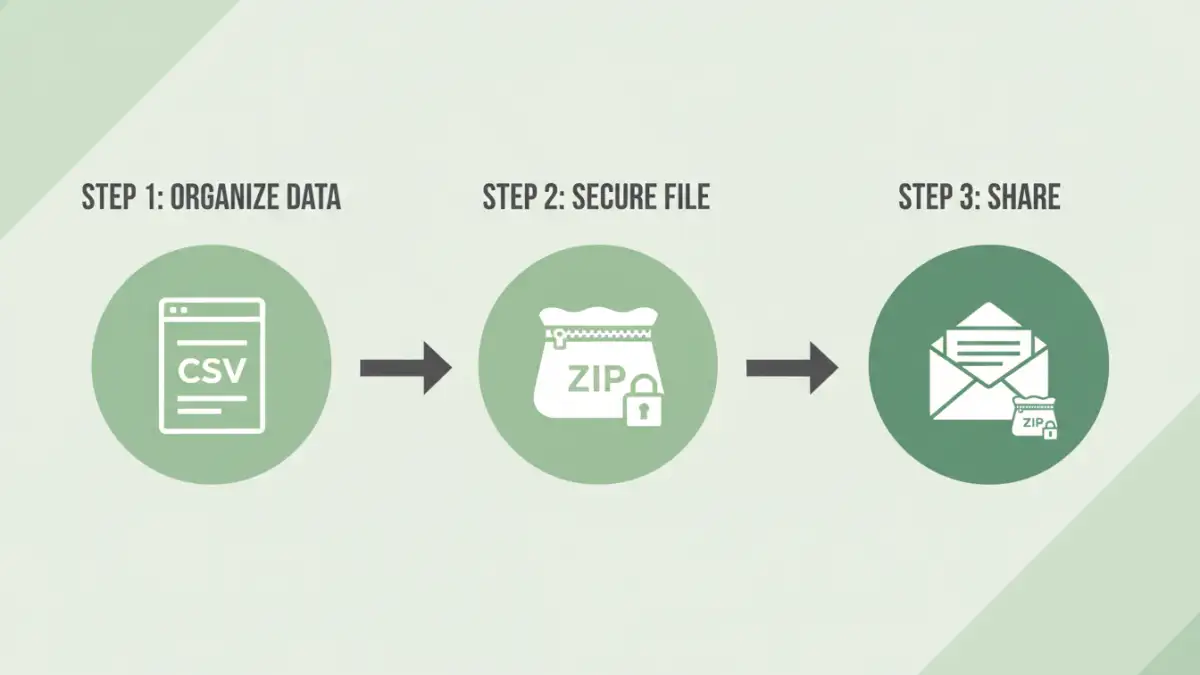
This is my go-to recommendation for most non-technical users. It's straightforward, and the necessary tools are built into most operating systems or are freely available. You aren't encrypting the CSV directly; you're creating a password-protected ZIP file that contains it.
- Locate Your File: Find the CSV file on your computer.
- Create an Archive: Right-click on the file. On Windows, you might see an option like 'Send to > Compressed (zipped) folder'. For more robust encryption, I recommend a free tool like 7-Zip. With 7-Zip installed, the right-click menu will have a '7-Zip > Add to archive...' option.
- Set a Password: In the 'Add to Archive' dialog box, you'll see an 'Encryption' section. Enter a strong password here. Crucially, make sure to select the encryption method. I always use AES-256, as it's the industry standard and far more secure than the older ZipCrypto.
- Share Securely: You can now send this password-protected .zip file. Just remember to share the password with the recipient through a separate, secure channel—like a phone call or an encrypted messaging app. Never send the password in the same email as the file!
Method 2: Convert to a Password-Protected Excel File
If your recipient will be working with the data in a spreadsheet program anyway, this is a very efficient workflow. You're essentially changing the file format to one that supports encryption.
- Open in Excel: Open Microsoft Excel and go to 'Data' > 'From Text/CSV'. Select your CSV file to import it. Excel's Power Query editor will open, allowing you to verify the data is parsed correctly before loading it into a sheet.
- Save As: Once the data is in an Excel sheet, go to 'File' > 'Save As'. Choose a location for the file.
- Set the Password: In the 'Save As' dialog, click on 'Tools' (next to the Save button) and select 'General Options...'. Here, you can set a 'Password to open'.
- Save and Send: Save the file as an Excel Workbook (.xlsx). This new file is now encrypted and will require the password to be opened.
Advanced Techniques for Robust Security
For developers, system administrators, or anyone handling extremely sensitive data, the standard methods might not be enough. In these cases, we can turn to more powerful, dedicated encryption tools.
Using GPG/PGP for Asymmetric Encryption
For true end-to-end security, especially in automated workflows, I often rely on GnuPG (GPG), an open-source implementation of Pretty Good Privacy (PGP). This method uses a public/private key pair. You encrypt the file with the recipient's public key, and only they can decrypt it with their corresponding private key.
This eliminates the need to share passwords. It's the standard for secure data exchange in many industries. While it involves a steeper learning curve (often using the command line), it provides a much higher level of assurance that only the intended recipient can access the data. Tools like Gpg4win on Windows or GPG Suite on Mac provide a graphical interface to simplify the process.
Scripting with Python
In my own work, I often build automated data pipelines. If I need to programmatically encrypt CSV exports, I'll use a Python script. Libraries like `cryptography` provide powerful and easy-to-use functions for symmetric encryption (similar to ZIP protection but more flexible). This allows me to generate an encrypted file directly from a script, ready for transfer to an SFTP server or cloud storage bucket, without manual intervention.
Best Practices for Sharing Encrypted Data
Knowing how to lock a CSV file is only half the battle. Following good security practices is just as important to keep the data safe.
- Use Strong Passwords: A weak password makes encryption useless. Use a long, complex, and unique password for each file you protect. A password manager can help generate and store these.
- Out-of-Band Password Sharing: This is critical. Never send the password and the file together. If an attacker intercepts your email, they get both the lock and the key. Use a different communication method entirely for the password.
- Verify Recipient Capability: Before sending a 7-Zip file encrypted with AES-256, make sure your recipient has software that can open it. The built-in Windows utility, for example, has historically had issues with AES-encrypted ZIPs.
- Delete Unprotected Originals: Once you've created your secure, encrypted version, remember to securely delete the original, unprotected CSV file from your machine if it's no longer needed.
CSV Encryption Method Comparison
| Method | Security Level | Ease of Use | Best For |
|---|---|---|---|
| ZIP Archive (AES-256) | High | Easy | Everyday sharing with non-technical users. |
| Convert to Excel (.xlsx) | High | Easy | When the recipient will use the data in Excel. |
| GPG/PGP Encryption | Very High | Difficult | Automated systems, developers, and highly sensitive data exchange. |
| Custom Script (e.g., Python) | Very High | Difficult | Integrating encryption into automated data pipelines. |