
That little dialog box asking you to set a password on a sensitive PDF or Word document feels like a solid security step. But once you've set it, what's next? For years, the standard advice was to change all your passwords regularly, but does that rule still apply to individual files? The answer isn't as straightforward as it used to be.
As someone who has built and secured systems that handle sensitive data, I've seen the focus shift dramatically. We've moved away from rigid, time-based rules toward a more intelligent, risk-based approach. Forcing users to constantly update passwords often does more harm than good, leading to predictable patterns and weaker security overall.
Table of Contents
The Old Wisdom: The Case for Password Rotation
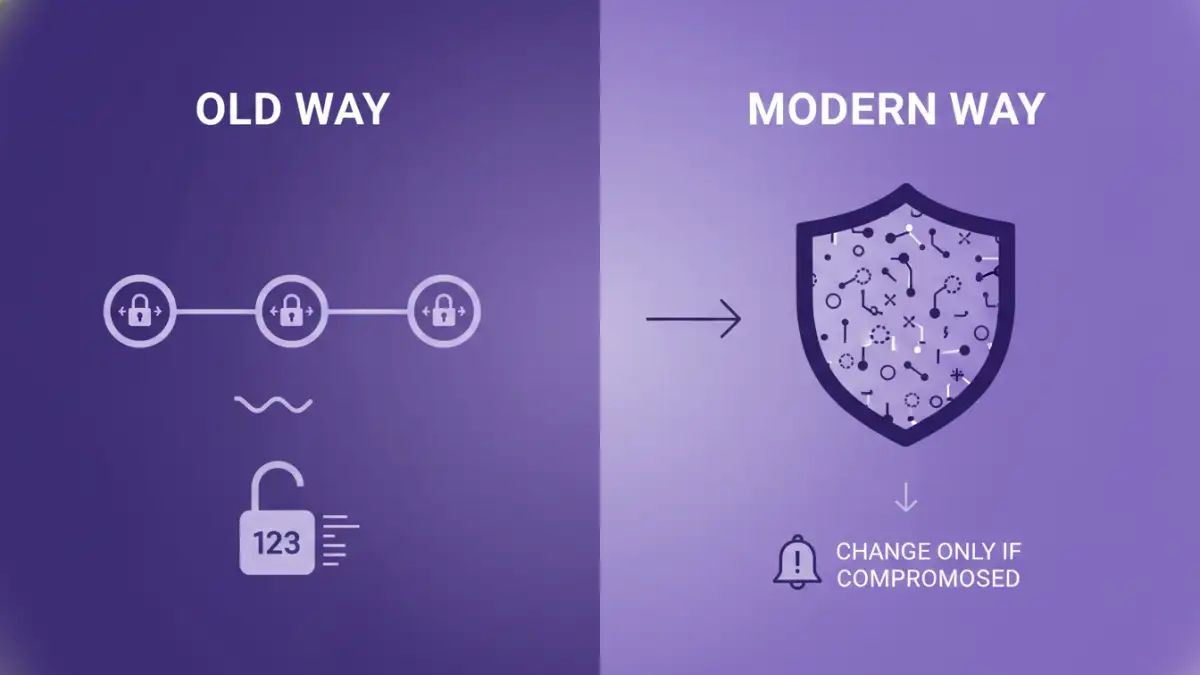
The traditional corporate IT playbook included a strict password rotation policy. You've likely experienced it: every 60 or 90 days, you're forced to create a new password for your network login. The logic was rooted in mitigating a specific type of threat. If an attacker managed to steal a password, regular changes would limit the time they could use it before it expired.
This principle was then broadly applied to everything, including individual files. The thinking was that if a document password was somehow exposed—perhaps written on a sticky note or shared insecurely—a forced change would revoke that access. It was a blanket policy designed to minimize the window of vulnerability for any compromised credential.
The Logic Behind File Password Expiration
For documents, the idea of file password expiration was to prevent stale credentials from providing indefinite access. If you emailed a password-protected file to a contractor in January, changing the password in April would theoretically secure it from them after their project ended. It was a manual, administrative attempt to control access over the document's lifecycle.
The Modern View: Complexity Over Frequency
Today, security guidance from organizations like the National Institute of Standards and Technology (NIST) has evolved. Research and real-world incidents have shown that mandatory, frequent password changes have a significant downside: human nature. When forced to change passwords constantly, people don't create stronger ones; they create predictable ones.
A password like `StrongP@sswordWinter23!` becomes `StrongP@sswordSpring24!`. This simple, sequential pattern is trivial for an attacker to guess if they have any one of your previous passwords. The result is a false sense of security. You're following the rules, but your actual security posture has weakened. For documents, this is especially true, as there's often no system to enforce complexity rules, making it even easier to fall into bad habits.
The Problem with Password Fatigue
Password fatigue is a real phenomenon. When users are burdened with remembering dozens of complex, frequently changing passwords, they resort to shortcuts. They reuse passwords across different services, write them down in insecure places, or use those predictable patterns. A single strong, unique password that is never changed (unless compromised) is far more secure than a series of weak, sequential ones.
When Should You Actually Change a Document Password?
Instead of adhering to a rigid schedule, the modern approach is to change document security passwords based on specific risk-based triggers. This is a much more effective strategy for maintaining secure document access. You should immediately update a PDF password or any other file password in these scenarios:
- After a System Breach: If the computer or cloud account where the document is stored was compromised, assume the password is too. Change it immediately.
- After Sharing Access: If you shared a document and its password with a third party (like a client or contractor) and their access is no longer needed, change the password to revoke their access.
- If You Suspect Exposure: If you accidentally sent the password in an insecure email, or the device you use to access it was lost or stolen, it's time for a change.
- When Moving to a More Secure System: When transitioning from, say, local storage to a secure, encrypted cloud platform, it's a good opportunity to update and strengthen the password as part of the new security protocol.
Best Practices for Strong Document Password Management
Focusing on strength and uniqueness from the start is far more valuable than worrying about a rotation schedule. Here are some practical steps I always recommend for handling sensitive documents.
- Create Long and Unique Passphrases: Forget complex, hard-to-remember strings like `8$#&kZ^!`. Instead, use a long passphrase of four or more random words, like `CorrectHorseBatteryStaple`. It's incredibly difficult for a computer to brute-force but easy for you to remember.
- Use a Password Manager: Don't rely on your memory. A password manager can generate and securely store extremely long, random passwords for each of your documents. You only need to remember one master password to access them all.
- Store Passwords and Documents Separately: Never store the password in the same folder or cloud directory as the document itself, especially not in a file named `passwords.txt`.
- Consider Access Controls as Your First Line of Defense: A document's password shouldn't be its only protection. Storing it in a secure location with strong access controls (like Google Drive with 2FA and limited sharing permissions) provides a critical extra layer of security.
Comparison: Password Security Approaches
| Approach | Core Principle | Pros | Cons |
|---|---|---|---|
| Scheduled Rotation | Change passwords on a fixed schedule (e.g., every 90 days). | Limits the lifespan of a stolen password. | Leads to weak, predictable passwords and user fatigue. |
| Risk-Based Changes | Change passwords only when there is a reason to believe they are compromised. | Encourages stronger, more memorable passwords; reduces user burden. | Requires awareness of potential security incidents. |
| Strong & Unique | Create a very strong, unique password for each document and never change it unless compromised. | Maximizes security against brute-force attacks; simple to manage with a password manager. | A single point of failure if the password manager is compromised. |
| Access Control Systems | Rely on platform-level security (e.g., cloud storage permissions) instead of individual file passwords. | Centralized management; easier to grant/revoke access. | Security is tied to the platform, not the file itself. |