
I recently helped a colleague who was locked out of an encrypted ZIP file containing critical project assets. He'd set a "memorable" password weeks ago and, under pressure, simply couldn't recall it. This scenario is incredibly common and highlights a major flaw in how many of us handle document security: we rely on our memory or insecure methods to manage encryption keys.
Encrypting documents is a vital security step, but the key or password you use is the single point of failure. A weak, reused, or forgotten password renders the encryption useless. The solution isn't to use simpler passwords; it's to manage the strong ones properly.
Table of Contents
Why Relying on Memory for Encryption Keys Is a Bad Idea
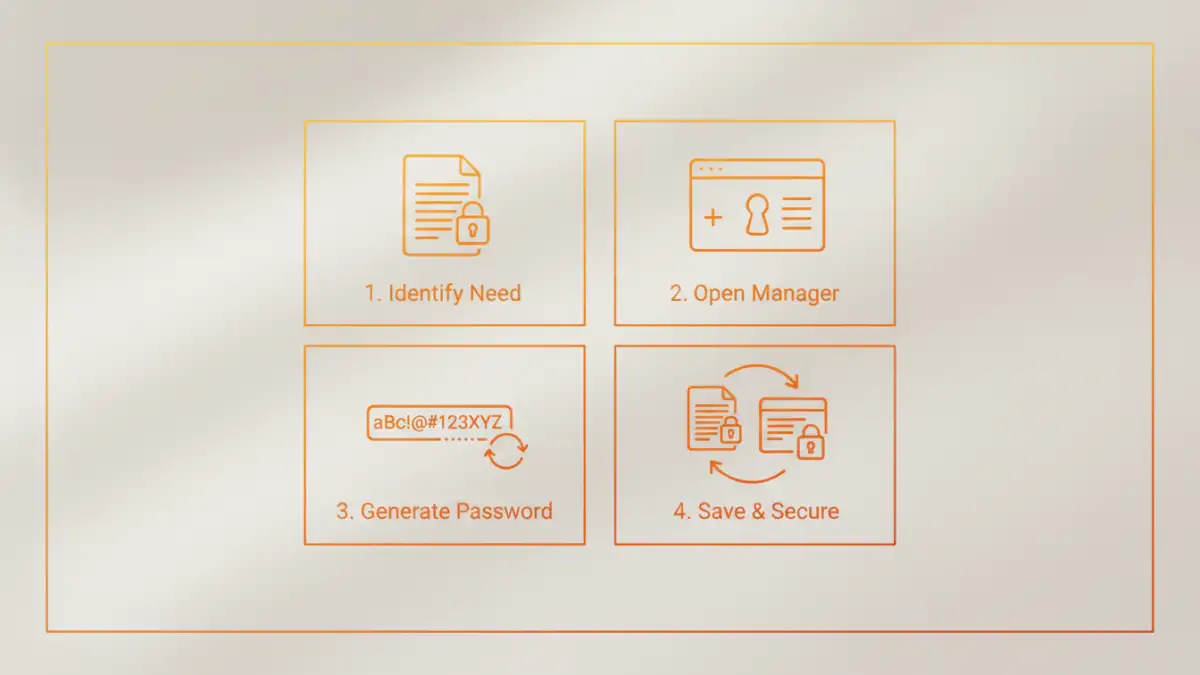
When you encrypt a PDF, a Word document, or a ZIP archive, you're prompted to create a password. The natural tendency is to use something you'll remember. However, this approach is fraught with problems that can compromise your security or lock you out of your own data.
First, memorable passwords are often simple and predictable. They might include names, dates, or common words, making them susceptible to brute-force or dictionary attacks. Second, the sheer number of passwords we manage daily leads to cognitive overload. It's unrealistic to expect to remember a unique, complex password for every sensitive file, especially for documents you access infrequently. This often leads to password reuse, where the same password protects your email, your bank account, and your encrypted files—a huge security risk.
How Password Managers Solve the Key Storage Problem

A password manager acts as a digital vault, designed specifically for secure password storage. Instead of trying to remember dozens of complex keys, you only need to remember one strong master password to unlock the vault. This is the core principle that makes using a password manager for document encryption keys so effective.
Centralized and Secure Storage
Password managers store your credentials in an encrypted database. When you need the password for a specific PDF, you simply look it up in your vault. This eliminates the dangerous practice of writing keys down on sticky notes or saving them in a plain text file on your desktop. Everything is in one secure, searchable location, accessible across your devices.
Generating Strong, Random Keys
The best feature of any password manager is its built-in password generator. When encrypting a new document, you can use the generator to create a long, random, and complex key (e.g., `8$#kG@zP!qR7t&eWvB*n`). There is no need to remember this gibberish; you just copy it from the generator, paste it into the document's password field, and then save it in your password manager vault. This ensures every document is protected by a cryptographically strong key.
Step-by-Step: Using a Password Manager for Document Keys
Storing a document's encryption key is slightly different from saving a website login, but most modern password managers make it easy. Here’s a general process that works for tools like 1Password, Bitwarden, and LastPass.
- Create a New Entry: In your password manager, choose to add a new item. Instead of selecting "Login," look for a more generic type like "Secure Note" or "Password." Some even have dedicated templates for software licenses or other credentials.
- Name the Entry Clearly: Give the entry a descriptive name that helps you identify the document it belongs to. For example, "Q4 Financial Projections 2024.xlsx - Encryption Key."
- Generate and Store the Password: Use the password manager's generator to create a strong password. Copy this password.
- Encrypt the Document: Go to your document (e.g., in Microsoft Word or Adobe Acrobat), choose the encrypt/protect option, and paste the generated password when prompted. Save the document.
- Save the Entry in Your Vault: Back in your password manager, paste the password into the password field of your new entry. Use the notes or custom fields section to add extra context, like the file's location on your hard drive or cloud storage (`/Dropbox/Projects/Project-Alpha/`).
Now, whenever you need to open that file, you can quickly find the entry in your vault, copy the key, and unlock your document without any guesswork.
What Else Can You Store in Your Password Manager?
Your password manager is a versatile file security vault that can hold more than just website and document passwords. Thinking of it as a general-purpose secret keeper opens up many possibilities for improving your overall digital security.
Other Critical Information to Secure
Consider storing other sensitive information that you need to access but shouldn't leave unsecured:
- Wi-Fi Passwords: Keep track of complex home and office Wi-Fi passwords.
- Software License Keys: Store the license keys for software you've purchased.
- Server/SSH Keys: For technical users, storing private keys or passphrases for server access is a common practice.
- Database Credentials: Securely store connection strings and passwords for databases.
- Secure Notes: Use the notes feature for anything sensitive, like alarm codes, locker combinations, or recovery codes for other services.
By centralizing all this information, your password manager becomes the single source of truth for all your digital secrets, protected behind strong, end-to-end encryption.
Comparison of Encryption Key Storage Methods
| Storage Method | Security Level | Convenience | Best For |
|---|---|---|---|
| Human Memory | Very Low | Low | Not recommended for anything important. |
| Plain Text File (.txt) | None | Medium | Never recommended; highly insecure. |
| Spreadsheet (Unencrypted) | None | Medium | Never recommended; easily compromised. |
| Sticky Notes | None | High (Physical) | Extremely insecure and easily lost or seen by others. |
| Password Manager | Very High | High | Securely storing all document keys, passwords, and sensitive notes. |