A few weeks ago, a small business owner reached out in a panic. They had sent a sensitive financial report to an investor, but the password they shared wasn't working. It turns out they had set a 'permissions' password instead of an 'open' password, a subtle but critical distinction. This small mix-up highlights a common theme I see: many people apply protection without fully understanding the mechanics behind it.
Securing a document is about more than just slapping a password on it. It involves understanding the types of protection available, the strength of the encryption, and how you manage the password itself. Getting any of these wrong can create a false sense of security, leaving your sensitive information vulnerable.
Table of Contents
Mistake 1: Using Weak or Reused Passwords
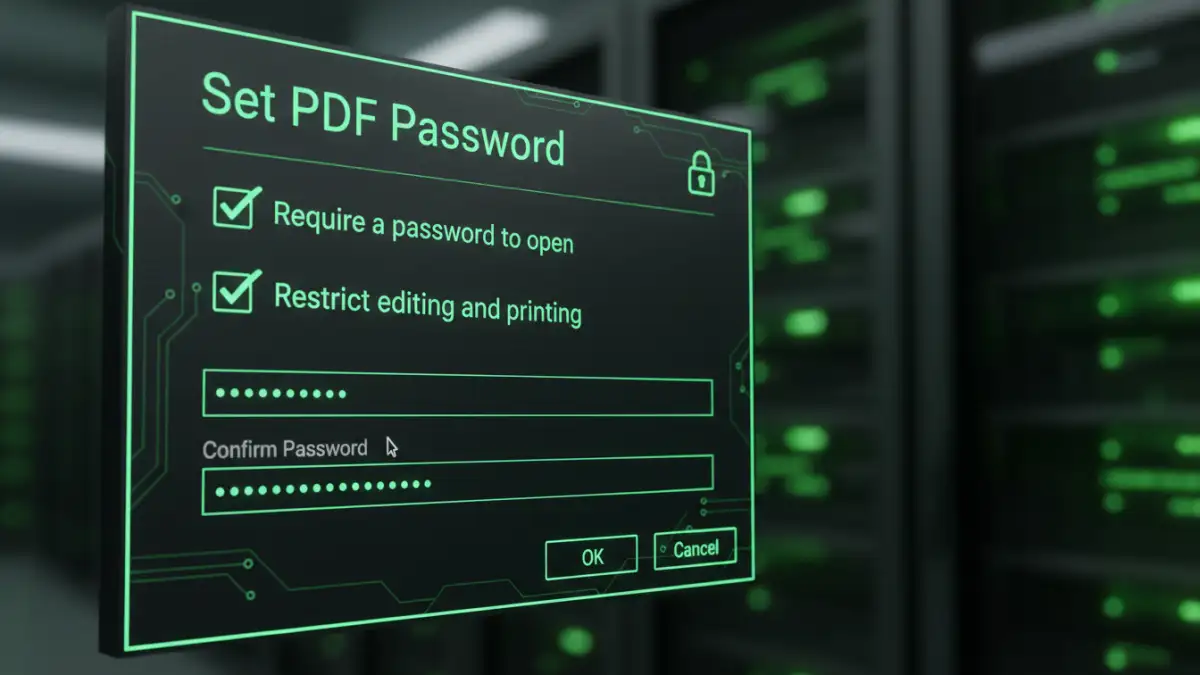
The most fundamental error in any security practice is using a weak password. It's the digital equivalent of locking your front door but leaving the key under the mat. Brute-force attacks, where software rapidly guesses millions of password combinations, can crack simple passwords in seconds.
The 'Easy to Remember' Trap
We've all been tempted to use 'Password123', a pet's name, or a significant date. While easy for you to remember, they are also the first things an attacker will try. A strong password should be long (at least 12-16 characters) and complex, incorporating a mix of uppercase letters, lowercase letters, numbers, and symbols. Using a password manager to generate and store these is the best approach.
The Danger of Password Reuse
I once worked on a security audit where we found an executive's 'secure' corporate documents were compromised. The culprit? He used the same password for his PDF reports as he did for a social media account that was part of a major data breach. Once attackers had that password, they tried it everywhere, and it unlocked his sensitive files. Never reuse passwords across different services or documents.
Mistake 2: Misunderstanding PDF Password Types
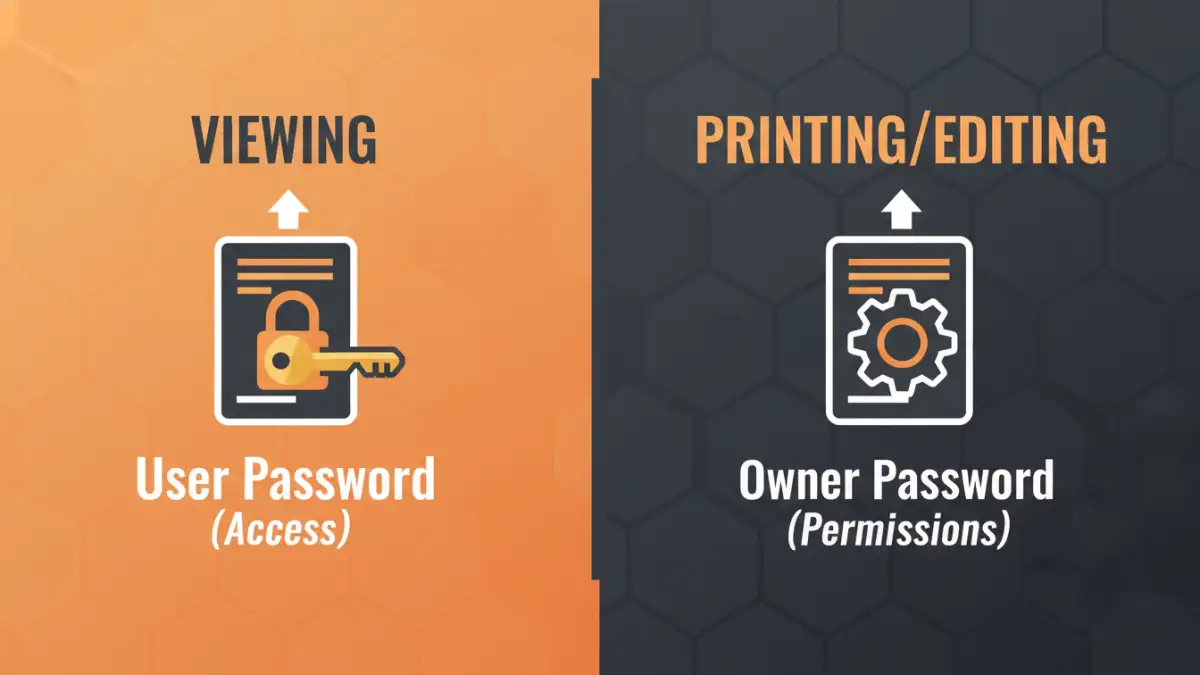
This brings me back to the business owner's problem. PDFs support two distinct types of passwords, and using the wrong one is a frequent source of confusion and one of the most common document protection mistakes. They serve entirely different purposes.
User Password (or Open Password)
This is what most people think of when password protecting a PDF file. A User Password locks the entire document. Without it, no one can open or view the file's contents. This is the correct choice when you need to prevent any and all unauthorized access to the information inside.
Owner Password (or Permissions Password)
An Owner Password, on the other hand, doesn't prevent someone from opening the file. Instead, it restricts what they can do *after* opening it. You can use it to block actions like printing, copying text, editing the document, or adding comments. It's useful for protecting intellectual property or ensuring document integrity, but it does not stop someone from reading the file.
Mistake 3: Ignoring Encryption Strength
Not all PDF protection is created equal. The underlying encryption algorithm determines how difficult it is for an unauthorized party to bypass the security. Using a tool that applies old, weak encryption is a critical form of weak file security.
Early versions of PDF security used algorithms like 40-bit RC4, which is now considered obsolete and can be broken with relative ease using widely available tools. Modern PDF creation software, such as Adobe Acrobat Pro DC, uses much stronger standards like 128-bit or 256-bit AES (Advanced Encryption Standard). When you're choosing a tool or setting security options, always opt for the highest level of encryption available, preferably 256-bit AES. This makes brute-force attacks practically impossible with current technology.
Mistake 4: Sharing and Storing Passwords Insecurely
You can create an uncrackable password with 256-bit AES encryption, but it's all for nothing if you email the password in plain text right after sending the file. This is a surprisingly common misstep. Email is not an inherently secure communication channel and can be intercepted.
The password is the key to your locked document; you must protect it just as carefully. Avoid sending the password and the file in the same email. A better practice is to share the password through a different, secure channel. This could be a text message, a phone call, or an encrypted messaging app like Signal. For ongoing collaboration, using a shared vault in a reputable password manager is the most secure and professional method.
PDF Password Type Comparison
To avoid pdf password errors, it's crucial to understand which password type to apply. The table below breaks down the primary functions of User vs. Owner passwords to help you make the right choice for your security needs.
| Feature | User (Open) Password | Owner (Permissions) Password |
|---|---|---|
| Primary Goal | Prevent unauthorized access to view the file. | Restrict actions after the file is opened. |
| File Access | Blocks anyone without the password from opening the PDF. | Allows anyone to open and view the PDF. |
| Restricts Printing | N/A (File cannot be opened to print). | Yes, can be configured to block printing. |
| Restricts Copying | N/A (File cannot be opened to copy). | Yes, can be configured to block copying of text/images. |
| Restricts Editing | N/A (File cannot be opened to edit). | Yes, can be configured to block all editing. |
| Best Use Case | Sharing highly confidential data (e.g., financial records, legal contracts). | Distributing copyrighted material or final-version documents (e.g., reports, ebooks). |