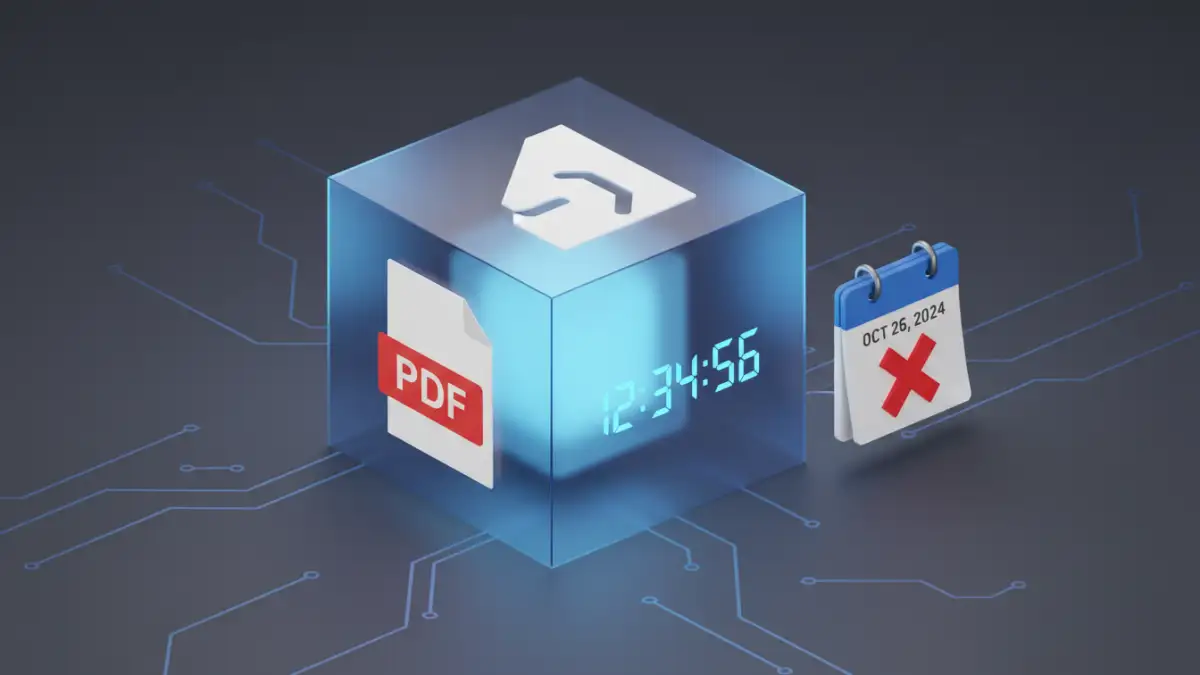
Sending a password-protected PDF feels secure, but have you ever considered what happens to that document a week, a month, or a year later? The password, once shared, can live on forever, potentially giving indefinite access to sensitive information. I've seen this challenge arise in many situations, from sharing confidential business proposals with a short review window to providing limited-time access to copyrighted materials.
The reality is that a standard PDF password is like a physical key; once you hand it over, you lose control over who uses it and for how long. The need to properly expire pdf password access is a common, yet surprisingly complex, requirement that standard tools like Adobe Acrobat don't natively support.
Table of Contents
The Problem with Permanent Passwords
When you use the built-in security features of Adobe Acrobat or other common PDF editors, you're applying static encryption. You can set a password to open the document (a user password) or a password to change permissions like printing and editing (an owner password). While useful, these passwords have one major flaw: they are permanent.
Once a recipient has the password, they can access the file indefinitely. If that password is leaked, shared, or compromised, your document is exposed. This creates significant risk for time-sensitive information such as financial reports, legal contracts under review, or limited-time offers. Manually changing and redistributing the file with a new password is cumbersome and doesn't revoke access for those who already have the old one.
Common Scenarios Requiring Expiration
The need for a time limited pdf is more common than you might think. Here are a few real-world examples I've encountered:
- Business Proposals: A company sends a detailed bid to a potential client, valid for only 30 days. After that, the terms may change, and the old proposal should become inaccessible.
- Academic Review: A researcher shares a pre-publication manuscript with peers for review, wanting to ensure it can't be accessed or circulated after the review period ends.
- E-learning and Training: A training company sells course materials with a 90-day access license. Standard PDFs would allow users to keep the material forever.
- Secure Data Rooms: During a merger or acquisition, sensitive documents are shared with third parties for due diligence, with access needing to be revoked automatically on a specific date.
Understanding the Technology: DRM vs. Passwords

The solution to this problem lies beyond simple passwords. The technology designed for this level of control is called Digital Rights Management (DRM). It's crucial to understand the fundamental difference between the two approaches.
A password is a simple authentication key that decrypts the file on the user's machine. Once decrypted, control is lost. In contrast, DRM is a system that manages access continuously. The document is wrapped in a protective layer, and to open it, the user's device must communicate with a server to verify their permissions. This server check is what enables dynamic control, including setting expiration dates.
Key Features of DRM Solutions
DRM platforms offer a suite of pdf security settings that go far beyond a simple password. These systems can enforce rules such as:
- Document Expiration: Set a fixed date and time for the document to become inaccessible.
- Revocation of Access: Instantly revoke access for a specific user or for all users, even after the document has been downloaded.
- Print and Copy Control: Disable printing, screenshots, and copy-pasting of text.
- Location-Based Access: Restrict document access to specific IP addresses or geographic locations.
- User Tracking: Monitor who has opened the document, when, and from where.
How to Set PDF Password Expiration Using DRM
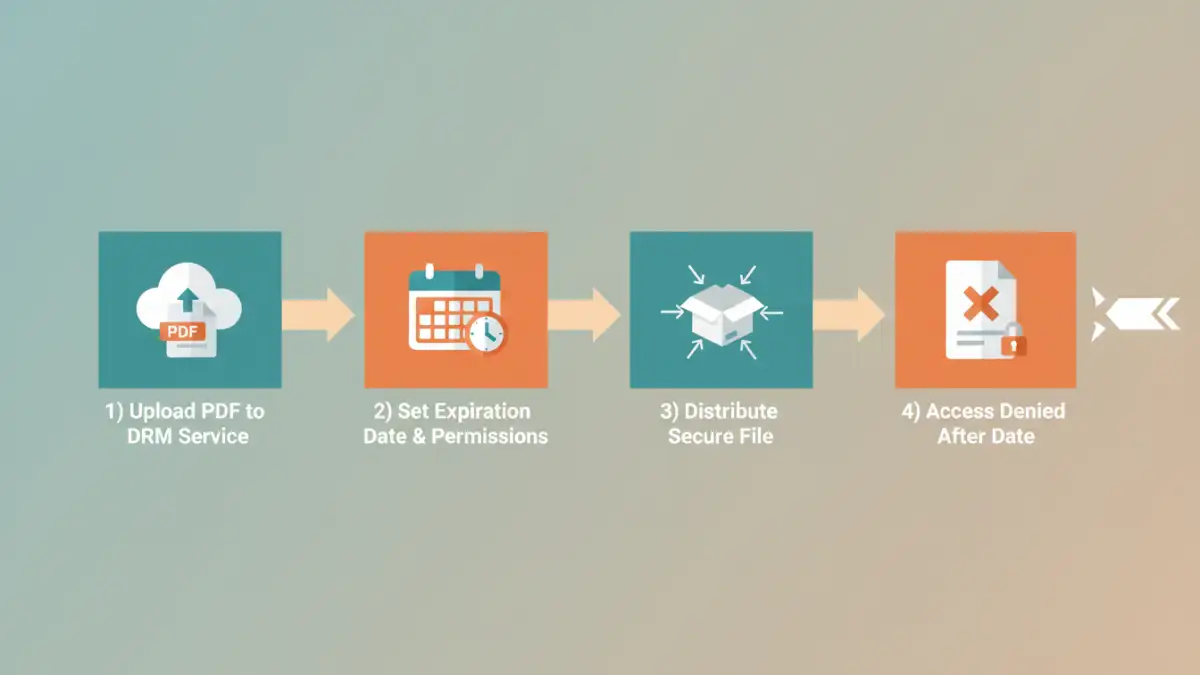
Since this functionality isn't built into standard PDF tools, you'll need to use a third-party DRM service. While many exist, the process is generally similar across platforms like LockLizard, Vitrium Security, or FileOpen. Here is a conceptual step-by-step guide.
- Select a DRM Provider: Research and choose a DRM service that fits your security needs and budget. These are typically subscription-based services geared toward businesses.
- Upload Your PDF: Log into the provider's platform and upload the PDF file you want to protect. The service will process and encrypt the document with its proprietary protection.
- Configure Security Policies: This is the most critical step. In the settings panel, you will define the access rules. Look for an option labeled "Expiration," "Access Period," or "Validity." You can typically set a fixed expiration date (e.g., expires on Dec 31st) or a relative period (e.g., expires 14 days after the user's first access).
- Assign Users and Distribute: You will then assign access rights to specific users, often via their email addresses. The system will generate a secure link or a protected file for you to distribute. Users will usually need to install a lightweight, secure viewer provided by the DRM service to open the document. When they do, the viewer contacts the server to check if the expiration date has passed.
Alternative Methods for Technical Users
For those with development resources, a custom solution is possible, though it requires significant effort. I've helped architect systems like this for specific enterprise needs. The core idea is to avoid sending the actual PDF file directly.
Instead, you build a web application that stores the PDF securely on a server. Users log into a web portal to view the document through a browser-based viewer. Your application's backend logic is responsible for checking the current date against the stored expiration date for that user or document. If the date has passed, the server simply refuses to render the file. This method provides immense control but is a full-blown software development project.
DRM vs. Standard PDF Password Comparison
| Feature | Standard PDF Password | Digital Rights Management (DRM) |
|---|---|---|
| Password Expiration | Not available | Yes, can be set to a specific date or period |
| Remote Access Revocation | No, cannot be revoked once shared | Yes, access can be revoked instantly at any time |
| Print/Copy Control | Basic control, easily bypassed | Strong control, including blocking screenshots |
| User Tracking | No tracking available | Detailed logs of who, when, and where |
| Offline Access | Unlimited once downloaded | Can be controlled or limited |
| Required Software | Any standard PDF reader | Proprietary secure viewer or web portal |
| Cost | Free (built-in) | Subscription-based service (Paid) |