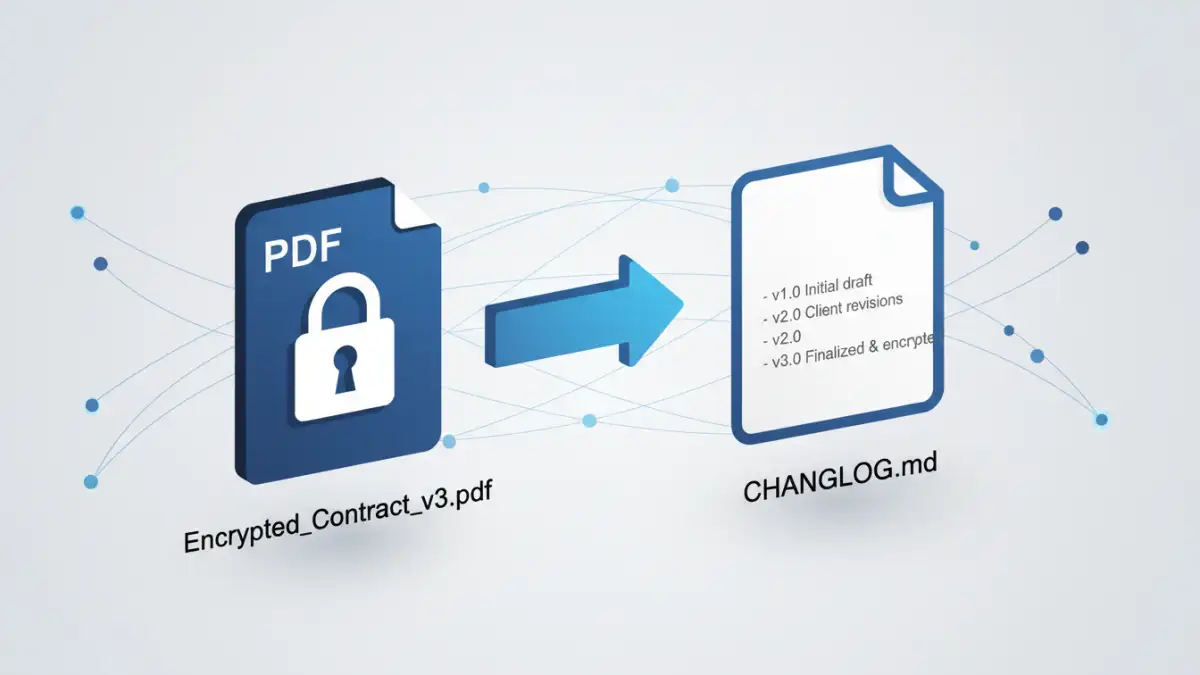
Working with password-protected documents can be frustrating, especially on a team. I once saw a project nearly derail because two people were editing different versions of an encrypted legal agreement. Because the file was a locked, binary blob, our usual tools couldn't tell us what had changed. This led to confusion, wasted time, and the risk of sending the wrong version to a client.
The core issue is that encryption and version control are fundamentally at odds. Encryption scrambles content to make it unreadable, while version control needs to read content to track changes. When you can't see the changes, you can't merge work or review history effectively. Fortunately, there's a simple, low-tech strategy that solves this problem.
Table of Contents
The Core Challenge with Encrypted PDFs
Standard version control systems, like Git, are brilliant at handling text files. They can analyze changes line by line, allowing for easy review and merging of different branches. However, when you give Git an encrypted PDF, it sees gibberish. Any change, no matter how small—even fixing a single typo—results in a completely different encrypted file.
This means the system can't perform a 'diff' to show you what's new. Instead, it treats each saved version as a brand new, monolithic file. Storing every version this way is incredibly inefficient, bloating your storage and providing almost no insight into the document's evolution. This makes effective document revision tracking nearly impossible.
Encryption vs. Versioning: A Technical Conflict
The conflict is straightforward: encryption's goal is to obscure data, while versioning's goal is to interpret it. When a PDF is encrypted, its internal structure and text are transformed into a non-human-readable format. A version control system has no way to peer inside and compare the text of version 1.1 with version 1.2. It only knows that two different files exist.
A Simple Strategy: Decouple and Document
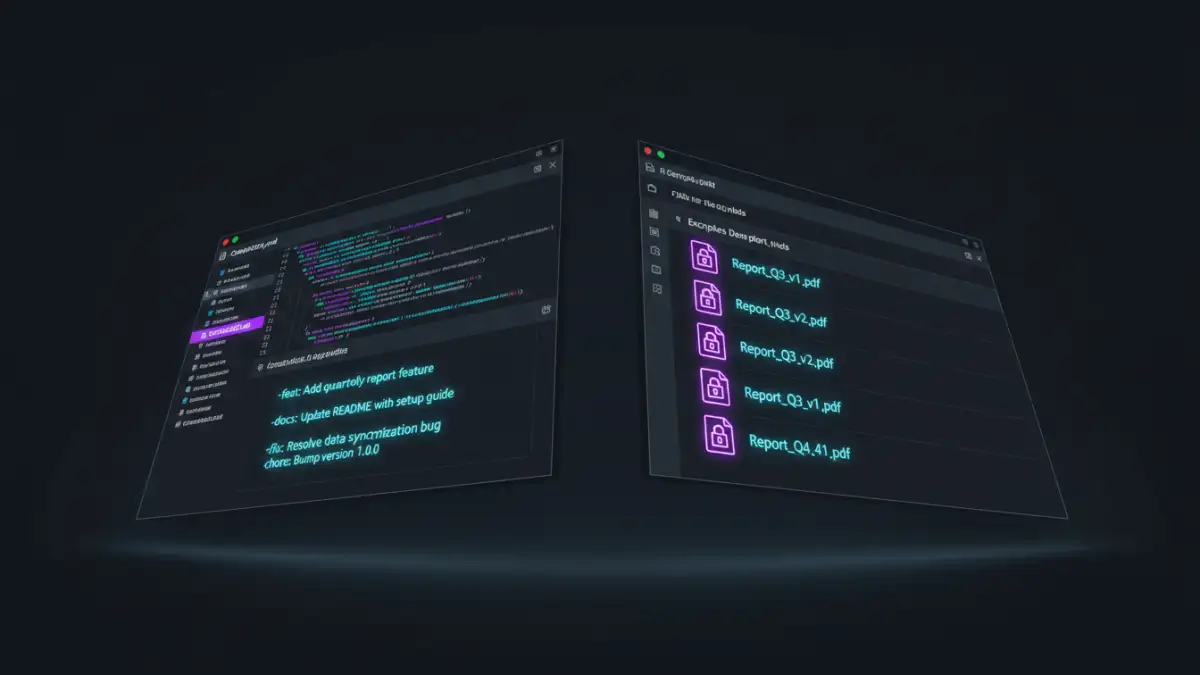
The most effective solution is to stop trying to make version control understand the encrypted file. Instead, we decouple the file itself from the history of its changes. The strategy involves storing the encrypted PDF alongside a simple, plain-text changelog file that describes each revision. You track the changelog, not the PDF.
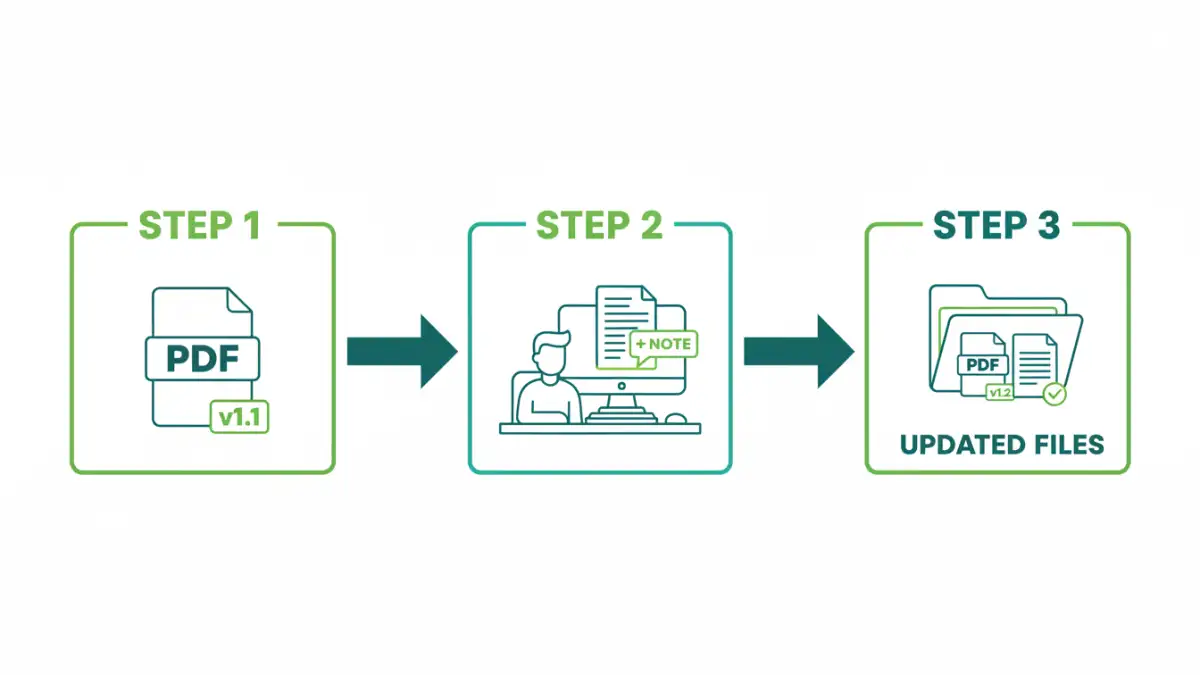
Step 1: Establish a Clear Naming Convention
Your first line of defense is a consistent file naming system. This provides an at-a-glance understanding of the file's status. A robust format includes the document name, a version number, and a date.
For example: Project-Titan-MSA-v2.1_2024-09-15.pdf
This simple habit instantly clarifies which version is the most recent and helps prevent team members from working on an outdated file. It's the foundation for how you manage pdf versions manually.
Step 2: Create a Companion Changelog File
In the same folder as your encrypted PDFs, create a plain text file. I prefer using Markdown for its simple formatting, so I'll often name it CHANGELOG.md or _Revisions.md. This file will become your single source of truth for the document's history.
Because it's a simple text file, any version control system—from Dropbox's file history to a full Git repository—can track it perfectly. This is where you'll build your secure file history.
Step 3: Documenting Changes Effectively
Whenever a new version of the PDF is created, you must update the changelog. Each entry should be concise but informative, including the new version number, the date, the author, and a summary of the changes.
An entry might look like this:
- v2.1 (2024-09-15) - Buddhadeb Bera: Updated Section 4.2 to clarify data processing terms. Corrected typo in Appendix A.
- v2.0 (2024-09-10) - Jane Doe: Major revision. Added clauses for international compliance and revised liability limits in Section 8.
This log is now the human-readable history of your encrypted document. Anyone can open it to understand the file's journey without needing to decrypt every past version.
Implementing the Strategy with Common Tools
This strategy is flexible and can be adapted to the tools your team already uses. You don't need to invest in complex, specialized software for pdf file version control.
Using Shared Drives (Google Drive, OneDrive)
For many teams, a shared cloud drive is sufficient. You store the versioned PDFs (e.g., ...v1.0.pdf, ...v1.1.pdf) and the `CHANGELOG.md` file in a shared folder. Cloud storage platforms automatically version files, so you get a built-in history for the changelog. If someone accidentally deletes or corrupts the changelog, you can easily restore a previous version.
A More Robust Approach with Git
For technical teams, Git provides a more powerful solution. You can commit the `CHANGELOG.md` file to a Git repository to get a detailed, auditable history of every change. The encrypted PDFs themselves can be stored directly in the repository, but a better practice for large files is using Git LFS (Large File Storage). This keeps your main repository small and fast while still tracking the large PDF files.
Best Practices for Collaboration and Security
To make this system work smoothly, a few ground rules are essential. These practices enhance both collaboration security and overall efficiency.
First, establish a secure method for sharing the PDF password. Never send it over email or chat. Use a shared vault in a team password manager like 1Password, Bitwarden, or LastPass. This ensures only authorized individuals can access the documents.
Second, define clear access controls. On a shared drive, designate one or two people as the official 'editors' who can upload new final versions. This prevents a free-for-all where multiple 'final' versions might appear. Finally, consider creating an 'Archive' subfolder to move older versions into, keeping the main directory clean and focused on the most current documents.
PDF Versioning Strategy Comparison
| Strategy | Pros | Cons | Best For |
|---|---|---|---|
| File Naming + Shared Drive | Very easy to set up; uses existing tools; simple for non-technical users. | Relies on manual discipline; risk of naming errors; basic history tracking. | Small teams, projects with infrequent updates, non-technical environments. |
| File Naming + Git | Robust, auditable history of the changelog; clear ownership of changes. | Requires Git knowledge; can be overkill for simple projects. | Development teams or technical users already comfortable with Git. |
| File Naming + Git with LFS | Best of both worlds: robust text history and efficient binary storage. | Requires setup and understanding of both Git and Git LFS. | Teams managing many large, encrypted files alongside code or other assets. |
| Document Management System | Automated versioning, access control, audit trails. | Can be expensive; may have a steep learning curve; potential vendor lock-in. | Large enterprises or regulated industries requiring formal compliance. |