I recently helped a friend who runs a small consulting business. Her team was struggling with a shared drive that had become a digital junk drawer. Files were everywhere, naming was inconsistent, and worst of all, sensitive client contracts were sitting in unprotected folders. It was a classic case of digital chaos inviting a security risk. We spent a weekend untangling the mess, but it highlighted a problem I see all the time: a lack of a planned, secure structure for digital files.
Building a fortress for your digital life doesn't require a background in cybersecurity. It starts with a logical framework and a few simple tools. A well-organized system not only saves you time but also forms the first line of defense in your overall digital file security strategy.
Table of Contents
The Foundation: Why a Secure Structure Is Crucial
Before we start creating folders, it's important to understand why structure is so fundamental to security. An unorganized system is an insecure one. When you don't know where sensitive information is, you can't adequately protect it. This is a core principle of confidential file storage: you must be able to locate and control access to your most important data.
A chaotic system leads to accidental data exposure, difficulty in applying permissions, and a nightmare scenario during security audits or data recovery efforts. By establishing a clear hierarchy from the start, you create a system where security policies can be applied logically and consistently, from the top-level folders down to individual files.
Common Pitfalls to Avoid
Many individuals and businesses fall into the same traps. One is using vague folder names like “Miscellaneous” or “Docs,” which quickly become digital black holes. Another is nesting folders too deeply, creating complex paths that are difficult to navigate. Finally, failing to separate personal, professional, and sensitive data into distinct top-level categories makes it impossible to apply granular security controls.
Building Your Secure Folder Structure
The goal here is to create a system that is intuitive and scalable. I always advise starting with broad, top-level categories and getting more specific as you go deeper. Think of it like a physical filing cabinet: you have drawers, then hanging folders, then individual manila folders. This approach is one of the most effective folder structure best practices.
For example, a freelancer might start with top-level folders like `01_Clients`, `02_Admin`, `03_Marketing`, and `04_Archive`. The numbers help maintain a consistent order. Within `01_Clients`, you would have a separate folder for each client, and within each client folder, subfolders for `Contracts`, `Invoices`, `Projects`, and `Correspondence`.
A Template for Business Use
Here’s a simple, effective structure that can be adapted for most small businesses:
- 01_Finance: Contains subfolders for `Invoices`, `Receipts`, `Tax_Documents`, `Payroll`. This entire folder should have restricted access.
- 02_Clients: Subfolders for each client name. Inside each, `Proposals`, `Contracts`, `Active_Projects`, `Completed_Work`.
- 03_Operations: For internal processes, with subfolders like `HR`, `IT_Policies`, `Meeting_Notes`.
- 04_Marketing: Contains `Brand_Assets`, `Campaigns`, `Social_Media_Content`.
- 05_Archive: For old projects and inactive client files that must be retained but not accessed regularly.
Choosing Your Security Layers
A good structure is the first step. The next is to apply security measures to protect the data within it. You have several options, ranging from tools built into your operating system to specialized third-party software. The right choice depends on your specific needs and threat model.
Operating System-Level Encryption
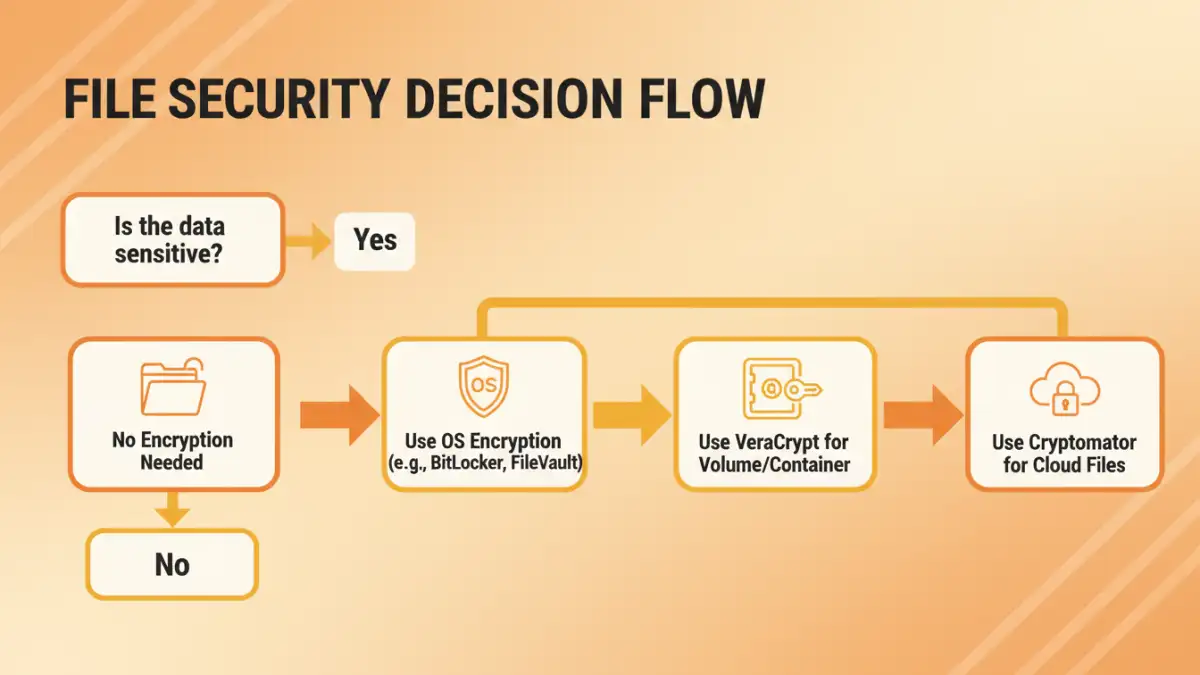
Both Windows and macOS offer robust, built-in encryption. Windows has BitLocker, which can encrypt entire drives, and the Encrypting File System (EFS) for individual files and folders. macOS has FileVault, which encrypts your entire startup disk. These are excellent baseline security measures because they are integrated, free, and protect your data if your device is lost or stolen.
Third-Party Encryption Tools
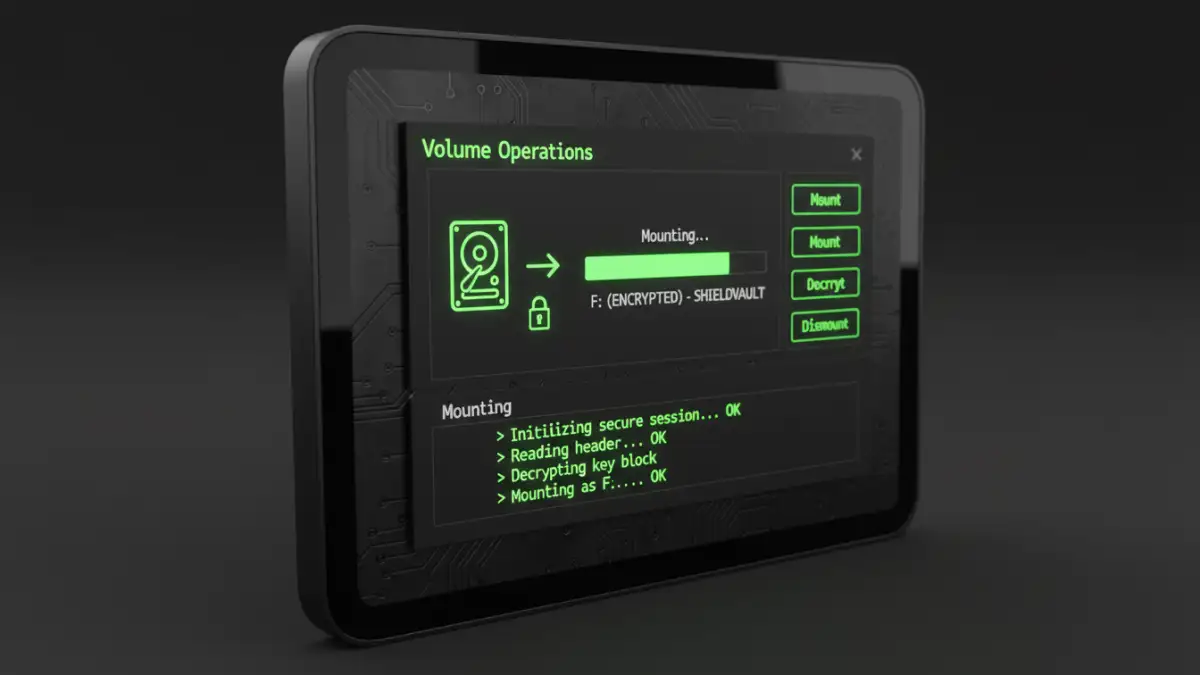
For more granular control or cross-platform needs, tools like VeraCrypt and Cryptomator are fantastic. VeraCrypt allows you to create an encrypted virtual disk—a file that mounts as a separate drive where you can store your most sensitive folders. Cryptomator is designed for cloud storage, encrypting files on-the-fly before they are synced to services like Dropbox or Google Drive. This ensures that even your cloud provider cannot access your data.
Maintenance and Long-Term Security
Your work isn't done once the system is built. Effective and secure document management is an ongoing process. Schedule a quarterly review to clean up your folders, archive old projects, and ensure your naming conventions are being followed. Regularly review access permissions, especially in a team environment, to ensure former employees or contractors no longer have access.
Finally, back up your data. A secure structure is useless if the data is lost. Use a combination of local and cloud backups. For highly sensitive encrypted containers (like a VeraCrypt volume), make sure you back up both the container file and the password/keyfile in a secure location, such as a password manager.
Security Method Comparison for Folder Systems
| Method | Pros | Cons | Best For |
|---|---|---|---|
| OS Encryption (BitLocker/FileVault) | Built-in, free, seamless user experience. | Tied to the operating system, protects entire drive rather than specific folders. | Baseline security for lost or stolen laptops. |
| Third-Party Tools (VeraCrypt) | High-grade encryption, cross-platform, granular control over encrypted volumes. | Requires manual setup and mounting/dismounting of volumes. | Protecting highly sensitive data on any device. |
| Cloud Storage Encryption (Cryptomator) | Encrypts files before they leave your device, works with any cloud provider. | Adds an extra step to accessing cloud files. | Securing confidential file storage in the cloud. |
| Folder Password Protection (OS/Utility) | Simple and quick to apply. | Often weak security, easily bypassed by knowledgeable users. | Deterring casual snooping, not determined attackers. |