Working with password-protected documents can be frustrating, but the security they offer is often essential. In our line of work, dealing with sensitive client data, intellectual property, or even just personal records, ensuring these files are adequately protected is paramount. It's not just about setting a password once; it's about cultivating consistent, robust pdf password habits that genuinely safeguard your information. Many people settle for weak passwords or forget to re-encrypt files, leaving them vulnerable.
Over the years, I've seen firsthand how easily security can be compromised through simple oversights. This isn't about complex hacking; it's about common mistakes that can have significant consequences. Developing a strong routine for managing and applying passwords to your PDFs is crucial for maintaining data integrity and privacy in an increasingly digital world.
Table of Contents
Understanding PDF Password Basics
PDFs can be secured using two primary types of passwords: owner passwords and user passwords. An owner password restricts certain actions like printing, copying text, or editing the document, even if the PDF is opened. A user password, on the other hand, is required to open and view the document at all. Understanding this distinction is the first step toward effective document password protection.
Key Concepts in PDF Security
When you set a password, the PDF is encrypted. The strength of this encryption depends on the software used and the complexity of the password. For truly sensitive information, it's vital to use strong, unique passwords that are difficult to guess or brute-force. This means avoiding common words, personal information, or sequential numbers.
Creating Strong, Secure Passwords

The backbone of any secure document is a strong password. A good password should be long, a mix of uppercase and lowercase letters, numbers, and symbols. Think of phrases or sentences that are meaningful to you but nonsensical to others, then modify them with numbers and symbols. For instance, "MyDogLovesToPlayFetch!" could become "MyD0gL0ves2PlayFetch!" or "My$L0ve!s2PlayF3tch".
Avoid reusing passwords across different documents or services. If one account is compromised, all your other protected files could be at risk. Developing secure pdf passwords requires a commitment to uniqueness and complexity. This is where good password management habits become indispensable.
Implementing PDF Password Protection
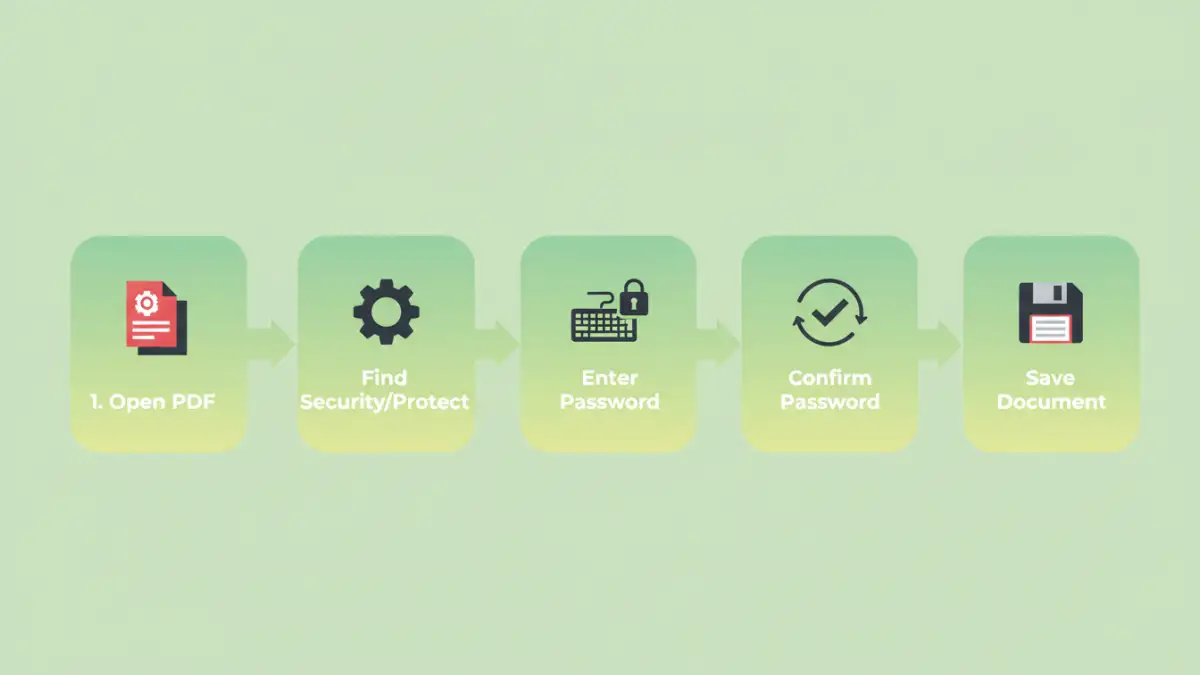
Most PDF viewers and editors, like Adobe Acrobat, Foxit Reader, or even built-in browser functions, offer options to set passwords. The process typically involves opening the PDF, navigating to security settings or a 'Protect' menu, and choosing to encrypt with a password. You'll then be prompted to set either a user password, an owner password, or both.
For instance, when using Adobe Acrobat Pro, you can go to File > Protect Using Password. Here, you can define restrictions on printing, editing, and copying. It's crucial to remember the password you set. If you lose it, recovering the document can be extremely difficult or impossible, depending on the encryption strength and the software used.
Effective Password Management Habits
This is where the rubber meets the road for consistent security. Simply setting a password isn't enough; you need a system. Password management habits are about organization and security. I recommend using a reputable password manager. These tools generate strong, unique passwords for you and store them securely, so you don't have to memorize them all.
When sharing a password-protected PDF, the secure way to share the password is via a different channel than the document itself. For example, send the PDF via email, and then text or call the recipient with the password. This prevents a single breach from compromising both the file and its key.
Advanced Security Measures
Beyond basic password protection, consider other security layers. For highly sensitive documents, explore advanced encryption options offered by specialized software. Some tools allow for granular control over permissions, including setting expiration dates for access or restricting access to specific IP addresses. Always ensure you are using up-to-date software that supports strong encryption standards like AES-256.
Regularly review your security practices. Are your passwords still strong? Are there any documents that no longer need password protection? Periodically reassessing and updating your approach ensures your security remains robust against evolving threats. Mastering pdf password habits is an ongoing process, not a one-time task.
Comparison Table: PDF Password Protection Methods
| Method | Ease of Use | Security Level | Best For | Considerations |
|---|---|---|---|---|
| Built-in PDF Reader/Editor | High | Moderate to High (depends on password strength) | General document protection, sharing with known individuals | Requires user to remember password; loss can mean data inaccessibility. |
| Online PDF Tools | Very High | Variable (depends on tool and encryption) | Quick, one-off protection for non-critical documents | Privacy concerns due to file uploads; potential for weaker encryption. |
| Desktop PDF Software (e.g., Acrobat Pro) | Moderate to High | High (supports strong encryption) | Comprehensive protection, setting granular permissions | Often requires purchase; robust features for frequent users. |
| Dedicated Encryption Software | Moderate | Very High (AES-256 and beyond) | Highly sensitive data, legal documents, long-term archival | Can have a steeper learning curve; may require specific software for decryption. |