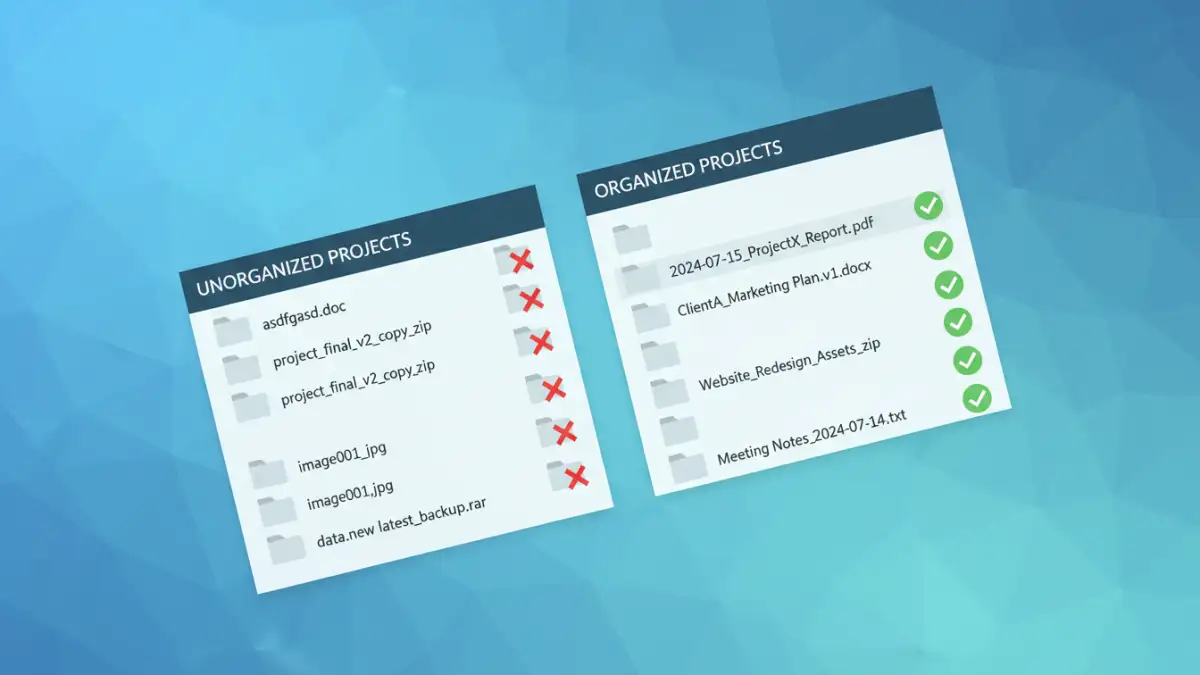
Ever stared at a folder full of files named `report_final_v2_encrypted.pdf` and `report_final_final_encrypted.pdf`, trying to figure out which one to send to a client? It's a common problem that goes beyond simple clutter. When dealing with sensitive information, a disorganized naming system can easily lead to sending the wrong—or worse, an unsecured—version of a document.
Document security isn't just about strong passwords; it's also about process and organization. A smart file naming convention is a foundational layer of that process. It provides clarity, reduces human error, and ensures that you and your team can quickly identify and manage your encrypted files without confusion.
Table of Contents
Why Naming Conventions Matter for Security
You might think a file name is just a label, but in a professional environment, it's a critical piece of metadata. For secure PDF files, a consistent naming system is even more important. It serves as the first line of defense against common mistakes that can compromise your data.
A well-structured name immediately tells you the file's content, version, and status without even opening it. This is invaluable during audits, client communications, or internal reviews. I've seen situations where a poorly named file led a team member to accidentally share a draft version of a contract containing internal notes instead of the final, encrypted version. A clear name like `20231120_ClientAgreement_v3_SEC.pdf` would have prevented that entirely.
Reducing Human Error
The most robust encryption can be undone by simple human error. A logical PDF naming convention minimizes the chances of sending an unsecured draft, overwriting a final version, or working from an outdated document. When every file follows the same pattern, your brain processes it faster and more accurately, leaving less room for mistakes.
Improving Audit Trails and Version Control
When you need to track the history of a document, a naming system that includes dates and version numbers is essential. It creates a clear, chronological trail that is easy to follow. This is crucial for legal documents, financial reports, and project deliverables where version history is non-negotiable. It makes organizing encrypted files a systematic process rather than a guessing game.
The Anatomy of a Smart File Name

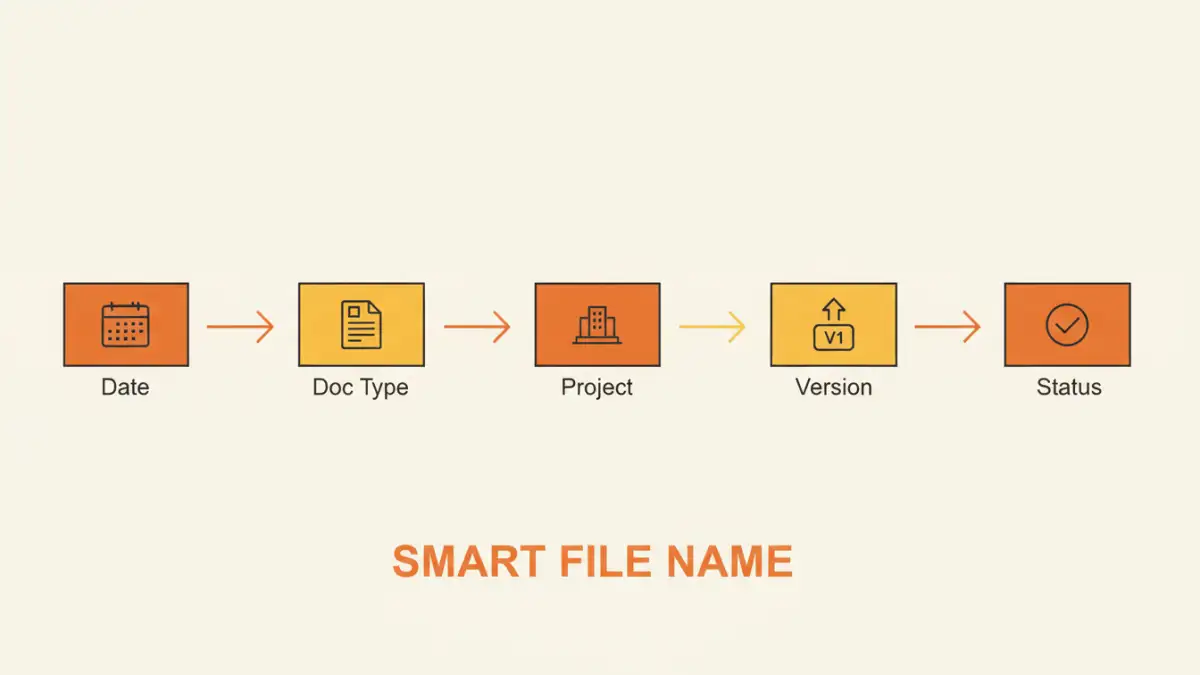
A great naming system is predictable and scalable. It should contain enough information to be useful but remain concise enough to be practical. I recommend a structure built from a few key components, always in the same order.
My preferred format is: `YYYYMMDD_[Document-Type]_[Project-or-Client-Name]_v[#]_[Status].pdf`. This structure is sortable by date and provides a wealth of information at a glance. Let's break down each part.
Core Components to Include
Here are the essential elements I always include in my file names:
- Date (YYYYMMDD): Using this format ensures files sort chronologically in any file system. It's unambiguous and internationally understood. Always lead with the date.
- Document Type/Description: A short, descriptive keyword like `Contract`, `Invoice`, `Report`, or `Presentation`. Keep it consistent.
- Project or Client Name: Identifies who or what the document is for. Use a consistent abbreviation if the name is long (e.g., `ProjectPhoenix` becomes `PPX`).
- Version Number (v1, v2.1): Essential for tracking revisions. Use `v1`, `v2`, etc., for major drafts and `v1.1`, `v1.2` for minor edits.
- Status or Security Indicator: This is key for secure pdf files. Use a short tag like `DRAFT`, `FINAL`, or `SEC` (for secured/encrypted) to indicate the file's state.
Separators and Formatting
Consistency in formatting is just as important as the components themselves. Use underscores `_` or hyphens `-` to separate components, but stick to one. I prefer underscores as they are often easier to read. Avoid spaces in file names, as they can cause issues with command-line tools and web URLs. Using PascalCase (e.g., `ClientAgreement`) for multi-word descriptions also improves readability.
Practical Naming Convention Examples
Let's see this system in action. Theory is great, but practical application is what makes it stick. Seeing the transformation from a chaotic name to a structured one highlights the benefits immediately.
Scenario 1: A client contract
- Bad: `contract final for acme encrypted.pdf`
- Good: `20231120_Contract_AcmeCorp_v3_SEC.pdf`
The 'good' example tells you it's a contract for Acme Corp, created on November 20, 2023. It's the third version and is secured.
Scenario 2: A quarterly financial report
- Bad: `Q3 report draft.pdf`
- Good: `20231015_FinancialReport_Q3_v1_DRAFT.pdf`
Here, you know the exact date, the document type, the period it covers (Q3), and that it's a first draft.
Scenario 3: An internal project proposal
- Bad: `Project X proposal new version.pdf`
- Good: `20231118_Proposal_ProjectX_v2.1_INTERNAL.pdf`
This name clearly indicates a minor revision (`v2.1`) of a proposal for an internal project, created on a specific date.
Best Practices for Managing Encrypted Files
A great PDF naming convention is part of a larger strategy for effective file management tips and document security. Here are a few more practices I've adopted over the years to keep digital assets organized and safe.
First, complement your naming system with a logical folder structure. Create folders for each client, project, or year. For example: `Clients/AcmeCorp/Contracts/`. This way, even with thousands of files, you can navigate to the right one in seconds.
Second, document your naming convention and share it with your team. A system only works if everyone uses it. A simple, one-page guide stored in a shared location is enough to ensure consistency across the board. This prevents confusion and reinforces good habits.
Finally, consider using metadata within the PDF itself. In Adobe Acrobat and other editors, you can add properties like 'Author', 'Title', and 'Keywords'. This information is searchable and provides another layer of context that complements the file name, making your document management even more robust.
File Naming Convention Components
| Component | Purpose | Example | Best Practice |
|---|---|---|---|
| Date (YYYYMMDD) | Ensures chronological sorting and provides a clear timeline. | `20231120` | Always place it at the beginning of the file name. |
| Document Type | Identifies the file's purpose at a glance. | `Invoice` | Use a predefined list of types (e.g., Contract, Report, Memo). |
| Client/Project | Links the file to a specific entity or initiative. | `AcmeCorp` | Use consistent abbreviations for long names. |
| Version Number | Tracks revisions and prevents using outdated information. | `v2.1` | Use whole numbers for major versions and decimals for minor edits. |
| Status/Security | Indicates the document's state and if it is secured. | `SEC` or `DRAFT` | Use short, clear acronyms like SEC, DRAFT, FINAL, or INTERNAL. |