
Working with sensitive information in PDF format is a daily reality for many professionals. Whether it's financial reports, client contracts, or personal data, ensuring these documents are secure requires diligence. I've found that relying solely on occasional security measures isn't enough; a consistent, proactive approach is key. This is where establishing a regular pdf security habit becomes invaluable.
Over the years, I've learned that security isn't a one-time fix but an ongoing process. A well-defined routine can prevent costly breaches and maintain trust with clients and colleagues. To help you cultivate this essential practice, I've put together a comprehensive monthly checklist designed to reinforce your document security posture.
Table of Contents
Understanding the Importance of PDF Security
PDFs are ubiquitous, making them a common target for malicious actors. Their portability and ability to retain formatting make them ideal for sharing, but this ease of use can also be a vulnerability. Unsecured PDFs can expose confidential data, leading to identity theft, financial fraud, or corporate espionage. Building a strong pdf security habit is crucial for mitigating these risks.
Why PDFs Need Protection
Think about the types of information commonly stored in PDFs: legal agreements, medical records, financial statements, intellectual property drafts, and personal identification details. A breach of any of these could have severe consequences. Regular security checks ensure that these documents are not only protected during creation but also throughout their lifecycle, including storage and transmission.
Your Monthly PDF Security Habit Checklist
Implementing a consistent routine is the most effective way to maintain a strong security posture. This checklist is designed to be actionable and cover essential aspects of PDF security. Dedicate a specific time each month to go through these steps. It might seem like a small effort, but it can prevent significant security headaches down the line.
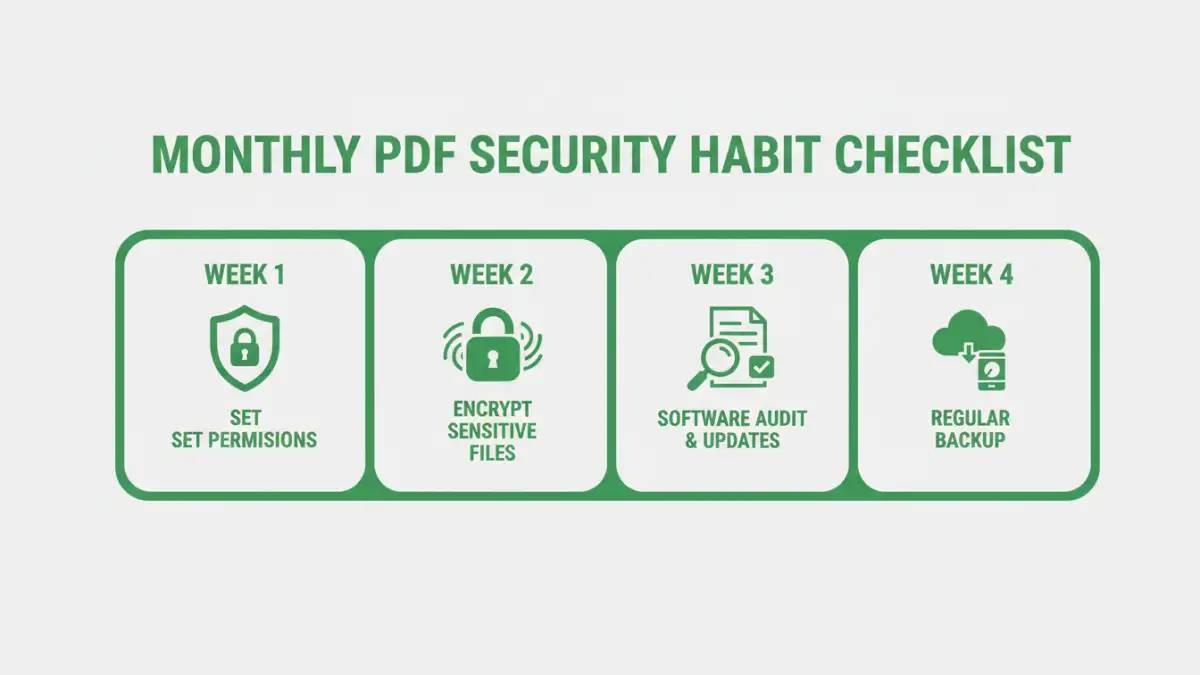
Week 1: Review and Update Permissions
Start the month by reviewing who has access to your sensitive PDF files. If you use cloud storage or shared drives, check the permission settings for critical documents. Remove access for individuals who no longer require it. Ensure that only authorized personnel can view, edit, or print specific documents. This step is fundamental to any good file security routines.
Week 2: Check Encryption Status
Verify that all sensitive PDFs are encrypted. For documents containing highly confidential information, ensure they are protected with strong passwords and robust encryption algorithms. If you're using software to manage your PDFs, check that its encryption features are up-to-date and functioning correctly. This is part of a proactive document security checklist.
Week 3: Audit Software and Tools
Review the PDF software and online tools you use. Are they reputable? Are they updated to the latest versions? Outdated software often contains security vulnerabilities that attackers can exploit. Uninstall any unnecessary or untrusted applications. For online tools, be mindful of their privacy policies and ensure they meet your security standards.
Week 4: Backup and Archive Review
Ensure your critical PDF backups are current and accessible. Test a few backup files to confirm they can be restored properly. Securely archive older documents that are no longer actively used but need to be retained for compliance or historical purposes. Proper backup and archiving are essential components of overall document security.
PDF Encryption Methods
Understanding the different ways to secure your PDFs is vital. While password protection is common, the strength of that protection varies. Choosing the right method depends on the sensitivity of the information and your workflow.
Password Protection Levels
PDFs can typically be protected with two types of passwords: an 'owner' password that restricts actions like printing or editing, and a 'user' or 'permissions' password that prevents opening the document without the correct code. For strong security, always use the user password to restrict opening and consider combining it with restricted permissions.
Using Built-in PDF Features
Most modern PDF readers and creators, like Adobe Acrobat, offer built-in security features. You can set passwords and choose encryption levels (e.g., 128-bit or 256-bit AES encryption). These features are generally reliable for everyday security needs and are an integral part of good pdf protection habits.
Third-Party Encryption Tools
For more advanced needs, dedicated third-party encryption software or online services can offer enhanced features, such as batch encryption, watermarking, or expiration dates for documents. However, always exercise caution with online tools, ensuring they are from trusted providers to avoid compromising your data.
Advanced Best Practices
Beyond the monthly checklist, adopting these practices can further bolster your document security. They represent a commitment to maintaining a high level of awareness regarding the protection of digital information.
Secure File Transfer
When sending sensitive PDFs to others, avoid using standard email attachments, which can be intercepted. Instead, use secure file-sharing services, encrypted email, or password-protected ZIP files. Always confirm the recipient's identity before sending.
Data Minimization
Only include information that is absolutely necessary in your PDFs. The less sensitive data you store and share, the lower the risk if a breach does occur. Regularly review documents and remove any extraneous or outdated information.
Regular Security Training
If you work in a team, ensure everyone understands the importance of document security and knows how to implement the necessary measures. Regular training sessions can refresh knowledge and address new threats or best practices, reinforcing the collective pdf security habit.
PDF Security Method Comparison
| Method | Ease of Use | Security Level | Best For | Considerations |
|---|---|---|---|---|
| Built-in PDF Password Protection | High | Medium to High (depending on password strength and encryption) | General document protection, restricting opening/editing | Requires remembering passwords; owner passwords can be bypassed more easily than user passwords. |
| Third-Party Encryption Software | Medium | High to Very High | Sensitive corporate data, legal documents, batch processing | Can be costly; requires installation and learning curve; ensure software is from a reputable vendor. |
| Secure File Transfer Services | High | High | Sharing sensitive documents securely with external parties | Relies on the security of the service provider; may involve subscription costs. |
| Encrypted Archiving | Medium | High | Long-term storage of sensitive historical documents | Requires specific software and management; ensure encryption keys are securely stored. |