
A few months ago, our legal team was scrambling to find a specific encrypted contract from a library of thousands. The file's content was unsearchable by our system, and the filename 'Contract_Final_v3.pdf' was useless. This chaos highlighted a critical problem many organizations face: once a PDF is secured with a password, it becomes an opaque box, impossible to search or categorize effectively.
Standard folder structures and naming conventions quickly fall apart at scale. The solution isn't to weaken security; it's to work smarter. By leveraging the file's metadata, we can create a powerful system for document indexing that allows for easy retrieval without ever decrypting the content.
Table of Contents
The Secure PDF Dilemma: Why Standard Organization Fails
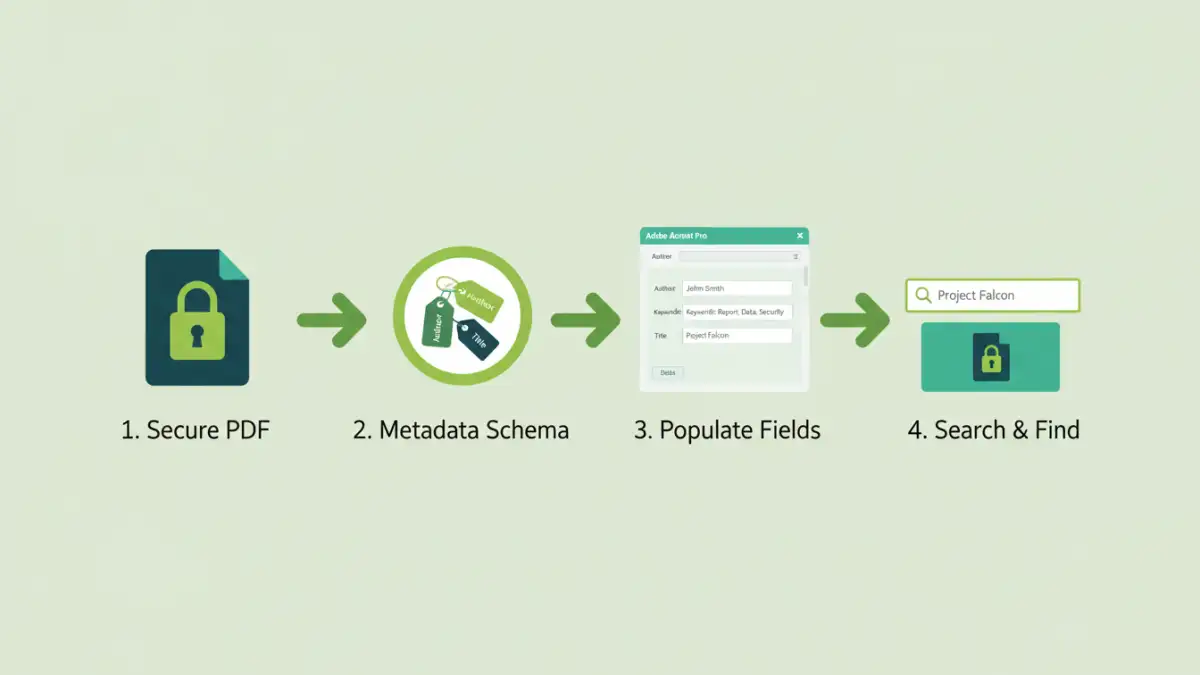
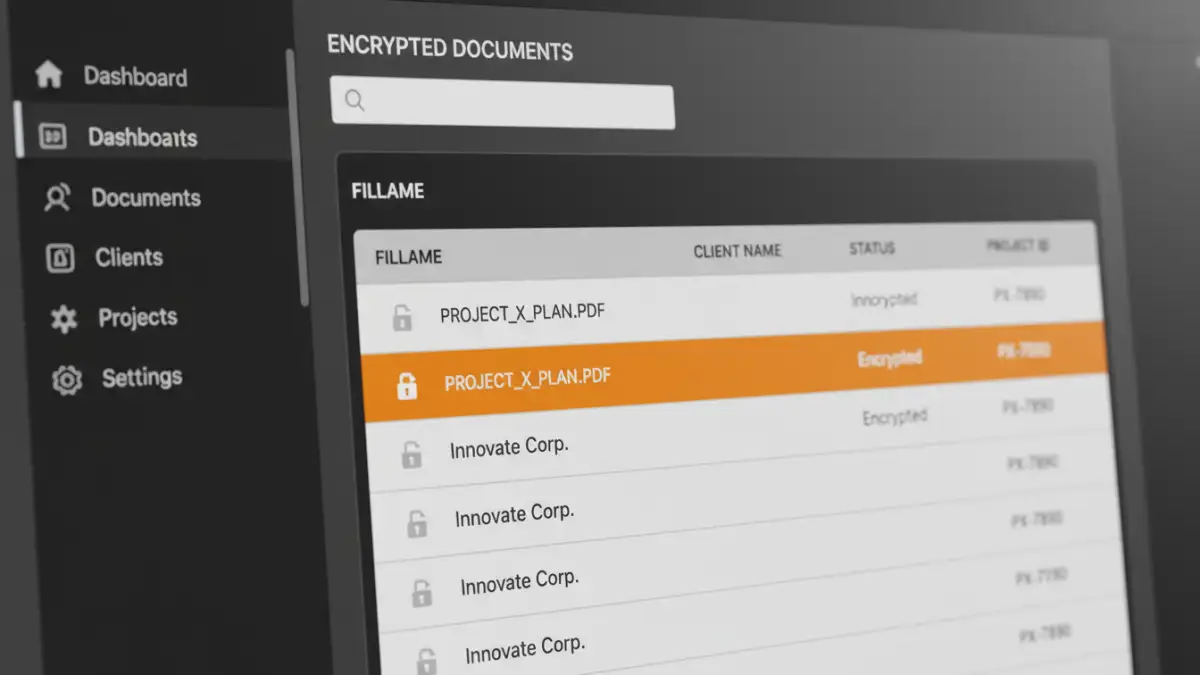
When you password-protect a PDF, you encrypt its contents. This is excellent for security but a nightmare for organization. Standard desktop search tools and even many enterprise content management systems work by indexing the text inside documents. Encryption effectively blocks these tools, rendering the file invisible to any content-based query.
This leaves you relying on just two things: filenames and folder structures. While helpful for small collections, this system breaks down quickly. Filenames become long and inconsistent, and a deep, complex folder tree can be just as difficult to navigate as an unorganized pile of files. You can't search for a client name or project number if that information is locked inside the encrypted document.
The Indexing Challenge
The core issue is that document indexing services cannot read past the encryption layer. To a search crawler, a secure PDF is just a block of unintelligible data. It has no way of knowing if the file contains a financial report, a legal contract, or a technical manual. This is why a search for a term you know is in the document will yield zero results.
The Limits of File Naming Conventions
A strict file naming convention—like `YYYY-MM-DD_ClientName_ProjectID_DocumentType.pdf`—is a good first step, but it's not a complete solution. Filenames have character limits and can become unwieldy. More importantly, they offer limited fields for categorization. What if you also need to track the document's status (Draft, Final, Archived) or the authoring department? A filename simply can't hold that much structured information.
Leveraging Metadata for Smart Organization
This is where PDF metadata management comes in. Metadata is simply 'data about data'. For a PDF, this includes standard fields like Title, Author, Subject, and Keywords. Crucially, this information is stored in a part of the file that is separate from the encrypted content stream. This means you can read and write metadata without needing the password to open the document.
By using these fields strategically, you can create a rich, searchable index for your secure files. Instead of relying on a fragile filename, you can embed key information directly into the file itself. This makes your library portable and independent of any specific folder structure or operating system.
A Practical Guide to Tagging Encrypted Files
Implementing a metadata-driven system requires a bit of planning but pays off immensely. The goal is to build a consistent framework that everyone on your team can follow. This is how you can effectively organize secure pdf documents without compromising their integrity.
Step 1: Define Your Metadata Schema
Before you tag a single file, decide what information is important for retrieval. A metadata schema is a consistent set of rules for what data you will store and where. For example:
- Title: Use for the clear, human-readable document title (e.g., "Q4 2024 Financial Performance Review").
- Author: The person or department responsible (e.g., "Finance Department").
- Subject: A brief description of the content.
- Keywords: This is the most powerful field. Use a comma-separated list of tags like `Client: ACME Corp, ProjectID: XF-102, Status: Final, Type: Contract`.
Consistency is everything. Create a short guide for your team that defines what goes into each field to ensure uniformity across your entire library.
Step 2: Choose Your Tools for Tagging
You don't need expensive software to get started. Several tools can edit PDF metadata:
- Adobe Acrobat Pro: The industry standard. You can easily edit metadata by going to `File > Properties > Description`.
- Free PDF Editors: Many free desktop and online PDF tools offer basic metadata editing capabilities.
- Command-Line Tools: For more technical users, a tool like ExifTool is incredibly powerful. It can read and write metadata in bulk for hundreds of files at once, making it perfect for scripting and automation.
Automation and Advanced Tools
Manually tagging hundreds or thousands of files is not practical. For large-scale PDF metadata management, automation is the key. You can use scripts (Python has excellent libraries like `PyPDF2` and `pypdftk`) to read data from a spreadsheet or database and apply it to a batch of PDF files automatically.
For enterprise environments, a proper Document Management System (DMS) is the ultimate solution. A DMS provides a central repository for your files and uses metadata as its primary organizational tool. Users can filter, sort, and search based on custom metadata fields you define, creating a truly powerful and searchable library of even the most sensitive, encrypted documents.
Best Practices for a Searchable Secure Library
Building and maintaining an organized secure library is an ongoing process. Here are a few best practices to keep in mind:
- Be Consistent: A metadata schema is only useful if it's applied consistently. Regular training and clear documentation are essential.
- Use a Controlled Vocabulary: For fields like 'Status' or 'Document Type', provide a predefined list of options (e.g., Draft, In Review, Final, Archived) to prevent variations like 'final' vs. 'Final Version'.
- Audit Regularly: Periodically check files to ensure they are tagged correctly. Use tools to find files with missing or incomplete metadata and fix them.
- Integrate with Search: Ensure your desktop search tool (like Windows Search or macOS Spotlight) is configured to index PDF properties. This makes your metadata instantly searchable.
Metadata Management Tools Comparison
| Tool / Method | Pros | Cons | Best For |
|---|---|---|---|
| Manual (Adobe Acrobat) | Easy to use, precise control per file. | Time-consuming, not scalable for large volumes. | Small libraries or one-off edits. |
| Command-Line (ExifTool) | Extremely powerful, scriptable, handles bulk operations. | Requires technical knowledge, steep learning curve. | Automating tasks for large batches of files. |
| Custom Scripts (Python) | Fully customizable, can integrate with other systems. | Requires development resources and maintenance. | Complex workflows and integration needs. |
| Document Management System (DMS) | Comprehensive solution, advanced search, version control. | Expensive, requires significant setup and training. | Enterprise-level document management. |