A client recently asked me about the proper way to decommission a hard drive containing old project proposals in PDF format. They thought dragging the folder to the Recycle Bin and emptying it was enough. It's a common misconception, but one that can lead to serious data breaches if sensitive information falls into the wrong hands.
Simply deleting a file doesn't actually remove it from your storage device. It just tells the operating system that the space the file occupies is now available to be used. The underlying data remains intact until new data happens to overwrite it, making it easily recoverable with widely available software.
Table of Contents
Why Standard Deletion Is Not Enough
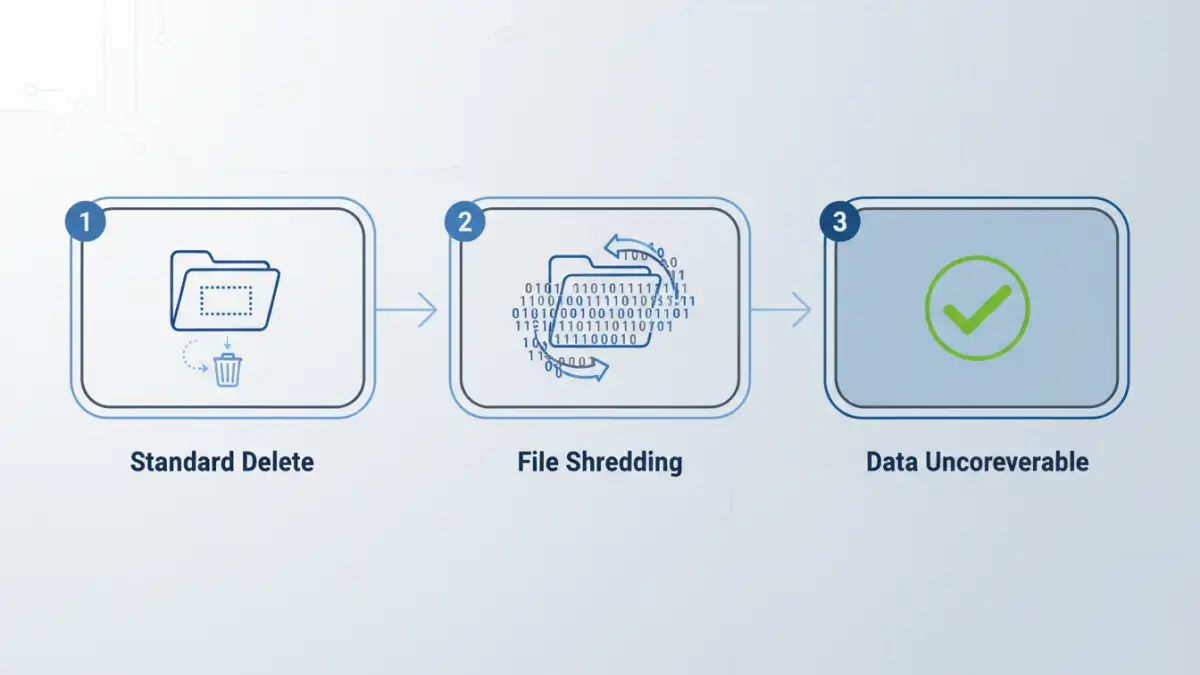
When you delete a file, you're not wiping the data itself. Your operating system maintains a sort of index or table of contents for your hard drive. The deletion process simply removes the file's entry from this index and marks the physical space it occupies as 'free'. The actual ones and zeros that make up your PDF are still there.
This is why data recovery software is so effective. It bypasses the file system's index and scans the drive directly for recognizable file signatures. Until that specific physical space is overwritten by new data—which could take minutes, days, or even years—your 'deleted' PDF is vulnerable. For anyone handling sensitive client information, financial records, or personal data, this is an unacceptable risk.
Hard Drives (HDDs) vs. Solid-State Drives (SSDs)
The process differs slightly between traditional spinning hard drives (HDDs) and modern solid-state drives (SSDs). On an HDD, data can be directly overwritten. On an SSD, due to wear-leveling algorithms that distribute writes evenly to prolong the drive's life, you can't guarantee a direct overwrite. Securely erasing data from an SSD often requires using the drive's built-in Secure Erase command, which is a more specialized process.
Methods for Permanent File Deletion
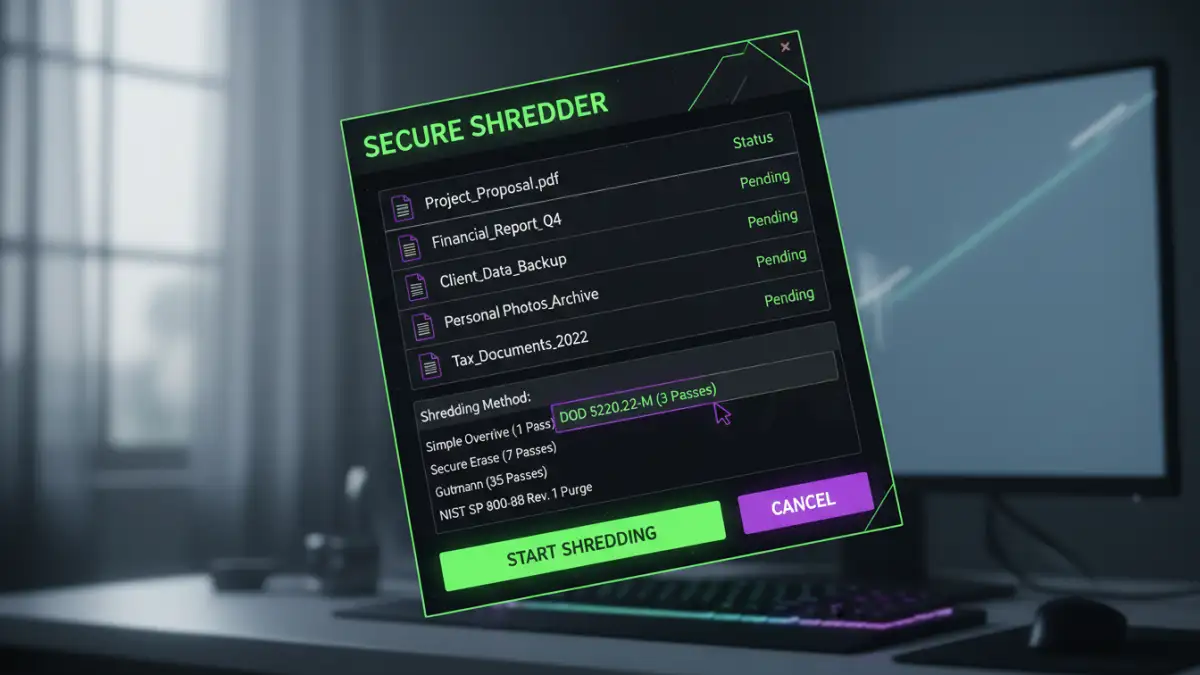
To truly achieve permanent file deletion, you need to go beyond the Recycle Bin. The goal is to make the original data completely unreadable and unrecoverable. This process is often referred to as file shredding or data destruction.
The most common method is data overwriting. This involves writing new, random patterns of data over the physical space where the old file was stored. This can be done once or multiple times (called 'passes') to ensure the original data is thoroughly scrambled. Different standards exist, like the DoD 5220.22-M (3 passes) or the Gutmann method (35 passes), offering varying levels of security.
Cryptographic Erasure
Another powerful method, especially effective for SSDs, is cryptographic erasure. If your drive is encrypted (which it should be!), securely deleting the encryption key effectively renders all the data on the drive permanently inaccessible. Without the key, the encrypted data is just a meaningless jumble of characters. This is an extremely fast and effective way to perform data destruction on an entire drive.
Software Tools for Data Destruction
You don't need to be a forensics expert to shred digital files. Several user-friendly tools are available that integrate this functionality directly into your operating system, allowing you to securely delete PDF files with just a few clicks.
For Windows users, a powerful tool is already built-in: the `cipher` command. Running `cipher /w:C:\folder_name` from the Command Prompt will overwrite all the deallocated space within that folder, shredding any deleted file remnants. While effective, it's not the most intuitive for everyday use.
This is where third-party applications shine. Tools like Eraser (a free, open-source classic) add a 'Securely Erase' option to your right-click context menu. Other popular utilities like CCleaner include a 'Drive Wiper' feature that can securely clean free space or entire drives using various overwriting standards. For Mac users, older versions of macOS had a 'Secure Empty Trash' option, but modern versions rely more heavily on the security provided by FileVault (full-disk encryption).
Best Practices for the Document Lifecycle
Thinking about secure deletion shouldn't be an afterthought. It's a critical part of the overall document lifecycle. From the moment a sensitive PDF is created, you should have a plan for its eventual disposal.
First, always enable full-disk encryption on your devices (BitLocker on Windows, FileVault on macOS). This is your first and strongest line of defense. If a device is lost or stolen, the data is unreadable without the password. Second, establish clear data retention policies. Decide how long documents need to be kept and have a process for regularly culling and securely deleting old files that are no longer needed. This minimizes your digital footprint and reduces risk.
By integrating these practices, you move from a reactive 'how do I delete this?' mindset to a proactive security posture. Managing the entire document lifecycle ensures that your data is protected from creation to its final, unrecoverable destruction.
Comparison of Data Deletion Methods
| Method | Security Level | Speed | Best For |
|---|---|---|---|
| Standard Delete (Recycle Bin) | None | Instant | Non-sensitive files only |
| Single-Pass Overwrite | Good | Fast | Most personal sensitive data |
| Multi-Pass Overwrite (e.g., DoD 3-pass) | High | Moderate | Corporate or regulatory compliance |
| Cryptographic Erasure | Very High | Instant | Quickly sanitizing entire encrypted drives (especially SSDs) |
| Physical Destruction | Absolute | Varies | End-of-life hardware decommissioning |