
I recently got a call from a project manager in a bit of a panic. They had a mission-critical Excel workbook with years of complex VBA automation built into it. The original developer had left the company years ago, and of course, the VBA project was locked. Now, a small but necessary change was needed, and they were completely stuck. This scenario is surprisingly common and highlights a major challenge with legacy Office documents.
While VBA project protection is great for safeguarding intellectual property or preventing accidental changes, it becomes a significant roadblock when the password is lost. Fortunately, for certain file types, there's a technical workaround that can help you regain access. This isn't about malicious intent; it's about disaster recovery for your own assets.
Table of Contents
Understanding VBA Project Protection
Before we dive into the solution, it's important to understand why developers lock their VBA projects in the first place. It's rarely done to inconvenience future developers. The primary reasons are usually to protect proprietary algorithms, prevent users from inadvertently breaking complex code, or to add a layer of security to the application's logic.
When you set a password, Excel encrypts the project's source code within the file. This protection is generally effective against casual snooping. However, the method used in older Excel file formats (.xls) had a known vulnerability that can be exploited to reset this protection, allowing for viewing protected VBA source code and making necessary edits.
The Hex Editor Method: A Technical Walkthrough

This method involves directly modifying the binary data of the Excel file using a hex editor. It sounds intimidating, but if you follow the steps precisely, it's a reliable way to unprotect a VBA module. I've used this technique successfully on multiple occasions to recover client projects.
Step 1: Preparation is Key
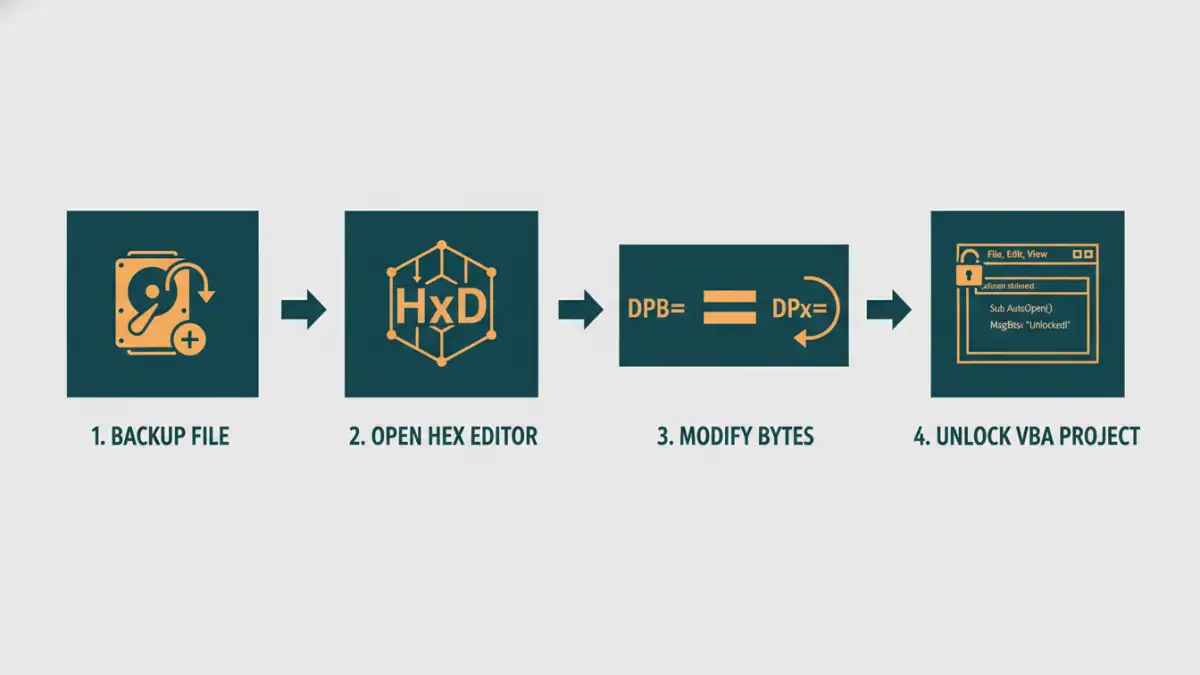
NEVER work on your original file. I can't stress this enough. Before you do anything, create a backup copy of your Excel file. This process carries a small risk of file corruption, and you absolutely need a fallback. Once you have your copy, you'll need a hex editor. HxD is a popular free option that is lightweight and effective for this task.
Step 2: The Editing Process
Now, let's get into the core of the process to edit the locked vba project. The goal is to find a specific key within the file's data and alter it slightly, which tricks Excel into thinking the protection data is corrupt, thereby ignoring it upon opening.
- Open the File: Launch your hex editor (like HxD) and open the copy of your Excel file (.xls or .xlsm). You will see columns of hexadecimal numbers and a corresponding text representation.
- Find the Key: Use the search or find function in your hex editor (usually Ctrl+F). Search for the text string
DPB. This string is part of the key that denotes the start of the protection block for the VBA project. - Make the Change: Once you locate the
DPBstring, carefully change it toDPx. You are only changing one character. This simple change is what invalidates the original protected vba password check. - Save and Close: Save the changes in the hex editor and close the application.
Important Considerations and Risks
After modifying the file, the next steps are crucial for regaining full control. When you first try to open the modified Excel file, you will likely encounter one or more error messages. This is expected behavior.
Excel will pop up a warning about an invalid key or a corrupt project. Click 'Yes' or 'OK' to continue loading the file, ignoring the warnings. Once the file is open, press ALT+F11 to open the Visual Basic Editor (VBE). You should now be able to see the project structure, but you can't edit it just yet. Navigate to Tools > [Your Project Name] Properties. Go to the 'Protection' tab. You'll see that it's still locked. Check the 'Lock project for viewing' box and set a new, temporary password. Save the file, close it, and then reopen it. You can now use your new password to unlock and modify the protected macro.
Compatibility and Ethics
This method has the highest success rate with older .xls files. For modern .xlsm files, the structure is different (it's essentially a ZIP archive). You may need to unzip the file, locate the vbaProject.bin file, perform the hex edit on that specific file, and then re-zip the contents. This adds complexity and risk. Ethically, this technique should only be used on files you own or have explicit permission to modify. Using it to steal intellectual property is illegal and unethical.
Alternative Approaches and Their Limitations
You might find various software tools online that claim to instantly crack or remove VBA passwords. Many of these are brute-force tools that try thousands of password combinations per second. If the original password was complex, this process could take days, weeks, or even longer, making it highly impractical.
Other online services require you to upload your file, which poses a significant security and privacy risk. You have no control over what happens to your data once it's on their servers. For these reasons, the hex editor method, while more technical, remains a more secure and often faster solution for developers who need to solve this problem themselves.
Method Comparison for VBA Project Access
| Method | Complexity | Security Risk | Best For |
|---|---|---|---|
| Hex Editor Method | Medium | Low (if done locally) | Recovering your own legacy .xls/.xlsm files. |
| Brute-Force Software | Low | Low (if offline tool) | Very simple, short passwords only. |
| Online Unlocking Services | Very Low | High | Non-sensitive files where data privacy is not a concern. |
| Contacting Original Developer | Low | None | Situations where the developer is reachable. |