
It’s a scenario I’ve seen countless times: a developer inherits a critical Excel workbook with years of complex VBA logic, but the project is locked and the original author is long gone. They try a popular password removal trick they found online, edit a few bytes in a hex editor, and... nothing. The password prompt reappears, or worse, the file is now corrupted. This frustration is a common rite of passage in the world of legacy Office development.
The truth is, many of the widely circulated methods for bypassing VBA project passwords are either outdated or misunderstood. What worked flawlessly on an old `.xls` file from 2003 will often do nothing for a modern `.xlsm` workbook. Understanding why these techniques fail is the first step toward finding a solution that actually works.
Table of Contents
Understanding Common Failure Points
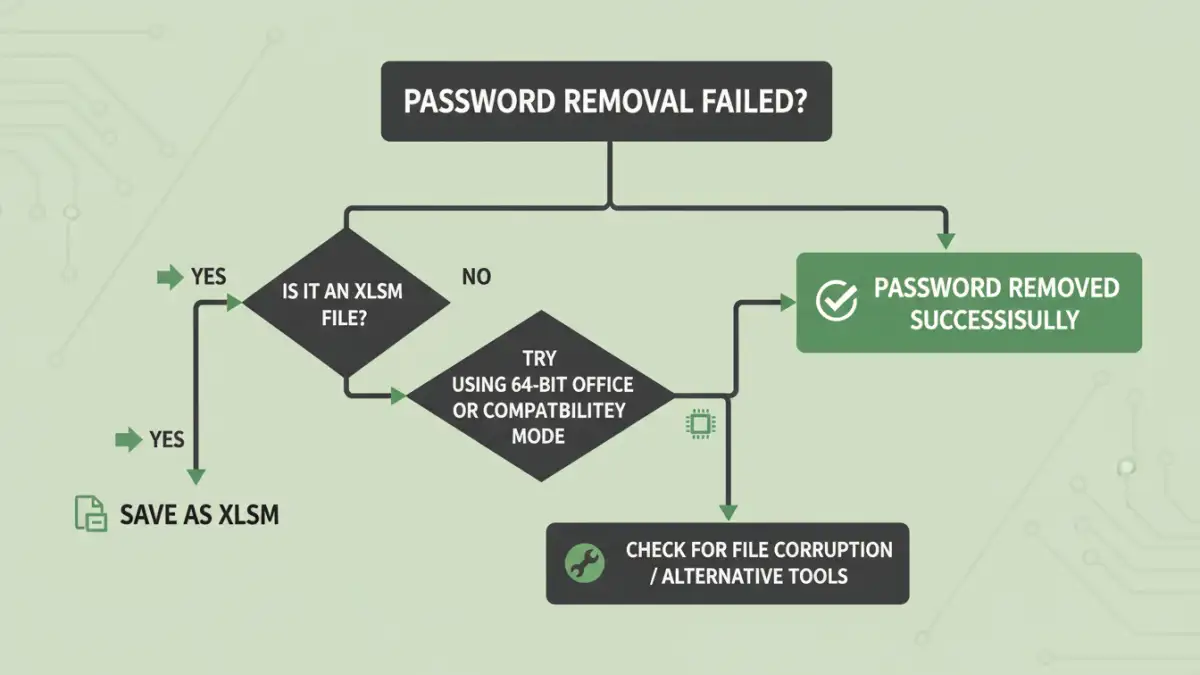
When you find that a VBA password removal failed, it's rarely due to a single, obvious mistake. The cause is often a subtle incompatibility between the method you're using, the file format, and the version of Microsoft Office you have installed. These factors are deeply interconnected.
Mismatched Office Versions and File Formats
The most significant reason for failure is the evolution of Office file formats. Pre-2007 versions used binary formats like `.xls` and `.doc`. Post-2007, Office switched to the Office Open XML format, which includes file types like `.xlsm` and `.docm`. These are essentially ZIP archives containing various XML and binary files.
Many classic password bypass techniques, particularly the direct hex editor approach, were designed for the old binary formats. They target specific byte sequences that simply don't exist or are handled differently in the modern XML-based structure. Applying an old trick to a new file type is like using the wrong key for a lock—it just won't turn.
The Myth of 'Removing' vs. 'Bypassing'
Another point of confusion is what these methods actually accomplish. Most don't truly "remove" the password. Instead, they modify a flag or a checksum in the file that tells Excel not to perform the password check. When this bypass works, you can access the code, set a new password, and save the project. However, if the protection mechanism has changed in a newer Office update, modifying that old flag has no effect, leading to a `vba project password error`.
The Hex Editor Method: A Frequent Culprit

The most famous (and infamous) method involves opening the file in a hex editor, searching for the text string `DPB`, and replacing it with `DPx`. I remember spending an afternoon years ago trying to help a colleague with this exact trick on a crucial financial model. We followed the steps perfectly, but the password prompt stubbornly remained. The problem wasn't our execution; it was the context.
This method works by corrupting the password information string, causing Excel to skip the check. However, its success is highly conditional. On newer `.xlsm` files, the `DPB` string is located within the `vbaProject.bin` file, which is compressed inside the main workbook archive. Editing the `.xlsm` file directly in a hex editor won't find the relevant string in a way that can be modified effectively. Even if you extract the binary and edit it, re-integrating it without corrupting the workbook requires care.
Troubleshooting VBA Password Remover Tool Issues
When manual methods fail, many turn to automated tools. While some are effective, they come with their own set of problems. If you `cannot remove vba password` using a third-party application, one of these issues is likely the cause.
Compatibility Conflicts (32-bit vs. 64-bit)
A major hurdle is the architecture of your Office installation. Many older password removal tools were built for 32-bit Office and will not work with the now-common 64-bit versions. The tool might run without errors but fail to interact with the Office components correctly, leaving the password intact. Always check if the tool explicitly supports your specific Office version and architecture (e.g., Office 365 64-bit).
Outdated and Unmaintained Software
The VBA protection scheme receives minor tweaks with new Office releases. A tool that hasn't been updated in several years may not be equipped to handle the protection on a file created with the latest version of Excel. Furthermore, the internet is littered with freeware tools that are not only outdated but may also be bundled with adware or malware. It's crucial to source tools from reputable developers.
A More Reliable Alternative: The Archive Method
Instead of the risky direct hex editing, a much safer and more consistently successful manual method involves treating the Office file as the archive it is. This approach isolates the VBA project, minimizing the risk of corrupting the entire workbook.
Step-by-Step Guide to the Archive Method
- Create a Backup: Never work on your original file. Always make a copy first.
- Change the Extension: Rename the file from `.xlsm` to `.zip`. You may need to enable file extensions in your OS to see it.
- Extract the Contents: Unzip the file into a new folder. You will see several subfolders, including one named `xl`.
- Locate and Modify the VBA Project: Inside the `xl` folder, you will find a file named `vbaProject.bin`. Open this binary file in a hex editor.
- Perform the Edit: Search for `DPB` and replace it with `DPx`. Save the `vbaProject.bin` file.
- Re-package the Archive: Go back to the root of the extracted folder. Select all the files and folders and add them to a new ZIP archive. Do not zip the parent folder itself.
- Restore the Extension: Rename your new ZIP file back to the original `.xlsm` extension.
This method works more often because you are directly modifying the correct component file (`vbaProject.bin`) without altering the structure of the parent workbook. It correctly targets the password flag in a way that direct editing of the `.xlsm` cannot.
Comparison of VBA Password Bypass Techniques
| Technique | How It Works | Common Failure Point | Best For |
|---|---|---|---|
| Direct Hex Editing (.xlsm) | Attempts to find and modify the 'DPB' string directly in the main file. | Fails on modern formats as the VBA project is compressed within an archive. | Older binary files (.xls, .doc). |
| File Archive Method | Unzips the .xlsm, edits the 'vbaProject.bin' file, and re-zips it. | User error during re-packaging the archive can corrupt the file. | Modern Office files (.xlsm, .docm). |
| Third-Party Tools | Automates the process of finding and modifying the password check flag. | Incompatibility with 64-bit Office or newer file protection schemes. | Users who need a quick, automated solution and have a trusted tool. |
| Brute Force / Dictionary Attack | Tries thousands of password combinations to find the correct one. | Extremely slow; can take days or weeks for complex passwords. | Situations where the original password must be recovered, not just bypassed. |