
It’s a scenario I've seen play out more than once: a crucial, macro-enabled Excel workbook is passed down from a colleague who has since left the company. You open it, press Alt + F11 to view the code, and are met with a password prompt. No one knows the password, and the "VBA project is unviewable." This effectively locks you out of making any updates or bug fixes, turning a valuable tool into a black box.
Fortunately, if you have legitimate access to the file, there's a well-established technical method to regain access. It involves a bit of file manipulation and a hex editor, but it’s a lifesaver when you've truly forgotten a VBA password and need to recover your code.
Table of Contents
Understanding Why VBA Projects Are Locked
Before we dive into the solution, it's helpful to understand why this feature exists. Developers lock VBA projects primarily to protect their intellectual property. The code within a complex Excel application can represent hundreds of hours of work, containing proprietary algorithms or business logic. A password prevents casual users from viewing, copying, or unintentionally breaking the code.
The problem arises from poor handover processes or simply forgetting a password set years ago. When that happens, you are the legitimate owner of the code but are locked out just like anyone else. This is the exact situation our method is designed to resolve.
The "Project is Unviewable" Dilemma
The dreaded "Project is Unviewable" message is Excel's way of telling you that the VBA project is password-protected and you don't have the key. You can still run the macros if the workbook's security settings allow it, but you cannot see or edit the source code. This makes maintenance or debugging impossible, which is why a recovery method is so critical for developers and analysts.
The Hex Editor Method: A Step-by-Step Guide
This technique works by directly modifying a single component within the Excel file's structure to invalidate the password check. It sounds complex, but if you follow the steps carefully, it’s quite reliable. The most important first step is to always work on a copy of your file!
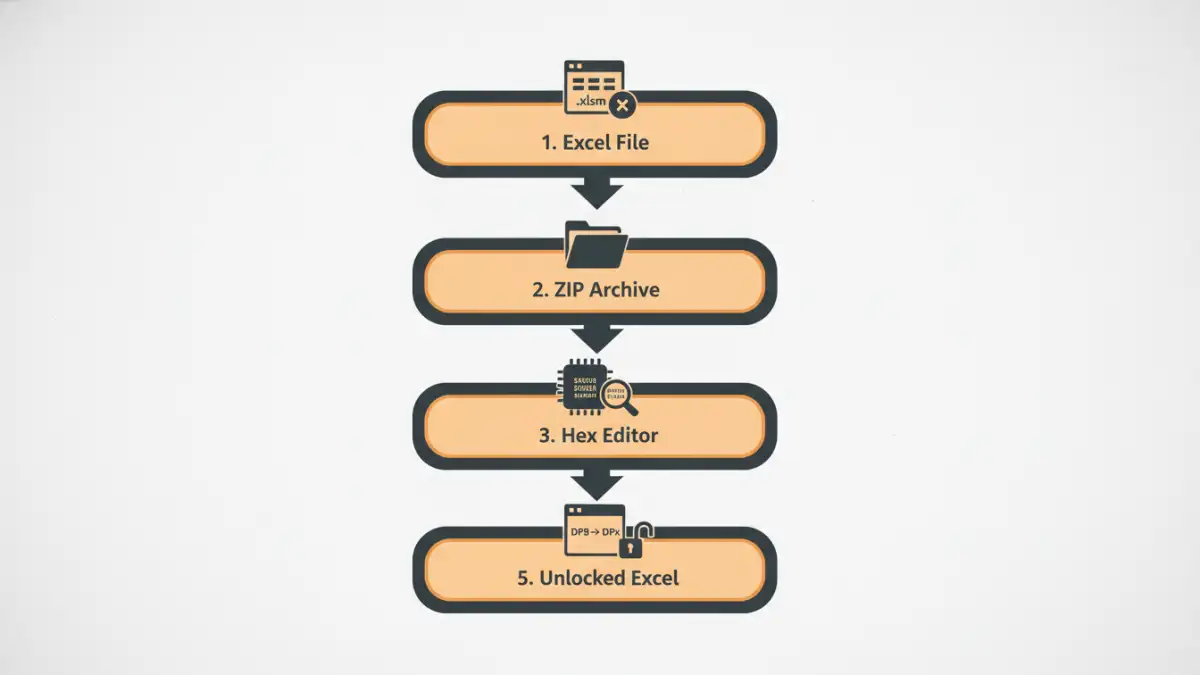
Here is the process I've used successfully on numerous occasions to unlock an Excel VBA project:
- Create a Backup: This cannot be stressed enough. Never work on your original file. Copy the `.xlsm` file and work only on the duplicate.
- Change the File Extension: Rename the file, changing the extension from `.xlsm` to `.zip`. You may need to enable viewing file extensions in Windows File Explorer. Confirm the change when prompted.
- Extract the Contents: Now that it's a ZIP archive, right-click and extract its contents into a new folder. You will see several directories like `_rels`, `docProps`, and `xl`.
- Locate the vbaProject.bin File: Navigate into the `xl` folder. Inside, you will find a file named `vbaProject.bin`. This binary file contains all your VBA modules, forms, and the password information.
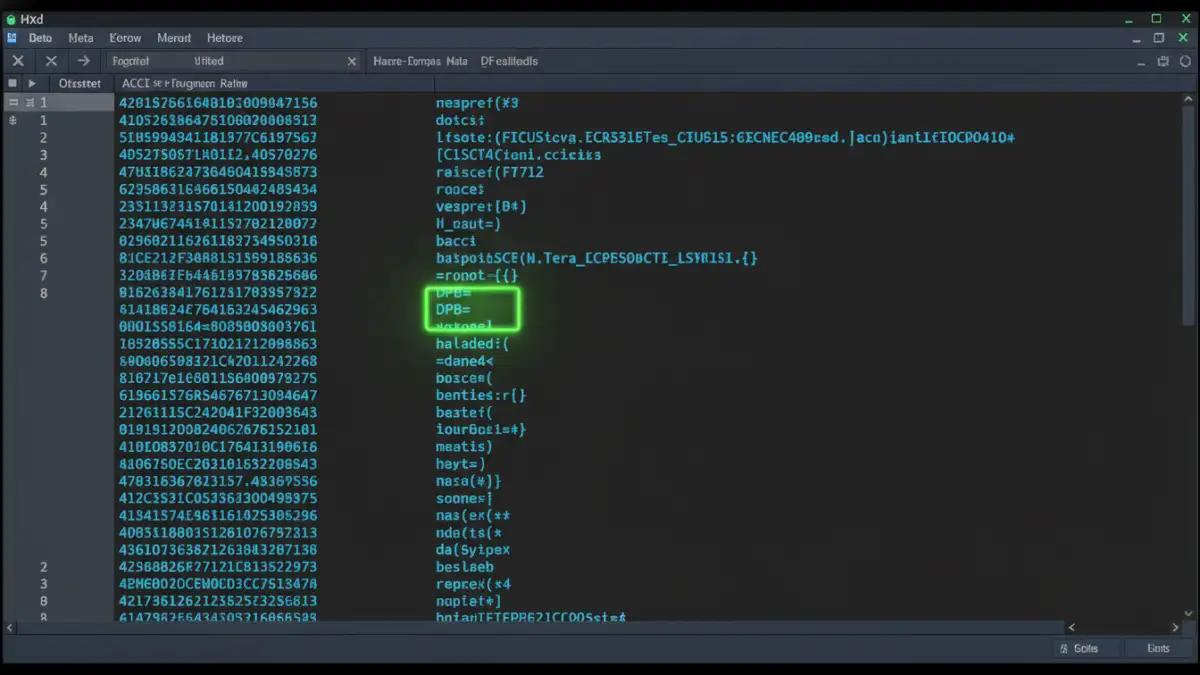
- Open in a Hex Editor: You'll need a hex editor for the next step. HxD is a great free option. Open the `vbaProject.bin` file using your hex editor.
- Find and Replace the Key: Inside the hex editor, use the search function (usually Ctrl + F) to find the text string `DPB=`. This is part of the key that stores the password hash. Once you find it, carefully replace it with `DPx=`. You are only changing the letter 'B' to 'x'. Do not add or remove any other characters.
- Save the Changes: Save the modified `vbaProject.bin` file and close the hex editor.
- Re-Package the File: Go back to the root of your extracted folder. Select all the files and folders and add them back into a new ZIP archive. It's important to select the contents, not the parent folder itself.
- Restore the Extension: Rename your new ZIP file, changing the extension back from `.zip` to `.xlsm`.
Now, open your newly saved `.xlsm` file. When you try to view the VBA project (Alt + F11), Excel will likely show an error about an invalid key. Click OK. You can now go to the project's properties (Tools -> VBAProject Properties -> Protection tab) and set a new password, or leave it blank to remove protection entirely. You have successfully managed your excel file vba password issue.
Why This Method Works
By changing `DPB` to `DPx`, you are corrupting the password key in a predictable way. When Excel tries to read this invalid key, it fails the integrity check and defaults to an unprotected state, allowing you to bypass the original password prompt and set a new one. It's a clever exploit of how the file format handles project protection data.
Potential Pitfalls and Important Considerations
While effective, this method isn't foolproof. The primary risk is file corruption, which is why making a backup is non-negotiable. If you accidentally add or delete a character in the hex editor, the binary file can become unreadable, and the entire workbook might fail to open.
Additionally, this method is intended for modern `.xlsm` files. Older `.xls` files from Excel 97-2003 have a different file structure and protection mechanism, so this process won't work for them. For those, you would need different tools or techniques.
Best Practices for VBA Password Management
Dealing with a forgot vba password is a reactive measure. The best long-term strategy is proactive password management. For any important project, I always recommend a few key practices.
First, use a password manager. Tools like KeePass, 1Password, or Bitwarden can securely store complex passwords for your projects. Documenting the password in a shared, secure team vault ensures that knowledge isn't lost if a team member leaves.
Second, consider using source control for your VBA code. While not as straightforward as with other languages, you can export your VBA modules as text files (`.bas`, `.cls`, `.frm`) and commit them to a Git repository. This not only backs up your code but also tracks every change, making recovery and collaboration far easier.
Method Comparison for VBA Password Recovery
| Method | Complexity | Risk Level | Best For |
|---|---|---|---|
| Hex Editor Method | Medium | Low (with backup) | Recovering code from your own password-protected `.xlsm` files. |
| Third-Party Tools | Low | Medium-High | Users uncomfortable with hex editing, but poses security/privacy risks. |
| Recreating Code | Varies | Low | Very simple macros where rewriting is faster than recovery. |
| Password Manager | Low (Proactive) | Very Low | Preventing the problem from happening in the first place. |