
A client recently asked me for the best way to collect sensitive user information—like social security numbers and financial data—without compromising security. My immediate thought turned to a method that's both robust and surprisingly user-friendly: using encrypted PDF forms. While email is convenient, sending plain, fillable PDFs is a significant security risk.
Instead of relying on basic password protection, we can implement a more advanced system that ensures only the intended recipient can read the collected data. This approach is crucial for industries dealing with PII (Personally Identifiable Information), such as healthcare, finance, and legal services, where pdf data collection security is paramount.
Table of Contents
Why PDF Form Encryption Matters for Data Collection
When you send a standard, unprotected PDF form to a client or user, any data they enter can be intercepted if your communication channels are compromised. The submitted form, containing sensitive information, could be read by unauthorized parties if stored improperly. This is where dedicated pdf form encryption becomes non-negotiable.
Properly securing a PDF form ensures that the data entered into its fields is unreadable to anyone without the correct credentials. This is not just a technical best practice; it's often a legal requirement. Regulations like HIPAA (for healthcare) and GDPR (for data privacy in Europe) mandate strong safeguards for personal data. Using encryption helps meet these compliance standards and builds trust with your users, assuring them that their information is handled responsibly.
Understanding PDF Security Layers
Not all PDF security is created equal. When setting up a form, you'll encounter different methods to protect form fields and the document itself. Understanding the distinction is key to implementing effective security.
Password-Based Encryption
This is the most common form of PDF protection. There are two types of passwords you can apply:
- Document Open Password (User Password): This password is required to open and view the PDF. While it prevents unauthorized access, it's not ideal for data collection forms, as you'd have to share the password with every recipient, defeating the purpose of individualized security.
- Permissions Password (Owner Password): This password restricts actions like printing, copying text, or editing the form's structure. You can create a form that anyone can open and fill out, but they cannot alter the questions or extract content. This is a good first layer of defense to maintain the integrity of your form.
Certificate-Based Encryption
For truly secure data collection, certificate-based encryption is the gold standard. Instead of a shared password, this method uses a public key/private key system. You encrypt the PDF form for a specific recipient's public key (digital ID). Only that recipient, with their corresponding private key, can open the document and view its contents or, more importantly, save and return the filled form securely.
When the recipient fills out the form and saves it, the data can be encrypted for *your* public key. This means that once you receive the completed form, only you (with your private key) can decrypt and read the submitted data. This end-to-end encryption ensures the data is secure both in transit and at rest.
Creating Encrypted PDF Forms: A Practical Guide
Creating a secure form involves more than just adding a password. My go-to tool for this is Adobe Acrobat Pro, as it offers robust certificate-based security features. The process ensures that you can securely collect data with encrypted PDF forms.
Using Adobe Acrobat Pro
Here’s a simplified workflow I often recommend for setting up a secure data collection process:
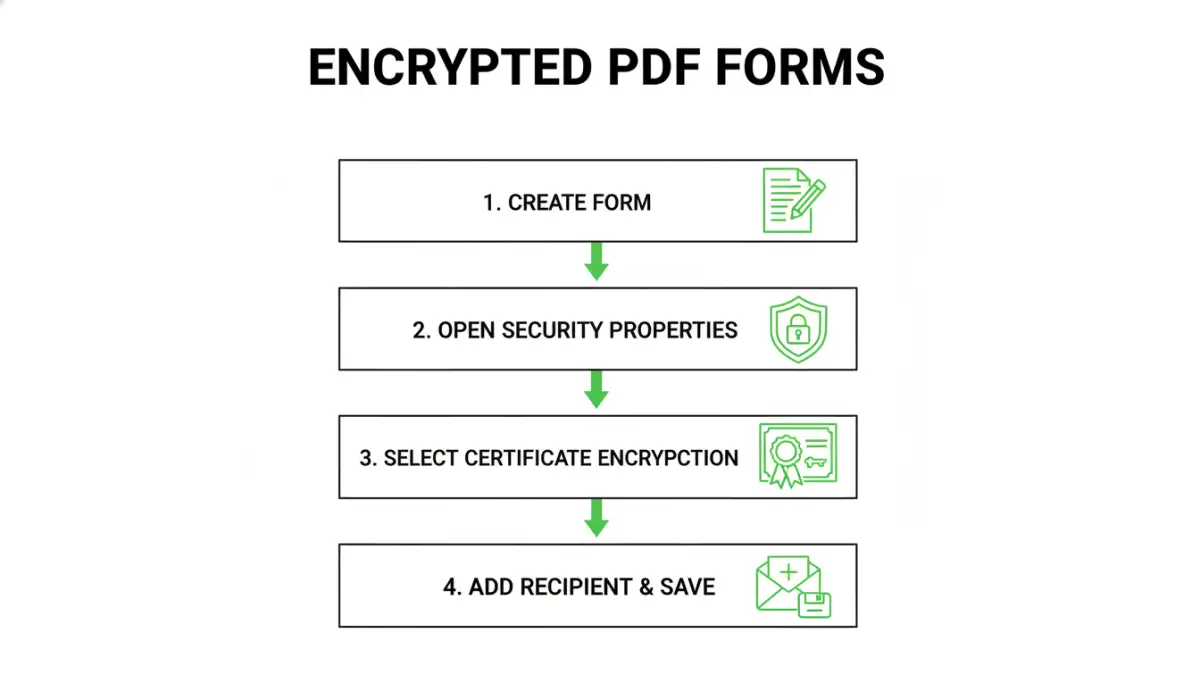
- Create Your Form: Design your fillable form in Acrobat. Add all necessary text fields, checkboxes, and signature fields.
- Access the Security Properties: Go to File > Properties > Security. Change the Security Method to "Certificate Encryption."
- Define Recipient Permissions: A dialog box will appear. Here, you'll add the intended recipients from your list of trusted digital IDs. You can import a recipient's public key if you have it on file.
- Set Encryption Level: Choose a strong encryption algorithm. Modern versions of Acrobat support AES-256, which is an industry standard and highly secure.
- Encrypt Form Fields: Crucially, select the option to encrypt "All document contents except metadata" or specify which form fields to encrypt. This ensures the submitted data itself is protected.
- Save and Distribute: Save the PDF. Now, only the users whose digital IDs you added will be able to open, fill, and save the form in a way that protects the data they enter. When they send it back to you, you use your private key to access the information.
Best Practices for Secure Distribution and Management
Creating a secure form is only half the battle. How you manage the entire lifecycle of data collection is equally important for maintaining security.
- Use Secure Channels: Avoid sending highly sensitive forms via standard email. Use a secure file transfer portal or an encrypted email service to distribute the blank form and receive the completed one.
- Educate Your Users: Provide clear instructions to recipients on how to open the encrypted form and securely save and return it. Many users may not be familiar with digital IDs or certificate security.
- Manage Digital IDs: Keep your own digital ID (private key) secure. If it's compromised, all data encrypted with its public key is at risk. Use a strong password to protect it and store it in a secure location like the Windows Certificate Store or a hardware token.
- Secure Storage: Once you receive and decrypt the completed forms, ensure they are stored on an encrypted drive or in a secure database. Data at rest is just as vulnerable as data in transit.
PDF Encryption Method Comparison
| Encryption Method | Security Level | Use Case | Complexity |
|---|---|---|---|
| Permissions Password | Low | Preventing edits or printing of a form's structure. | Low |
| Document Open Password | Medium | Restricting access to a non-interactive document for a small group. | Low |
| Certificate Encryption | High | Securely collecting sensitive data from specific individuals (e.g., clients, patients). | High |
| Third-Party Secure Forms | Varies | Web-based data collection with built-in encryption and workflows. | Medium |