Sending sensitive documents often requires a robust security layer. Whether you're dealing with confidential business contracts, personal financial records, or proprietary project details, ensuring that only authorized individuals can access them is paramount. While protecting a single PDF is straightforward, managing multiple files can become a time-consuming task. This is where the concept of batch processing comes into play – applying security measures to a group of PDFs simultaneously.
Over my years working with various software solutions, I've encountered numerous scenarios where efficiency and security needed to go hand-in-hand. The ability to batch protect PDFs before sending them out streamlines workflows and significantly reduces the risk of human error, which is often the weakest link in security protocols. Let's explore how you can achieve this effectively.
Table of Contents
Understanding Batch PDF Protection
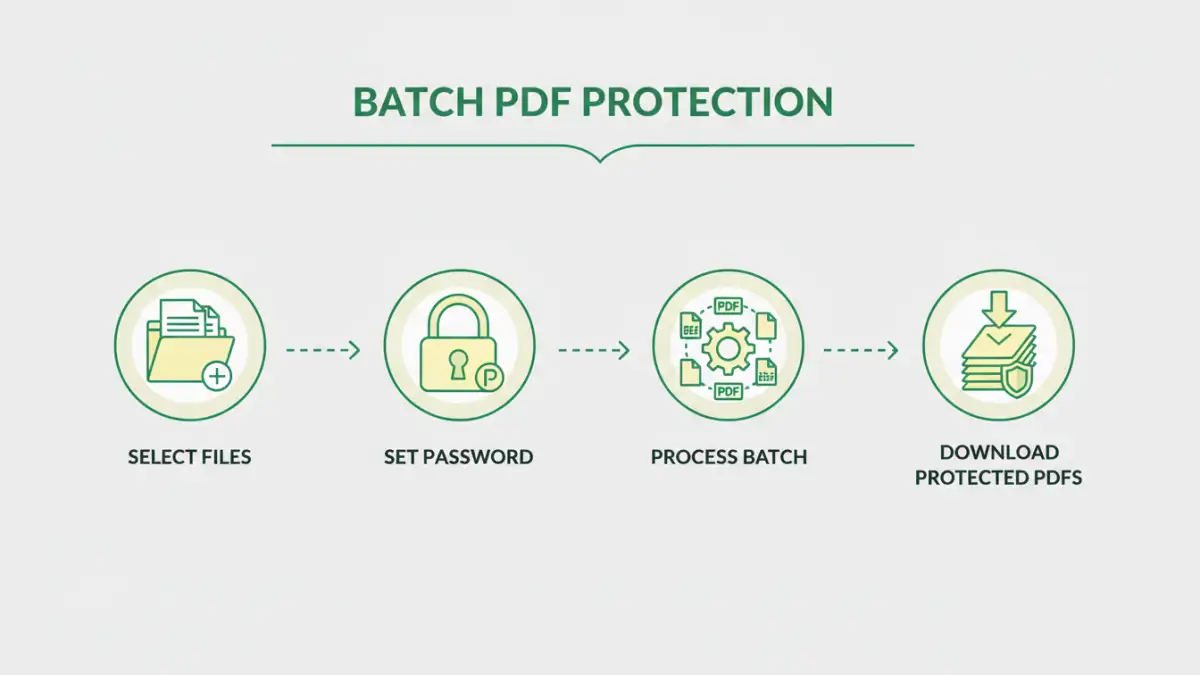
Batch PDF protection involves applying security settings, most commonly password encryption, to multiple PDF files in a single operation. Instead of opening each document individually, setting a password, and saving it, batch processing allows you to select a folder or a list of files and apply the chosen security policy to all of them at once. This is incredibly useful when you need to distribute a set of documents securely to a group of people or archive them with enhanced protection.
Why Batch Protection Matters
The primary benefit is efficiency. Imagine having 50 reports to send out, all needing the same password. Doing this one by one would take considerable time and increase the likelihood of a mistake, like forgetting to password-protect a file or using the wrong password. Batch protection eliminates this overhead, ensuring consistency and saving valuable time, which is crucial for effective secure file sharing.
Methods for Batch Protection

There are several ways to achieve batch PDF protection, ranging from built-in operating system features (though limited) to specialized software and online services. The best method often depends on the volume of files, the complexity of security requirements, and your budget.
Using Desktop Software
Dedicated PDF editing software often provides the most robust options for batch processing. Tools like Adobe Acrobat Pro, Foxit PhantomPDF, or even some open-source alternatives offer features to apply passwords to multiple files simultaneously. Typically, you would navigate to a batch processing or action wizard, select the PDFs you want to protect, define the password and permissions (like restricting printing or copying), and then execute the action.
This method is generally reliable and offers granular control over security settings. For instance, you can often set different passwords for viewing versus editing, or even apply restrictions that prevent content from being copied or printed, adding an extra layer to your secure document sharing strategy.
Leveraging Online Tools
Numerous online platforms offer PDF password protection services. While many focus on single-file uploads, some advanced services or premium tiers support batch uploads. You upload a zip file containing all your PDFs, set a password, and the service processes them. It's a convenient option if you don't want to install software, but it's crucial to vet the privacy policies of these services carefully, especially when dealing with highly sensitive data. You want to ensure your files remain secure throughout the process.
Scripting and Command-Line Tools
For technically inclined users, scripting offers a powerful and highly customizable way to batch protect PDFs. Tools like Ghostscript or libraries available for programming languages like Python (e.g., PyPDF2, reportlab) can be used to write scripts that automate the process. This approach is excellent for integrating PDF security into larger automated workflows or for handling very large volumes of files where manual or GUI-based methods become impractical.
For example, a Python script could iterate through all PDF files in a directory, apply a specified password using a library, and then move the protected files to a new folder. This level of automation is invaluable for maintaining consistent security across extensive document sets, supporting robust secure file sharing.
Choosing the Right Tool
When selecting a method, consider the following factors: the number of files you need to process, the sensitivity of the information, your technical expertise, and your budget. For occasional use with a moderate number of files, a reputable online tool might suffice. For frequent, high-volume, or highly sensitive tasks, investing in desktop software or developing a scripting solution is often the better long-term strategy.
It's also important to consider the type of protection you need. Do you just need a password to open the file, or do you need to restrict printing, copying, or editing? Most robust tools offer these advanced options, which are vital for comprehensive document protection.
Best Practices for Secure File Sharing
Beyond just applying a password, several best practices enhance your secure file sharing efforts. Always use strong, unique passwords. Avoid easily guessable combinations and consider using a password manager to keep track of them. Communicate passwords separately from the files, ideally through a different channel (e.g., phone call, separate email). This prevents a compromised email from exposing both the file and its password.
Furthermore, consider encrypting the entire file container (like a ZIP archive) in addition to or instead of PDF-level encryption, especially if you're sharing multiple file types. Regularly review your security protocols and update passwords as needed. By combining batch PDF protection with these practices, you create a more resilient security posture.
Comparison Table: PDF Protection Methods
| Method | Ease of Use | Features | Cost | Security Level | Best For |
|---|---|---|---|---|---|
| Desktop Software (e.g., Adobe Acrobat Pro) | Moderate to High | Comprehensive (password, permissions, batch processing) | Paid (Subscription/One-time) | High | Professionals, frequent users, sensitive documents |
| Online PDF Tools | High | Basic password protection, some offer batch | Free (limited) to Paid (premium) | Moderate (depends on provider) | Occasional use, non-highly sensitive data |
| Scripting/Command-Line | Low to Moderate (requires technical skill) | Highly customizable, full automation | Free (open-source tools) | High (if implemented correctly) | Developers, IT departments, large-scale automation |
| Built-in OS Features (e.g., Print to PDF with password) | Moderate | Limited (often only password to open) | Free | Moderate | Quick, basic protection for single files |