Working with password-protected documents can be frustrating, especially when you have a large batch that all require the same password. Imagine needing to access dozens of reports, contracts, or research papers, each locked behind a digital gate. The manual process of opening each file, entering the password, and then saving it can consume a significant amount of your valuable time. Fortunately, there are effective strategies and tools designed to streamline this process.
As someone who has dealt with large document archives throughout my career, I've encountered this challenge numerous times. The key is to find methods that allow you to unlock multiple PDFs in one go, transforming a tedious task into a quick operation. This article will guide you through various approaches, from simple browser tricks to more robust software solutions, ensuring you can efficiently manage your secured files.
Table of Contents
Understanding PDF Password Protection
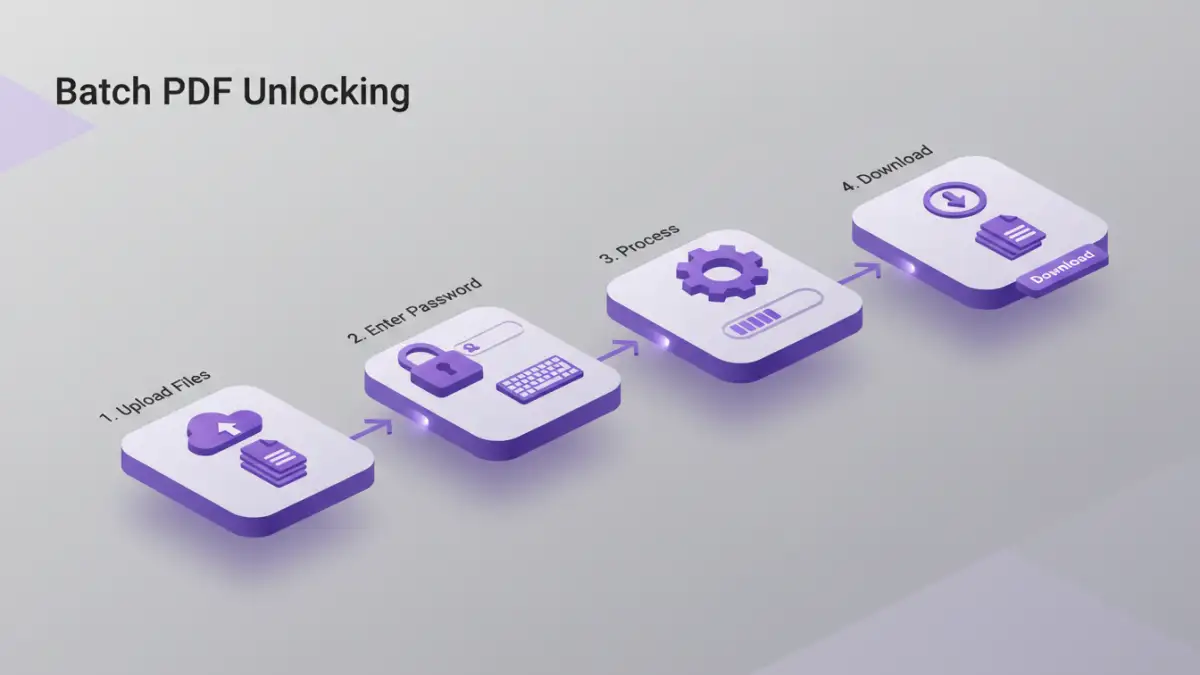
PDFs can be protected with two main types of passwords: a user password (or open password) and an owner password (or permissions password). The user password prevents anyone from opening the document without knowing it. The owner password restricts certain actions, such as printing, copying text, or editing, even if the document can be opened.
To unlock multiple PDFs, you'll typically be dealing with user passwords. If you know the password, the process is about efficiently applying it to many files. If you've forgotten a password, the situation becomes more complex, often requiring password recovery tools, which have varying degrees of success depending on the encryption strength.
Types of PDF Passwords
It's crucial to distinguish between the two. A user password acts like a key to enter the document. An owner password is like a set of rules for what you can do once inside. Most batch unlocking scenarios involve removing or bypassing the user password, assuming you have the correct credentials.
Method 1: Using Your Web Browser (for Owner Passwords)
This is a clever workaround, but it primarily works for PDFs protected by an owner password, not a user (open) password. If you can open the PDF but cannot print or copy, this method might help. The idea is to 'print' the secured PDF to a new PDF file, which often strips the permissions.
Open the password-protected PDF in your web browser (like Chrome, Firefox, or Edge). Go to the print option (Ctrl+P or Cmd+P). Instead of selecting a physical printer, choose 'Save as PDF' or 'Microsoft Print to PDF' as your destination. Save the file. This new PDF will often have the restrictions removed, and you can then repeat this for other files.
Steps for Browser Method
- Open the PDF in your preferred web browser.
- Press Ctrl+P (or Cmd+P) to open the print dialog.
- Select 'Save as PDF' as the printer.
- Click 'Save' and choose a location for the new, unrestricted PDF.
Method 2: Utilizing Online PDF Unlockers
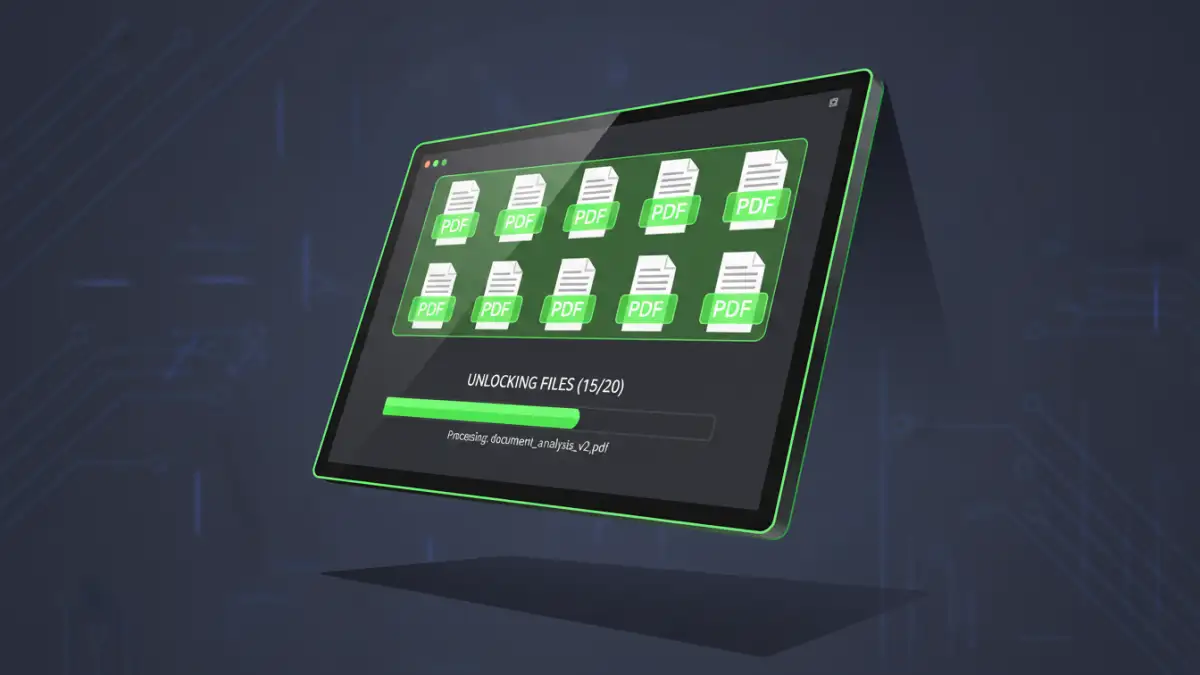
Numerous online tools are specifically designed for batch PDF unlocking. These platforms are convenient because they don't require any software installation and can often handle multiple files simultaneously. You upload your password-protected PDFs, enter the password once, and the service processes them, allowing you to download the unlocked versions.
Popular options include Smallpdf, iLovePDF, and PDF2Go. When using these, always consider the security and privacy implications. Uploading sensitive documents to third-party servers carries inherent risks, so it's best to use reputable services and understand their data handling policies. This method is excellent for unlocking multiple PDFs when you have the correct password and are comfortable with cloud-based processing.
Choosing a Reliable Online Tool
Look for services that clearly state their security measures, offer decryption for owner passwords, and support batch processing. Many provide a free tier with limitations on file size or the number of files per day, which can be sufficient for occasional use.
Method 3: Employing Desktop Software
For more frequent or sensitive tasks, dedicated desktop software offers greater control and security. These applications are installed on your computer and can often unlock PDFs much faster and more reliably than online tools, especially for large batches or complex password protection. Some PDF editors, like Adobe Acrobat Pro, have built-in features to manage security settings.
Other specialized tools focus solely on password recovery or removal. These might employ brute-force or dictionary attacks to try and guess forgotten passwords, though success is not guaranteed and can take a very long time. For simply removing a known password from multiple files, dedicated batch PDF unlocker software is the most efficient route. This is where you can truly unlock multiple PDFs with ease.
Software Options and Features
When selecting software, check for features like batch processing, support for various PDF versions, and the ability to remove both user and owner passwords. Ensure the software is from a trusted vendor to avoid malware.
Best Practices and Considerations
Before you attempt to unlock multiple PDFs, ensure you have the necessary permissions to do so. Unlocking documents that do not belong to you or for which you lack authorization can have legal and ethical consequences. Always use these methods responsibly.
For owner passwords, the browser method is often sufficient and free. For user passwords, online tools or desktop software are generally required. If you've forgotten a password and cannot retrieve it, consider password recovery services, but be aware of their limitations and potential costs. For regular users, investing in a reliable desktop PDF management tool can save significant time and hassle.
Comparison Table: PDF Unlocking Methods
| Method | Primary Use Case | Pros | Cons | Security Consideration |
|---|---|---|---|---|
| Web Browser 'Print' Trick | Removing owner/permission restrictions | Free, no installation, fast for single files | Does not remove user (open) passwords, requires opening each file | Low risk, processing happens locally |
| Online PDF Unlocker Tools | Batch removal of known user/owner passwords | Convenient, supports batch processing, accessible anywhere | Privacy concerns, file size/usage limits, requires internet | Moderate risk; choose reputable services |
| Desktop PDF Software (Editor/Unlocker) | Batch removal of known passwords, advanced editing | High security, faster processing, offline use, powerful features | Requires installation, may have a cost, learning curve for advanced features | High security, data stays local |
| Password Recovery Software | Recovering forgotten user passwords | Can potentially recover lost passwords | Time-consuming, success not guaranteed, often complex, potential legal/ethical issues if not authorized | Low risk if used on own files; high risk if unauthorized |