I was recently reviewing a contract sent as a PDF, and the first thing I did was check the digital signature. It's a critical step many people overlook, but it's the only way to be sure the document hasn't been tampered with and that the signer is who they claim to be. A simple visual signature can be easily forged, but a cryptographic digital signature provides a much higher level of assurance.
Understanding how to properly check these signatures is essential for anyone dealing with important legal, financial, or official documents. It's a skill that protects you from fraud and ensures the information you're relying on is legitimate. This process involves more than just seeing a name; it's about validating the cryptographic proof embedded within the file.
Table of Contents
Why Verifying a Digital Signature Matters
When you see a digital signature on a PDF, it's not just a scanned image of a handwritten signature. It's a complex piece of cryptography designed to provide three key assurances: authenticity, integrity, and non-repudiation. From a technical standpoint, it uses a system called Public Key Infrastructure (PKI).
Essentially, the signer uses a private key (known only to them) to create the signature, which is linked to a unique hash of the document's content. Anyone can then use the signer's public key (which is widely available) to verify that the signature is valid. This process confirms two things: that the signature was created by the specific private key holder (authenticity) and that the document has not been altered since it was signed (integrity). If even a single character in the PDF is changed, the hash will be different, and the signature will fail validation.
The Three Pillars of Digital Signature Security
It's helpful to remember these three concepts when thinking about why verification is so important. They are the foundation of trust in digital documents.
- Authenticity: Confirms that the person who signed the document is who they claim to be. The signature is cryptographically bound to their identity.
- Integrity: Guarantees that the document has not been modified or tampered with since the moment it was signed. This is a crucial document integrity check.
- Non-repudiation: Prevents the signer from later denying that they signed the document. The cryptographic proof is undeniable.
Step-by-Step Guide to Signature Verification
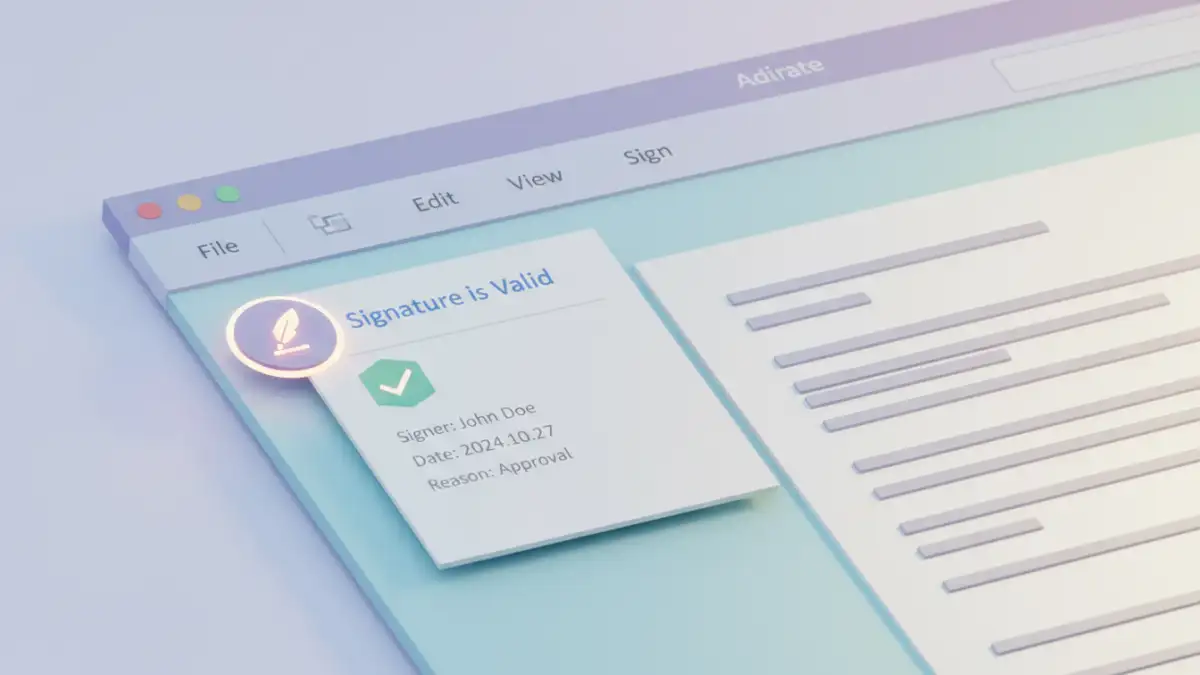
The most common and reliable way to verify a digital signature is by using a dedicated PDF reader like Adobe Acrobat Reader, which is free. These applications have built-in mechanisms to check the signature's cryptographic validity and the trustworthiness of the certificate used to create it.
Using Adobe Acrobat Reader (The Standard Method)
This is my go-to method because it's thorough and widely trusted. Adobe is one of the primary stewards of the PDF format, so their tools are robust.
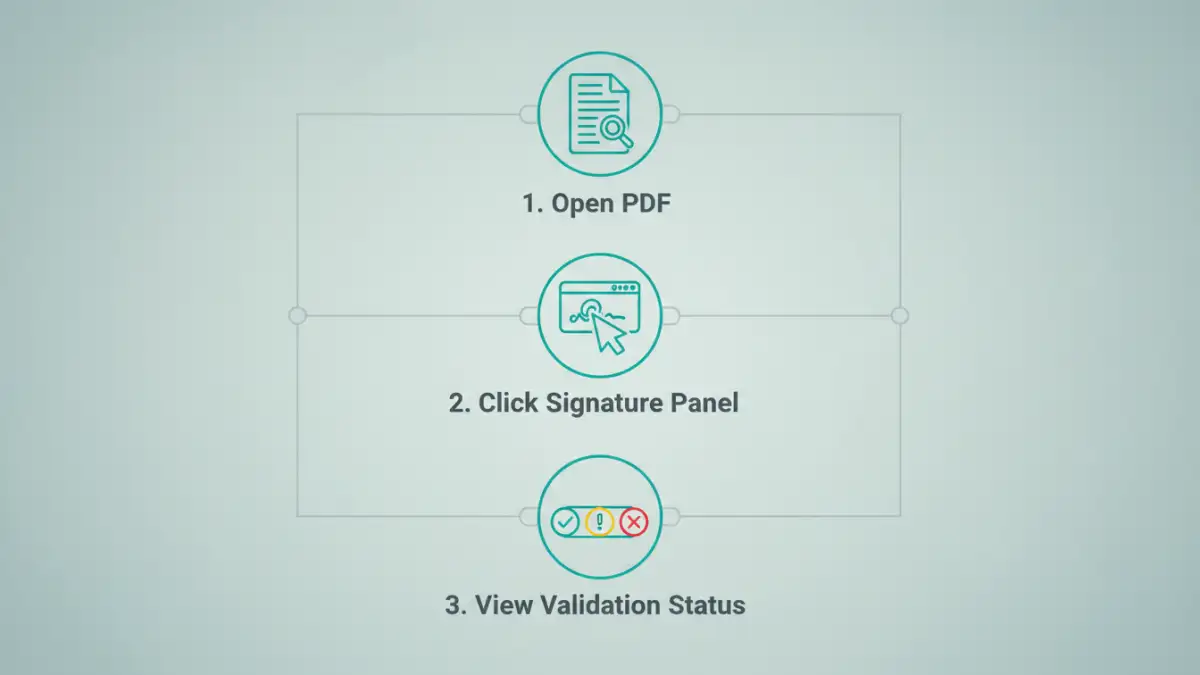
- Open the PDF: Launch Adobe Acrobat Reader and open the signed PDF document.
- Locate the Signature: Navigate to the signature within the document. You'll often see a blue bar at the top of the document stating it's signed or certified. You can also click directly on the visible signature field.
- Access the Signature Panel: Clicking the signature or the blue bar will typically open a 'Signature Panel' on the left side of the window. This panel provides a summary of all signatures in the document.
- View Signature Properties: In the Signature Panel, you can right-click the specific signature and select 'Show Signature Properties'. This opens a detailed dialog box.
- Analyze the Details: The Signature Properties window is where the real information is. It tells you if the signature is valid, if the document has been modified, the signer's identity, the time it was signed, and whether the signer's certificate is trusted by your system. A valid signature will confirm that the signer's identity is valid and the document hasn't been modified.
Understanding Signature Validation Statuses
When you perform a digital signature validation, the software will return a status, often represented by an icon. Knowing what these mean is key to making an informed decision about the document's trustworthiness. A signature might be technically correct but still flagged if the signer's identity certificate isn't from a source your computer automatically trusts.
For instance, a yellow warning icon doesn't always mean the signature is bad; it often means your software doesn't know the Certificate Authority (CA) that issued the signer's digital ID. You may need to manually add that CA to your list of trusted sources if you can verify its legitimacy through other means. This is a common step when working with documents from a new partner or organization.
Interpreting the Validation Icons
Most PDF readers use a simple color-coded system to display the results of a signature check. Here’s what they generally mean:
- Green Checkmark: The signature is valid. The signer's identity has been verified by a trusted authority, and the document has not been altered. This is the ideal outcome.
- Yellow Triangle/Question Mark: The signature's validity is unknown. This is a common status. It usually means the signature itself is cryptographically sound, but the signer's certificate was not issued by a certification authority that is trusted by your system. You may need to investigate and manually trust the certificate's issuer.
- Red 'X': The signature is invalid. This is a major red flag. It means either the document was altered after signing, the signer's certificate has been revoked, or the signature is otherwise broken. You should not trust this document.
- Blue Ribbon: This indicates a Certified Document. It carries a higher level of assurance than a standard signature, indicating the author has certified the document's contents and may have specified what changes are allowed.
Troubleshooting Common Validation Issues
The most frequent issue I help people with is the "validity unknown" status. This happens because for a signature to be automatically trusted, the digital certificate used to sign it must trace back to a root certificate in your computer's 'trust store'. Adobe and Windows maintain a list of trusted Certificate Authorities (CAs), but if the signer used a certificate from a CA not on that list, you get the yellow warning.
To fix this, you can view the signature's properties, look at the certificate details, and if you trust the issuing authority, you can add it to your list of trusted identities. However, do this with caution. Only add a certificate to your trust list if you are absolutely certain of its legitimacy, for example, by confirming it with the sender over the phone or through another secure channel. Making an uninformed trust decision can expose you to forged documents.
Signature Validation Status Explained
| Icon | Status Name | What It Means | Recommended Action |
|---|---|---|---|
| Green Checkmark | Valid Signature | The signer is verified and the document is unaltered. | Proceed with confidence. The document is authentic. |
| Yellow Triangle | Validity Unknown | The signature is technically valid, but the signer's certificate is not from a trusted source. | Investigate the signer's identity and certificate issuer. Manually trust the certificate if you can verify its legitimacy. |
| Red X | Invalid Signature | The document has been altered, the certificate is revoked, or the signature is broken. | Do not trust the document. Contact the sender immediately using a different communication channel. |
| Blue Ribbon | Certified Document | The document's author has certified its contents, providing a higher level of trust. | Trust the document, but be aware of any allowed changes (like filling form fields) specified by the certifier. |