Working with password-protected documents can be frustrating, especially when you have a large number of files that need to be accessed or modified. Whether it's for compliance, data migration, or simply regaining access to your own files, manually unlocking each PDF is time-consuming and inefficient. My experience has shown that effective solutions for handling multiple secured files are essential for productivity.
This article explores efficient methods for batch PDF unlocking, helping you manage your secure documents without the tedious process of individual handling. We'll cover various approaches, from simple browser-based tricks to more robust software solutions, ensuring you can find a method that suits your needs and technical comfort level.
Table of Contents
Understanding the Basics
When a PDF is password-protected, it means that specific permissions or access controls have been applied to the file. These protections can range from a simple user password required to open the document to owner passwords that restrict printing, copying, or editing. Understanding the type of protection is crucial for choosing the right unlocking method.
Types of PDF Passwords
There are generally two main types of passwords associated with PDFs: the user password (or open password) and the owner password (or permissions password). The user password prevents anyone from opening the file without entering the correct code. The owner password, on the other hand, allows the file to be opened but restricts certain actions like printing, copying text, or modifying the document, even if you know the open password.
The Browser Trick Method

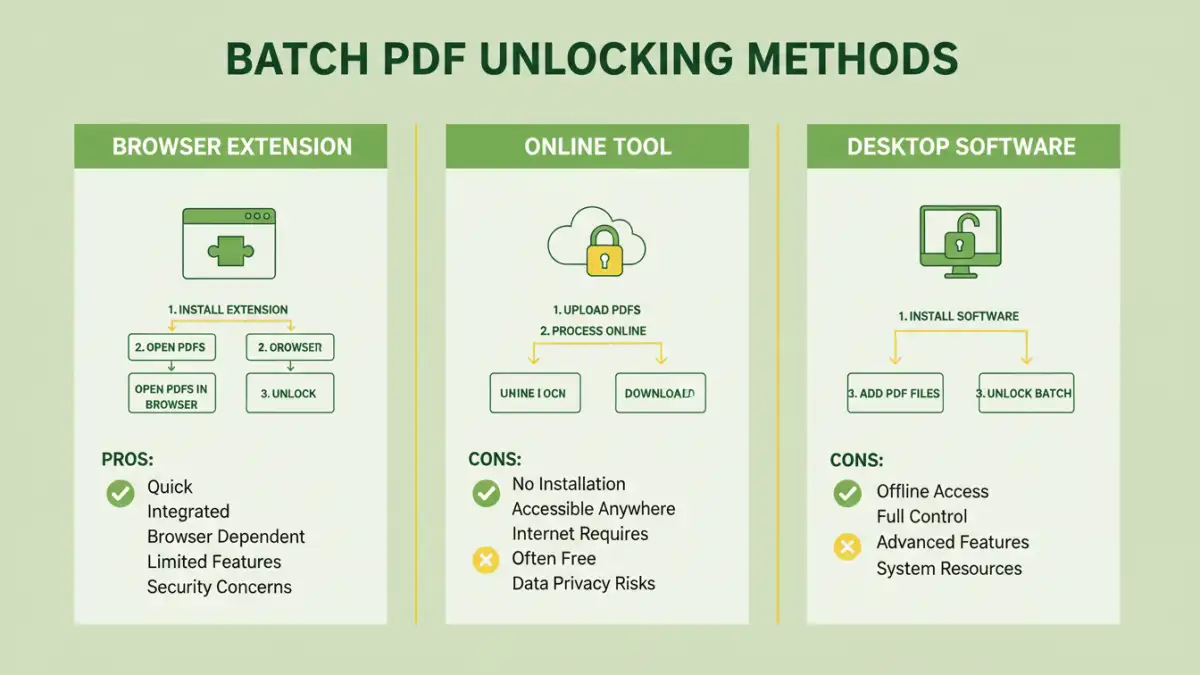
For PDFs protected only by an owner password (meaning you can open the file but not print or copy), a simple trick using a web browser can often unlock these restrictions. This method involves opening the PDF in a compatible browser, using the print function, and then saving it as a new PDF file. This process effectively bypasses the owner password's restrictions.
Step-by-Step Browser Unlocking
To perform this, open the password-protected PDF in your browser (like Chrome, Firefox, or Edge). Then, go to the print option (Ctrl+P or Cmd+P). Instead of selecting a physical printer, choose 'Save as PDF' or 'Microsoft Print to PDF' as your destination. Print the document to this virtual printer, and the newly saved PDF will have the restrictions removed. This is a quick way to recover password protected files when only permissions are locked.
Using Online PDF Tools
Numerous online services offer solutions for managing PDF files, including password removal. These platforms are often user-friendly and require no software installation, making them accessible for quick tasks. Many of these tools support unlocking multiple PDFs simultaneously, which is where batch PDF unlocking becomes incredibly convenient.
Considerations for Online Tools
When using online tools for bulk PDF password removal, it's essential to consider security and privacy. Uploading sensitive documents to third-party servers carries inherent risks. Always choose reputable services that clearly state their data handling policies and encryption methods. For less sensitive files or when speed is paramount, these tools can be highly effective.
Leveraging Desktop Software
For more robust and secure solutions, dedicated desktop software provides advanced features for batch PDF unlocking. These applications often offer better performance, enhanced security, and the ability to handle a wider range of password protection types, including user passwords if you know them. Many offer trial versions, allowing you to test their capabilities before committing.
Choosing the Right Software
When looking for desktop software, prioritize those that explicitly support unlocking multiple PDFs at once. Features like batch processing, support for various encryption standards, and a clear interface are important. Some software might offer password recovery options, but it's crucial to understand that recovering a forgotten user password without knowing it is often impossible without brute-force methods, which can be time-consuming and not always successful.
Best Practices for Document Security
While efficient unlocking methods are valuable, maintaining strong document security from the outset is paramount. Always use strong, unique passwords for sensitive documents. Regularly review who has access to your files and update permissions as needed. For critical data, consider robust encryption software that goes beyond standard PDF password protection.
Secure Password Management
Implementing a reliable password manager is a key strategy for managing the numerous passwords required in today's digital world. This ensures that you can create and store strong, unique passwords for all your documents, including PDFs, without the need to memorize them all. This practice enhances overall data security and simplifies access when needed.
Comparison Table
| Method | Ease of Use | Security/Privacy | Effectiveness for User Passwords | Effectiveness for Owner Passwords | Batch Capability |
|---|---|---|---|---|---|
| Browser Trick | Very High | High (local) | N/A | High | Limited (manual per file) |
| Online Tools | High | Moderate (depends on service) | Low (requires known password) | High | Yes |
| Desktop Software | Moderate to High | High (local) | Moderate (requires known password or recovery tools) | High | Yes |
| Password Managers | High (for access) | Very High | N/A (for storage/retrieval) | N/A | N/A (for password management) |