
Working with password-protected documents can be frustrating, especially when you need to secure a large collection of sensitive files. Manually applying passwords to each PDF individually is time-consuming and prone to errors. Fortunately, there are efficient ways to handle this task.
As someone who's spent years optimizing document workflows, I've found that leveraging batch processing for tasks like PDF password protection can save significant time and reduce the risk of oversight. This is crucial for businesses and individuals dealing with confidential information.
Table of Contents
Understanding Batch PDF Password Protection
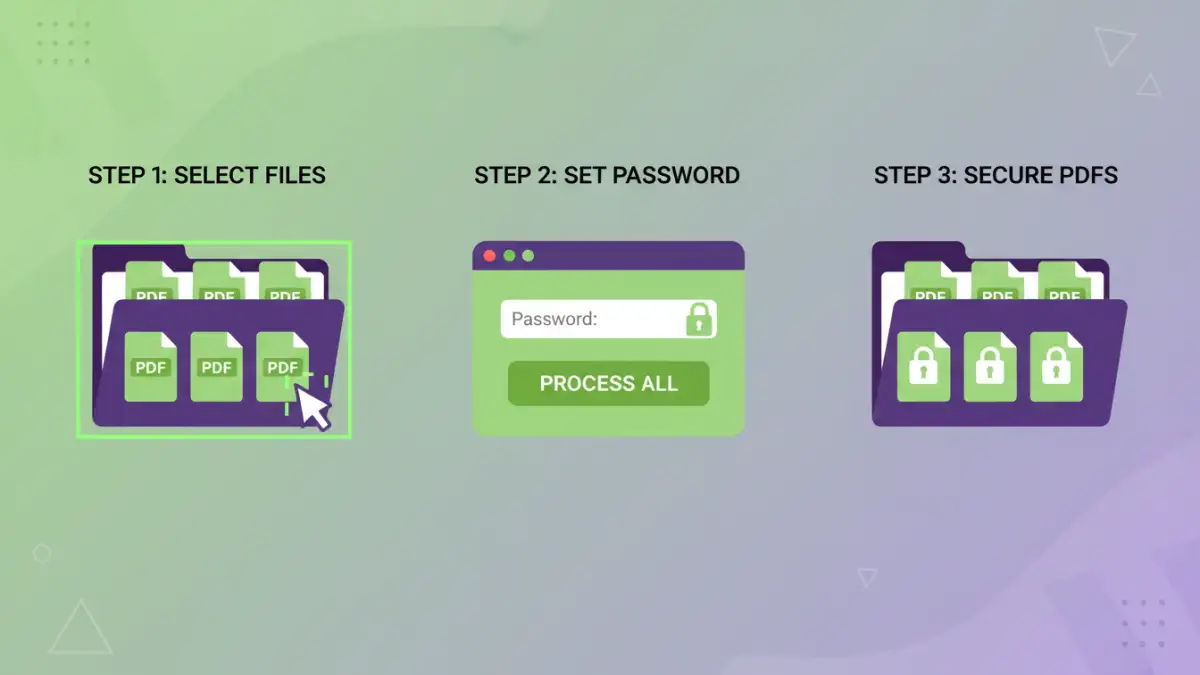
Batch PDF password protection refers to the process of applying a password to multiple PDF files simultaneously. Instead of opening and encrypting each document one by one, a single operation encrypts an entire folder or a selected list of PDFs with the same password. This is invaluable for scenarios where you need to distribute a set of documents securely or archive sensitive data.
When is Batch Protection Necessary?
Consider a scenario where a company needs to send out a confidential report to dozens of employees. Each report might be a separate PDF file. Manually adding a password to each would be a tedious and error-prone process. Using a batch method ensures consistency and saves hours of work. Similarly, when archiving sensitive client data, applying a uniform password across all files is an efficient security measure.
Methods for Batch PDF Password Protection
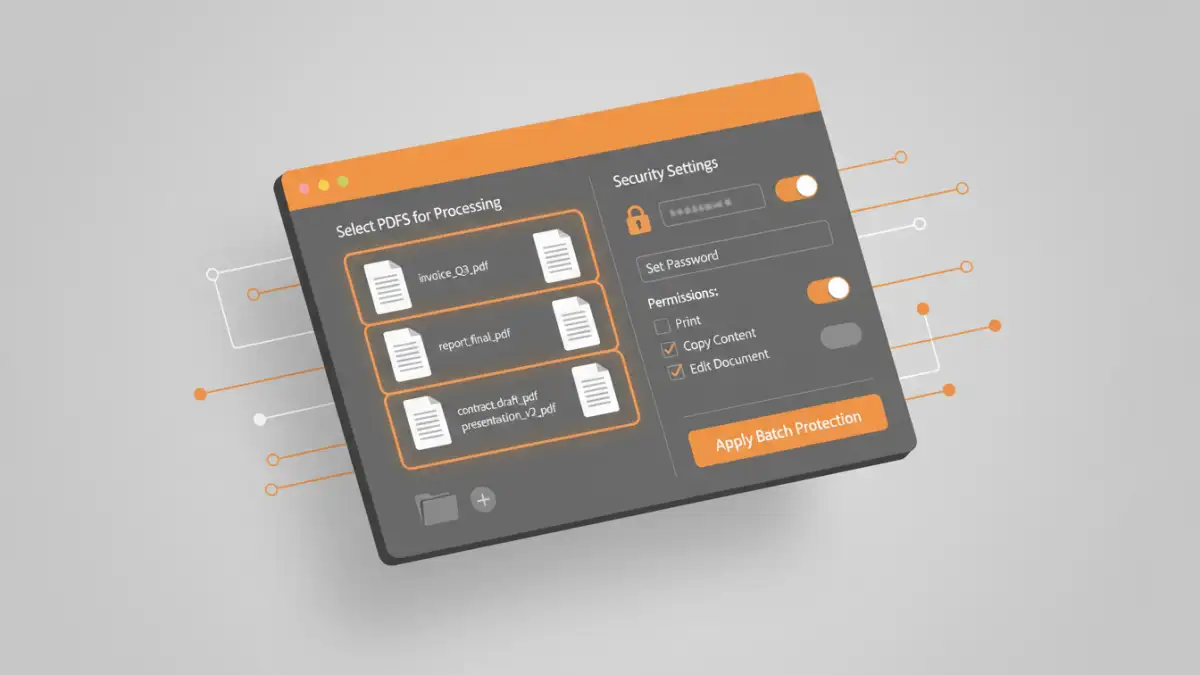
Several approaches can help you apply passwords to PDFs in bulk. The best method often depends on your technical comfort level, the number of files, and the operating system you're using.
Using Desktop Software
Dedicated PDF editing software often comes with robust batch processing capabilities. Tools like Adobe Acrobat Pro, Foxit PhantomPDF, or even some free alternatives allow you to select multiple files and apply encryption settings in one go. You typically navigate to a batch processing or action wizard, choose the 'Encrypt' or 'Add Password' function, select your files, set the desired password and permissions, and then let the software do the work.
Leveraging Online Tools
For users who prefer not to install software, numerous online services offer batch PDF encryption. Websites like Smallpdf, iLovePDF, or PDF24 Tools provide features where you can upload multiple PDF files, enter a password, and download the secured versions. It's crucial to use reputable online tools and be mindful of privacy policies when uploading sensitive documents.
Command-Line Utilities
For more technically inclined users or for automation purposes, command-line tools are extremely powerful. Utilities like `qpdf` or specific scripting languages (like Python with libraries such as PyPDF2 or pdfrw) can be used to write scripts that iterate through directories and apply password protection to all PDF files found. This offers the highest degree of control and can be integrated into larger automated workflows.
Key Considerations
Before diving into batch PDF password protection, there are a few critical points to keep in mind to ensure security and usability.
Password Strength and Management
When applying passwords to multiple documents, using a strong, unique password is paramount. Consider using a password manager to generate and store complex passwords securely. If different sets of documents require different passwords, meticulous record-keeping is essential to avoid losing access to your own files.
User Permissions
Most PDF protection tools allow you to set not only an open password but also permissions for printing, copying text, or modifying the document. When applying passwords in bulk, decide if these additional restrictions are necessary for all files or if they should be applied selectively. Ensure your chosen method supports setting these granular permissions.
File Accessibility
While password protection enhances security, it can also hinder legitimate access if not managed properly. Ensure that the password and any associated instructions are clearly communicated to authorized recipients. For your own archives, maintain a secure backup of the password, perhaps in a password manager, to prevent accidental data loss.
Best Practices for Secure Batch Operations
To maximize the effectiveness and security of your batch PDF password protection efforts, follow these best practices:
First, always test your chosen method with a few non-sensitive files before processing a large volume of critical documents. This helps you confirm the settings are applied correctly and you understand the workflow. Second, verify the protection on the output files by attempting to open them and checking the set permissions. Ensure the password works as expected and that no unintended restrictions are in place.
Third, if using online tools, confirm their security and privacy policies. For highly sensitive data, desktop software or command-line utilities that keep files on your local machine are generally safer. Finally, regularly review your security protocols. As threats evolve, ensure your methods for applying passwords remain robust and up-to-date.
Method Comparison: PDF Password Protection Approaches
| Method | Ease of Use | Security Level | Scalability | Typical Use Case |
|---|---|---|---|---|
| Desktop Software (e.g., Acrobat Pro) | Moderate to High | High | High | Professional environments, large volumes |
| Online PDF Tools | High | Moderate (depends on provider) | Moderate | Occasional use, smaller batches |
| Command-Line Utilities | Low (requires technical skill) | Very High (user-controlled) | Very High (scriptable) | Automation, advanced users, enterprise scripting |
| Manual Application | Low | Moderate | Low | Single files or very small batches |