Managing sensitive digital documents often involves ensuring they are protected from unauthorized access. When you have a collection of files, especially PDFs, that require the same level of security, manually applying passwords to each one can be incredibly time-consuming and prone to errors. This is where the power of batch processing comes into play.
As someone who has spent years developing and implementing document management solutions, I've seen firsthand how critical efficient security measures are. The ability to secure multiple PDFs simultaneously not only saves valuable time but also ensures consistent protection across your entire dataset. Let's explore how you can achieve this effectively.
Table of Contents
Understanding the Need for Batch Protection
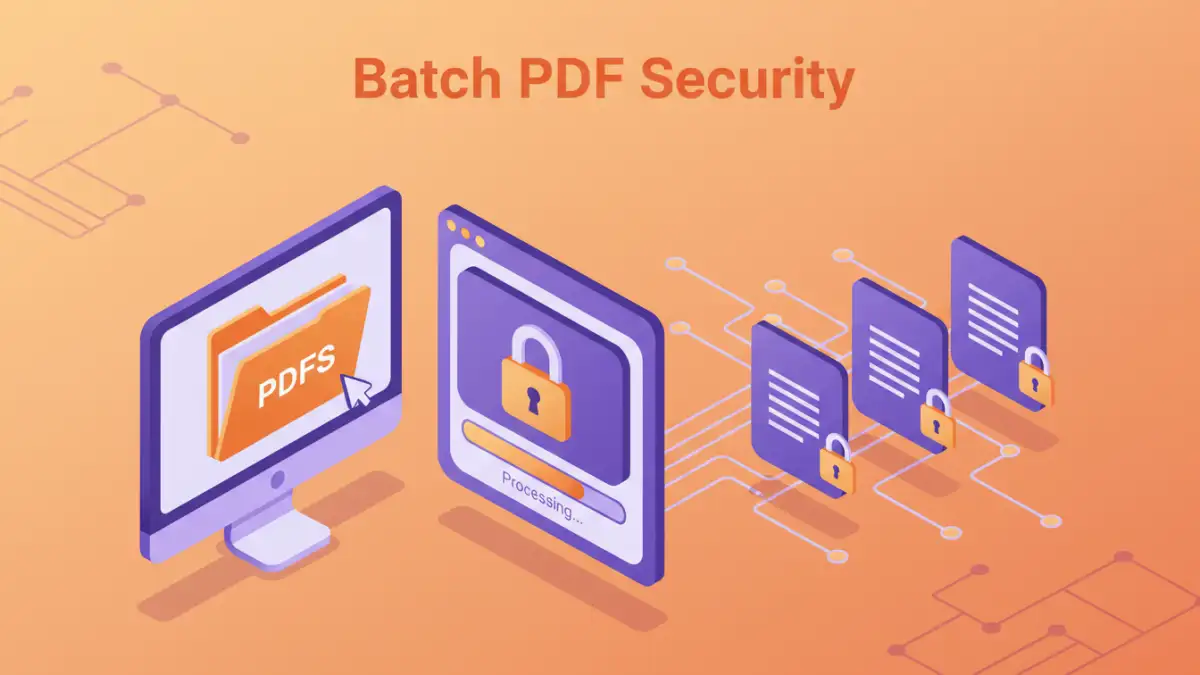
In professional environments, whether it's legal documents, financial reports, or proprietary business plans, confidentiality is paramount. Imagine needing to send out a batch of contracts or client agreements. Each document contains sensitive information that must be safeguarded during transit and storage. Applying individual passwords is not only tedious but also increases the risk of forgetting a password or misapplying it.
Why Batch Processing Matters
The core benefit of batch processing for PDF security is efficiency. Instead of opening, encrypting, and saving each file one by one, you can configure a tool to apply the same password and encryption settings to an entire folder or a selected list of files. This dramatically reduces the manual effort involved and ensures that all files are protected uniformly.
Methods for Batch PDF Password Protection

There are several approaches to achieving batch PDF password protection, each with its own advantages. The most common methods involve using dedicated desktop software or reputable online PDF management tools. Each method offers a different balance of features, convenience, and security considerations.
Choosing the Right Approach
Your choice will likely depend on the volume of documents you need to protect, your comfort level with different software types, and your organization's security policies. For extensive operations or highly sensitive data, desktop software often provides more robust security and privacy. For simpler, less critical tasks, online tools can be a quick and accessible solution.
Leveraging Desktop Software
Dedicated PDF software often provides the most comprehensive and secure way to handle batch PDF encryption. Many professional PDF editors and management suites include features specifically designed for batch operations. These tools allow you to select multiple files or an entire directory, define a password and encryption level, and then process them all in one go.
When I've had to secure large volumes of documents, desktop applications were my go-to. They offer more control over the encryption algorithms (like AES-128 or AES-256) and ensure your files never leave your local machine, which is crucial for maintaining data privacy. Some popular options include Adobe Acrobat Pro, Foxit PhantomPDF, and various specialized PDF security tools.
Key Features to Look For
When evaluating desktop software for batch PDF password protection, look for features like the ability to process entire folders, set custom passwords, choose encryption strength, and potentially even set permissions (like restricting printing or copying). The interface should be intuitive enough to easily select files and initiate the batch process without a steep learning curve.
Exploring Online PDF Tools
The digital landscape has also seen a rise in online tools that offer batch PDF security functionalities. These web-based services can be convenient for users who don't want to install additional software or who need to perform a quick batch protection task. You typically upload your files, set a password, and the service processes them for you, offering encrypted files for download.
While convenient, it's essential to exercise caution when using online tools for sensitive documents. Always research the provider's privacy policy and security measures. Ensure they use strong encryption and have a clear policy on data deletion after processing. Services like Smallpdf, iLovePDF, and others often provide batch encryption options, but it's wise to use them for less critical data or after verifying their trustworthiness.
Considerations for Online Services
The primary concern with online tools is data privacy. You are uploading your potentially sensitive documents to a third-party server. While many reputable services use secure connections and delete files after a short period, the risk of data interception or breaches, however small, is present. Always prioritize trusted providers and understand their data handling practices.
Best Practices for Secure Batch Processing
Regardless of the method chosen, adopting best practices is vital for effective document security. Using strong, unique passwords is the first line of defense. Avoid simple or easily guessable passwords. Consider using a password manager to generate and store complex passwords securely.
Another crucial practice is to keep your software updated. Whether it's your PDF editor or your operating system, regular updates often include security patches that protect against newly discovered vulnerabilities. Furthermore, maintaining a secure backup of your original, unencrypted files before initiating any batch process is always a wise precaution.
Comparison Table
| Method | Pros | Cons | Best For |
|---|---|---|---|
| Desktop Software (e.g., Adobe Acrobat Pro) | High security, robust features, data privacy, handles all password types | Often requires purchase, can have a learning curve | Enterprise, sensitive data, frequent batch processing |
| Online PDF Tools (e.g., Smallpdf, iLovePDF) | Convenient, no installation needed, quick processing for simple tasks | Potential privacy concerns, limited features, requires internet connection | Occasional use, non-sensitive documents, quick encryption needs |
| Command-Line Tools (Advanced) | Highly customizable, scriptable for automation, excellent for developers | Requires technical expertise, complex setup | Automated workflows, developers, IT professionals |
| Built-in OS Features (Limited) | Free, readily available | Very limited functionality, not true batch processing for PDFs | Basic file protection, not PDF specific |