
I once had a client bring me a critical Excel workbook that ran half their business operations. The original developer was long gone, and nobody knew the password to the VBA project. The macros needed an urgent update, but the code was completely inaccessible. It's a surprisingly common scenario that can bring productivity to a halt.
While VBA project protection is a useful feature for safeguarding intellectual property, it becomes a major obstacle when passwords are lost or forgotten. Fortunately, for legitimate owners, there are ways to regain access. This isn't about malicious cracking; it's about recovery when you're the rightful owner of the file.
Table of Contents
Understanding VBA Project Protection
First, it's important to understand what a VBA password protects. It does not encrypt the Excel data itself. Instead, it locks access to the Visual Basic Editor (VBE), preventing anyone from viewing or editing the macro code, forms, and modules within the project. This is distinct from a workbook or worksheet password, which protects the cells and data.
The protection is more of a deterrent than a high-level security feature. The password check is essentially a flag within the file's binary structure. By modifying this flag, we can trick Excel into granting access without knowing the original password. This is the core principle behind most recovery methods.
The Manual Hex Editor Method
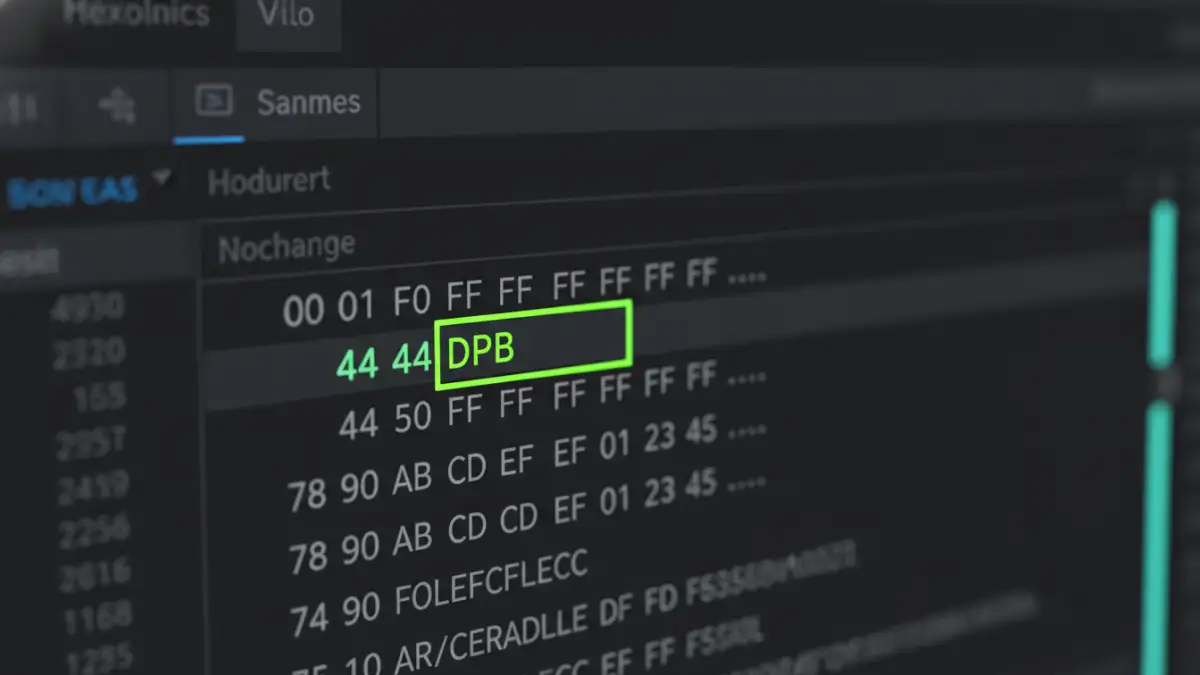
For older Excel files (like `.xls`), the most direct approach involves using a hex editor. A hex editor is a program that allows you to view and edit the raw binary data of a file. This method is technical and requires precision, but it's a powerful way to understand how the protection mechanism works.
Prerequisites and Warnings
Before you begin, a critical warning: always work on a copy of your file. Editing a file's binary data directly can easily lead to corruption if you make a mistake. I can't stress this enough. Create a backup, and then create another one just in case.
You will need a free hex editor application. HxD is a popular and reliable choice for Windows. The goal is to find a specific text string within the file and change it.
Step-by-Step Instructions
The process involves searching for a key-value pair that stores the password information and altering it. The specific key we're looking for is `DPB`.
- Open your copy of the `.xls` file in HxD or another hex editor.
- Use the search function (usually Ctrl+F) to find the text string `DPB`. Make sure you are searching for it as a text string, not hex values.
- Once you locate `DPB=`, carefully replace it with `DPx=`. You are only changing one character. Do not add or delete any other characters, as this will corrupt the file.
- Save the changes and close the hex editor.
- Now, open the modified file in Excel. You will likely see an error message like "Invalid key". Click OK or Yes to any prompts.
- Press Alt+F11 to open the Visual Basic Editor. Go to Tools > VBAProject Properties.
- Navigate to the Protection tab. You'll see the password fields are now enabled. Uncheck "Lock project for viewing" and clear the password fields, or simply set a new, memorable password.
- Save the workbook. The old password is now gone, and you have full access.
Adapting the Method for Modern Excel Files (.xlsm)
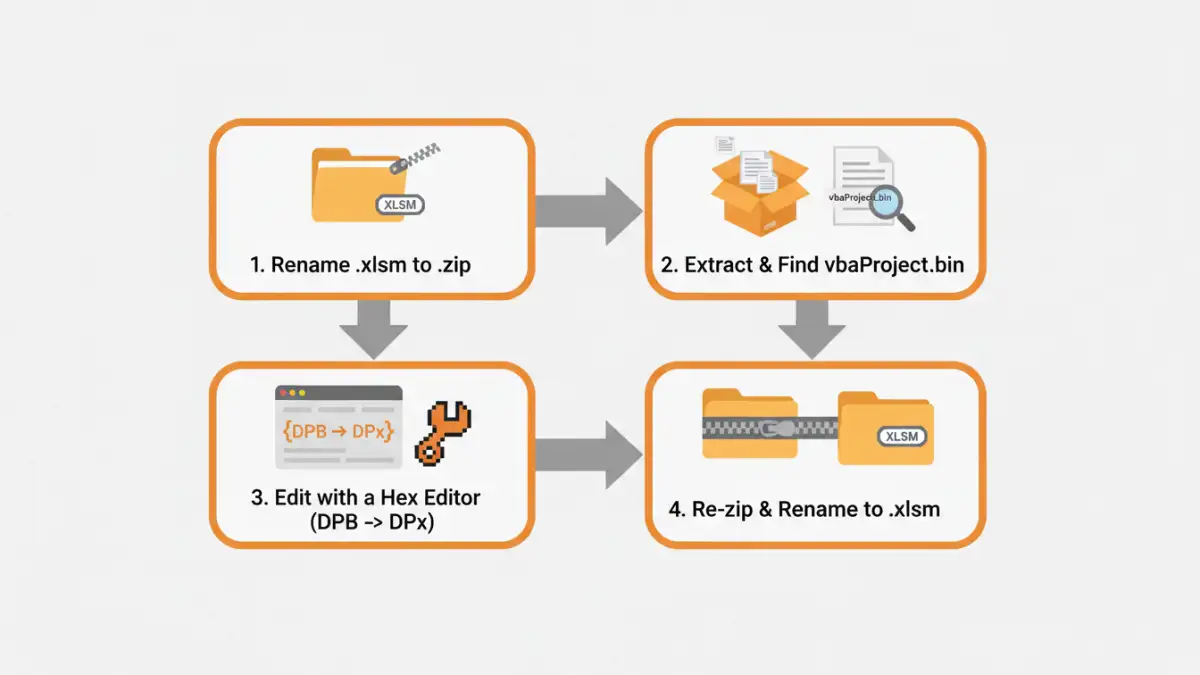
Modern Excel files (`.xlsm`, `.xlsb`) are fundamentally different from their older `.xls` counterparts. They are essentially ZIP archives containing various XML and binary files. This structure requires a few extra steps before we can use the hex editor trick.
The Unzip and Edit Method
The core logic remains the same—we still need to edit a binary file—but first, we have to extract it from the main workbook archive.
- Make a copy of your `.xlsm` file.
- Rename the file extension from `.xlsm` to `.zip`. Windows might warn you about changing the file extension; accept the change.
- You can now open this file with any ZIP utility, like Windows Explorer's built-in tool or 7-Zip.
- Extract the contents of the ZIP file to a new folder.
- Navigate through the extracted folders to `xl/`. Inside, you will find a file named `vbaProject.bin`. This is the file that contains your locked VBA code.
- Open `vbaProject.bin` with your hex editor.
- Just like before, search for the text string `DPB` and replace it with `DPx`.
- Save the modified `vbaProject.bin` file.
- Now, go back to the ZIP file you created in step 2. Drag the modified `vbaProject.bin` file back into the `xl` folder within the ZIP archive, overwriting the original.
- Close the ZIP archive and rename its extension from `.zip` back to `.xlsm`.
- Open the file in Excel, acknowledge any errors, and follow steps 6-8 from the previous method to reset the protection in the VBE.
This process is a great example of an `excel macro password bypass` that works by manipulating the file structure directly. It gives you a much deeper appreciation for how Office documents are constructed.
Best Practices and Due Diligence
While these techniques are effective, they should only be used ethically. Attempting to access a VBA project you don't own is a breach of trust and potentially illegal. These methods are for recovery, not for theft of intellectual property. If you inherit a locked project at work, ensure you have documented permission from management before proceeding.
From a development perspective, relying on VBA passwords as your sole form of protection is weak. For serious projects, I always recommend using version control systems like Git. Storing your code in a repository provides a much more robust history and backup than a simple password ever could. It also prevents the very problem of a single developer being the only keyholder to critical business logic.
Method Comparison for VBA Password Recovery
| Method | Complexity | Risk of Corruption | Best For |
|---|---|---|---|
| Hex Editor (.xls) | Medium | High (if done incorrectly) | Older Excel files where you have no other option. |
| Unzip & Edit (.xlsm) | Medium-High | High (if done incorrectly) | Modern Excel files when you need a free, software-free solution. |
| Third-Party Tools | Low | Low | Users who prefer a simple, automated solution and are willing to use external software. |
| Proactive Management | Low (setup) | Very Low | Developers who want to avoid this problem entirely by using version control. |