
It’s a scenario I’ve encountered more than once: inheriting a critical Excel workbook with complex macros that are the backbone of a business process. The problem? The original developer is gone, and the VBA project is locked with a password nobody knows. This situation can bring urgent updates to a screeching halt, leaving you with functional but unmaintainable code.
While VBA project protection is a useful feature for safeguarding intellectual property, it becomes a major obstacle when access is legitimately required for maintenance or debugging. Fortunately, there are technical ways to regain access. This isn't about malicious intent; it's about practical problem-solving for developers and IT professionals.
Table of Contents
Understanding VBA Project Protection
Before we jump into the solution, it’s helpful to understand what we're dealing with. When you set a password on a VBA project, Office applications (like Excel, Word, or Access) embed a key in the file's binary structure. This key essentially acts as a flag that tells the VBA editor not to display the source code without successful authentication.
The protection mechanism isn't military-grade encryption; it's more of a deterrent. For older file formats (.xls, .doc), the protection is notoriously weak. For newer formats (.xlsm, .docm), it's a bit more robust, but the underlying principle is similar. Our goal is to modify this flag directly in the file's binary code to trick the application into thinking there's no password.
Why This Method Works
The method we'll use involves a hexadecimal (hex) editor. A hex editor allows you to view and edit the raw binary data of a file, the ones and zeros that make it up, represented in a more human-readable hexadecimal format. By finding the specific bytes that represent the password protection key and altering them, we can effectively disable the lock without ever needing to know the original password.
The Hex Editor Method: A Technical Walkthrough
This is a powerful technique, but it requires precision. One wrong byte change can corrupt your file, so the first and most crucial step is to **create a backup** of your original file. Never work on your only copy.
Prerequisites and Step-by-Step Guide
You will need a hex editor. There are many free and reliable options available, such as HxD, Frhed, or Hex Fiend for macOS. Once you have one installed, you're ready to begin the process of viewing protected VBA source.
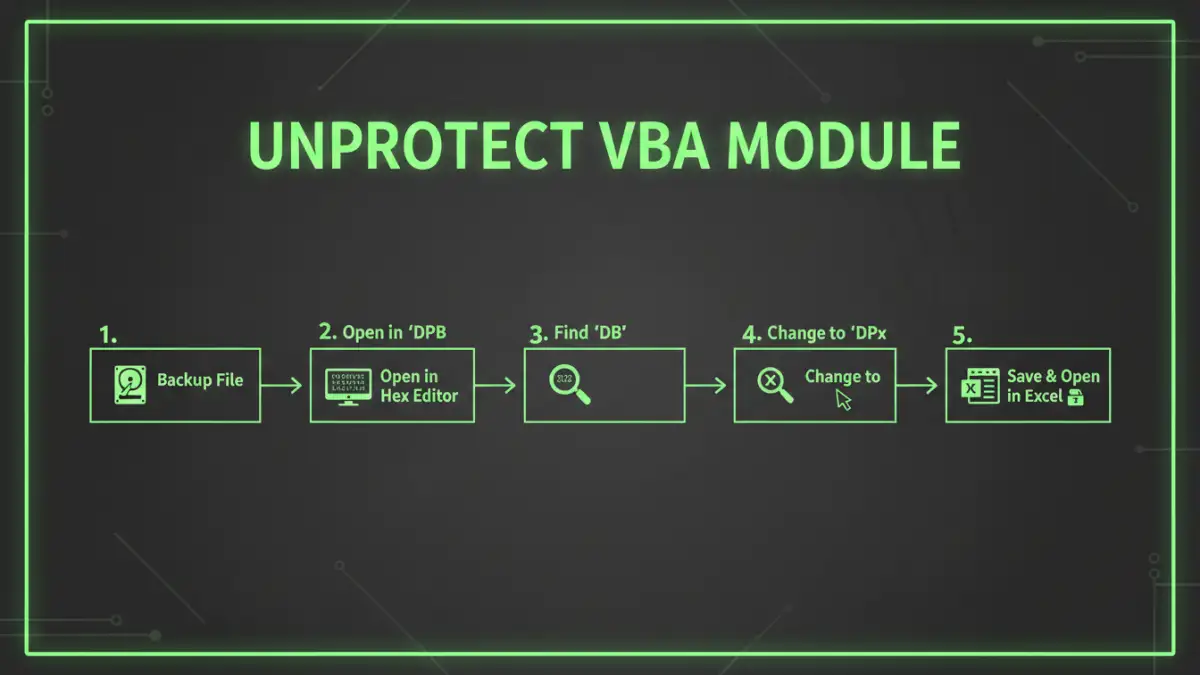
- Create a Backup: I can't stress this enough. Save a copy of your .xlsm or .docm file and work only on the copy.
- Open the File in the Hex Editor: Launch your hex editor and open the copied Office file. You will see columns of hexadecimal numbers.
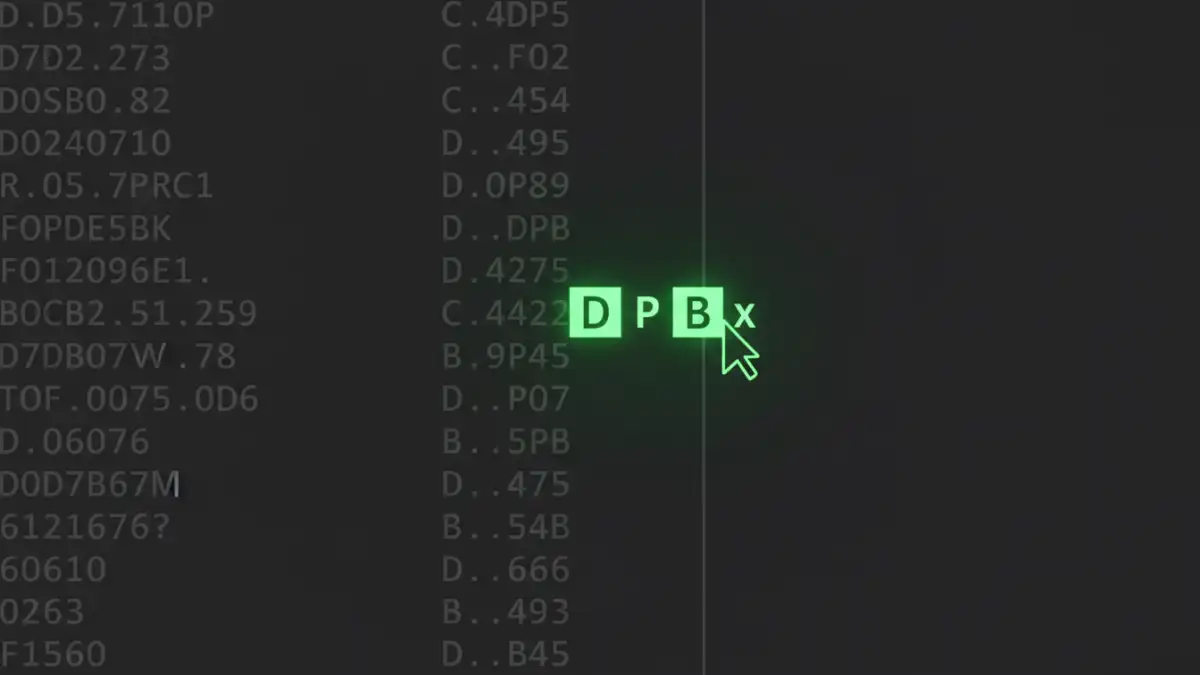
- Search for the Password Key: Use the search function (usually Ctrl+F) to find a specific text string. The string you're looking for is
DPB. This is the key that often precedes the stored password hash and protection data. - Modify the Key: Once you locate the
DPBstring, carefully change it. Click on the 'B' and replace it with an 'x', so the string becomesDPx. This simple change corrupts the password check, effectively disabling it. Do not add or delete any other characters, as this will alter the file's structure and likely corrupt it. - Save and Close: Save the changes in the hex editor and close the application.
- Open in Microsoft Office: Now, open the modified file in its native application (e.g., Excel). You will likely see an error message upon opening, something along the lines of 'Invalid key...'. This is expected. Click 'OK' or 'Yes' to proceed.
- Access the VBA Editor: Press Alt+F11 to open the Visual Basic Editor. Go to the project properties (Tools -> VBAProject Properties -> Protection tab). You will see that the project is still marked as locked, but you can now set a new password or remove the protection entirely without needing the old one. Set a new, temporary password, save the file, close it, and reopen it. You should now have full access to unprotect the vba module.
This method allows you to edit a locked vba project by directly manipulating the file. It's a clean and effective way to handle a lost protected vba password situation.
Potential Risks and Important Considerations
While the hex editor method is reliable, it's not without risks. The primary danger is file corruption. If you accidentally edit the wrong byte, delete a character, or add an extra one, the Office application may no longer be able to read the file. This is why the backup is non-negotiable.
Additionally, you must consider the ethical and legal implications. Only use this method on files that you have the legal right to access and modify. Using it to access proprietary code without permission is unethical and potentially illegal. My use of this technique has always been in professional contexts where access was necessary for business continuity, and ownership was clear.
Best Practices for Future VBA Security
Experiencing a lockout is a great learning opportunity. To prevent this from happening again, it's wise to implement better password management practices for your development projects.
For team projects, use a shared, secure password manager like 1Password or Bitwarden to store VBA passwords. This ensures that if one team member leaves, the knowledge isn't lost with them. Document everything, including the purpose of the macros and the credentials needed to maintain them. For personal projects, ensure your password is memorable or stored securely. This proactive approach is far better than reactive file surgery.
Method Comparison for VBA Access
| Method | Effectiveness | Risk Level | Required Skill |
|---|---|---|---|
| Hex Editor Method | Very High (for Office files) | Medium (File corruption risk) | Intermediate Technical |
| Brute-Force Software | Low to Medium (Time-consuming) | Low | Beginner |
| Online Unlocking Tools | Varies | High (Data privacy risk) | Beginner |
| Professional Data Recovery | High | Low | N/A (Costly) |