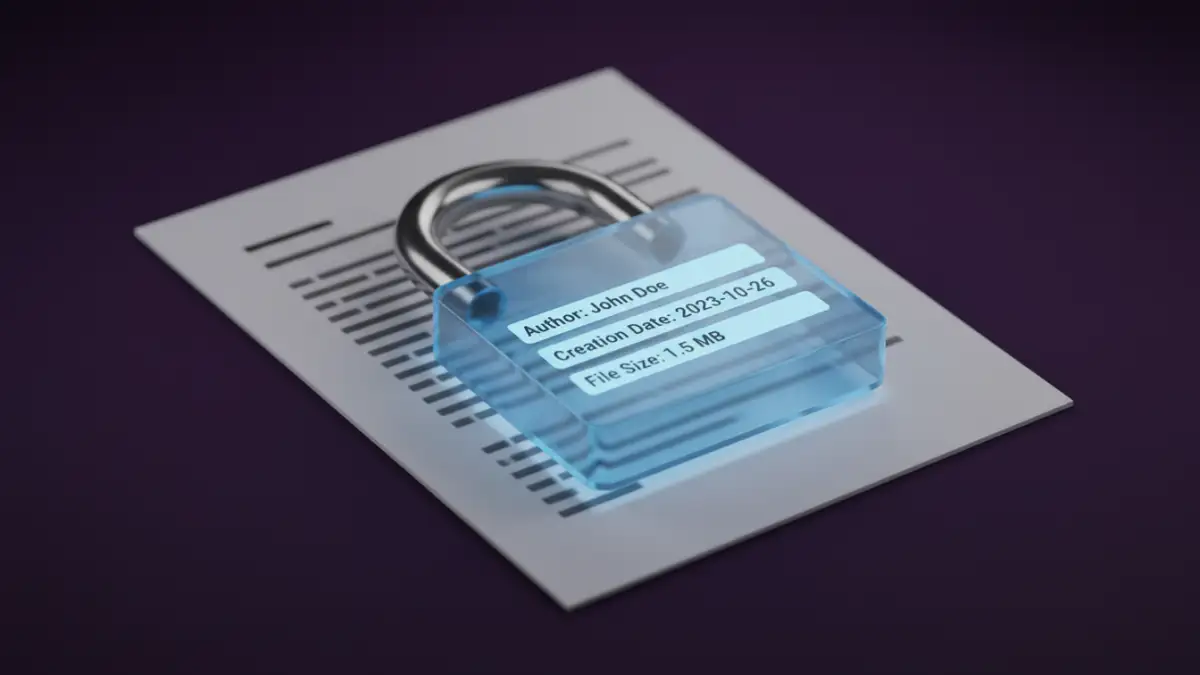
A client recently sent me a password-protected PDF for a project review. While the core content was secure, I was surprised to see the author's name, the software used to create it, and a list of keywords in the file properties. This is a common blind spot; many assume a password locks down everything, but that's rarely the case.
The protection you apply to a document often focuses on encrypting the content—the text, images, and data you see on the page. However, the data *about* the document can be left exposed, creating an unintended document information leakage risk.
Table of Contents
Understanding Document Metadata
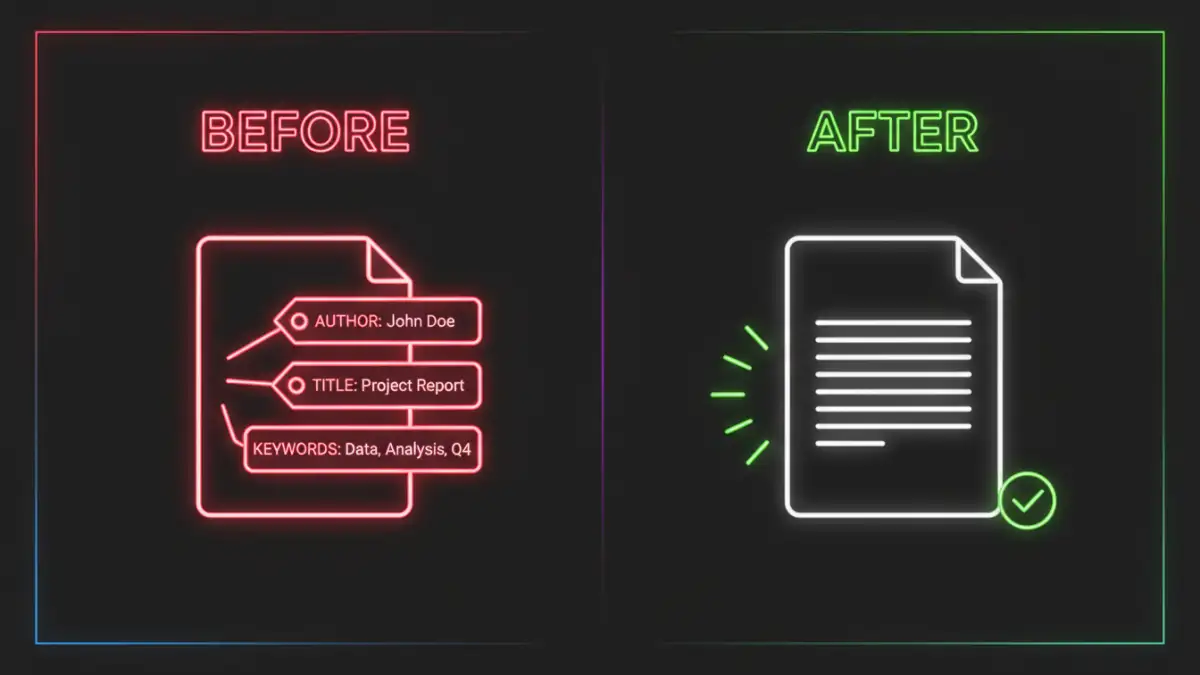
Before we can protect it, we need to understand what metadata is. Simply put, it's 'data about data.' It's the contextual information that travels with your file, providing details about its history, origin, and structure. This information is generated automatically by the software used to create the file and can be manually edited.
Common Types of Metadata
Metadata isn't just one thing; it's a collection of properties. Some of the most common examples you'll find embedded in your files include:
- Author Information: The name of the person who created the document, which often defaults to the registered user of the software.
- Dates and Times: Timestamps for when the file was created, last modified, and last accessed.
- Software Details: The application and version used to create the file (e.g., 'Microsoft Word for Office 365' or 'Adobe Acrobat Pro DC').
- File Properties: Title, subject, keywords, and comments that can be used for searching and organization.
- Hidden Data: Tracked changes, comments, and previous versions of the document that may not be immediately visible.
The Protection Gap: Content vs. Metadata
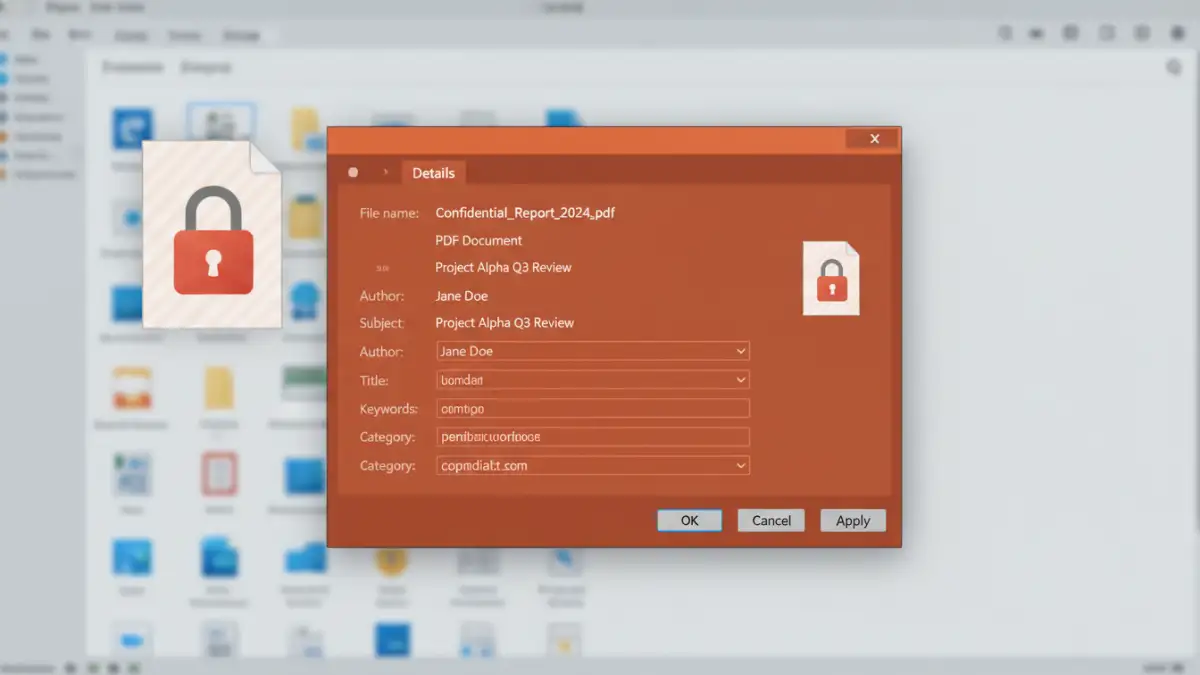
When you apply a password to a document, you're typically engaging a content encryption algorithm. The primary goal is to make the main body of the file unreadable without the correct key (your password). This is highly effective for protecting the sensitive information within the document itself.
The problem is that the file's structure often separates this core content from its metadata. In many formats, the metadata is stored in a different, often unencrypted, part of the file. Think of it like a sealed, opaque envelope (the encrypted content) with a clear shipping label on the outside (the metadata). Anyone who handles the package can read the label without ever opening the envelope.
Metadata Visibility in Popular File Formats
How much metadata is visible depends heavily on the file type and the specific encryption method used. From my experience building and securing document workflows, here’s how it generally breaks down for the most common formats.
PDF Documents
PDFs are notorious for this. The standard password protection in many tools encrypts the content streams but leaves the document's Info dictionary and XMP metadata stream unencrypted. This means someone can easily view metadata locked PDF properties like Author, Title, Subject, Keywords, Creator, and Producer without the password. While modern PDF standards allow for encrypting these properties, it is not always the default setting.
Microsoft Office Documents (.docx, .xlsx, .pptx)
Modern Office documents are essentially ZIP archives containing multiple XML files and folders. When you apply password protection, the main content file (e.g., `word/document.xml`) is encrypted. However, other files within that archive, such as `docProps/core.xml` and `docProps/app.xml`, which store the metadata, may not be. Anyone can rename the file to `.zip`, open it, and read these XML files to see the author, modification dates, and other secure file properties.
Practical Metadata Protection Methods
True document security requires protecting both the content and its context. Merely password-protecting a file isn't enough if you're concerned about what the password protected document metadata might reveal. You need to actively manage and remove it.
Using Built-in Document Inspectors
Most modern software suites include tools to help you manage this. They are designed to find and remove hidden data and personal information before you share a file.
- In Microsoft Office: Go to `File > Info > Check for Issues > Inspect Document`. This tool will scan for comments, document properties, author names, and other hidden data, giving you the option to remove it all with a click.
- In Adobe Acrobat Pro: Use the 'Remove Hidden Information' tool found under the 'Protect & Standardize' section. It scrubs metadata, hidden text, and other elements that could compromise privacy.
Performing this inspection *before* applying password protection is a critical step. By cleaning the file first, you ensure that the version you encrypt and share is free of potentially sensitive metadata.
Metadata Visibility Comparison
| File Type | Commonly Visible Metadata (When Password Protected) | Typical Protection Method |
|---|---|---|
| Author, Title, Subject, Keywords, Creator Tool, Creation/Modification Dates | Content stream encryption (metadata often unencrypted by default) | |
| Microsoft Word (.docx) | Author, Last Modified By, Company, Timestamps, Template Name | Main content XML encryption (metadata in separate, often unencrypted XML files) |
| Microsoft Excel (.xlsx) | Author, Company, Timestamps, Custom Properties | Worksheet content encryption (metadata stored similarly to Word documents) |
| ZIP Archive | File names, folder structure, individual file sizes, compression method | Content-only encryption (file structure and names remain visible) |