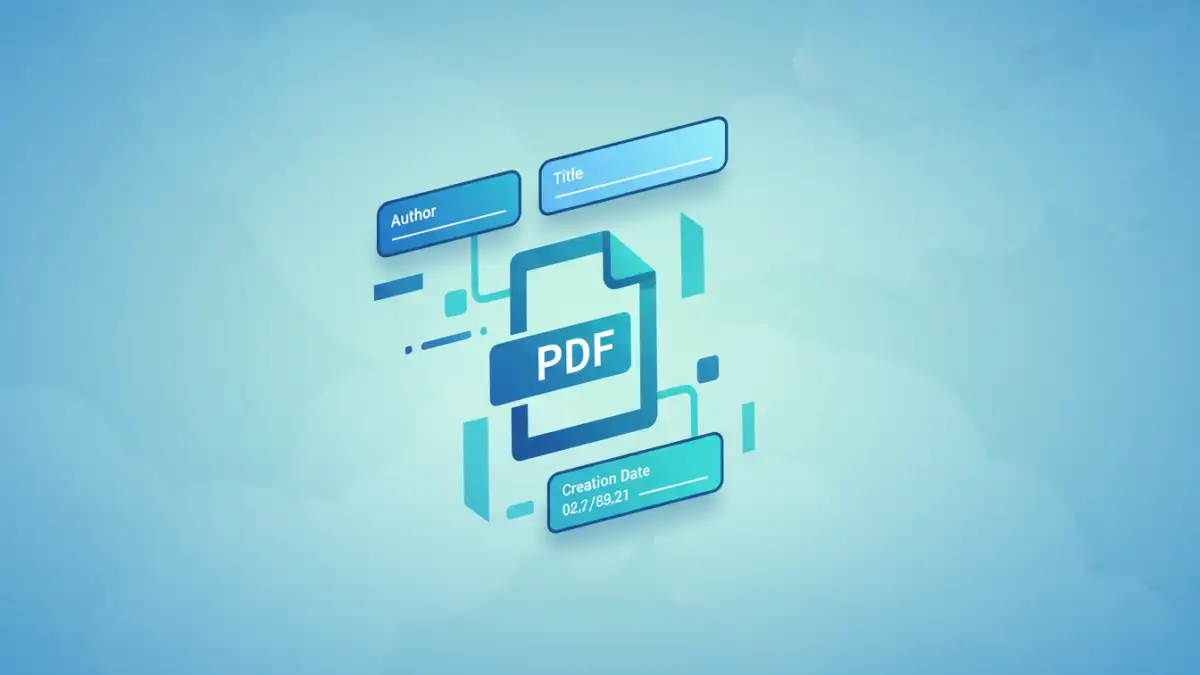
I once worked on a project where our team was submitting a critical proposal. Just before sending, we realized the PDF's 'Author' field still listed an employee who had left for a competitor months ago. It was a small detail, but it looked unprofessional and could have raised unnecessary questions. This situation highlights a frequently overlooked aspect of document management: the metadata, or document properties, embedded within our files.
This hidden information—including author, creation date, keywords, and even the software used—can impact everything from professional appearance to data security. Knowing how to manage it is a crucial skill for anyone handling digital documents.
Table of Contents
What Are PDF Document Properties (Metadata)?
Every PDF contains a set of document properties, often called metadata. This is essentially 'data about data,' providing context and information about the file itself. Think of it as the label on a file folder, offering a quick summary without needing to open it.
Common properties include the Title, Author, Subject, and Keywords. There are also system-generated fields like Creation Date and Modification Date. This information is useful for organizing and searching for documents, but it can also pose a risk if not managed correctly.
The Hidden Risks in Metadata
The danger lies in what this metadata can unintentionally reveal. For example, a document intended for public release might contain the name of the original author from an internal draft, or the title could expose a confidential project code name. This is why it's so important to remove sensitive info from pdf files before sharing them externally. In legal or journalistic fields, scrubbing metadata is a standard, non-negotiable step to protect sources and maintain confidentiality.
Choosing the Right Tool for the Job
You have several options when you need to edit PDF document properties, each with its own balance of security, cost, and convenience. The right choice depends entirely on the sensitivity of your document.
Secure Desktop Software: The Gold Standard
For confidential or business-critical documents, a desktop pdf metadata editor secure application is always my recommendation. Tools like Adobe Acrobat Pro, Foxit PDF Editor, or PDF-XChange Editor operate entirely on your local machine. This means your file never gets uploaded to a third-party server, eliminating the risk of interception or data privacy breaches. While often requiring a paid license, the security and advanced features they offer are well worth the investment for professional use.
Online Editors: Convenience with a Caveat
Web-based tools like Smallpdf, iLovePDF, or Soda PDF are incredibly convenient for quick edits. You simply upload your file, make changes, and download the new version. However, this convenience comes at a price: you are uploading your document to someone else's server. For non-sensitive files, like a personal resume or a public flyer, this is perfectly fine. But I would never use an online tool for documents containing financial data, legal contracts, or proprietary information.
A Step-by-Step Guide to Editing Properties
The process for editing metadata is straightforward in most dedicated PDF editors. Let's walk through the steps using Adobe Acrobat Pro as a common example, though the principles apply to other software as well.
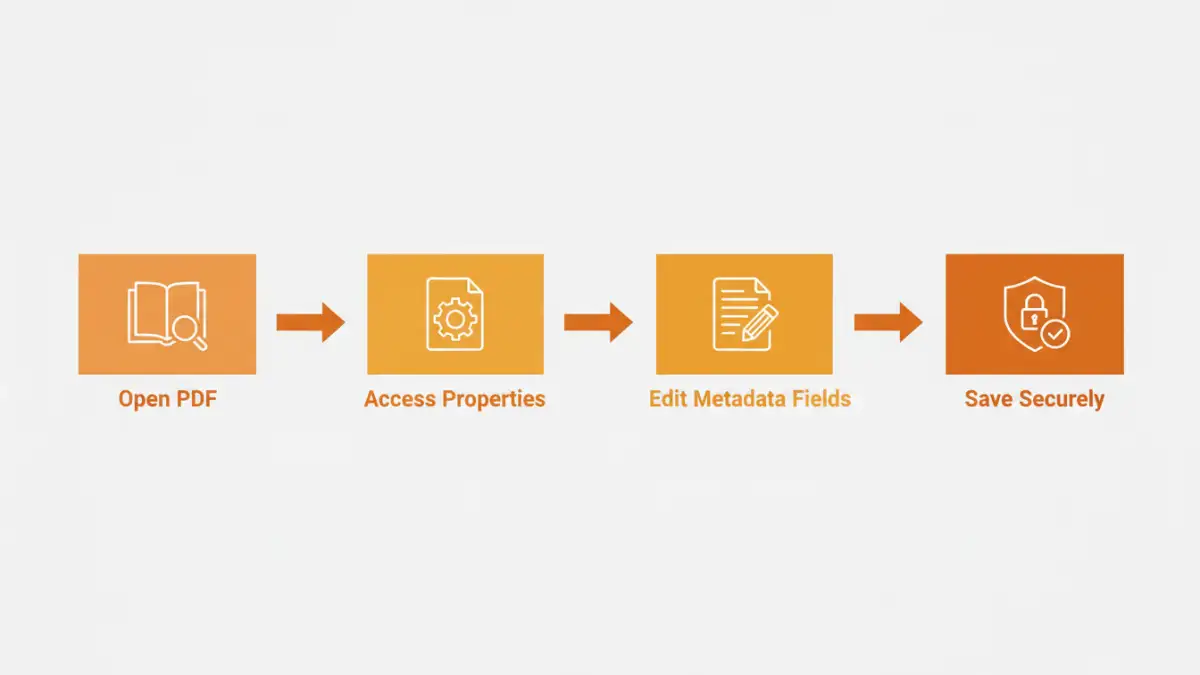
- Open Your Document: Launch your PDF editor and open the file you wish to modify.
- Access Properties: Navigate to the 'File' menu and select 'Properties'. This will open a dialog box with several tabs.
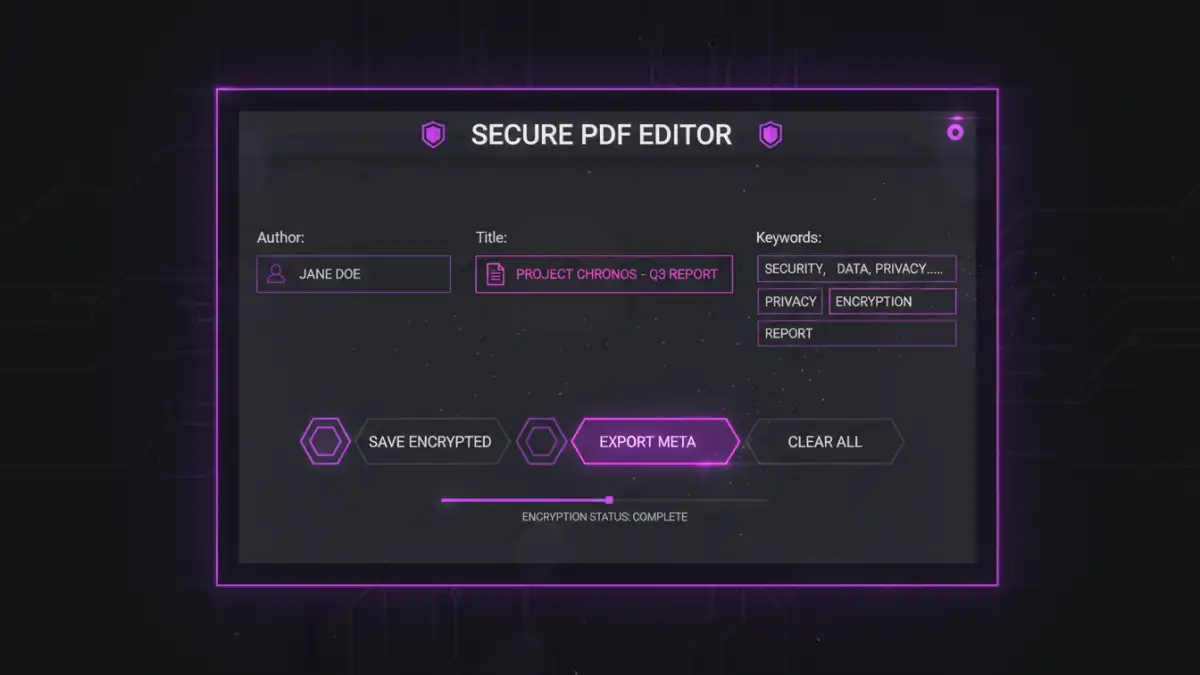
- Edit the Metadata: In the 'Description' tab, you'll find the core editable fields: Title, Author, Subject, and Keywords. You can easily change pdf author name, update the title, or add relevant keywords to improve searchability.
- Review Additional Metadata: Other tabs may show more advanced information, such as fonts used, security settings, and initial view settings. Some tools also offer a specific function to remove all hidden data in one click.
- Save Your Changes: After making your edits, click 'OK' to close the properties window and then save the PDF file. It's good practice to use 'Save As' to create a new version, preserving the original document.
Advanced Metadata Management and Best Practices
Beyond simple manual edits, there are more powerful ways to handle metadata, especially when working with a large volume of documents.
Batch processing features in tools like Acrobat Pro allow you to apply the same metadata changes to hundreds of files at once. This is a massive time-saver for tasks like standardizing the author field across all company documents. For developers, programmatic libraries like PyPDF2 for Python or iText for Java offer the ability to script metadata edits, which is perfect for integrating into automated workflows.
A key challenge is the ability to modify file creation date. While the PDF's internal 'CreationDate' metadata field can sometimes be edited, the file system's creation and modification dates are controlled by your operating system. Altering these requires specialized tools and can be complex, as it's a file system attribute rather than an internal document property.
PDF Metadata Editor Comparison
| Tool Type | Pros | Cons | Best For |
|---|---|---|---|
| Desktop Software (e.g., Adobe Acrobat Pro) | Highest security (offline), batch processing, extensive features. | Requires paid license, can have a learning curve. | Corporate environments, sensitive documents, and power users. |
| Free Desktop Software (e.g., PDFsam Basic) | Free to use, good for basic tasks, secure (offline). | Limited feature set compared to paid versions. | Individuals and small businesses with basic needs. |
| Online Editors (e.g., Smallpdf) | Convenient, accessible from any browser, no installation. | Major security risk for sensitive files, often ad-supported. | Non-confidential documents and quick, one-off edits. |
| Command-Line Tools (e.g., ExifTool) | Extremely powerful, scriptable, excellent for automation. | No graphical interface, requires technical knowledge. | Developers, IT administrators, and automated workflows. |