It's a familiar scenario: you receive an important Excel spreadsheet for a quarterly report, but when you try to update a cell, a pop-up demands a password. The file opens, you can see everything, but you can't change a thing. This is the work of a 'Password to Modify', a feature designed to prevent accidental changes. But what happens when that password is forgotten or the person who set it is unavailable?
Fortunately, unlike a password that encrypts and locks the entire file, a modify password is more of a persistent suggestion than a digital fortress. I've seen this simple protection mechanism cause unnecessary delays on projects more times than I can count. The good news is that bypassing it is often straightforward, and you don't need any special software to do it.
Table of Contents
Understanding Office Password Types
Before we jump into the solutions, it's crucial to understand what we're dealing with. Microsoft Office applications like Word and Excel primarily use two different types of passwords, and the recovery approach depends entirely on which one has been applied.
Password to Open
This is the serious one. A 'Password to Open' encrypts the entire document. Without this password, you cannot view the file's contents at all. Recovering from a lost 'Password to Open' is extremely difficult and usually requires specialized, often paid, software that attempts to brute-force the password. The methods discussed in this article will not work for this type of protection.
Password to Modify
This is our focus. A 'Password to Modify' allows anyone to open and view the document in read-only mode but requires a password to make and save changes to the original file. Its purpose is to protect the document's integrity from accidental edits while still allowing for distribution and review. Losing an office file modify password is much less critical because the content is never hidden from you.
The Easiest Solution: The 'Save As' Method

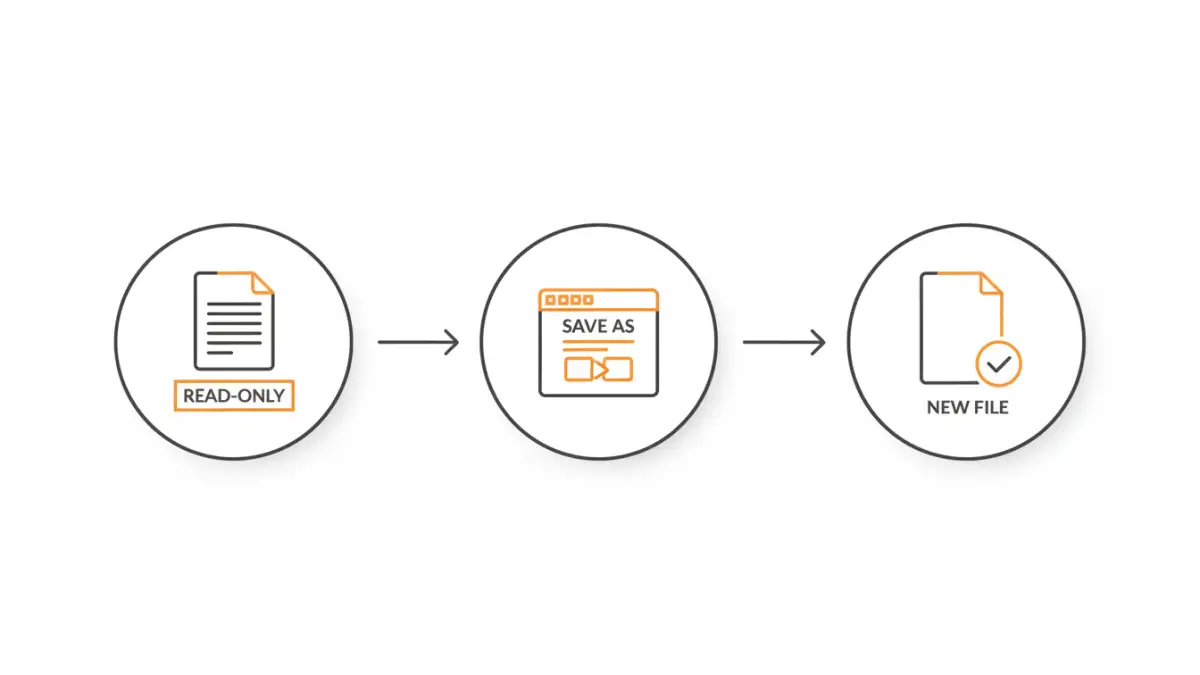
For nearly every case involving a lost modify password, the simplest solution is also the most effective. You essentially create a duplicate of the file that doesn't inherit the password protection. I always recommend my colleagues try this first before exploring more complex options.
Here’s the step-by-step process:
- Open the File: Double-click the protected Word or Excel file.
- Handle the Prompt: When the password dialog box appears, asking for the password to modify, simply click the 'Read Only' button. The file will open, and you'll be able to see all the content.
- Use 'Save As': Navigate to the File menu in the top-left corner and select 'Save As'.
- Choose a New Name or Location: To avoid confusion, give the file a new name (e.g., 'Annual_Report_v2.docx') or save it to a different folder. This is a critical step; you are creating a new, independent copy.
- Save the Unprotected Version: Click 'Save'.
That's it. The new document you just saved is a perfect, editable copy of the original, but it has no 'Password to Modify' attached. You can now edit, save, and share it freely. This simple trick works because the modify password is a property of the file itself, not its content. By saving the content into a new file, you leave the old property behind.
Removing the Password When You Know It
If you do know the password and simply want to remove the protection for future use, the process is slightly different. This is useful for when a password is no longer needed on a collaborative document.
Here's how to properly remove the password to modify:
- Open the document and enter the modify password when prompted to gain full editing access.
- Go to File > Save As.
- In the 'Save As' dialog box, click on 'Tools' next to the Save button (this might be a dropdown menu).
- Select 'General Options' from the menu.
- In the 'General Options' window, you will see the 'Password to modify' field populated with asterisks. Delete the password from this box, leaving it empty.
- Click 'OK', and then save the document. You can overwrite the existing file.
The document is now permanently unlocked for editing for anyone who opens it.
Advanced and Alternative Methods
While the 'Save As' method works 99% of the time, there are other scenarios and methods worth mentioning, particularly for more technically inclined users or for different file types.
Editing Document Properties
In some older versions or specific cases, simply accessing the document's properties can strip the read-only attribute. Right-click the file icon in Windows Explorer, select 'Properties,' and in the 'General' tab, uncheck the 'Read-only' attribute if it's selected. This is less common for password-protected files but is a quick check that can sometimes solve the issue.
For XML-Based Formats (.docx, .xlsx)
This is a highly technical approach and should only be attempted if you're comfortable with file manipulation. Modern Office files are essentially ZIP archives containing XML files and other data. You can rename the file extension from .docx to .zip, extract the contents, find the specific XML file that stores the password hash (like `settings.xml`), remove the relevant tag (e.g., `
Best Practices for Password Management
Preventing the problem is always better than fixing it. To avoid future password headaches, my team and I follow a few simple rules.
- Use Passwords Purposefully: Only apply a modify password when you truly need to prevent accidental edits, such as on a template or a master document. For general collaboration, version control systems or cloud-based platforms like SharePoint or Google Docs are often better.
- Store Passwords Securely: If you must use a password, store it in a shared, secure location. A team password manager like 1Password or Bitwarden is an excellent tool for this. A simple password-protected note can also work in a pinch.
- Communicate Clearly: When you send a password-protected file, communicate the password through a separate, secure channel (like a chat message or phone call) rather than in the same email. This prevents anyone who intercepts the email from gaining access.
Method Comparison for Unlocking Files
| Method | Ease of Use | Risk Level | Best For |
|---|---|---|---|
| 'Save As' Method | Very Easy | None | Almost all cases of a lost modify password. |
| Official Removal (Password Known) | Easy | None | Permanently removing protection from a file. |
| Third-Party Software | Moderate | Low to Medium | Lost 'Password to Open' files (encryption). |
| XML Editing | Very Difficult | High (File Corruption) | Advanced users as a last resort when 'Save As' fails. |