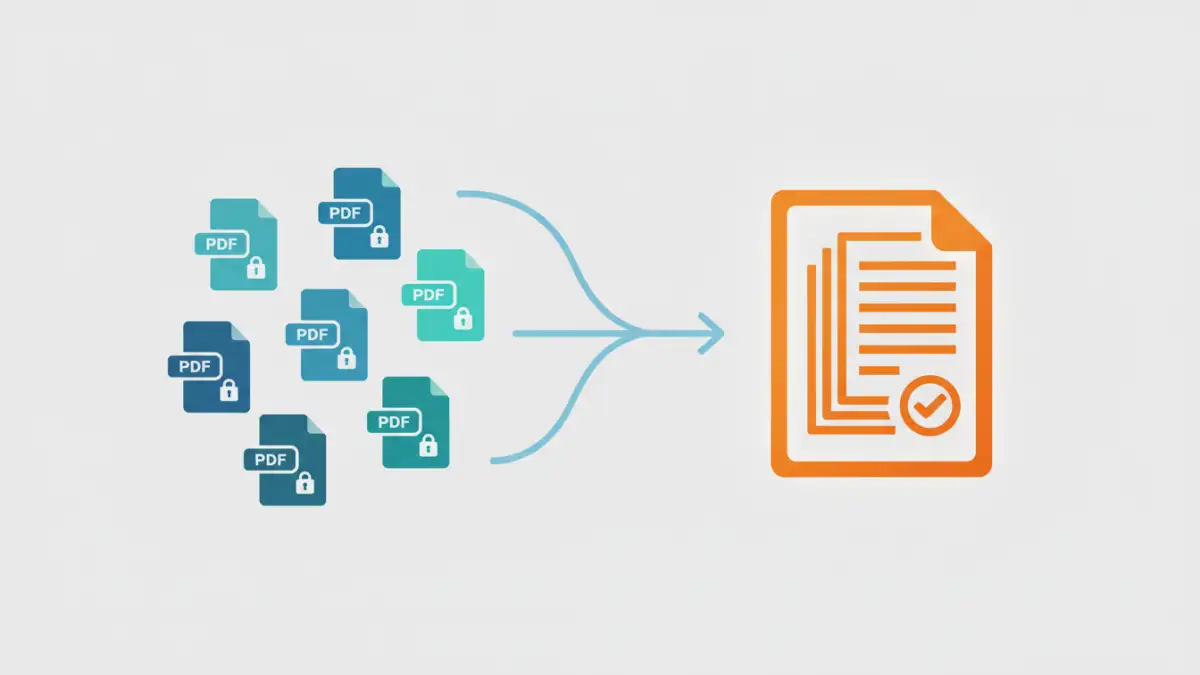
Working with password-protected documents can be frustrating, especially when you need to combine several of them into a single, organized file. I recently had to consolidate a dozen encrypted financial reports for an audit, and each one had a unique password. It highlighted just how tricky document consolidation can be when security is involved.
The challenge isn't just about merging files; it's about doing so efficiently without compromising the security of the information within. This process requires a clear understanding of PDF security and the right tools for the job.
Table of Contents
Understanding PDF Passwords: The Core Challenge
Before you can effectively merge password protected PDF files, it's crucial to understand that not all passwords are created equal. PDFs typically use two types of passwords, and knowing the difference is key to solving this puzzle.
User Password vs. Owner Password
A User Password (or 'open password') is what most people think of. It's required to open and view the document at all. Without it, the file is completely inaccessible.
An Owner Password (or 'permissions password'), on the other hand, restricts certain actions like printing, copying text, or editing the document. You can often open and view a PDF with an owner password, but your ability to interact with it is limited. Most merging tools fail here because merging is considered a modification, which the owner password prevents.
Methods for Merging Secure PDFs

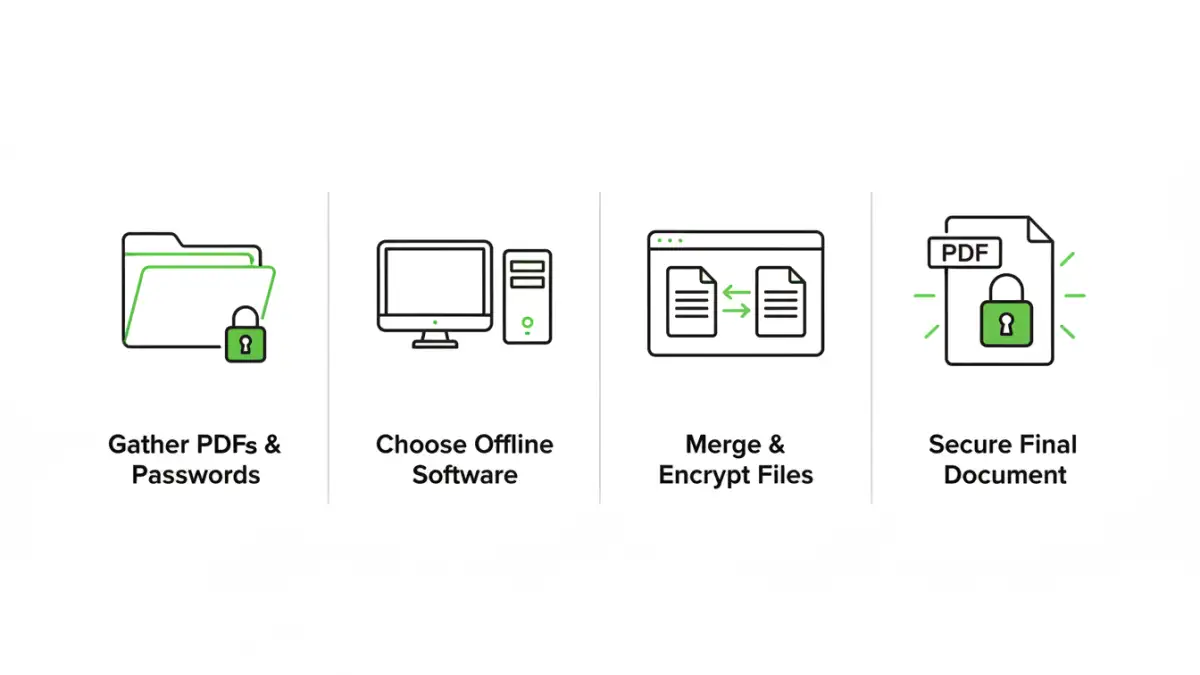
Once you have the necessary passwords, you can approach the task in a few ways. The best method depends on the tools you have available and the sensitivity of your documents.
Method 1: The Manual Unlock-and-Merge
This is the most straightforward approach if you don't have specialized software. It's a two-step process that works reliably, though it can be time-consuming for a large number of files.
- Remove Passwords Individually: Open each PDF file one by one. You will be prompted to enter its password. Once open, use the 'Print to PDF' function (available on both Windows and macOS) to save a new, unlocked copy of the file. This new version will be identical in content but will have no password protection.
- Merge the Unlocked Files: After you have unlocked versions of all your documents, you can use any standard PDF merging tool—free online services or basic desktop apps—to combine them into a single file. Since they are no longer protected, the process is simple.
I use this method for quick, one-off tasks. It requires no special software, just the passwords and a bit of patience.
Method 2: Using Professional Desktop Software
For those who handle secure documents regularly, investing in professional software is the most efficient solution. Tools like Adobe Acrobat Pro DC are designed for this exact scenario.
When you initiate a merge process in Acrobat, it will detect the protected files and prompt you to enter the password for each one as it's added to the queue. The software handles the decryption in the background and combines the files seamlessly. This eliminates the manual step of creating unlocked copies, which saves significant time and reduces the risk of human error.
This is my go-to for complex projects. It's faster, more secure than online tools, and maintains the integrity of the original files.
A Word of Caution on Online Tools
You'll find many websites offering to merge PDFs for free. While convenient for non-sensitive documents, I strongly advise against uploading password-protected files containing confidential information to these services. When you upload a file, you are sending a copy to a third-party server.
You have no real control or visibility into their security practices, how long they store your data, or who might have access to it. For financial records, legal documents, or personal information, the risk is simply not worth the convenience. Always prioritize security and use offline, desktop-based methods for sensitive data.
Best Practices for Secure Document Consolidation
Successfully merging your files is only part of the process. Proper PDF management ensures your information remains secure and organized long-term.
- Re-apply a Strong Master Password: Once you have your final merged document, protect it. Apply a new, strong owner password to prevent unauthorized editing and a user password if the entire document needs to be access-restricted.
- Organize Before You Merge: Arrange your files in the desired order before starting the merge process. Renaming them numerically (e.g., 01_report.pdf, 02_invoice.pdf) makes this much easier.
- Verify the Final Document: After merging, quickly scan through the final PDF to ensure all pages are present, in the correct order, and that formatting is intact.
- Securely Delete Intermediary Files: If you used the manual method, be sure to securely delete the unlocked copies you created to prevent unsecured versions of your documents from lingering on your system.
PDF Merging Method Comparison
| Method | Pros | Cons | Best For |
|---|---|---|---|
| Manual (Unlock then Merge) | Free, no special software required. | Time-consuming for many files; creates unsecured temporary copies. | Quickly combining a few non-critical files when you have all passwords. |
| Desktop Software (e.g., Acrobat Pro) | Highly secure, efficient, handles both password types directly. | Requires a paid software license. | Professionals regularly handling sensitive or numerous secure documents. |
| Online Merger Tools | Convenient, fast, and often free for basic use. | Major security and privacy risks for sensitive data. | Combining non-sensitive, public-facing documents only. |