
I once spent an entire afternoon helping a project manager who had a dozen encrypted project files but had mixed up all the passwords. It was a mess of sticky notes and text files, and we nearly missed a critical deadline trying to regain access. This scenario isn't uncommon; while encrypting documents is a vital security step, it creates a new problem: how do you keep track of all the keys without compromising security?
The solution is to create a secure, centralized index—a single source of truth that maps each encrypted file to its corresponding key or password. It sounds simple, but the implementation is what separates a secure system from a vulnerable one. This isn't about writing passwords in a notebook; it's about building a robust system for document key management.
Table of Contents
The Problem with Scattered Encryption Keys

Encrypting a file is only half the battle. Without a system to manage the keys, you introduce significant risks. When every team member has their own ad-hoc method for storing passwords—a text file on their desktop, a note in their phone, or worse, a sticky note on their monitor—security becomes nearly impossible to enforce.
This disorganization leads to lost productivity when someone can't find a password. More critically, it creates security vulnerabilities. An unsecured text file containing a password for a sensitive financial report could be easily compromised by malware or an unauthorized user. A proper system is essential to manage document encryption keys securely and efficiently, ensuring that access is both available to authorized users and denied to everyone else.
Building Your Secure Index: Core Principles
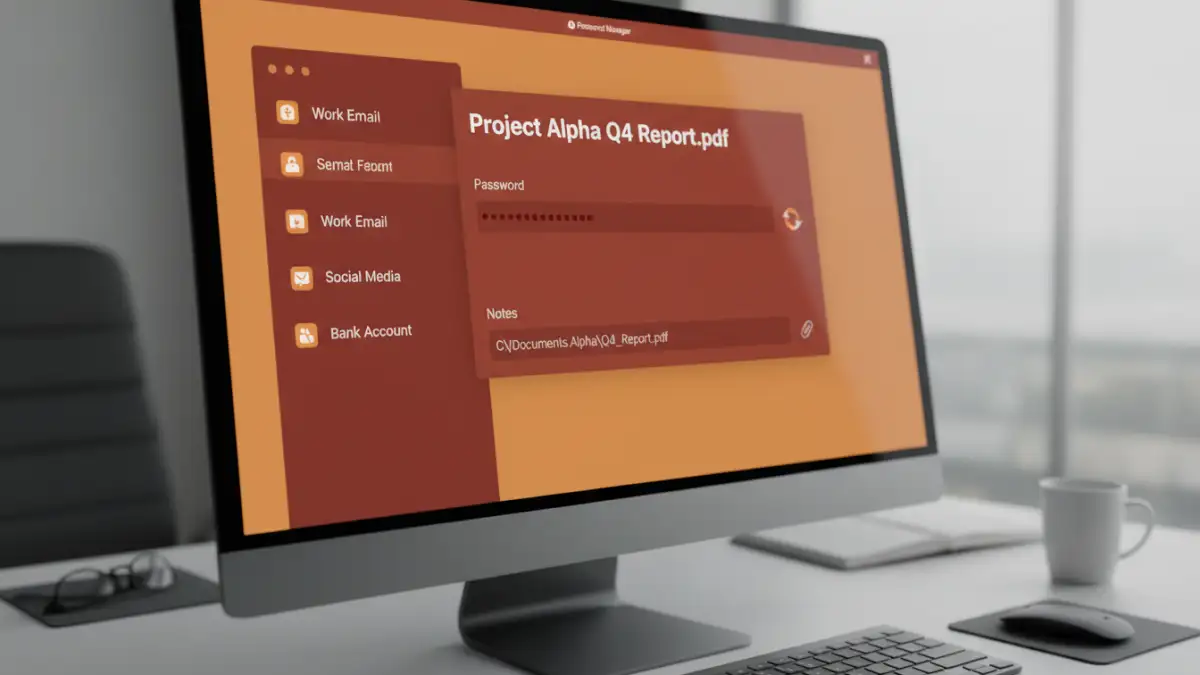
A document key index is simply a structured, secure record that links a specific document to its unique encryption key or password. The goal is to create a system that is both highly secure and easily accessible for those with the proper permissions. Before choosing a tool, it's important to understand the foundational principles.
What to Include in Your Index
A useful index should contain more than just the password. For each entry, I recommend including:
- File Name & Path: The exact name and location (e.g., a server path or cloud storage link) of the encrypted document.
- Encryption Key/Password: The password itself, preferably generated to be long, random, and unique.
- Date of Encryption: Helps with auditing and key rotation policies.
- Authorized Users: A note on who should have access to this document.
- Purpose/Context: A brief description of the document's contents (e.g., "Q4 Financial Projections").
Choosing Your Storage Medium
The medium you choose to store your index is the most critical decision. It must be encrypted itself, accessible, and backed up. The two most common and practical approaches are using a dedicated password manager or a manually encrypted spreadsheet. Each has its own set of trade-offs regarding security, convenience, and scalability.
Step-by-Step Indexing Methods
Let's walk through the practical steps for setting up your index using the two most viable methods. I've used both in different contexts, from personal projects to small team environments.
Method 1: The Password Manager Approach (Recommended)
Using a reputable password manager is the most secure and scalable method. Tools like Bitwarden, 1Password, or KeePass are designed for this exact purpose. They provide robust encryption, secure sharing features, and browser integration.
- Select a Password Manager: Choose one that supports custom fields and secure notes.
- Create a New Entry: For each encrypted file, create a new login or secure note item in your vault.
- Use a Clear Title: Name the entry something descriptive, like "Project Phoenix - Final Report.pdf".
- Store the Password: Use the password manager's generator to create a strong, unique password for the document. Store this in the password field of the entry.
- Use Custom Fields/Notes: In the notes or custom fields section, add the file path, creation date, and other relevant metadata. This turns your password vault into a powerful password manager for files.
- Organize with Tags/Folders: Use folders or tags (e.g., "Finance," "HR," "ProjectPhoenix") to keep your index organized and easy to search.
Method 2: The Encrypted Spreadsheet (Use with Caution)
For individuals or very small teams without a dedicated password manager, an encrypted spreadsheet can work, but it requires strict discipline. This method is less secure because it relies on a single master password and lacks the advanced features of a dedicated tool.
- Create a Spreadsheet: Open Microsoft Excel, Google Sheets, or LibreOffice Calc. Create columns for File Name, File Path, Password, and Notes.
- Populate the Data: Fill in the details for each of your encrypted documents.
- Encrypt the File: This is the most important step. Use the software's built-in encryption feature. In Excel, go to `File > Info > Protect Workbook > Encrypt with Password`.
- Choose a Strong Master Password: This single password protects your entire index. If you lose it, you lose everything. It must be extremely strong and stored safely.
- Securely Store and Back Up: Save the encrypted spreadsheet in a secure, backed-up location.
Best Practices for Long-Term Key Management
Creating the index is just the first step. Maintaining it over time is what ensures its continued effectiveness and security. A stale or poorly managed index can become a liability.
First, always generate a unique, strong password for every single document you encrypt. Reusing passwords across multiple files creates a single point of failure. Second, implement a clear file naming convention so that your index entries correspond logically to the files they protect. Third, schedule regular audits of your index—perhaps quarterly—to remove entries for obsolete documents and verify that permissions are still correct. Finally, always enable multi-factor authentication (MFA) on the account that protects your index, whether it's your password manager or the cloud account where your encrypted spreadsheet is stored.
Comparison of Key Indexing Methods
| Method | Security Level | Ease of Use | Best For |
|---|---|---|---|
| Password Manager | Very High | Easy | Individuals, teams, and enterprises seeking robust security and features. |
| Encrypted Spreadsheet | Moderate | Moderate | Individuals or small teams with basic needs and strong discipline. |
| Plain Text File | Very Low | Easy | Not recommended for any sensitive information. |
| Physical Notebook | Low | Easy | Not recommended; vulnerable to physical theft, loss, and damage. |