
I recently helped a project manager who was completely locked out of a critical vendor contract PDF just hours before a deadline. The error message was vague, but the cause was simple: the temporary password she was given had expired. This scenario is becoming more common as organizations tighten their document security protocols.
While frustrating, expiring passwords are a powerful feature for protecting sensitive information, especially when granting temporary file access. Understanding how this process works, what to do when it happens, and how to manage it can save a lot of time and prevent unnecessary panic.
Table of Contents
Why Do Document Passwords Expire?
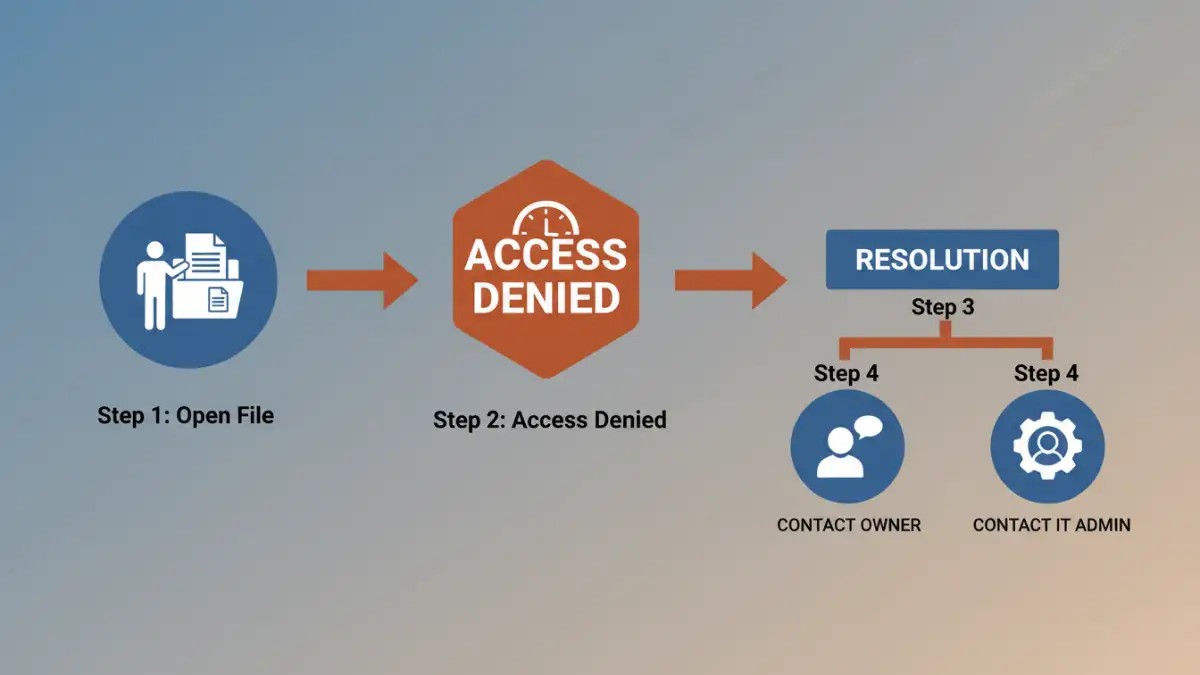
The concept of an expiring password isn't just for your email or network login; it's a key component of modern document security. Setting an expiration date on a password limits the window of opportunity for unauthorized access. If a password were to be compromised, its usefulness to an attacker is limited to a specific timeframe.
This is a core principle of password lifecycle management, a strategy used by IT departments to enforce security policies. It ensures that access credentials don't remain active indefinitely, reducing the overall risk profile of shared information. This is especially critical for documents shared with external partners, contractors, or for short-term projects.
The Role of Security Policies
In many corporate environments, security policies dictate the rules for data handling. These policies might mandate that any sensitive document shared outside the company network must have a password that expires after a set period, such as 7, 30, or 90 days. This automates a crucial security check-in, forcing a re-evaluation of who still needs access.
Temporary vs. Permanent Access
Expiring passwords are the primary mechanism for granting temporary file access. Imagine you're sharing financial projections with an auditor for a two-week engagement. By setting a password that expires in 15 days, you ensure their access is automatically revoked once the audit is complete, without needing to manually track them down or change the password for everyone else who might need permanent access.
Immediate Consequences of an Expired Password

The most immediate and obvious consequence of an expired document password is loss of access. When you try to open the file, the application—whether it's Adobe Acrobat, Microsoft Word, or another program—will reject the password you enter, even if it's the correct one. The system checks both the password's validity and its expiration status.
You will typically receive an error message. This can range from a specific 'Password has expired' notification to a more generic 'Incorrect password' or 'PDF access denied' error. The vagueness of some error messages is often what causes confusion, as users assume they've simply typed the password incorrectly. After a few failed attempts, it becomes clear that something else is wrong.
How to Regain Access to a Locked Document
If you find yourself locked out due to an expired password, don't panic. Unlike forgetting a password, this situation is usually straightforward to resolve because the file owner or administrator anticipated this event. Your recovery path depends on who originally secured the document.
- Contact the Document Owner or Sender: This is the most direct solution. The person who sent you the file and set the password can generate a new one for you. They may also be able to extend the expiration date of the old password or remove the security settings entirely if your access needs have changed.
- Reach Out to Your IT Department: In a corporate setting, the IT or security team often manages document access policies. They may have a master key or administrative tools to reset the password, especially if the document is stored on a managed company server or cloud platform.
- Check for a Pre-Shared Recovery Key: For some highly structured workflows, a secondary recovery password or key might have been shared separately. It's always worth checking your initial communication from the sender to see if an alternative access method was provided.
Trying to use password-cracking tools is generally not recommended and often violates company policy. The intended path is always to go through the person or system that controls the document's security.
Best Practices for Password Lifecycle Management
For those of us creating and sharing secured documents, managing the password lifecycle effectively is just as important as setting the password in the first place. Proper management prevents the exact kind of last-minute panic my colleague experienced.
Communicate Expiration Dates Clearly
When you share a document with an expiring password, always state the expiration date clearly in your communication. A simple line like, "This password will expire on [Date]" can prevent a lot of future headaches. This sets clear expectations for the recipient.
Use a Centralized Management System
Instead of setting passwords on individual files, using a document management system (DMS) or a secure cloud sharing platform can centralize control. These systems often provide dashboards where you can see all shared links, who has access, and when that access expires. This makes it easy to manage access for multiple users and documents from one place.
Establish a Process for Renewals
Have a clear process for how users can request an extension or a new password. This could be a dedicated email address, a ticket in an IT helpdesk system, or a simple instruction to contact the document owner. A defined process ensures that requests are handled efficiently and access is restored quickly when needed.
Document Access Scenarios and Resolutions
| Scenario | Typical Problem | Recommended Solution | Prevention Tip |
|---|---|---|---|
| External Contractor Access | Password expires after project completion, but more work is needed. | Contact the project manager or document owner to issue a new temporary password. | Set the initial expiration date a few days after the expected project end date. |
| Internal Team Project | A long-term project file password expires unexpectedly. | Reach out to the team lead or the IT department for a password reset. | Use a shared password manager for the team or a DMS without password expiration for internal files. |
| Legal/Audit Document Review | Auditor's access is revoked mid-review due to a strict 14-day policy. | The compliance or legal department generates a new password with an extended expiry. | Clearly communicate the access window and renewal process to the external party upfront. |
| Individual User Sharing | You shared a file with a friend, and they can no longer open it. | Resend the file with a new password or remove the password if security is no longer a concern. | Consider using cloud sharing links with built-in expiration instead of file-level passwords. |