Have you ever needed to secure a sensitive document and wondered if simply adding a password was enough? It's a common question, and the answer isn't always straightforward. Many people use the terms "password protected" and "encrypted" interchangeably, but from a technical standpoint, they represent very different levels of security.
Understanding this difference is crucial. One acts like a simple lock on a door, while the other rebuilds the house with a secret blueprint. Choosing the wrong one can leave your sensitive information far more exposed than you realize. Let's break down what each method actually does and which is the right choice for your needs.
Table of Contents
The Core Difference: A Lock vs. a Secret Code
At first glance, both methods seem to accomplish the same goal: they stop unauthorized people from seeing your file. However, the way they achieve this is fundamentally different. I often explain it to my colleagues with a simple analogy.
How Password Protection Works
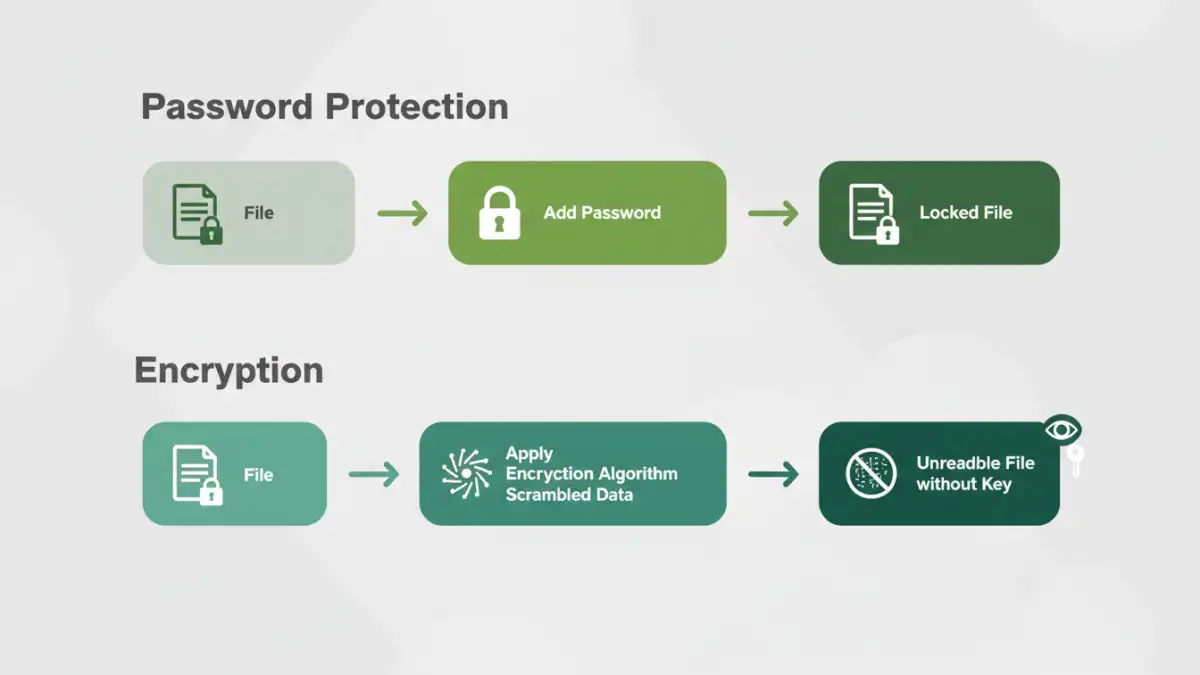
Think of basic password protection as a doorman standing in front of a room. To get in, you need to tell the doorman the correct password. If you have it, you're in. If you don't, you're denied access. The room and its contents remain unchanged; the password is just a barrier to entry. Many simple "password-protect" features on older software worked this way. The file itself isn't altered, just locked.
How Encryption Works
Encryption, on the other hand, is like taking every word in every book in that room and rewriting it in a secret language that only you understand. The password, in this case, is the key to translate it back to the original language. Without the key, anyone who gets into the room will just see gibberish. This process of scrambling data is a core part of modern data encryption, making the content itself useless to an intruder.
How File Security Methods Work in Practice

Most modern applications, thankfully, combine these concepts. When you password-protect a modern PDF or Microsoft Office document, you are typically using that password as a key to encrypt the file's contents. However, the strength of that protection can vary wildly.
Understanding PDF Protection Levels
PDFs offer a great example of this. They have two types of passwords:
- User Password (or Document Open Password): This is what most people think of. You need this password to open and view the file. When you set this, the PDF content is encrypted (usually with AES-128 or AES-256 bit encryption).
- Owner Password (or Permissions Password): This password restricts actions like printing, copying text, or editing the document. You can open the file without it, but you can't perform restricted actions. This level of protection is notoriously weak and can often be bypassed with simple tools.
The key takeaway is that only the User Password provides meaningful data encryption for the document's contents. Relying solely on an Owner Password for security is a common mistake.
Built-in Microsoft Office Security
Microsoft Office (Word, Excel, PowerPoint) has robust options. When you go to `File > Info > Protect Document > Encrypt with Password`, you are applying strong AES encryption to the file. The password you create becomes the key. Without it, the file's data is an indecipherable mess, making this a very secure method for standalone documents.
The Limitations of Basic Password Protection
The biggest risk comes from applications that offer password protection without strong underlying encryption. Older file formats, like the ZIP format's standard password protection, were notoriously weak and could be broken quickly with brute-force attacks (software that tries thousands of passwords per second).
Even with strong encryption, the security of your file boils down to the strength of your password. A password like "123456" on an AES-256 encrypted file is like putting a cheap padlock on a bank vault. The vault is strong, but the lock is easily picked. This is why password complexity—using a mix of upper/lowercase letters, numbers, and symbols—is non-negotiable for sensitive files.
Achieving Robust Document Encryption Security
For true security, especially when dealing with highly confidential business data, personal identifiable information (PII), or financial records, you must prioritize strong encryption. Don't just look for a "password protect" button; verify that it uses a modern, recognized encryption standard.
Here are the best practices I follow:
- Use Built-in Encryption: For individual files, the encryption features in Microsoft Office and modern PDF creators (using a 'Document Open' password) are excellent and sufficient for most use cases.
- Create Encrypted Containers: For groups of files, I use tools like VeraCrypt or BitLocker (on Windows) to create an encrypted virtual disk. It acts like a secure digital safe on my computer. Any file I drop in is automatically encrypted.
- Leverage Cloud Encryption: When using cloud storage like OneDrive, Google Drive, or Dropbox, ensure you're using services that encrypt your data both in transit (while uploading/downloading) and at rest (while stored on their servers). For ultimate privacy, you can encrypt your files *before* uploading them.
Ultimately, the goal of strong document encryption security isn't just to lock a file, but to make its contents completely unusable to anyone without the proper key. That is the fundamental difference that protects your data from real-world threats.
Comparison: Password Protection vs. True Encryption
| Feature | Simple Password Protection (Gatekeeper) | Strong Encryption (Scrambled Content) |
|---|---|---|
| Underlying Mechanism | Places a lock on file access. The data itself may be unchanged. | Transforms the data into an unreadable format (ciphertext). |
| Security Level | Low to Moderate. Can be vulnerable to simple bypass techniques. | High to Very High. Depends on the algorithm (e.g., AES-256) and key strength. |
| Brute-Force Risk | Higher, especially if no encryption is involved. | Extremely difficult with a strong password and modern algorithm. |
| Best Use Case | Casual sharing of non-sensitive files; setting permissions (e.g., no printing). | Protecting financial records, PII, intellectual property, and confidential data. |
| Example | A PDF 'Owner Password' to prevent printing. | A Word document saved with 'Encrypt with Password' feature. |