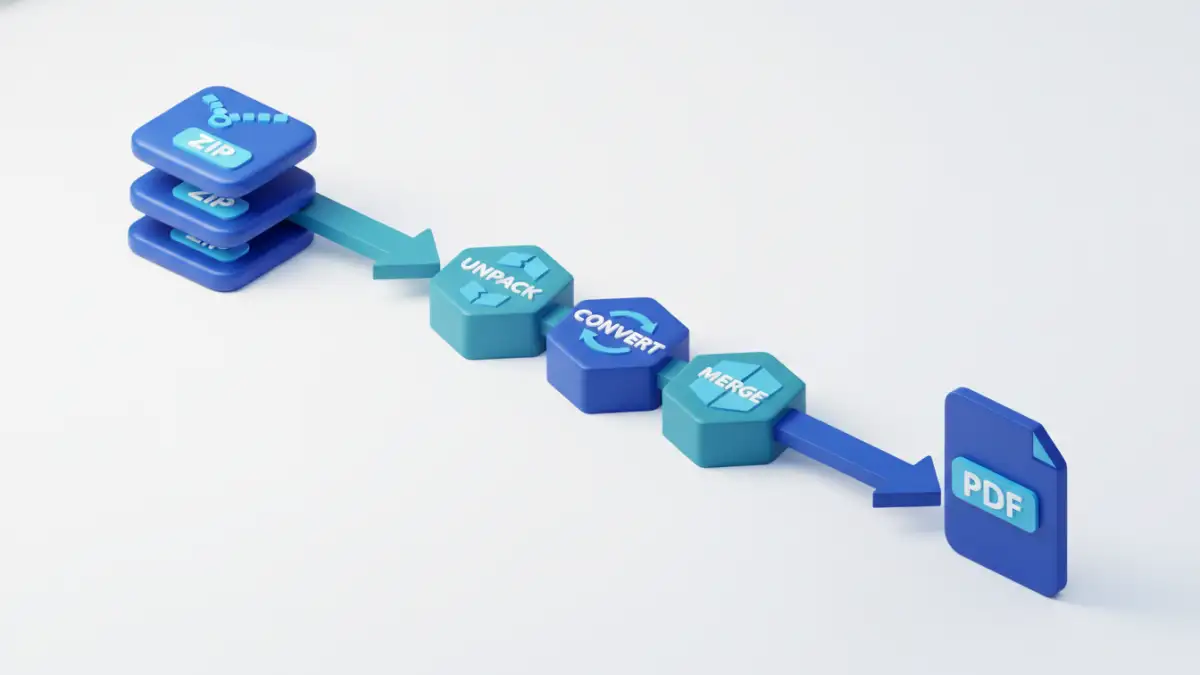
A few months ago, a legal firm I was consulting for faced a massive challenge. They had decades of case files stored in thousands of ZIP archives, a chaotic mix of Word documents, scanned TIFFs, and old spreadsheets. Their goal was to make this entire history searchable and accessible in a unified format for an e-discovery platform. This wasn't just a file conversion task; it was a large-scale data migration problem that required a systematic approach to consolidate everything into clean, indexed PDFs.
Table of Contents
The 'Why': Benefits of PDF Consolidation
Moving a sprawling archive of disparate files into a single PDF (or a set of consolidated PDFs) isn't just about tidiness. The primary driver is creating a 'single source of truth.' It makes document management vastly simpler. Instead of dealing with countless individual files and potential versioning chaos, you have one stable, universally accessible document.
Furthermore, PDFs are ideal for long-term archival. The format is standardized, self-contained, and can embed fonts and images, ensuring it looks the same decades from now. When combined with Optical Character Recognition (OCR), every scanned document within the archive becomes fully searchable, which is a game-changer for research, compliance, and legal discovery.
The 'How': Preparing Archives for Conversion

Jumping straight into conversion is a recipe for failure. The quality of your output depends entirely on the preparation you do upfront. A messy, disorganized source will result in a messy, unusable PDF. This preparation phase is the most critical part of any project involving large scale file conversion.
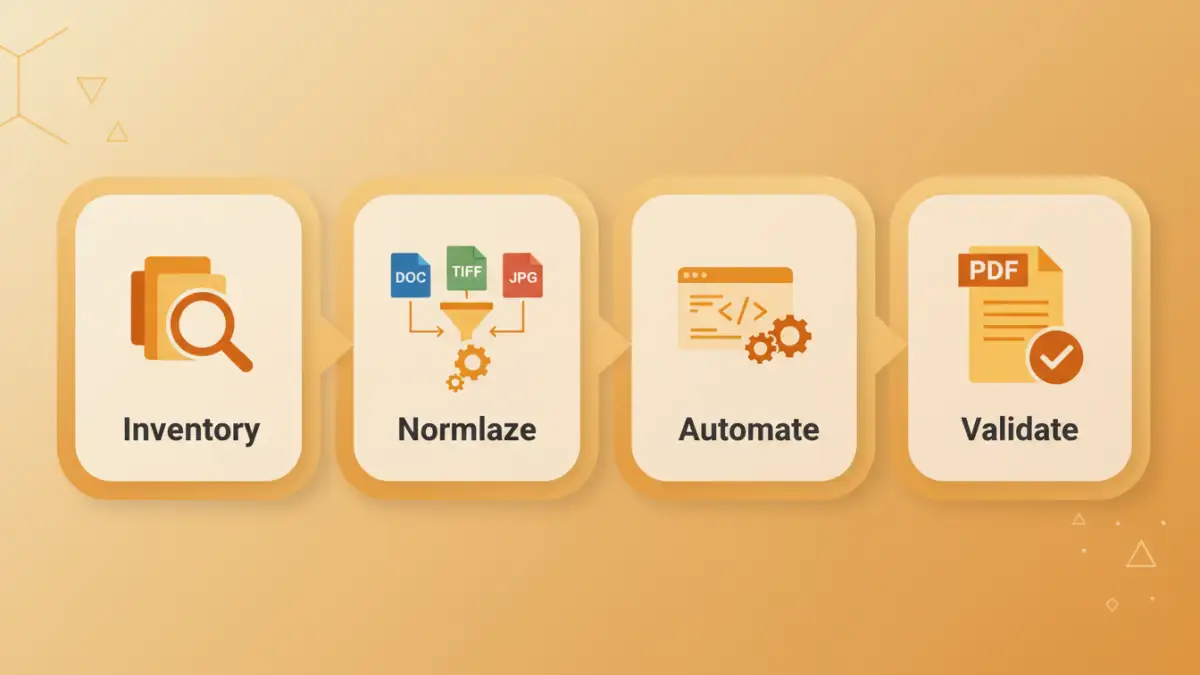
Step 1: Inventory and Normalization
First, you need to understand what you're dealing with. I always start by scripting a simple inventory process. This script unzips all archives into a temporary staging area and generates a report listing all file types, counts, and potential issues like password-protected files or corrupted data. This gives a clear picture of the scope.
Next comes normalization. This involves cleaning up file names to remove special characters, establishing a logical sorting order (e.g., prefixing with '001_', '002_'), and removing duplicates or irrelevant files like '__MACOSX' folders or '.DS_Store' files that add no value.
Step 2: Handling Diverse File Formats
Legacy archives are rarely uniform. You'll likely encounter a mix of `.doc`, `.docx`, `.rtf`, `.wpd`, `.xls`, `.tiff`, `.jpg`, and more. Each type needs a specific conversion strategy. For instance, image files need to be handled differently than text-based documents. Grouping files by type in the staging area allows you to apply the correct conversion tool to each batch.
Choosing Your Conversion Method
Once your files are prepped, you can choose your conversion weapon. The right tool depends on your technical comfort level, the scale of the project, and your budget.
Desktop and GUI Tools
For smaller batches, tools like Adobe Acrobat Pro are excellent. You can often drag a folder of files into Acrobat, and it will offer to combine them into a single PDF, converting them on the fly. Other third-party tools offer similar functionality. While user-friendly, they don't scale well for thousands of archives and lack the customization needed for complex automation.
Command-Line Utilities
This is where things get more powerful and scalable. Command-line tools can be scripted to handle massive volumes. For office documents, `LibreOffice` (in headless mode) or `unoconv` are fantastic for converting `.doc`, `.xls`, etc., to PDF. For images, `ImageMagick` is the industry standard. You can write a simple shell script to loop through all your TIFF files and convert them to individual PDFs before merging.
Automate File Processing with Scripts
For a truly large-scale project, a custom script is the only viable path. Python is my go-to for this due to its excellent libraries for file manipulation and process automation. A typical script would follow a logical workflow:
- Unpack: Use the `zipfile` library to extract each archive into a dedicated, temporary folder.
- Iterate and Convert: Walk through the extracted files. Use a conditional block (if/else) to identify the file extension. Based on the type, call the appropriate command-line tool using the `subprocess` module (e.g., call ImageMagick for a `.tiff`, LibreOffice for a `.doc`).
- Merge: As each file is converted to a PDF, add it to a list. Once all files from an archive are converted, use a library like `PyPDF2` or `pdfrw` to merge the individual PDFs into a single, consolidated document.
- Clean Up: Delete the temporary folder to save space before moving to the next archive.
This approach to batch convert document archives is robust, repeatable, and can run unattended overnight, processing terabytes of data without manual intervention.
Post-Conversion: Validation and Management
Creating the PDF is not the final step. You must validate the output. A simple validation check is to compare the number of files in the source archive with the number of pages in the output PDF. For more critical applications, you might need to implement image hashing to ensure no files were corrupted or lost.
After validation, run the consolidated PDFs through an OCR engine if they contain scanned images. This makes the content searchable. Finally, apply metadata, implement a logical naming convention for the final PDF files, and move them to their permanent, secure storage location as part of your overall document management strategy.
Conversion Method Comparison
| Method | Complexity | Scalability | Best For |
|---|---|---|---|
| GUI Desktop Tools (e.g., Acrobat) | Low | Low | Small, one-off projects with a few archives. |
| Command-Line Utilities | Medium | High | Medium to large projects where you can use shell scripts. |
| Custom Python Script | High | Very High | Large scale file conversion and complex enterprise projects. |
| Cloud-Based Services | Low-Medium | High | Projects where you can upload data and are comfortable with third-party processing. |