
I recently found an old hard drive with project archives from over a decade ago. Each project was a time capsule, neatly packaged in a ZIP file. While nostalgic, it was also a mess of outdated formats, questionable security, and zero searchability. This is a common problem with legacy data; it's preserved but not accessible or secure. The solution is often a thoughtful migration to a modern, robust format.
Transforming these old archives into secure, searchable PDFs isn't just a file conversion task; it's an exercise in digital preservation. It makes information findable, protects it from unauthorized access, and ensures it remains usable for years to come. This process is essential for any long-term document archiving strategy.
Table of Contents
Why Convert Old ZIPs to Secure PDFs?
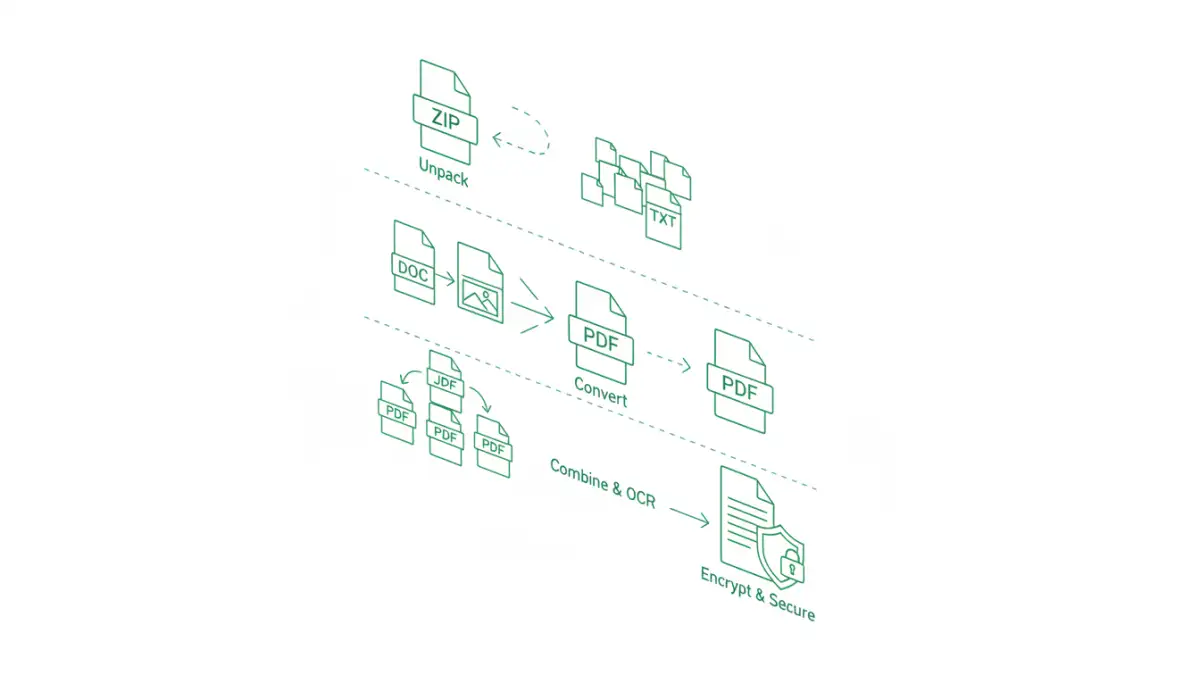
At first glance, leaving files in their original ZIP format might seem fine. They're compressed and contained. However, this approach has significant drawbacks for long-term storage and retrieval. The primary motivation for this conversion is moving from a simple container to an intelligent, secure document format.
PDFs offer universal accessibility, meaning they can be opened on virtually any device while preserving the original layout. More importantly, they support robust security features like AES-256 encryption and granular permissions. Unlike the often-weak password protection on older ZIP files, a modern PDF can be properly secured. Furthermore, with Optical Character Recognition (OCR), even scanned images within the ZIP can be made fully text-searchable, turning a static archive into a dynamic resource.
Preparing Your ZIP Archives for Conversion

Before you begin any conversion, preparation is key to a successful outcome. A ZIP file is just a container; its contents can be a mix of documents, images, spreadsheets, and even application files. Jumping straight into conversion without inspection can lead to a disorganized and incomplete PDF.
Start by creating a dedicated workspace. Copy the ZIP archives you intend to process into a new folder to avoid altering the originals. Extract each ZIP file into its own subdirectory. This allows you to inspect the contents, remove unnecessary files like temporary data or system files (e.g., Thumbs.db), and organize the files logically before combining them.
Understanding File Types
Once extracted, take inventory of the file types. You'll likely encounter a mix: `.doc`, `.txt`, `.rtf`, `.jpg`, `.tif`, and `.xls`. Each of these needs to be converted to PDF. Most modern operating systems have a "Print to PDF" function that works well for documents and images. For spreadsheets, you may need to adjust formatting to ensure they render correctly on a standard PDF page.
Cleaning Up and Organizing
This is the perfect time for digital housekeeping. Delete duplicates, obsolete versions, and irrelevant files. For a project archive, you might decide to order the remaining files chronologically or by sub-project. A logical structure within your working folder will translate into a well-organized final PDF document, making it much easier to navigate with bookmarks later.
Step-by-Step: Converting ZIP Contents to a Secure PDF
With your files prepped and organized, the conversion process can begin. The goal is to consolidate the various files from the ZIP archive into a single, secure PDF. This can be done manually for a few archives or automated for larger collections.
Manual Extraction and Combination
For a single archive, the manual approach is straightforward. After extracting and cleaning the files:
- Convert Individual Files: Open each file (e.g., a Word document or an image) and use the Print function to save it as a PDF. Place all these new PDFs into a single folder.
- Combine PDFs: Use a tool like Adobe Acrobat, or a free online PDF combiner, to merge the individual PDFs into one master document. Arrange them in the logical order you established during preparation.
- Apply OCR and Security: In a full-featured PDF editor like Acrobat Pro, run the OCR process to make any image-based pages searchable. Then, navigate to the security settings. Choose password protection, select AES-256 encryption, and set both an "Open" password (if needed) and a "Permissions" password to restrict editing or printing.
This method gives you maximum control but can be time-consuming for more than a handful of ZIP files.
Using a Scripting Approach
When dealing with dozens or hundreds of archives, a scripted solution is far more efficient. This is where a little bit of technical know-how pays off. A Python script, for example, can automate the entire workflow. Libraries like `zipfile` can handle extraction, while tools like `LibreOffice` (via command line) or dedicated libraries can convert various formats to PDF. Finally, a tool like `pdftk` or `PyPDF2` can merge and encrypt the resulting files.
This approach to batch convert zip archives ensures consistency and saves an immense amount of manual effort. While it requires an initial setup, it's the only feasible way to handle a large-scale legacy archive conversion project.
Advanced Strategies for Bulk Conversion
For truly large-scale projects, you can enhance the scripted approach with more advanced features. Implementing a logging system within your script can track which ZIP files were processed successfully and which encountered errors (e.g., corrupt files, unsupported formats). This is crucial for auditing and quality control.
You can also integrate more sophisticated OCR engines that offer better accuracy for old or low-quality scans. Additionally, consider adding a step to automatically generate bookmarks in the final PDF based on the original filenames. This dramatically improves the usability of a large, consolidated document, making it easy for users to jump to the relevant section.
Best Practices for Long-Term Document Archiving
Converting the files is only half the battle. To ensure these new PDFs remain valuable, follow some document archiving best practices. Establish a clear and consistent naming convention for your new files. For example, `ProjectName_ArchiveDate_Contents.pdf` is much more informative than `archive1.pdf`.
Store the passwords for your secure PDFs in a dedicated password manager. Never embed them in filenames or store them in a plain text file. Finally, ensure your new PDF archives are backed up in multiple locations, following the 3-2-1 rule: three copies of your data, on two different media types, with one copy off-site.
Conversion Method Comparison
| Method | Complexity | Cost | Best For |
|---|---|---|---|
| Manual Conversion | Low | Free to Low | A few ZIP archives with simple contents. |
| Online Tools | Very Low | Free (with limitations) | Quick, one-off conversions of non-sensitive data. |
| Desktop Software (e.g., Acrobat Pro) | Medium | Moderate to High | Users needing OCR, advanced security, and document editing features. |
| Custom Scripting (e.g., Python) | High | Free (requires time/skill) | Large-scale, repetitive legacy archive conversion projects. |