A colleague once sent me a collection of project files bundled in a RAR archive. The problem was, we needed to share it with an external partner who only used standard ZIP tools, and the data inside was sensitive. We couldn't just convert it; we had to ensure it remained secure. This common scenario highlights the need to not just switch formats but also to maintain security throughout the process.
Converting from RAR to ZIP isn't a direct one-to-one process, especially when security is a concern. You can't simply 'change' the file extension. The process involves decompressing the original archive and then recompressing it into the new format, which gives you the perfect opportunity to add a password.
Table of Contents
Why Convert from RAR to ZIP and Encrypt?
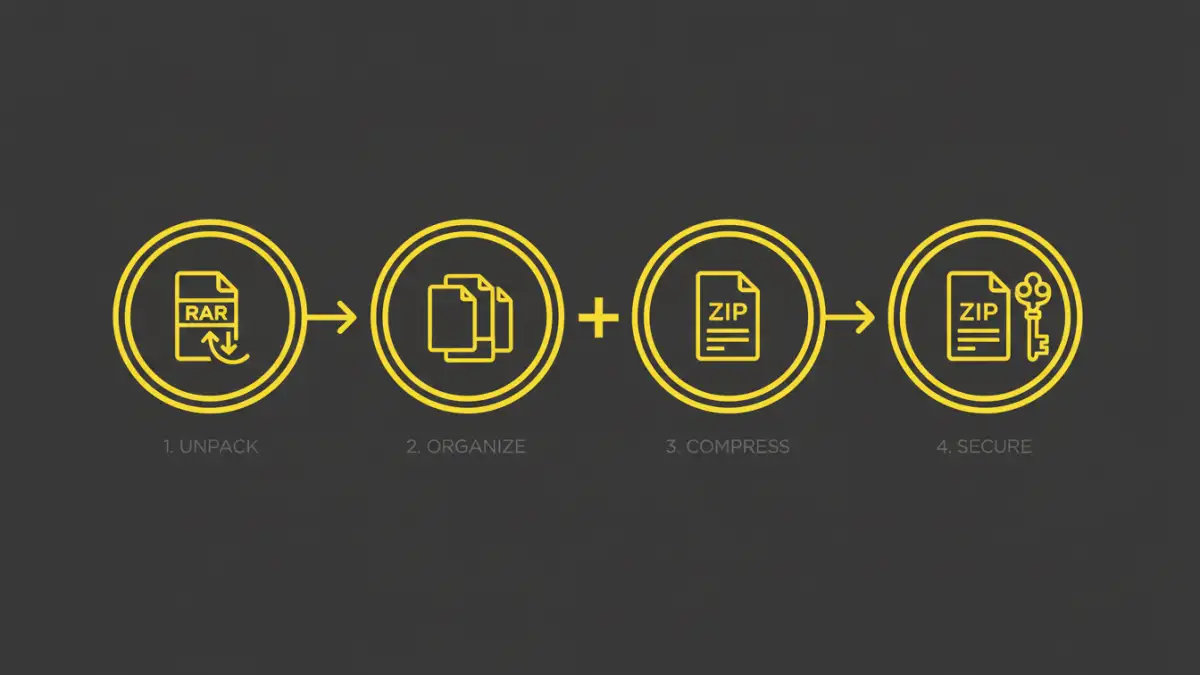
While both RAR and ZIP are archive formats used to bundle multiple files into one, they have key differences. Understanding these helps clarify why you might need to convert and, more importantly, why you must add a security layer during the conversion.
Compatibility and Accessibility
The primary reason for converting from RAR to ZIP is compatibility. ZIP is a universally supported format. Windows and macOS have built-in capabilities to create and extract ZIP files without any third-party software. RAR, on the other hand, requires specific applications like WinRAR or 7-Zip to be installed. When sharing files with a broad audience, using a ZIP file ensures everyone can access the contents without friction.
The Security Opportunity
The conversion process itself provides a critical control point for security. Since you must extract the files from the RAR archive before creating the new ZIP file, you can consciously apply new security settings. This is your chance to implement strong password protection on the new ZIP archive, ensuring the data remains confidential even if the original RAR was unprotected. This step is crucial for maintaining data integrity and confidentiality during transfer.
Step-by-Step Guide: Converting RAR to an Encrypted ZIP
The process is straightforward and relies on decompressing and recompressing. You cannot directly transform a RAR file into an encrypted ZIP. I'll use 7-Zip for this example, as it's a powerful, free, and open-source tool that handles both formats flawlessly.
Method: Using Desktop Archive Software
- Install an Archiving Tool: If you don't have one, download and install a program that can handle both RAR and ZIP files. 7-Zip is my go-to recommendation, but other popular options include WinRAR and WinZip.
- Extract the RAR Archive: Locate your RAR file. Right-click on it, and from the context menu (e.g., the 7-Zip menu), select an option like "Extract Here" or "Extract to [folder_name]/". This will decompress all the contents of the RAR file into a new folder in the same directory.
- Select the Extracted Files: Open the new folder to see all the files that were inside the RAR archive. Select all the files and folders you wish to include in your new ZIP archive.
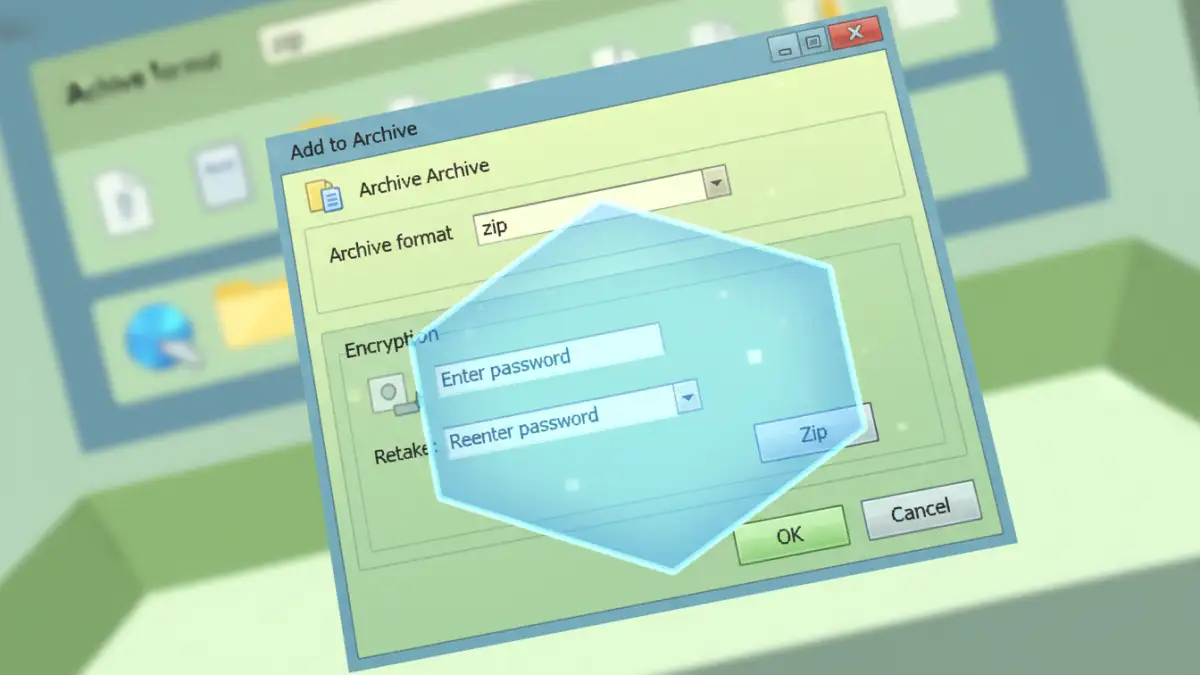
- Create the New Encrypted ZIP: With the files selected, right-click again. In the context menu, choose the option to compress them (e.g., 7-Zip > "Add to archive..."). This opens the archiving dialog box.
- Configure Encryption Settings: In the "Add to archive" window, make sure the "Archive format" is set to "zip". Then, look for the "Encryption" section. Enter a strong password in the password fields. It's also here that you can choose the encryption method, which we'll discuss next. Click "OK" to create your new, password-protected ZIP file.
You now have a secure ZIP file ready for sharing, confident that its contents are protected.
Choosing the Right Encryption Level
When you add a password to a ZIP file, you're not just locking it; you're applying an encryption algorithm. Most modern tools offer at least two choices, and picking the right one is essential for robust security.
ZipCrypto vs. AES-256
ZipCrypto: This is the original, legacy encryption method for ZIP files. Its main advantage is compatibility—virtually any unzipping tool, no matter how old, can handle it. However, its security is considered weak by modern standards and can be vulnerable to known-plaintext attacks. I only recommend using this if you know the recipient is using very outdated software.
AES-256: This is the modern standard for secure encryption and is widely used across the tech industry, including by governments and banks. AES (Advanced Encryption Standard) with a 256-bit key is exceptionally strong and, for all practical purposes, unbreakable by brute force with current computing technology, provided you use a strong password. Whenever available, you should choose AES-256. It provides the best level of password encryption for files you can get in a ZIP archive. Most modern operating systems and archiving tools fully support it.
Common Pitfalls and How to Avoid Them
In my years of handling data, I've seen simple mistakes undermine an otherwise secure process. Here are a few common pitfalls to watch out for when creating a secure file conversion workflow.
- Using a Weak Password: The strongest encryption is useless if the password is "12345" or "password". Use a long, complex password with a mix of uppercase letters, lowercase letters, numbers, and symbols. A password manager can help generate and store these for you.
- Sending the Password and File Together: Never send the encrypted ZIP file and the password in the same email. This is like leaving the key in the lock. Send the password through a separate, secure channel, such as a different messaging app, a phone call, or a text message.
- Not Verifying the Archive: After creating the encrypted ZIP, always try to open it yourself. Enter the password to confirm that it works and that all the intended files are present and uncorrupted. This simple check can save a lot of headaches later.
- Forgetting to Delete the Originals: Once you've successfully created the secure ZIP and no longer need the unencrypted extracted files or the original RAR, be sure to delete them securely to prevent an unsecured copy from lingering on your system.
Encryption Standard Comparison
| Feature | ZipCrypto (Legacy) | AES-256 (Modern) |
|---|---|---|
| Security Strength | Weak; vulnerable to known attacks | Extremely Strong; industry standard |
| Key Length | 96-bit effective strength | 256-bit |
| Compatibility | Very high (supported by all tools) | High (supported by most modern tools) |
| Recommended Use | Only for compatibility with very old systems | All sensitive and confidential data |
| Performance | Slightly faster due to simplicity | Minimal overhead on modern hardware |