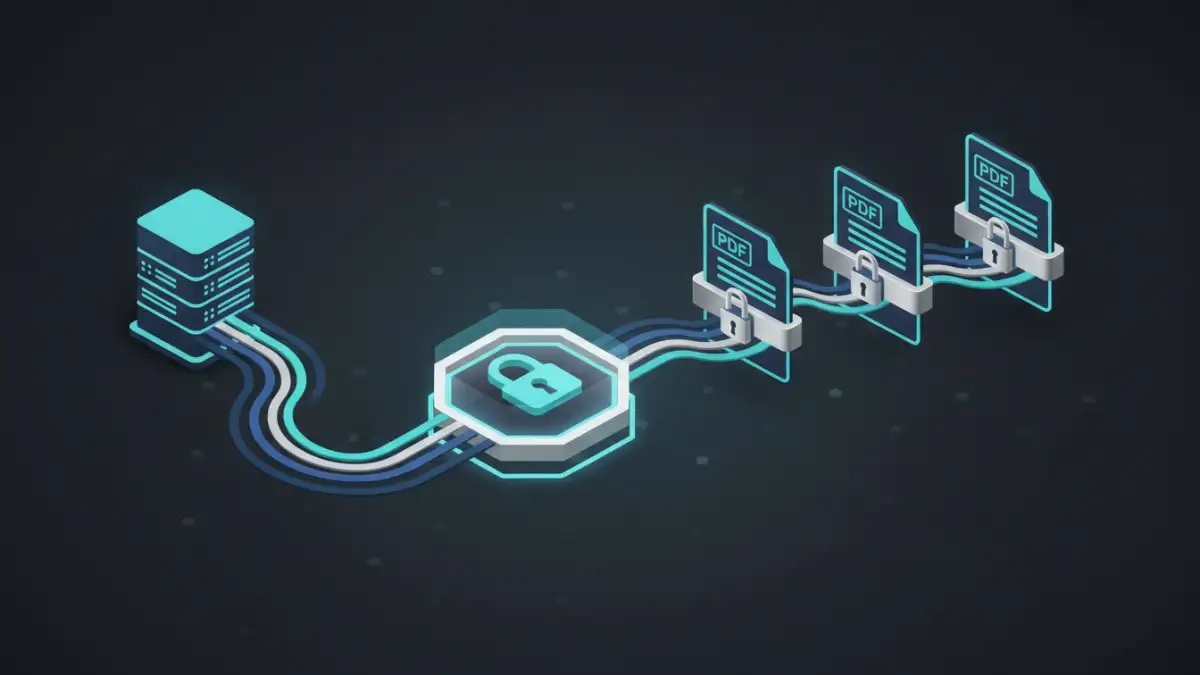
A few months ago, a client in the financial services industry came to me with a scaling problem. They needed to generate and distribute hundreds of personalized, confidential client statements every day. Their existing process involved a team member manually opening each PDF, adding a password, saving it, and then emailing it. It was slow, error-prone, and simply wasn't sustainable as their business grew.
This is a classic scenario where manual effort becomes a significant bottleneck. The solution isn't to work faster; it's to work smarter by building a system that handles this security task automatically. By leveraging a REST API, we can create a robust and efficient process to protect sensitive documents programmatically.
Table of Contents
Why Manual PDF Security Fails at Scale
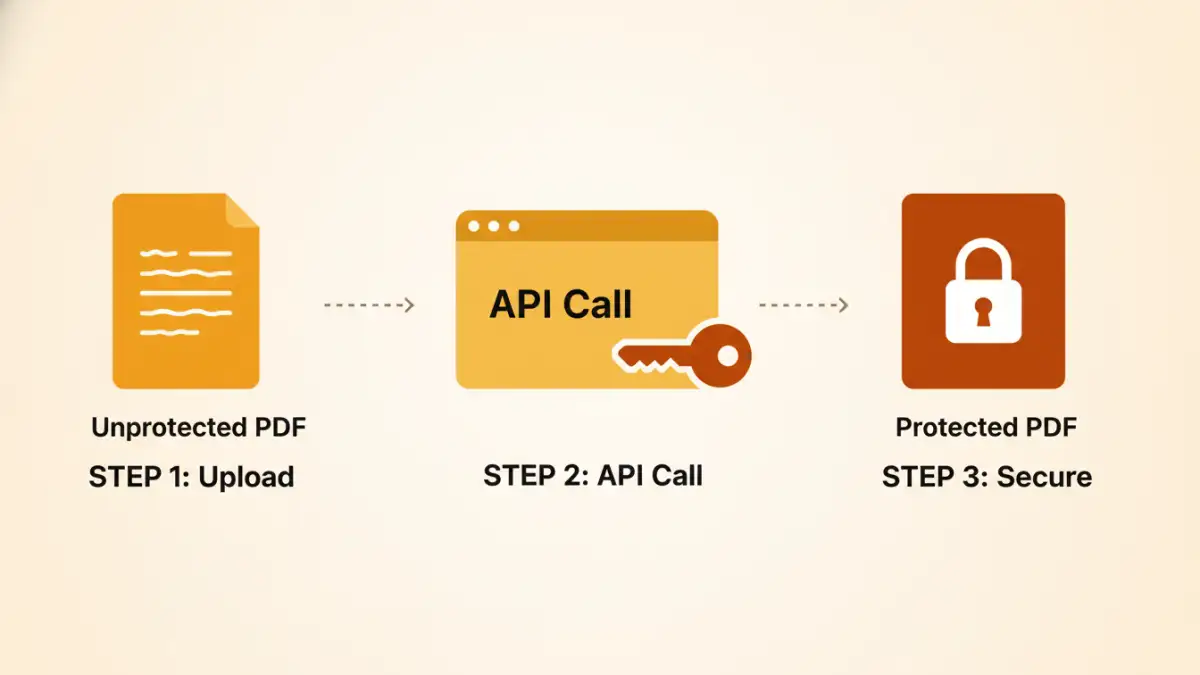
The manual approach to password-protecting PDFs is fine for a handful of files, but it quickly breaks down when volume increases. The primary issue is that it's a linear process entirely dependent on human intervention. This introduces several critical risks and inefficiencies that automation can solve.
First, there's the high probability of human error. An employee might forget to password-protect a document, use the wrong password, or send a sensitive file to the wrong recipient. These aren't just minor mistakes; they can be serious security breaches. Second, it's incredibly time-consuming. The hours spent on this repetitive task could be redirected toward more valuable activities. Finally, it doesn't scale. If your document volume doubles overnight, you can't just double your staff's speed; you need a system that can handle the load effortlessly.
The API-Driven Solution: What is a PDF Encryption API?
This is where a pdf encryption api comes into play. Think of a REST API (Representational State Transfer Application Programming Interface) as a messenger that allows different software applications to talk to each other over the internet. In our case, it's a specialized service designed to handle PDF operations.
Instead of a person performing the steps, your own application (like a web server or a backend script) sends the unsecured PDF file to the API endpoint. Along with the file, you provide the password and any other encryption settings. The API service processes the request on its secure servers, applies the password protection, and sends the newly encrypted PDF back to your application. This entire exchange happens in seconds, without any manual clicks.
Building Your Automated Workflow: A Step-by-Step Guide
Setting up an automated system is more straightforward than it might seem. The process generally involves choosing a service, getting credentials, and writing a small amount of code to make the API call. This is the core of how you can automate pdf security for any number of documents.
Step 1: Choose a Reliable API Provider
Not all APIs are created equal. When handling sensitive documents, security is paramount. Look for a provider that offers strong encryption standards like AES-256. Also, review their data privacy policy carefully. Do they store your files after processing? If so, for how long? Good documentation, clear pricing, and responsive support are also crucial factors.
Step 2: Authentication and Setup
Once you've selected a service, you'll typically sign up and receive an API key. This key is a unique string that identifies your application and authenticates your requests. It's essential to keep this key secure and never expose it in client-side code like JavaScript running in a browser. You'll use this key in the header of your API requests to prove you have permission to use the service.
Step 3: Making the API Call
The actual interaction with the API involves sending an HTTP POST request. This request will contain the PDF file and the password you want to apply. Here’s a conceptual example using a command-line tool like cURL to illustrate the process:
curl -X POST 'https://api.examplepdfservice.com/v1/protect' \
-H 'Authorization: Bearer YOUR_API_KEY' \
-F 'file=@/path/to/your/unprotected_document.pdf' \
-F 'password=YourStrongPassword123' \
--output /path/to/your/protected_document.pdf
In this example, we're sending the file located at `/path/to/your/unprotected_document.pdf` and the password `YourStrongPassword123` to the API's `/protect` endpoint. The service processes it and the protected file is saved to the output path. You can easily translate this logic into any programming language like Python, Node.js, or Java using their respective HTTP libraries.
Advanced Integration and Best Practices
Once you have the basic API call working, you can integrate it into more complex systems. This is where the true power of automation is realized, enabling you to build a fully secure document workflow.
How to Batch Password Protect PDF Files
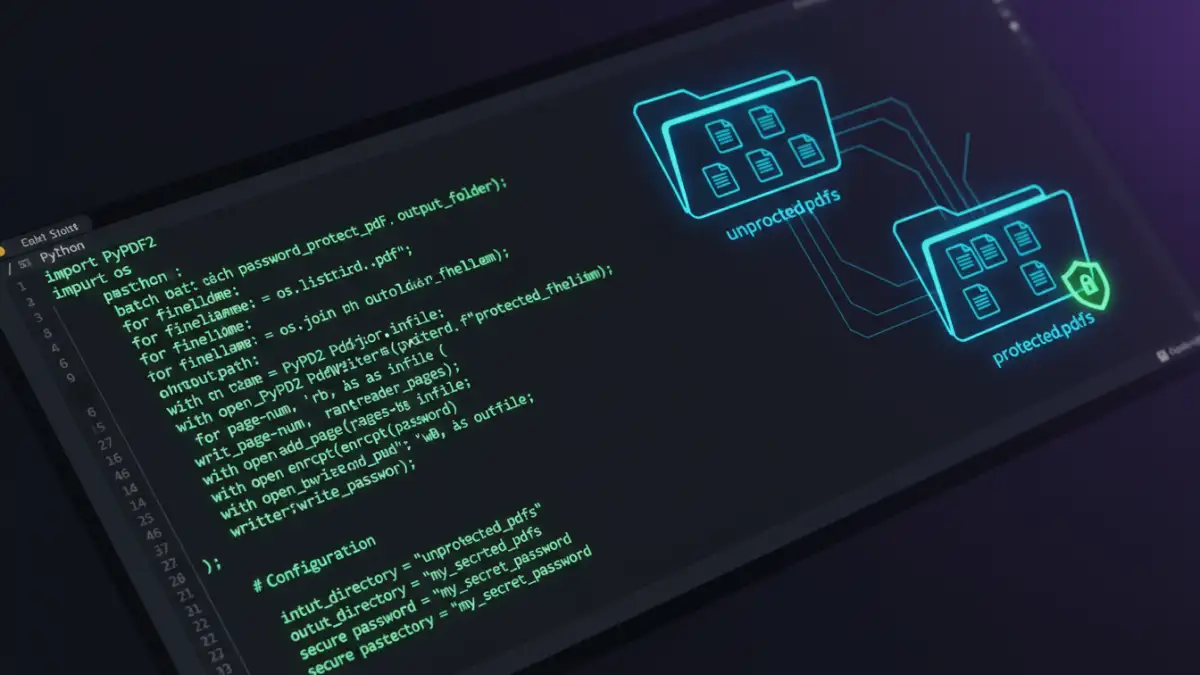
To process multiple files, you can write a simple script. The logic would be to list all files in a specific directory (e.g., an 'outgoing' folder), loop through each file, and call the API inside the loop. You could even fetch passwords from a database or a CSV file to apply a unique password to each document, which is a common requirement for client-specific files. This approach is ideal for end-of-day report generation or migrating a large archive of unsecured files.
Integrating with Business Applications
The most effective use of a rest api for pdfs is to integrate it directly into the application that generates the documents. For instance, if you have an invoicing system that creates a PDF when an order is completed, you can add a step to your code that immediately calls the encryption API. The system would then attach the newly protected PDF to an email and send it to the customer. The process becomes seamless, secure, and requires zero human oversight.
Comparison of PDF Security Automation Methods
| Method | Scalability | Setup Complexity | Security | Best For |
|---|---|---|---|---|
| Manual Protection | Very Low | None | Depends on user diligence | Protecting a few personal files |
| Desktop Scripting (e.g., AppleScript) | Low | Moderate | Moderate (keys on local machine) | Automating tasks for a single user |
| Command-Line Tools (e.g., qpdf) | Moderate | Moderate to High | High (self-hosted) | Server-side tasks with full control |
| REST API Service | Very High | Low to Moderate | High (relies on provider's infrastructure) | Scalable, integrated business applications |