I recently helped a small business owner who was completely overwhelmed by cybersecurity. He had client contracts, financial records, and employee data scattered across various folders and wasn't sure where to even begin protecting it. He thought he needed complex, expensive software, but we started with something much simpler: a basic checklist.
Getting started with protecting digital documents doesn't have to be complicated. By focusing on a few core principles, you can build a strong foundation that defends against the most common threats. This approach is about creating smart habits and using the tools you likely already have.
Table of Contents
Why Basic Document Security Matters
Before diving into the steps, it's crucial to understand why this matters. We often think of cyberattacks as sophisticated operations targeting large corporations. However, many data breaches are the result of simple human error or a lack of basic protective measures. A lost laptop, an accidental email to the wrong person, or a weak password can expose sensitive information.
Implementing basic data security tips helps prevent these common scenarios. It's not about building an impenetrable fortress overnight; it's about locking the doors and windows to deter opportunistic threats. This proactive mindset protects your personal information, your clients' data, and your business's reputation.
The 5-Step Document Security Checklist

This checklist is designed to be a starting point. By working through these five areas, you'll cover the most critical aspects of file security best practices and create a robust yet manageable system.
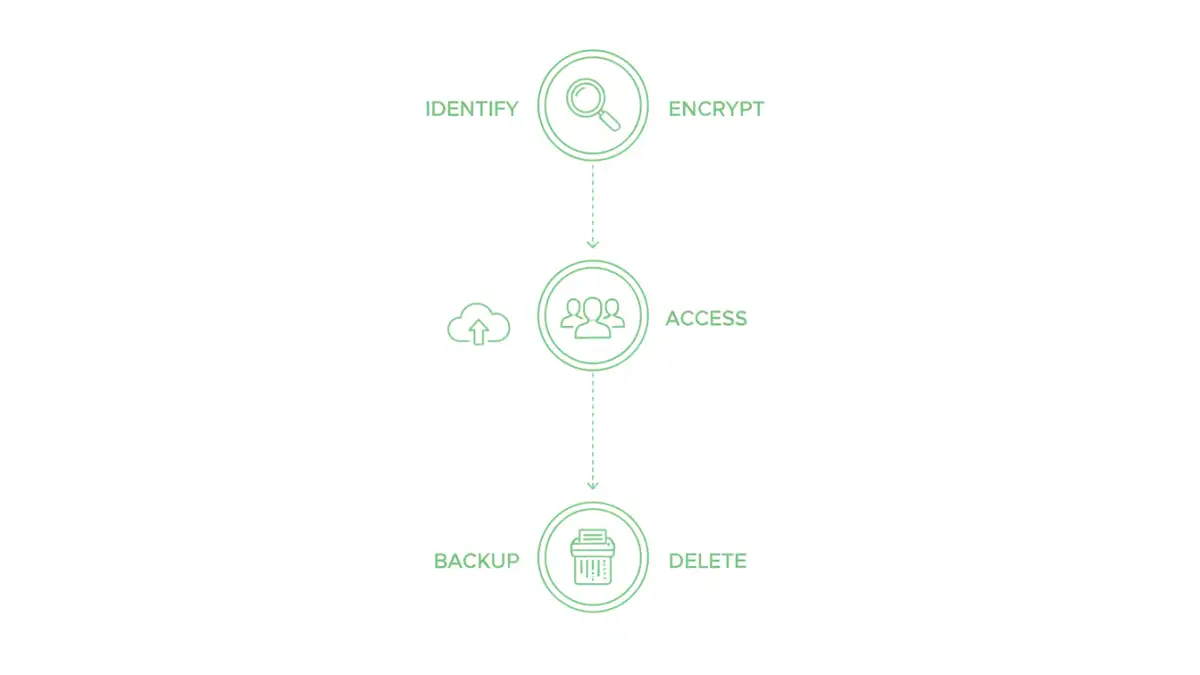
Step 1: Identify and Classify Your Data
You can't protect what you don't know you have. The first step is to take inventory of your digital files. Figure out where you store important documents—on your computer, in the cloud, on external drives? Once you know where everything is, classify it.
A simple classification system might be Public, Internal, and Confidential. 'Public' files have no restrictions. 'Internal' files are for company or personal use only. 'Confidential' files, like financial records or client data, would cause significant damage if leaked and require the highest level of protection. This step dictates how you'll apply the following controls.
Step 2: Use Strong Passwords and Encryption
Passwords are your first line of defense. Every sensitive document or system should be protected by a strong, unique password. Using a password manager is the easiest way to manage this without having to memorize dozens of complex credentials. It's a non-negotiable tool in my own workflow.
Encryption is the next layer. It scrambles your data so it's unreadable without the correct key. Modern operating systems like Windows (BitLocker) and macOS (FileVault) have built-in full-disk encryption. You should also encrypt individual sensitive files using features within applications like Microsoft Office or Adobe Acrobat.
Step 3: Control Access and Permissions
Not everyone needs access to every file. This is the principle of 'least privilege'. Only grant access to files and folders on a need-to-know basis. If you're sharing files through a cloud service like Google Drive or Dropbox, take a moment to review the sharing settings.
Avoid using a generic 'anyone with the link can view' setting for anything sensitive. Instead, grant access to specific email addresses. Regularly audit these permissions to ensure former employees or collaborators no longer have access to critical information.
Step 4: Implement a Secure Backup Strategy
Data can be lost through hardware failure, malware, or accidental deletion. A reliable backup ensures you can recover your information. A good strategy is the 3-2-1 rule: have at least three copies of your data, on two different types of media, with one copy stored off-site.
This could be as simple as an external hard drive you keep at home (Copy 2, different media) and a cloud backup service (Copy 3, off-site). Automated cloud backup services are excellent because they run in the background, ensuring your backups are always current without you having to remember.
Step 5: Plan for Secure Deletion
Simply dragging a file to the Trash or Recycle Bin doesn't actually erase it. The data often remains on your hard drive and can be recovered with special software. For truly sensitive documents you no longer need, you must use a secure deletion method.
Many security software suites include a 'file shredder' tool that overwrites the data multiple times, making it virtually impossible to recover. When you're disposing of an old computer or hard drive, use a disk-wiping utility or opt for physical destruction to ensure your data doesn't fall into the wrong hands.
Practical Tools for Each Step
Knowing how to make files secure often comes down to using the right tools. Fortunately, many powerful options are either free or already built into the software you use daily.
For Passwords and Encryption
Password managers like Bitwarden (free and open-source) or 1Password (paid) are essential. For encryption, enable BitLocker on Windows Pro or FileVault on macOS. For individual files, use the built-in encryption in Microsoft Office ('File' > 'Info' > 'Protect Document') or Adobe Acrobat ('Protect' tool).
For Backups and Access Control
Cloud storage providers like Google Drive, OneDrive, and Dropbox offer robust access controls and version history. For a dedicated backup solution, services like Backblaze offer automated, encrypted, and affordable off-site backups. They are a set-it-and-forget-it solution that provides immense peace of mind.
Making Security a Habit: Beyond the Checklist
A checklist is a great starting point, but true document security comes from building good habits. This means regularly reviewing who has access to your files, keeping your software updated to patch security vulnerabilities, and being cautious about phishing emails or suspicious links.
Schedule a quarterly 'security review' for yourself or your team. During this time, go through your checklist again. Have new types of sensitive data been created? Are backup jobs running correctly? Are access permissions still appropriate? This continuous process turns a one-time task into a lasting security posture.
Security Action Plan at a Glance
| Checklist Step | Key Action | Example Tools | Primary Benefit |
|---|---|---|---|
| 1. Identify & Classify | Categorize files as Public, Internal, or Confidential. | Folder structures, Naming conventions | Prioritizes protection efforts. |
| 2. Encrypt & Password-Protect | Use strong, unique passwords and enable encryption. | Bitwarden, 1Password, BitLocker, FileVault | Prevents unauthorized access. |
| 3. Control Access | Apply the principle of least privilege. | Google Drive/OneDrive sharing settings | Minimizes exposure from compromised accounts. |
| 4. Secure Backups | Follow the 3-2-1 backup rule. | External HDD, Backblaze, iDrive | Ensures data recovery after loss. |
| 5. Secure Deletion | Use file shredders for permanent deletion. | Eraser (Windows), Built-in secure empty trash (macOS) | Prevents recovery of sensitive disposed data. |