Have you ever needed to send a sensitive document, like a contract or a financial report, and worried about who might see it or what they might do with it? It's a common problem. You want to share information, but you also need to control it. This is where understanding your basic PDF security options becomes essential.
Many people either ignore these settings or get overwhelmed by the options. The good news is that the fundamentals are straightforward. With just a few clicks, you can add a significant layer of protection to your documents, ensuring they are only viewed and used by the intended recipients in the way you permit.
Table of Contents
The Two-Password System: Owner vs. User
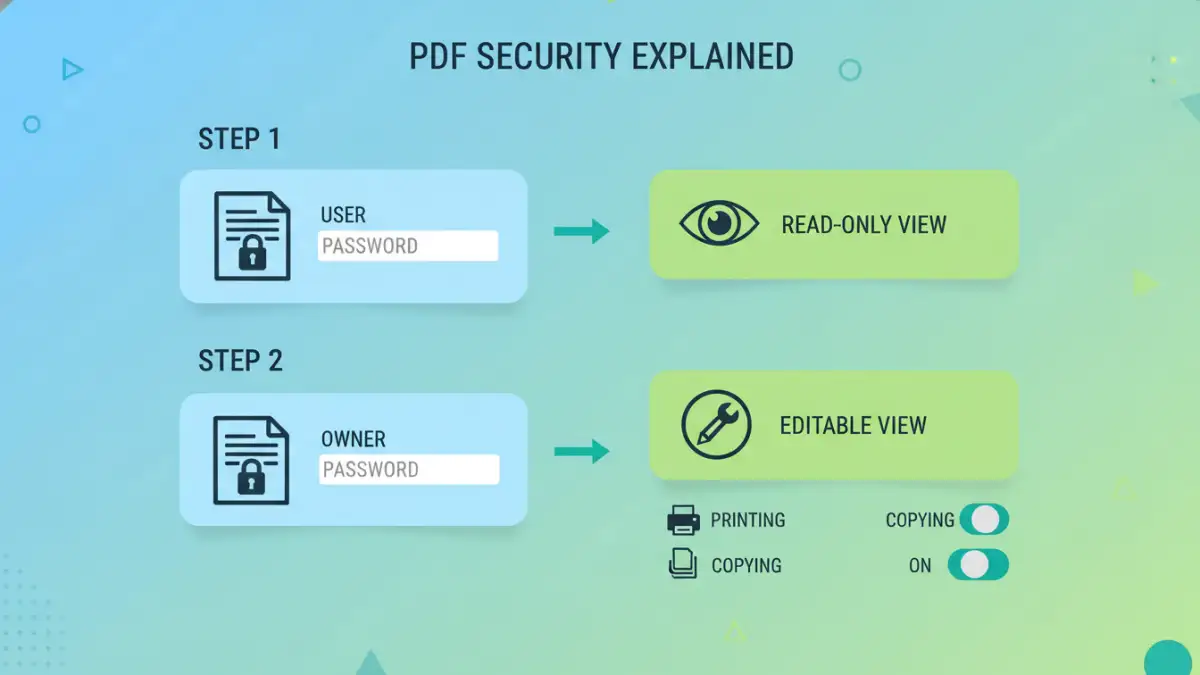
The foundation of PDF security is its two-password system. This is often a point of confusion, but the concept is simple. One password controls opening the file, while the other controls what someone can do *after* the file is open. Getting this right is the first step to properly securing your documents.
The User (or Document Open) Password
This is the password most people are familiar with. If you set a User Password, anyone who wants to open and view the PDF must enter it. It's a simple gatekeeper. Without this password, the file's content remains completely inaccessible and encrypted.
I often recommend this for documents that are highly confidential and shouldn't be viewed by anyone outside a specific group. Think of it as the key to the front door of the house; you can't get in without it.
The Owner (or Permissions) Password
The Owner Password is more nuanced and, in my opinion, more powerful for business use. This password doesn't prevent someone from opening the file; instead, it's used to restrict pdf access and specific actions like printing, copying text, or editing the document. Someone can open and read the PDF without this password, but if they want to change the security settings or perform a restricted action, they'll need it.
You can even set an Owner Password without setting a User Password. This allows anyone to read the document but prevents them from, say, copying your proprietary text or printing out hundreds of copies. It’s a great way to distribute information widely while retaining control over its use.
PDF Permissions Explained: What Can You Restrict?
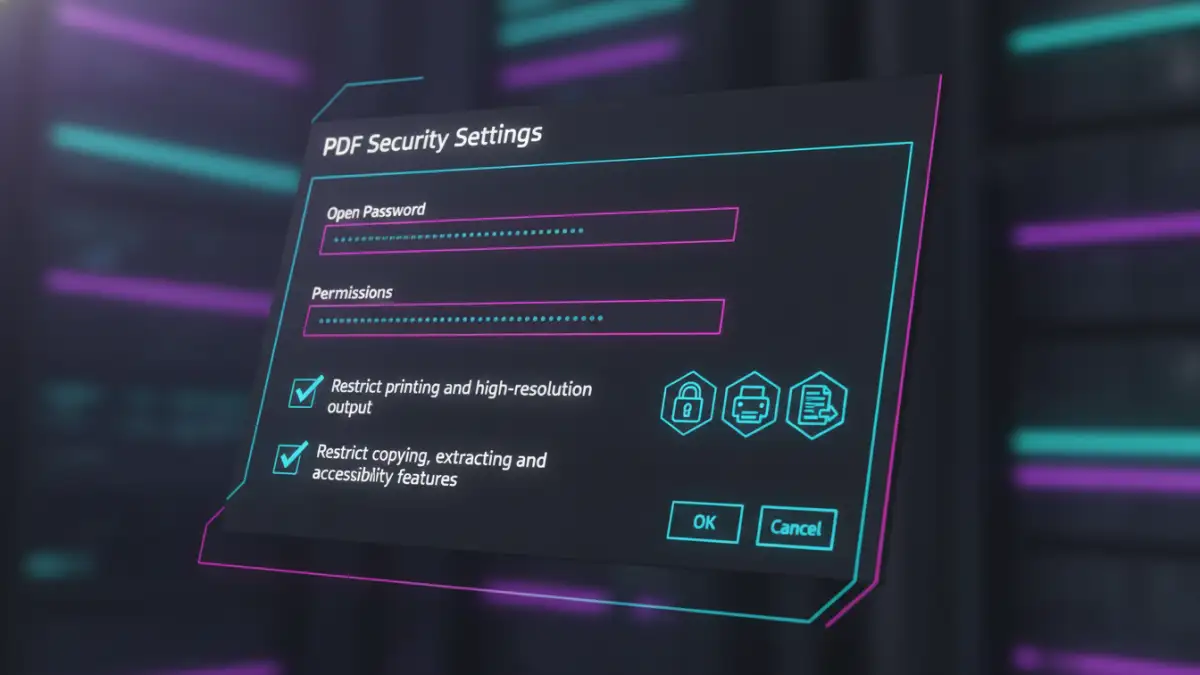
Once you've decided on your password strategy, you can fine-tune the permissions. These settings give you granular control over your document. They are tied to the Owner Password, meaning you need that password to change these permissions.
Controlling Printing
This permission setting is straightforward. You can either allow printing or block it entirely. Some software also offers a middle ground, allowing for low-resolution printing only. This is useful if you want someone to have a physical copy for review but prevent them from creating a high-quality reproduction.
Restricting Content Copying and Extraction
This is one of the most common permissions I see used. By enabling this restriction, you prevent users from selecting and copying text or images from your PDF. It also blocks them from extracting pages or using screen readers to access the text, which is an important accessibility consideration to keep in mind.
This is crucial for protecting intellectual property, like training materials or draft manuscripts. It makes it much harder for someone to lift your content and repurpose it without permission.
Understanding PDF Encryption Levels
Behind the passwords and permissions lies the actual encryption that scrambles your data. You don't always have to choose this manually, as modern software defaults to strong options, but it's good to know what's happening under the hood. The choice of encryption level determines how difficult it is for someone to bypass your security settings using brute-force methods.
Standard Security (RC4)
Older PDF versions used 40-bit or 128-bit RC4 encryption. While 128-bit RC4 was strong for its time, it's now considered less secure compared to modern alternatives. If you need to ensure compatibility with very old PDF readers (think pre-2005), you might encounter this, but for any new document, you should avoid it.
High-Level Security (AES)
Modern PDF standards use the Advanced Encryption Standard (AES), typically in 128-bit or 256-bit strengths. AES-256 is the gold standard for data protection, used by governments and security professionals worldwide. When you set a password in any current PDF software like Adobe Acrobat, you are almost certainly using AES encryption. For any sensitive document, ensure your software is using at least 128-bit AES.
How to Apply Your First PDF Security Settings
Applying these settings is usually a simple process, though the exact steps vary by software. Whether you use a desktop application or an online tool, the principles remain the same.
Using Adobe Acrobat
In Adobe Acrobat Pro, the process is robust. You would typically go to File > Properties > Security. From the 'Security Method' dropdown, you select 'Password Security.' A dialog box appears where you can set a Document Open password, a Permissions password, and check boxes for the specific actions you want to restrict, like printing or copying.
Using Online Tools (with a Caution)
Numerous websites offer to password-protect your PDFs for free. While convenient, I always caution colleagues about privacy. When you upload your document to a third-party server, you are trusting them with your data. For non-sensitive files, this can be a quick solution. But for confidential contracts or financial data, it's a risk I wouldn't recommend taking. Always stick to reputable desktop software for sensitive information.
PDF Password & Permission Comparison
| Security Feature | User Password (Document Open) | Owner Password (Permissions) | Best For |
|---|---|---|---|
| Purpose | Restricts opening and viewing the file. | Restricts actions like printing, copying, and editing. | Controlling access vs. controlling usage. |
| Access Level | All-or-nothing. You either have the password or you don't. | Allows viewing but gates specific features. | Situations requiring different levels of user privilege. |
| Common Use Case | Sending highly confidential reports to a specific person. | Distributing a watermarked manual that can be read but not copied. | Protecting intellectual property while allowing distribution. |
| Can it be used alone? | Yes. The file is locked to everyone without the password. | Yes. Anyone can open it, but nobody can print or edit. | Adapting security to the document's purpose. |
| Security Strength | Depends on the password strength and encryption level. | Also depends on the password strength and encryption level. | Both rely on strong, unique passwords for effectiveness. |