
Just last week, a colleague in marketing needed to send a confidential new product brochure to a partner. The file contained sensitive pricing and release dates, and she asked, "What's the simplest way to lock this so only they can open it?" It's a common question, and the answer is crucial for protecting intellectual property, personal data, and any information you don't want falling into the wrong hands.
Securing a PDF with a password is a fundamental skill for anyone handling digital documents. It's not just for corporate secrets; it's for your tax forms, legal contracts, or even personal records. Fortunately, the process is straightforward once you understand the options available.
Table of Contents
Understanding PDF Protection Basics
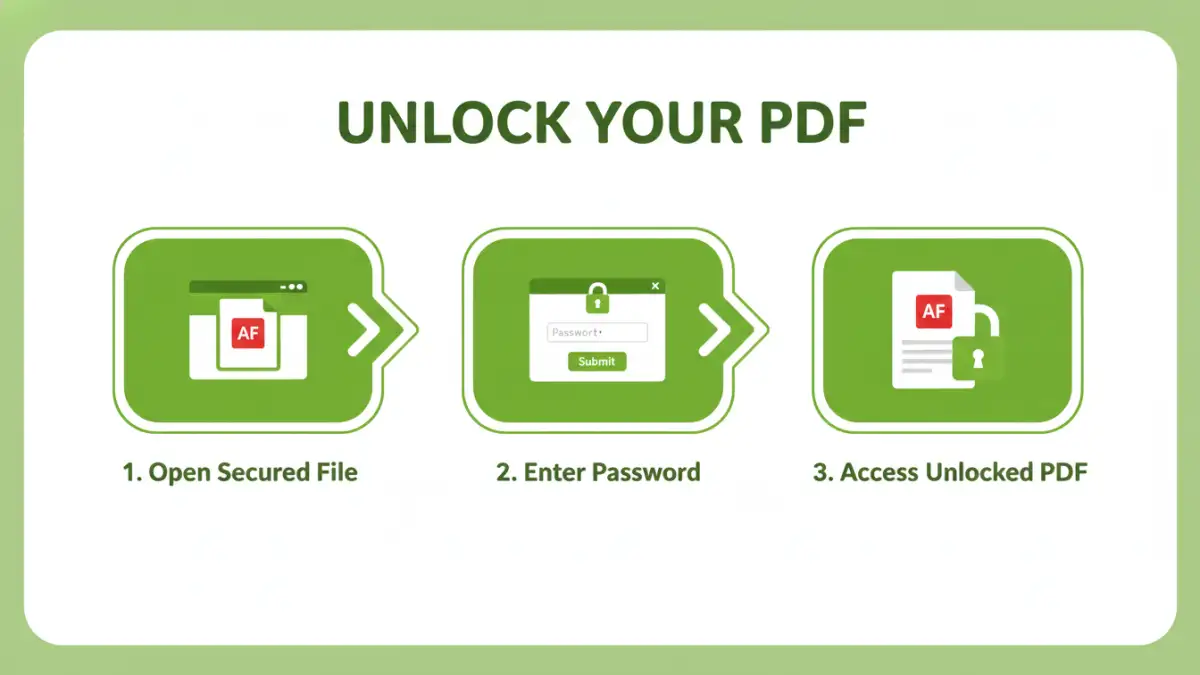
Before jumping into the how-to, it's important to know that PDF security isn't one-size-fits-all. There are two primary types of passwords you can apply, each serving a different purpose. Getting this right is the first step to ensuring your document is protected exactly as you intend.
User Password (or Document Open Password)
This is the most common type of protection. A user password encrypts the entire file and requires anyone who wants to view it to enter the correct password. Without it, the file is unreadable. This is the lock on the front door; it's your first line of defense against unauthorized access.
Owner Password (or Permissions Password)
An owner password is more about control than access. It allows you to restrict specific actions even after someone has opened the document (which they might do without a password if no user password is set). You can use it to prevent printing, copying text and images, editing the document, or adding comments. It's like setting house rules for guests after you've let them in.
Methods for Adding a Password to a PDF
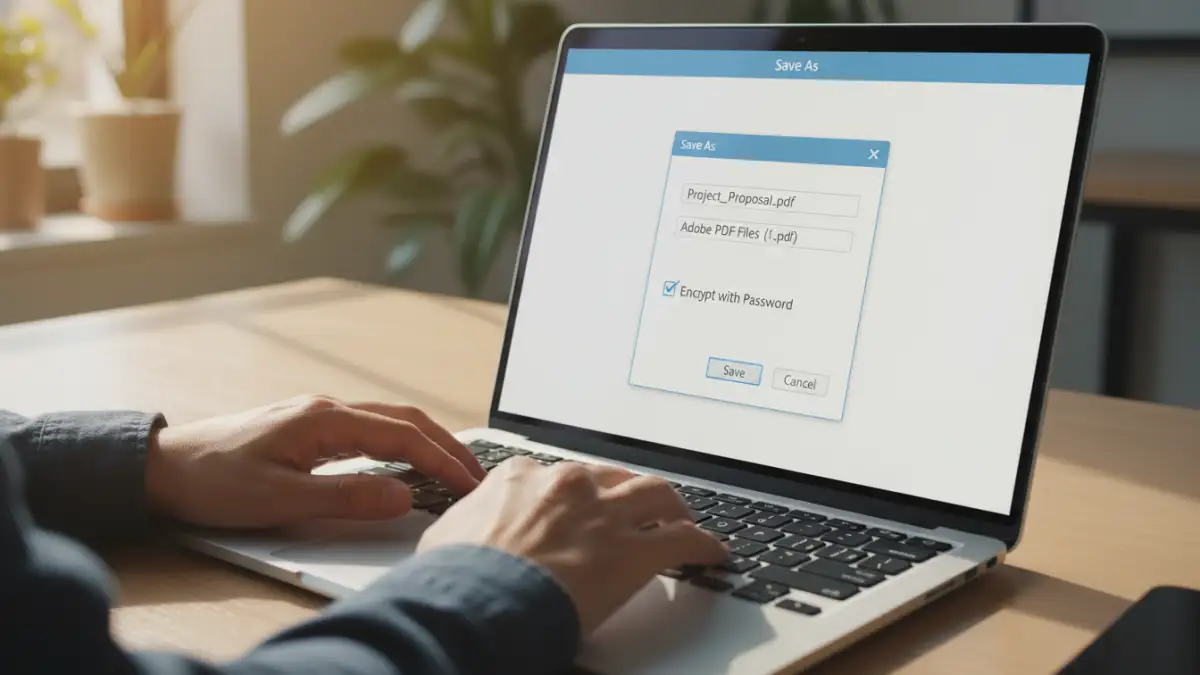
There are several ways to add a password to a PDF, ranging from professional software to free, built-in tools. The best method depends on your needs, budget, and the level of security required.
Using Adobe Acrobat Pro
As the creator of the PDF format, Adobe provides the most robust tools. Adobe Acrobat Pro (the paid version) offers comprehensive security options. To secure a file, you open the PDF, go to File > Protect Using Password. From there, a dialog box lets you set a password for viewing, editing, or both. You can also access advanced options, like choosing the encryption level, which is something I rely on for highly sensitive engineering documents.
Using Free Online PDF Tools
Numerous websites like Smallpdf, iLovePDF, and Soda PDF offer free tools to protect PDFs. The process is usually simple: upload your document, enter your desired password, and download the newly protected file. While convenient for non-sensitive documents, I always caution colleagues about privacy. When you upload a file to a third-party server, you are trusting them with your data. Always read their privacy policy before uploading confidential information.
Using Microsoft Word or Google Docs
A great workaround I often suggest is to create the protected PDF directly from the source. If your document is in Microsoft Word, you can go to File > Save As, choose PDF from the format dropdown, and then click 'Options'. In the options menu, you'll find a checkbox to "Encrypt the document with a password." Google Docs offers a similar path by downloading the file as a PDF, though native password protection isn't built-in; you'd typically print to PDF and use your operating system's features.
Using Your Operating System (macOS)
If you're a Mac user, you have a powerful tool built right in: Preview. Open any PDF in Preview, go to File > Export. In the save dialog, select PDF as the format, and then check the 'Encrypt' box. You'll be prompted to enter and verify a password. This method is secure, free, and doesn't require any third-party software.
How to Choose a Strong Password for Your PDF
The security of your document is only as strong as the password you set. A weak, easily guessable password like "123456" or "password" offers almost no protection. After all, you wouldn't lock your house with a key that everyone has a copy of.
A strong password should be:
- Long: Aim for at least 12-16 characters.
- Complex: Use a mix of uppercase letters, lowercase letters, numbers, and symbols.
- Unique: Don't reuse passwords from other accounts or documents.
- Unpredictable: Avoid using personal information like birthdays, names, or common words.
A good technique is to use a passphrase—a sequence of random words like "CorrectHorseBatteryStaple"—and then modify it with numbers and symbols. Password managers can also generate and store these complex passwords for you, which is my preferred method for keeping track of everything securely.
Best Practices for Secure Document Handling
Applying a password is just one part of a good security strategy. To truly keep your information safe, you should also consider how you share and store these protected files.
First, never send the password in the same email as the PDF attachment. This is like taping the key to the front door. Send the password through a separate, secure channel, like a text message, a phone call, or an encrypted messaging app. This ensures that even if the email is intercepted, the attacker won't have both the file and the key to unlock it.
Second, think about the lifecycle of the document. Once the PDF is no longer needed, securely delete it from your system and any cloud storage. If it's a collaborative document, establish clear guidelines with your partners on how to handle the file after the project is complete. Proper data hygiene prevents sensitive information from lingering in forgotten folders, reducing the risk of a future breach.
Comparison of PDF Protection Methods
| Method | Cost | Key Feature | Best For |
|---|---|---|---|
| Adobe Acrobat Pro | Paid Subscription | Advanced encryption and permissions control | Corporate environments and highly sensitive documents |
| Online PDF Tools | Free (with limits) | Quick, browser-based, no installation needed | Non-sensitive files and one-off tasks |
| Microsoft Word | Included with Office | Create protected PDFs from source documents | Users who primarily work within the Microsoft ecosystem |
| macOS Preview | Free (built-in) | Simple, secure, and native to the OS | Mac users needing a quick and reliable solution |