
Have you ever needed to send a sensitive document, like a contract or a financial report, and worried about it falling into the wrong hands? Securing your files is a fundamental part of digital hygiene, and for PDFs, adding a password is one of the most direct ways to control access. It's a simple step that adds a crucial layer of protection.
Over the years, I've helped countless teams implement simple but effective security measures. The goal isn't to make documents inaccessible, but to ensure they're only accessible to the right people. Let's walk through the most reliable methods, from professional software to free, built-in tools you might not even know you have.
Table of Contents
Understanding PDF Password Types
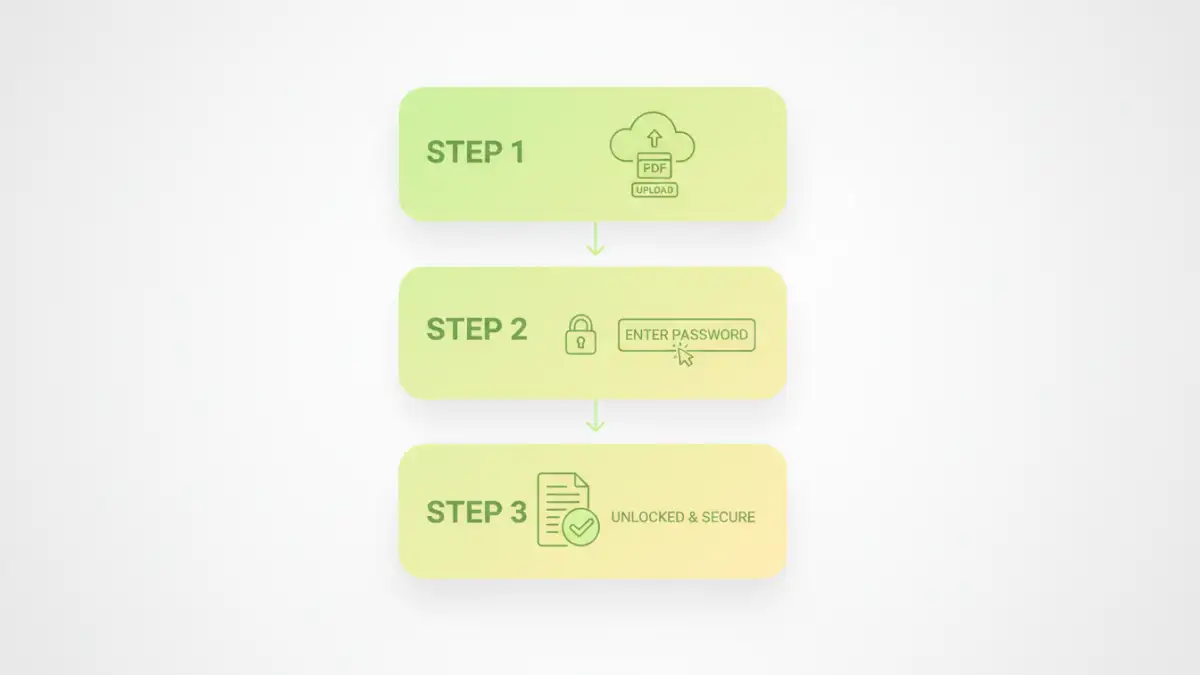
Before we jump into the 'how,' it's important to understand that PDF security isn't one-size-fits-all. There are two distinct types of passwords you can apply, and they serve very different purposes. Choosing the right one depends on what you want to achieve.
The Document Open Password (User Password)
This is the one most people are familiar with. It's the key to the front door. If a PDF has a Document Open password, no one can view its contents without entering it first. This is the best option when the primary goal is to prevent unauthorized viewing of the entire document. It encrypts the file, making it unreadable to anyone without the password.
The Permissions Password (Owner Password)
This password is more about controlling what people can do with the document *after* they've opened it. You can set a Permissions password to restrict actions like printing, copying text and images, editing the document, or adding comments. You can even have a Permissions password without a Document Open password, meaning anyone can view the file, but they can't, for example, print it without the owner's password.
Method 1: Using Adobe Acrobat Pro
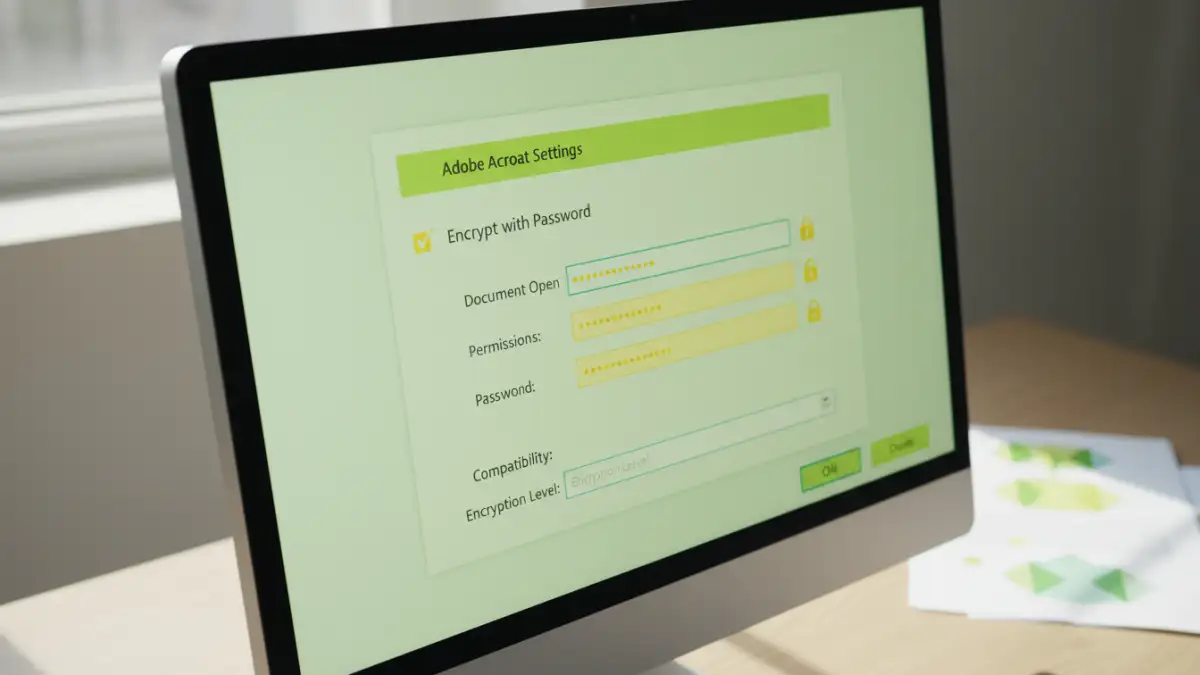
For those who work with PDFs professionally, Adobe Acrobat Pro is the industry standard. It offers the most robust and granular control over document security. While it's a paid tool, its features are unmatched for corporate or sensitive environments.
Here’s the typical workflow for password protecting a PDF with Acrobat:
- Open your PDF in Adobe Acrobat Pro.
- Navigate to File > Protect Using Password.
- A dialog box will appear. For simple protection, you can choose between 'Viewing' (sets a Document Open password) or 'Editing' (sets a Permissions password).
- For more control, select Advanced Options > Encrypt with Password.
- In the next window, you can set both a 'Document Open' password and a 'Permissions' password simultaneously. You can also define exactly what is restricted, such as printing resolution or allowing form filling.
- Click OK, confirm your password(s), and then save the file. The document is now secured.
Setting Granular Permissions
The real power of Acrobat lies in the Permissions section. You can allow users to print in low resolution but not high resolution, or let them fill out form fields and sign but not add comments. This level of control is essential when you need to distribute a document widely but want to maintain control over its integrity and usage.
Method 2: Using Free Online Tools
If you don't have Adobe Acrobat or only need to lock a PDF occasionally, free online tools are a convenient option. Websites like Smallpdf, iLovePDF, and Soda PDF offer simple interfaces for this task. The process is generally the same across all of them.
Here's how it works:
- Go to your chosen online PDF protection tool's website.
- Upload your PDF file by dragging and dropping it or selecting it from your computer.
- You will be prompted to enter and confirm a password.
- Click the 'Protect PDF' or 'Encrypt' button.
- The tool will process the file and provide a link to download the newly secured PDF.
Important Security Considerations
While incredibly convenient, you should be cautious when using online tools for highly sensitive documents. When you upload a file, you are sending it to a third-party server. Reputable services have privacy policies stating they delete files after a short period, but the risk, however small, always exists. For confidential financial, legal, or personal documents, using an offline method like Adobe Acrobat or a built-in OS tool is always the safer bet.
Method 3: Using Built-in OS Tools (like macOS Preview)
Many people don't realize they may already have the tools they need. macOS users, in particular, have a powerful built-in option with the Preview app.
Here’s how to add a password to a PDF using Preview on a Mac:
- Open your PDF in the Preview app.
- Go to the menu bar and select File > Export... (do not use 'Export as PDF').
- In the export dialog box, you can change the name or location if needed.
- At the bottom of the dialog, check the box labeled Encrypt.
- Password fields will appear. Enter and verify your password.
- Click Save. The new version of the PDF will be password-protected.
This method is fantastic because it's free, fast, and completely offline, ensuring your document never leaves your computer. It applies a standard 'Document Open' password.
Best Practices for PDF Security
Applying a password is just one step. To make your document security truly effective, follow these best practices:
- Use Strong Passwords: Avoid simple words or common phrases. A strong password includes a mix of uppercase and lowercase letters, numbers, and symbols.
- Communicate Passwords Securely: Don't send the password in the same email as the PDF. Use a different communication channel, like a text message or a phone call, to share it.
- Use Both Password Types: For maximum control, use a Document Open password to restrict access and a Permissions password to prevent unauthorized printing or editing.
- Know the Limitations: While password protection is strong, it's not foolproof against determined attackers with specialized software. For top-secret information, consider more advanced enterprise-level digital rights management (DRM) solutions.
PDF Protection Method Comparison
| Method | Cost | Security Level | Best For |
|---|---|---|---|
| Adobe Acrobat Pro | Subscription-based | High (AES-256 bit encryption) | Corporate environments, sensitive documents, and granular control. |
| Free Online Tools | Free (with limits) | Good (Typically AES-128 bit) | Quickly securing non-sensitive files without installing software. |
| macOS Preview | Free (Built-in) | High (AES-256 bit encryption) | Mac users who need a secure, fast, and offline solution. |
| Microsoft Office 'Save as PDF' | Free (with Office) | Good (RC4 128-bit) | Windows users securing documents created in Word, Excel, etc. |