A few weeks ago, a project manager on my team was in a panic. He couldn't access a critical ZIP archive containing final design mockups from a vendor. The vendor was offline, the deadline was hours away, and the file was locked behind a forgotten password. It was a classic case of digital amnesia that brought a high-stakes project to a grinding halt. We eventually found the password scrawled in an old notebook, but the incident highlighted a common and frustrating problem in modern workflows.
We secure everything from PDFs and spreadsheets to compressed archives, but we often lack a coherent strategy to manage these disparate passwords. This leads to forgotten credentials, wasted time, and significant security risks when people resort to using simple, repetitive passwords just to keep track of them all.
Table of Contents
The Problem of Document Password Sprawl
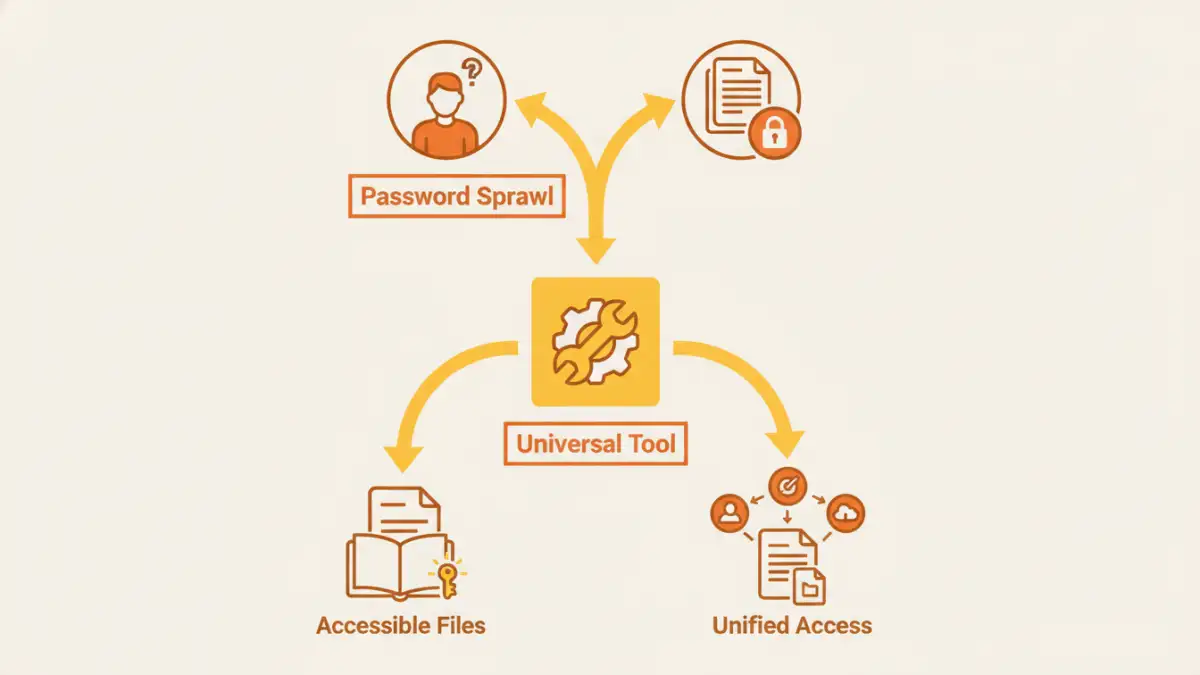
In any given project, I might handle password-protected PDFs with legal contracts, encrypted Excel sheets with financial data, and password-protected ZIP files for transferring assets. Each one has its own password, often set by different people with different security habits. This phenomenon is what I call "document password sprawl."
It's a decentralized security nightmare. There's no single source of truth for these passwords. They end up in sticky notes, unencrypted text files, or worse, are completely forgotten. This not only hinders productivity but also creates vulnerabilities. If an employee leaves, tracking down the password for a critical archive can become a digital treasure hunt.
Why We Create This Problem
We password-protect documents for good reasons: confidentiality, compliance (like GDPR or HIPAA), and preventing unauthorized edits. The issue isn't the act of securing files; it's the lack of a system to manage the keys to those files. Each new protected document adds another layer of complexity to our digital lives.
The Risks of Poor Password Management
The ad-hoc approach has clear downsides. Forgetting a password can mean losing access to valuable data permanently. Using weak or reused passwords across multiple sensitive documents means that if one is compromised, they all are. This is where a dedicated system becomes not just a convenience, but a necessity.
What Is a Multi-Format Password Tool?
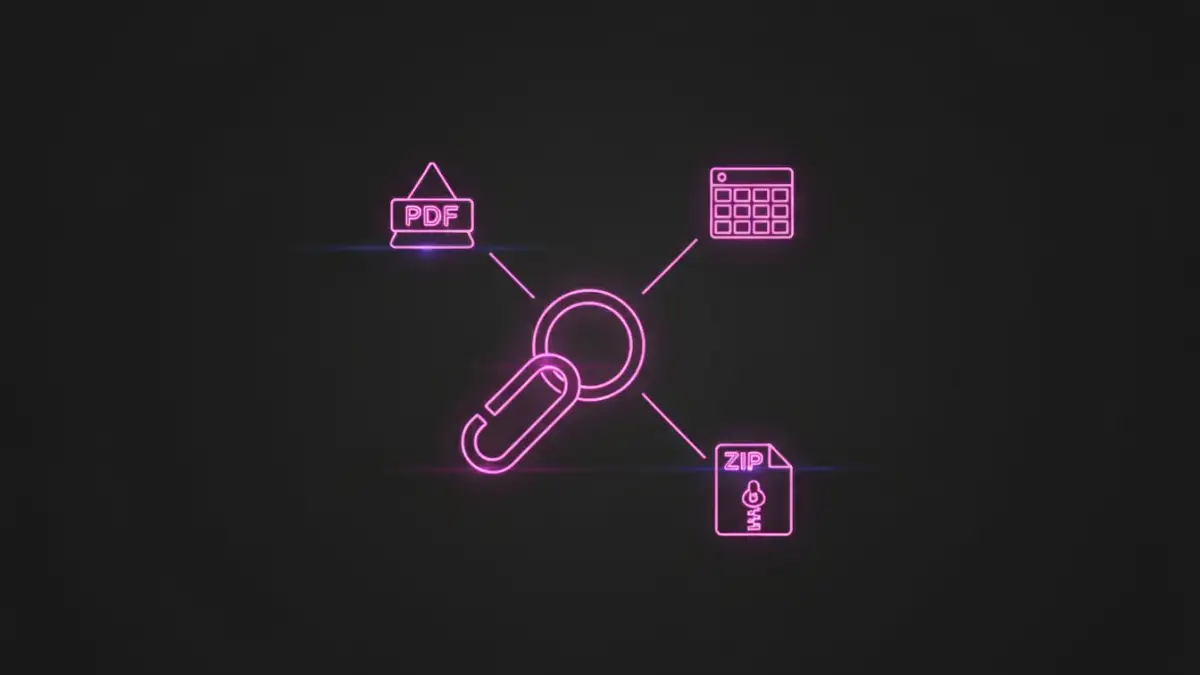
This brings us to the solution: a specialized tool designed to handle passwords across various document formats. Think of it as a master key or a secure vault specifically for your files. Instead of just being an 'all in one password remover', a quality tool focuses on management and recovery.
A proper universal document password tool centralizes control over your encrypted files. It's designed to work with a wide range of types, including Adobe PDF, Microsoft Office (Word, Excel, PowerPoint), and archives like ZIP and RAR. This versatility is its core strength, addressing the chaos of password sprawl directly.
Key Features to Look For
When evaluating a multi format password tool, I always look for a few key features. First is broad file compatibility—it must support the formats you use daily. Second, it should offer different methods for password recovery, such as dictionary attacks or brute-force with custom parameters, for situations where a password is truly lost. Lastly, for files you own, it should offer a way to manage or remove passwords you already know, simplifying access for authorized users.
How These Tools Operate: Recovery vs. Management
It's important to understand that these tools function in two primary ways: password recovery and password management. They are not magical keys that can unlock any file instantly, especially those with strong encryption. Their effectiveness depends on the situation.
Password Recovery for Lost Credentials
When a password is completely unknown, the tool attempts to recover it. It does this using several computational methods:
- Brute-Force Attack: The software tries every possible combination of characters. This is time-consuming but comprehensive. You can often speed it up by providing hints, like password length or character types (e.g., numbers only).
- Dictionary Attack: It uses a list of common words, phrases, and passwords. This is much faster if the original password was weak or common.
- Mask Attack: A hybrid approach where you specify parts of the password you remember (e.g., starts with "Project202" but you forget the rest).
From an engineering perspective, the success of these methods is directly tied to the complexity of the original password. A long, random password can take years to crack with brute force.
Password Management for Known Credentials
The more common and practical use case is managing files for which you know the password. A good document password manager can batch-remove or change passwords on dozens of files at once. For example, you could remove the passwords from a batch of finalized project documents before archiving them in a secure, access-controlled server, streamlining future access for the team.
Choosing the Right Solution for You
Selecting a tool depends entirely on your needs, from occasional personal use to enterprise-level document management. The market is divided into three main categories: online services, desktop software, and integrated password managers.
Online tools are convenient for one-off tasks but pose a security risk, as you have to upload your sensitive file to a third-party server. Desktop software offers far more power and security since everything is handled locally on your machine. Some traditional password managers are also starting to include secure storage for files, offering a different approach to the same problem by vaulting the files themselves.
Ultimately, the goal is to replace chaos with a system. By consolidating control over your document passwords, you not only save time and prevent lockouts but also significantly improve your overall data security posture.
Tool Type Comparison
| Tool Type | Pros | Cons | Best For |
|---|---|---|---|
| Online Services | Convenient, no installation needed, often free for basic tasks. | Major security/privacy risk (uploading files), limited file size and features. | Non-sensitive files where you've forgotten a simple password. |
| Desktop Software | Highly secure (files stay local), powerful recovery options, batch processing. | Requires installation, often a paid product, can have a learning curve. | Businesses or individuals regularly handling sensitive, encrypted documents. |
| Integrated Password Managers | Part of a broader security ecosystem, securely stores files and passwords together. | May lack advanced file-specific recovery features, subscription-based. | Users who want to store both credentials and the secured files in one encrypted vault. |
| Manual Tracking (e.g., Spreadsheet) | Free and simple to set up. | Extremely insecure if not encrypted, prone to human error, not scalable. | Not recommended for any sensitive information. |