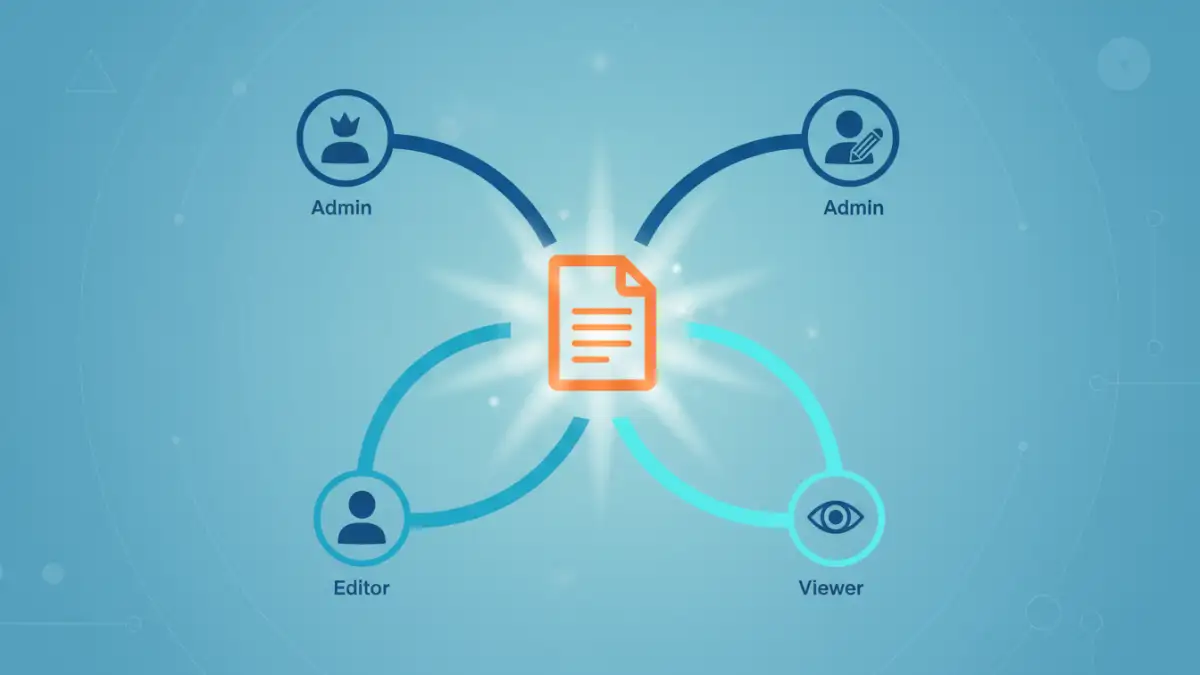
I once saw a junior team member accidentally delete a critical section of a project proposal just minutes before a major client meeting. The file was in a shared folder with universal edit access, a simple oversight that caused a wave of panic. This scenario is all too common and highlights a crucial, often overlooked aspect of digital collaboration: properly managing who can do what with your files.
Setting up a clear system for document file permissions isn't just about security; it's about creating a predictable and efficient workflow. It prevents mistakes, protects sensitive data, and ensures everyone has the access they need—and nothing more.
Table of Contents
The Foundation of File Access Control
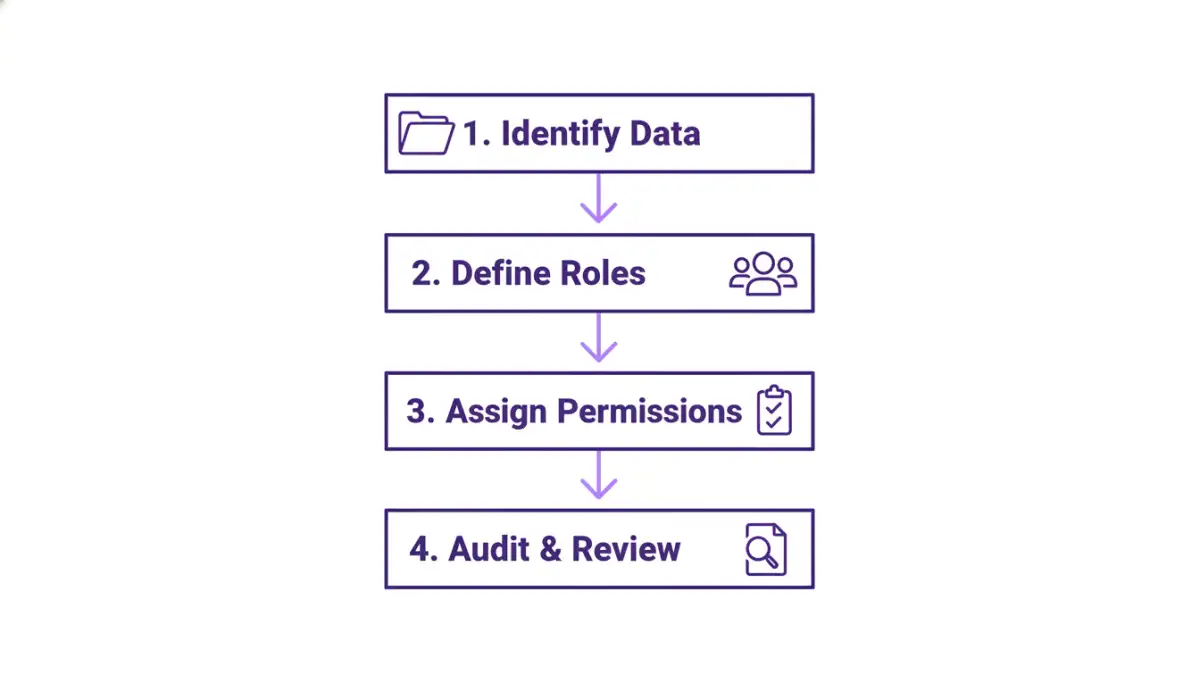
At its core, file access control is a system that dictates who is allowed to read, modify, share, or delete a file. Without it, every shared document is a free-for-all. The guiding philosophy here is the Principle of Least Privilege (PoLP), a concept I've relied on throughout my career in software development. It means giving users the minimum levels of access—or permissions—necessary to perform their job functions.
For example, a stakeholder who only needs to review a report shouldn't have the ability to edit or delete it. By restricting their access to "View Only," you eliminate the risk of accidental changes. This simple step is fundamental to maintaining data integrity and security.
Key Permission Types Explained
Most modern platforms standardize permissions into a few key roles. Understanding these is the first step to effective management.
- Viewer: The most restrictive role. Users can open and read the document but cannot make any changes or leave comments. This is perfect for sharing final reports or information with a wide audience.
- Commenter: This role allows users to view the document and add comments or suggestions without altering the original content. It's ideal for review cycles and collaborative feedback.
- Editor: An editor has broad powers. They can make direct changes to the document, accept or reject suggestions, and often share the file with others. This role should be assigned cautiously to those actively contributing to the content.
- Owner/Administrator: This user has complete control. They can edit, delete, and manage document permissions for all other users. Typically, the creator of the document is the default owner.
Practical Methods to Manage Document Permissions
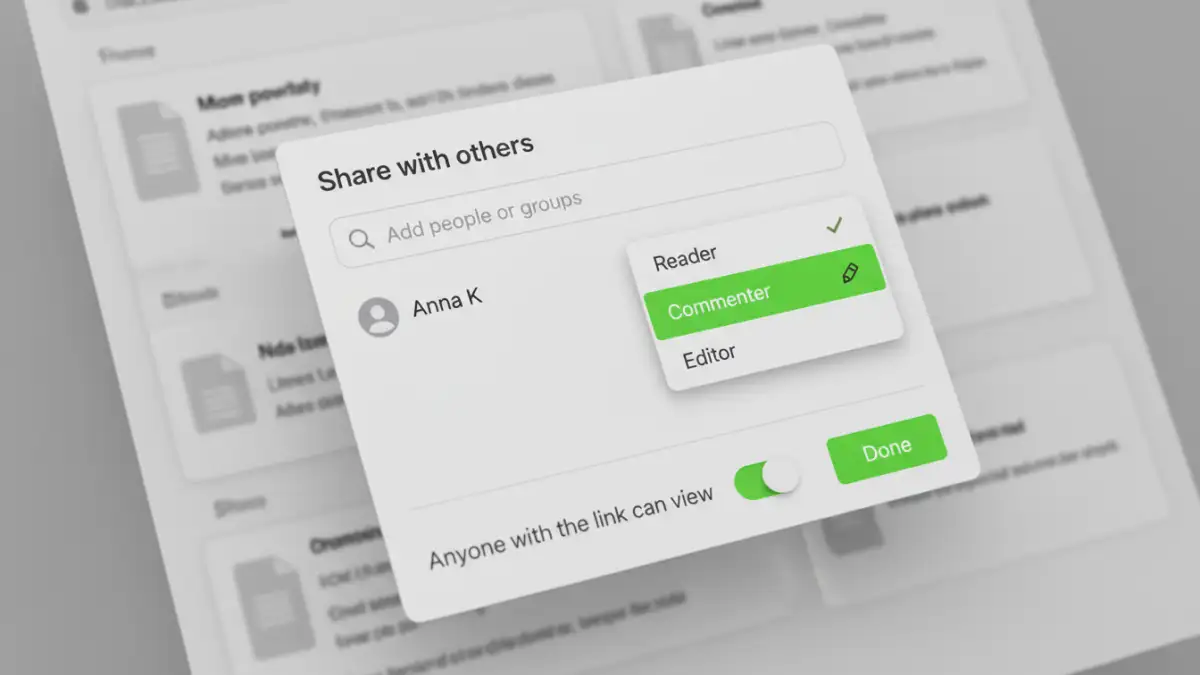
Applying these concepts is straightforward on most platforms. Whether you're working in the cloud or on your local machine, the tools are readily available. The key is knowing where to find them and using them consistently.
Cloud Storage Platforms (Google Drive, Dropbox, OneDrive)
Cloud services have made file access control incredibly intuitive. When you click the "Share" button, you're presented with a dialog to add people and assign their roles from a dropdown menu (Viewer, Commenter, Editor). You can also create a shareable link and set a default permission level for anyone who uses it. For added security, I always recommend sharing directly with specific email addresses rather than creating a public "anyone with the link can edit" link, which can be a significant security risk.
Operating System Level (Windows & macOS)
Your computer's operating system has its own powerful permission system. In Windows, you can right-click a file or folder, go to Properties > Security, and define permissions for specific users or groups on your machine or network. You can specify actions like Full Control, Modify, Read, and Write. macOS offers similar controls in the "Get Info" panel under the "Sharing & Permissions" section. This level of control is essential for protecting files on shared workstations or local network servers.
Implementing Role-Based Access Control (RBAC)
Managing permissions for each individual user becomes chaotic as a team grows. This is where Role-Based Access Control (RBAC) comes in. Instead of assigning permissions one by one, you create roles (e.g., "Marketing Team," "Developers," "Sales Leads") and assign permissions to those roles.
For instance, you can create a "Marketing Team" group in your cloud storage service. You then grant this group editor access to the "Campaign Assets" folder. When a new marketer joins, you simply add them to the group, and they automatically inherit all the correct permissions. When someone leaves, you remove them from the group, instantly revoking their access to dozens of files. This approach is scalable, efficient, and far less prone to error.
Best Practices for Setting File Restrictions
A good permissions strategy is an ongoing process, not a one-time setup. Here are a few best practices I've found essential for keeping shared digital spaces organized and secure.
- Audit Permissions Regularly: At least quarterly, review who has access to your most critical folders and documents. Remove anyone who no longer needs access. This is crucial for preventing "permission creep," where users accumulate access over time that is no longer relevant to their role.
- Use Groups for Everything: Even for a team of three, start with groups. It builds a good habit and makes scaling effortless. Avoid one-off individual permissions whenever possible.
- Set Expiration Dates for Access: When sharing a file with an external contractor or partner, many platforms allow you to grant temporary access that automatically expires after a set date. This prevents forgotten permissions from becoming a security loophole.
- Educate Your Team: Ensure everyone understands why permissions are important and how to use them correctly. A team that values data security is your best defense against accidents and breaches.
Permission Level Comparison Across Platforms
| Permission Level | Typical Capabilities | Best Use Case | Common Platforms |
|---|---|---|---|
| Viewer | Can read and download the file. Cannot edit or comment. | Distributing final reports, manuals, or read-only information. | Google Drive, Dropbox, OneDrive, macOS, Windows |
| Commenter | Can view and add comments/suggestions. Cannot change the core content. | Collaborative reviews, feedback cycles, and proofreading. | Google Drive, Dropbox Paper, Microsoft 365 |
| Editor | Can modify content, accept/reject suggestions, and often share the file. | Active collaboration on a document with trusted team members. | Google Drive, Dropbox, OneDrive, macOS, Windows |
| Owner / Admin | Full control: edit, delete, and manage permissions for others. | The original creator or designated project manager for a file. | All major platforms |