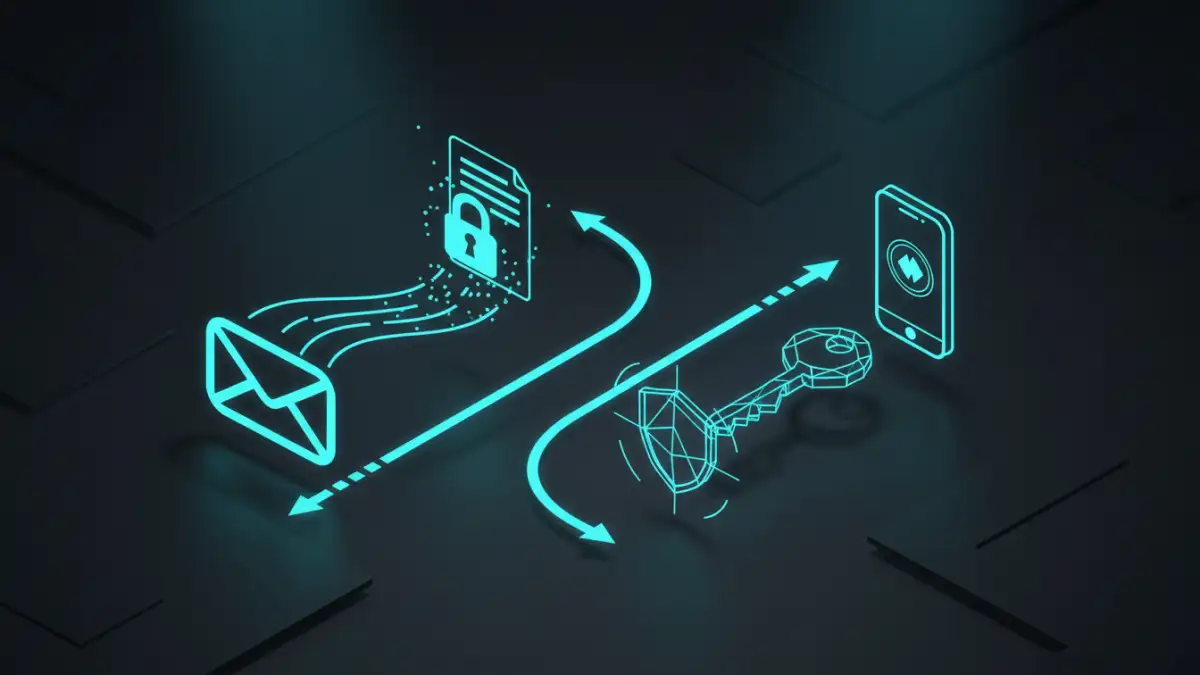
Just last week, a project manager sent our team a ZIP file with sensitive project mockups. He password-protected it, which was a good first step. But then, in the very next email, he sent the password. While his intention was good, this common mistake completely negates the security of the password itself. It’s like locking your front door and leaving the key under the mat.
Sending a locked file is easy, but doing it securely requires a little more thought. The goal is to create two separate paths for the information—one for the file and another for the key. This simple separation drastically reduces the risk of an unauthorized person gaining access to both, especially if an email account is compromised.
Table of Contents
The Common Mistake: Why Emailing the Password Fails
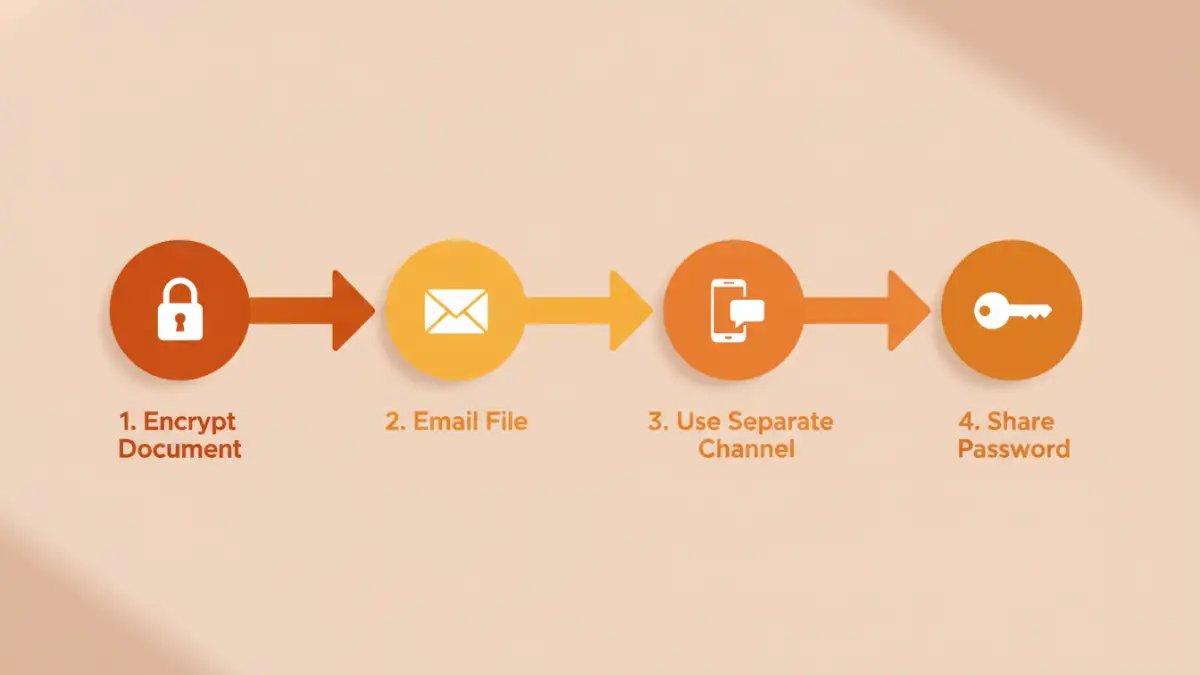
The fundamental flaw in emailing a password is that email is not an inherently secure communication channel. If a hacker gains access to a recipient's inbox, they get everything—the locked file and the key to unlock it. It's a one-stop shop for data theft.
Think of it this way: if someone intercepts that one line of communication, they have both pieces of the puzzle. The password protection becomes a mere inconvenience rather than a robust security measure. The core principle of secure communication is to assume the primary channel could be compromised and to plan accordingly. This is why we must separate the asset (the document) from its access key (the password).
Step 1: Creating the Password-Protected File
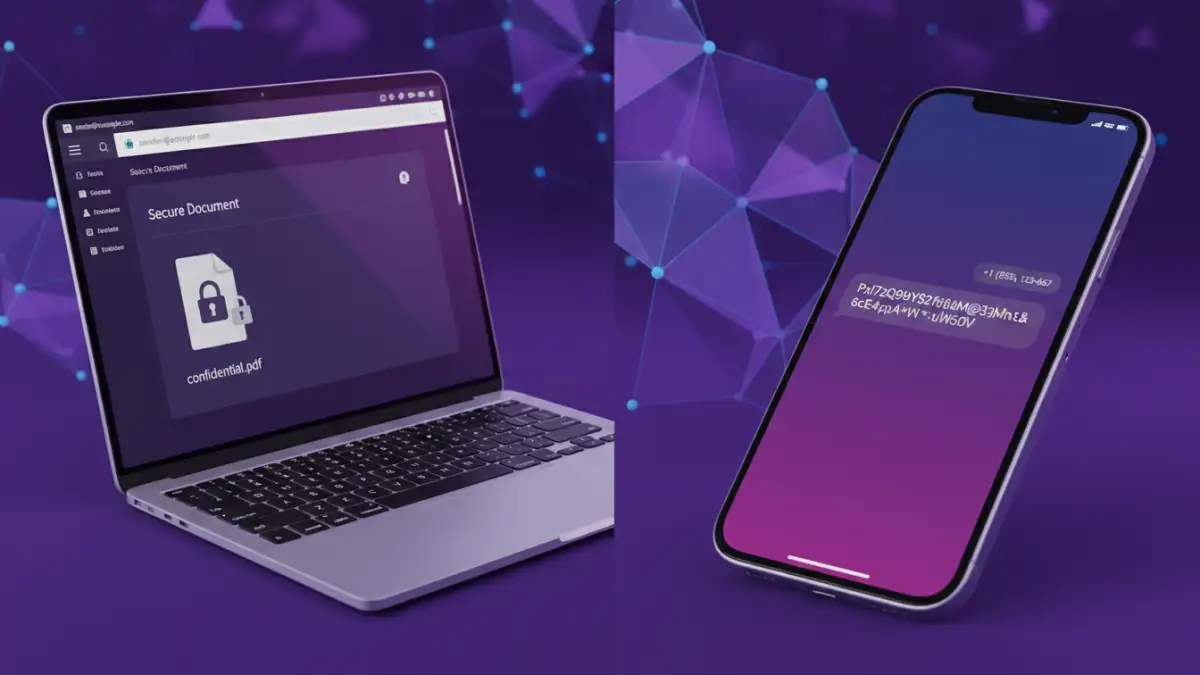
Before you can send a password protected document, you need to create one. Most modern office software has built-in tools for this. The key is to use a strong, unique password that isn't easily guessable. A good password should be at least 12 characters long and include a mix of uppercase letters, lowercase letters, numbers, and symbols.
For Microsoft Office (Word, Excel)
In applications like Word or Excel, the process is straightforward. Go to 'File' > 'Info' > 'Protect Document' (or 'Protect Workbook' in Excel) and choose 'Encrypt with Password'. You'll be prompted to enter and re-enter your chosen password. Once saved, the file cannot be opened without it.
For Adobe PDFs
Creating a secure PDF is just as simple. In Adobe Acrobat, you can go to 'File' > 'Protect Using Password'. This opens a dialog where you can set a password required to open the document. Many other PDF editors and even some operating systems' 'Print to PDF' functions offer similar password protection options.
Step 2: Sending the Document Securely
This part is the easiest. Once your file is encrypted and password-protected, you can attach it to an email just like any other file. The document itself is scrambled, so even if the email is intercepted, the attachment is useless without the password. Send the email with the locked attachment and a simple message like, "Here is the encrypted project plan. I will send you the password via text message." Do not hint at the password or give any clues in the email itself.
Step 3: Sharing the Password Through a Separate Channel
This is the most critical step. A separate communication channel means using a completely different method to transmit the password. By doing this, an attacker would need to compromise two distinct systems (e.g., your email and your phone) to get both the file and the password, which is significantly more difficult.
Excellent choices for a separate channel include:
- SMS (Text Message): Simple and effective, as it goes to the recipient's phone, not their email inbox.
- A Phone Call: Verbally telling the recipient the password is very secure for one-to-one communication. Just be sure you're speaking to the right person.
- Encrypted Messaging App: Apps like Signal or WhatsApp use end-to-end encryption, providing a highly secure channel for sharing sensitive information like a password.
- A Password Manager: If both you and the recipient use a password manager like 1Password or Bitwarden, you can use their built-in secure sharing features. This is often the best method for teams.
Alternative Methods for Secure File Sharing
While emailing a locked attachment is a common practice, it's not the only way to share encrypted file safely. Modern cloud services offer more integrated and often more secure solutions that are worth considering, especially for larger files or frequent collaboration.
Services like Google Drive, Dropbox, and OneDrive allow you to share files via a secure link. You can often protect these links with a password and even set an expiration date. This approach keeps the file off the email system entirely. The recipient gets a link, and when they click it, they must enter the password (which you've shared via a separate channel) to access the file in the cloud. This method also gives you the ability to revoke access later if needed, a feature email attachments don't have.
Password Sharing Method Comparison
| Method | Security Level | Convenience | Best For |
|---|---|---|---|
| Phone Call | Very High | Medium | One-to-one sharing with a trusted contact. |
| SMS (Text) | High | High | Quickly sharing with individuals whose phone number you have. |
| Encrypted Messaging App | Very High | High | Team or individual sharing where both parties use the app. |
| Password Manager | Highest | Medium | Corporate environments or tech-savvy users already using one. |
| Separate Email | Low | High | Not recommended; defeats the purpose of separation. |