
You've just finalized a contract, a technical report, or an important invoice. The last thing you want is for someone to accidentally—or intentionally—alter its contents before it's signed or archived. This is a common scenario I've seen countless times, where document integrity is paramount. Making a PDF file read-only is the standard way to handle this.
This process essentially puts a lock on the file that prevents users from making changes like editing text, filling form fields, or adding comments. It's a fundamental skill for anyone sharing important documents, ensuring that your work remains exactly as you intended.
Table of Contents
Understanding PDF Permissions
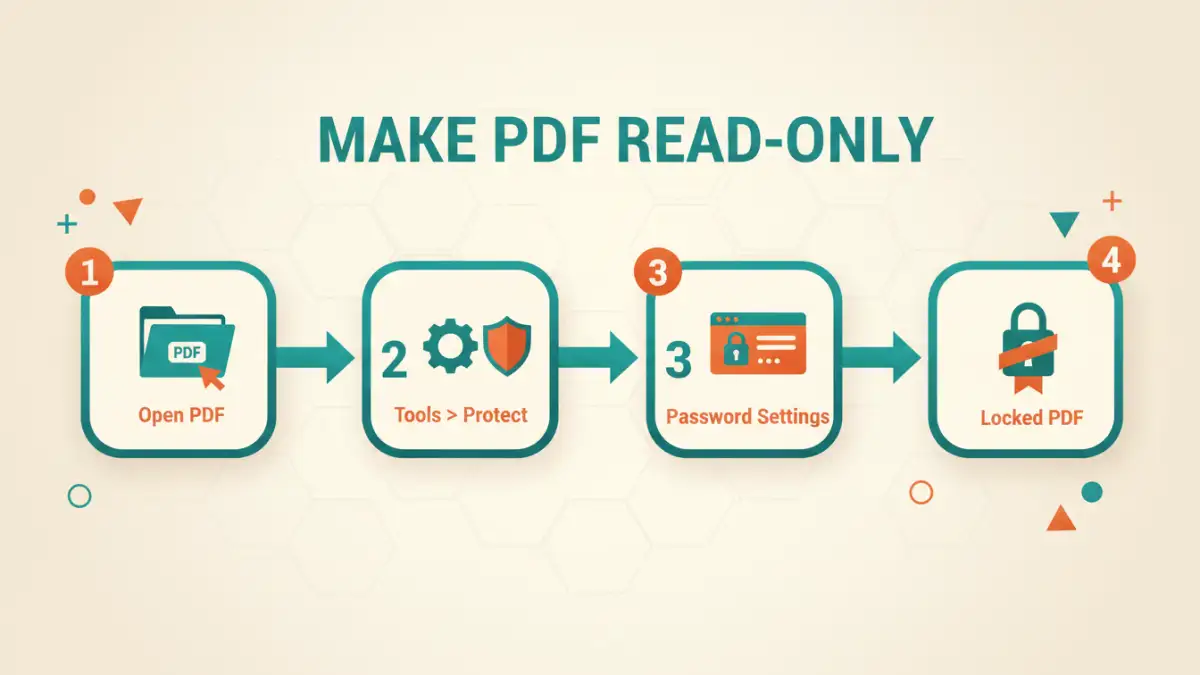
Before diving into the methods, it's crucial to understand what 'read-only' means in the context of a PDF. The PDF specification includes two types of passwords that serve different purposes. Getting this right is key to properly securing your document.
The Two Types of PDF Passwords
First, there's the 'User Password' (or Document Open Password). This is what most people think of—a password required simply to open and view the file. If you don't have it, you can't see the content at all.
Second, and more relevant to our goal, is the 'Owner Password' (or Permissions Password). This password is what allows you to restrict pdf editing. You can set an owner password to control specific actions like printing, copying text, or making changes. The document can still be opened by anyone, but its functionality will be limited according to the permissions you've set.
Method 1: The Professional Standard with Adobe Acrobat Pro
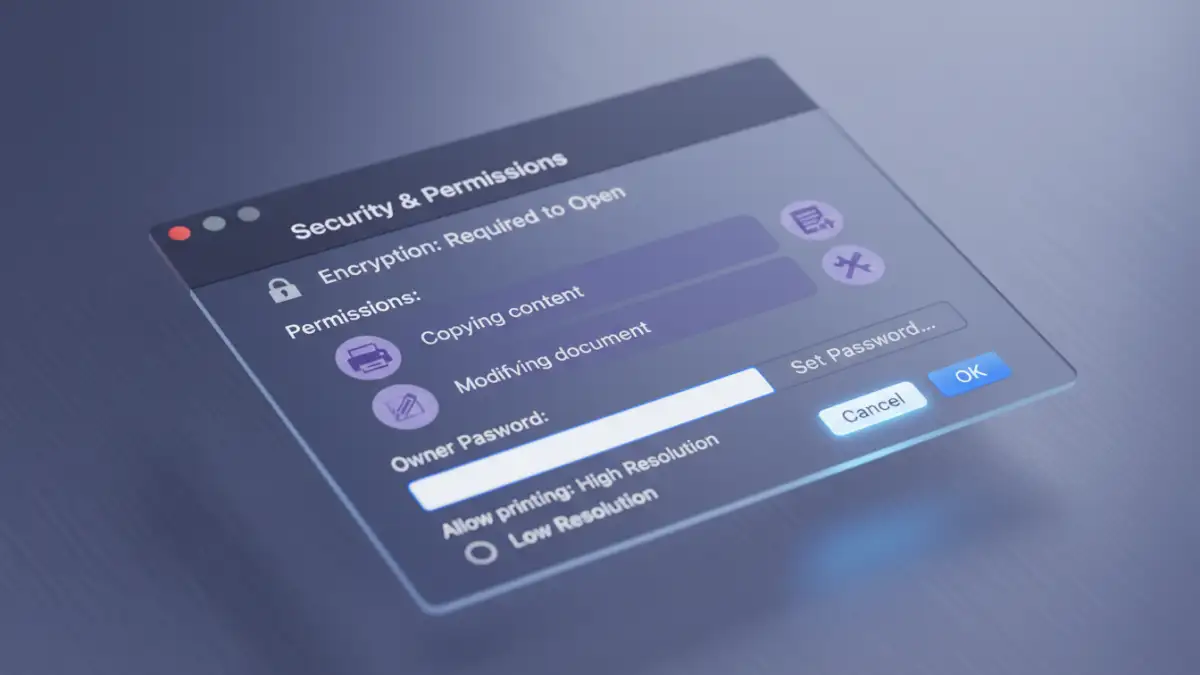
For those who handle sensitive documents regularly, Adobe Acrobat Pro is the industry-standard tool. It offers the most granular control over document permissions and is my go-to method for official or client-facing work. The interface is straightforward and the security it applies is robust.
Step-by-Step Guide to Restrict Editing
- Open Your PDF: Launch Adobe Acrobat Pro and open the PDF file you want to make read-only.
- Access the Protection Tool: In the right-hand pane, click on 'Tools', then find and select 'Protect'. A new toolbar will appear at the top.
- Encrypt with Password: Click on 'Encrypt' in the top toolbar and select 'Encrypt with Password'.
- Set Permissions: A dialog box will appear. Check the box next to 'Restrict editing and printing of the document'. This is the core step.
- Choose Your Restrictions: Use the dropdown menus to control what users can do. You can allow or disallow printing, specify what types of changes are permitted (like filling form fields or commenting), and disable copying of text and images.
- Set the Permissions Password: Enter a strong password in the 'Change Permissions Password' field. This is the 'Owner Password' that will be required to change these settings later.
- Save the File: Click 'OK' and then save your PDF. The new permissions are now applied.
Using Acrobat ensures that the permissions are set according to the official PDF standard, making it the most reliable way to lock a PDF from changes.
Method 2: Using Free Online Tools for Quick Protection
If you don't have a subscription to Adobe Acrobat Pro or only need to protect a document occasionally, several free online tools can get the job done. Services like Smallpdf, iLovePDF, and Soda PDF offer simple interfaces to apply password protection.
The process is generally the same across these platforms: you upload your PDF, navigate to their 'Protect PDF' or 'Lock PDF' tool, enter a permissions password, select your desired restrictions, and then download the newly secured file. While incredibly convenient, I always caution colleagues about the security implications. You are uploading your document to a third-party server, so this method is not suitable for highly confidential or sensitive information.
Method 3: Using Built-in Operating System Tools
Both macOS and Windows offer ways to achieve a basic level of protection, often without third-party software. While not as feature-rich as Acrobat, these methods can be sufficient for many use cases.
Using Preview on macOS
On a Mac, the built-in Preview app has powerful PDF capabilities. To set permissions:
- Open the PDF in Preview.
- Go to 'File' > 'Export...'.
- In the save dialog, click the 'Permissions' button.
- Set an 'Owner Password' and then check the boxes to restrict printing, copying, or modifying the document.
- Click 'Apply' and save the new file.
This is a surprisingly effective way to prevent PDF editing without any extra cost.
Using Microsoft Print to PDF on Windows
Windows users can leverage the 'Microsoft Print to PDF' feature, especially when starting from a different file format like a Word document. When saving a file from Microsoft Word as a PDF ('File' > 'Save As' > 'PDF'), click on the 'Options...' button before saving. Here, you can select 'Encrypt the document with a password'. This will bring up a dialog where you can set a permissions password and define restrictions, similar to the other methods.
Limitations and Best Practices for Document Security
It's important to have realistic expectations. Setting a permissions password is a deterrent, not an unbreakable vault. Various tools and utilities exist that can strip this type of protection from a PDF file. Therefore, this method is best for preventing accidental changes or discouraging casual attempts at modification.
For true document integrity, especially for legal contracts or official records, consider using digital signatures. A digital signature cryptographically binds a person's identity to a document and invalidates itself if any changes are made after signing. Combining a permissions password with a digital signature provides a much higher level of security and non-repudiation.
PDF Protection Method Comparison
| Method | Cost | Security Level | Best For |
|---|---|---|---|
| Adobe Acrobat Pro | Subscription-based | High (Industry Standard) | Professional and high-security documents |
| Free Online Tools | Free (with limits) | Moderate (Privacy Concerns) | Quick, non-sensitive personal documents |
| macOS Preview | Free (built-in) | Good | Mac users needing basic protection |
| Microsoft Print to PDF | Free (built-in) | Good | Windows users creating PDFs from Office |