
Have you ever needed to send a sensitive document, like a contract or financial statement, and worried about who might see it? Simply password-protecting a file isn't always enough. True security comes from encryption, a process that scrambles your data into an unreadable format that can only be accessed with a specific key or password.
It sounds complex, but getting started with basic file encryption is easier than you think. You don't need to be a security expert to add a powerful layer of protection to your most important files. Let's walk through the fundamental concepts and practical steps to secure your data.
Table of Contents
What is File Encryption and Why Bother?
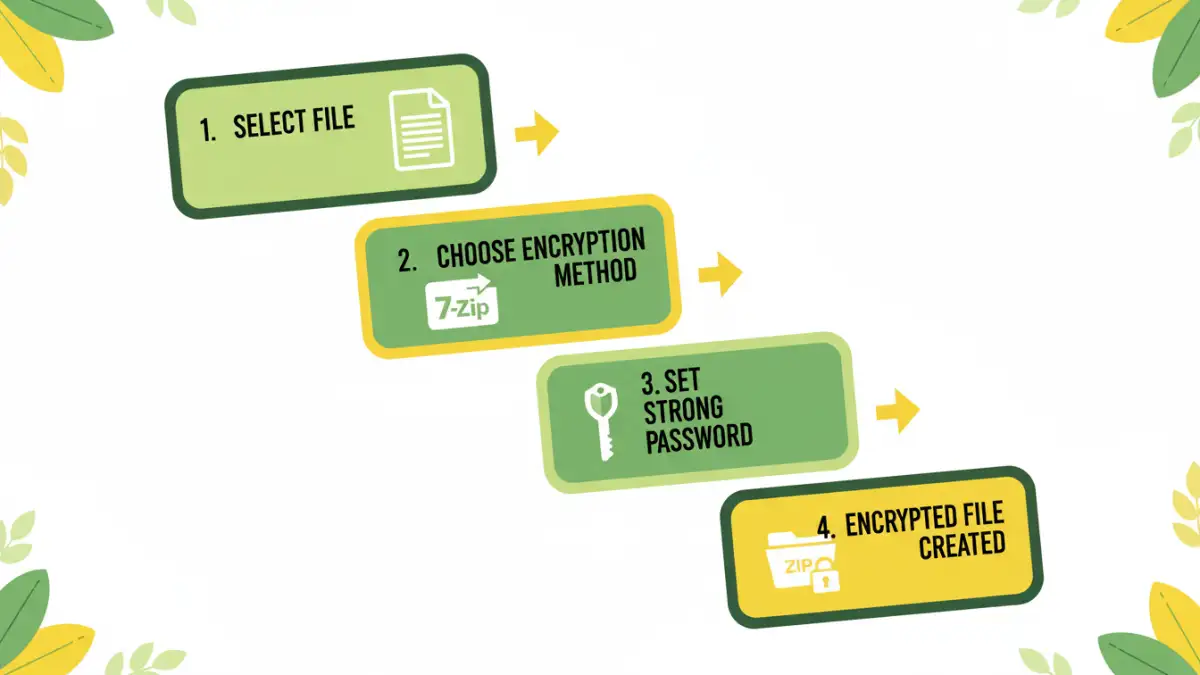
At its core, file encryption is the process of converting your data into a secret code to prevent unauthorized access. Think of it like putting a letter in a special safe that only you have the key for. Even if someone steals the safe, they can't read the letter inside. In the digital world, this "key" is usually a password or a digital certificate.
This is crucial for protecting sensitive information. Whether it's personal financial records, confidential business plans, or private legal documents, encryption ensures that even if your computer is lost, stolen, or hacked, the data on that specific file remains unreadable and secure.
The Difference Between Encryption and Simple Password Protection
Many applications, like Microsoft Word, offer a "password to open" feature. While this provides a basic barrier, it's not always true encryption. True encryption uses complex mathematical algorithms (like AES-256) to systematically scramble the data. This is far more secure than a simple password lock, which can sometimes be bypassed with specialized software.
Strong encryption ensures the file's contents are fundamentally altered, whereas some basic password features just hide the content behind a simple gate. For genuine security, always opt for a method that explicitly uses a strong encryption standard.
Method 1: Using Your Operating System's Tools
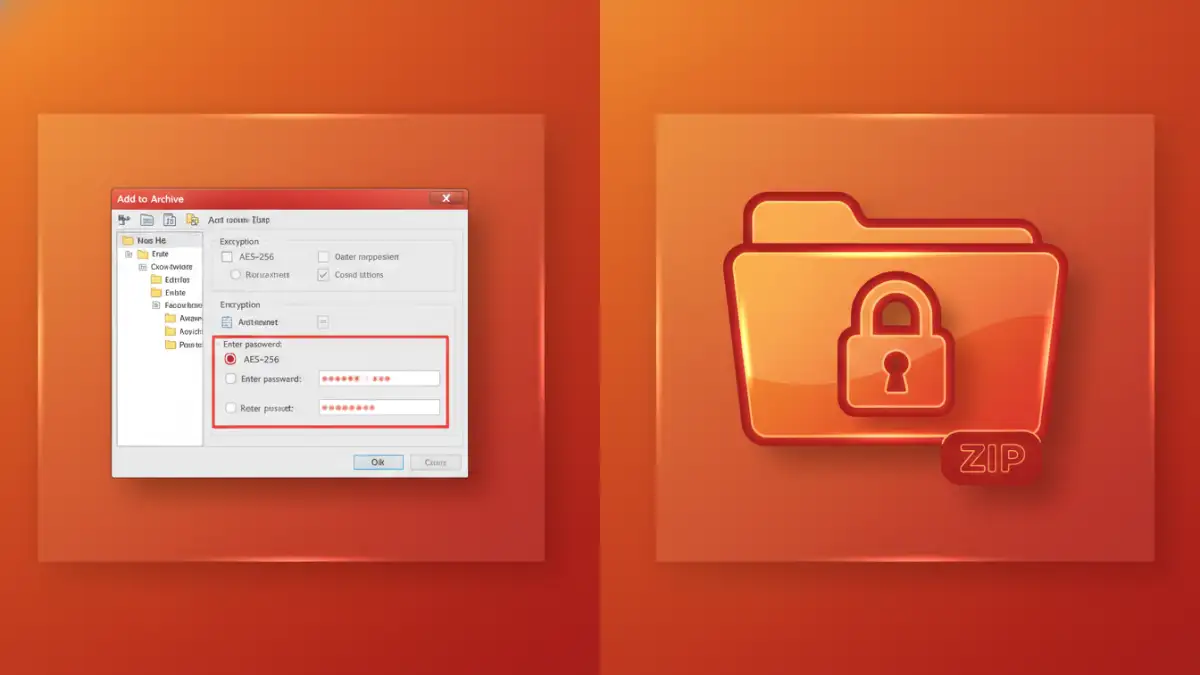
Both Windows and macOS offer built-in utilities for encryption. These are great starting points because they don't require you to install any third-party software. However, they work in slightly different ways.
Encrypting Files on Windows (EFS)
Windows Pro, Enterprise, and Education editions include the Encrypting File System (EFS). It's tied directly to your user account. To use it, right-click a file or folder, go to Properties > General > Advanced, and check the box for "Encrypt contents to secure data."
The main thing to remember with EFS is that the file is automatically decrypted for the user who encrypted it when they are logged in. This protects it from other users on the same computer or if the hard drive is physically removed and accessed from another machine. It's less useful for sending the file to someone else, as it's tied to your account credentials.
Encrypting Files on macOS
On macOS, the primary encryption tool is FileVault, which encrypts your entire hard drive. For a single file, the best built-in method is to create an encrypted disk image using Disk Utility. You can create a secure, password-protected container, and then drag any files you want into it. Think of it as a mini-vault on your desktop.
To do this, open Disk Utility, go to File > New Image > Blank Image. Set a size, choose "APFS (Encrypted)" or "Mac OS Extended (Journaled, Encrypted)" as the format, and you'll be prompted to create a password. Once created, you can mount this disk image like a USB drive and store your sensitive files inside.
Method 2: Using Free File Encryption Software
For more flexibility, especially when you need to send a file to someone else, dedicated file encryption software is the way to go. These tools are often more powerful and platform-agnostic.
Using 7-Zip for Encrypted Archives
7-Zip is a fantastic, free, and open-source file archiver that I've used for years. While most people use it for compressing files, it has a robust encryption feature. You can add one or more files to a ".zip" or ".7z" archive and protect it with a strong AES-256 encryption password.
The process is simple: install 7-Zip, right-click your file, select 7-Zip > Add to archive. In the dialog box, choose an archive format (like .zip), and enter a strong password in the encryption section. The recipient will need the password and any standard unzipping tool to open the file, making it a highly compatible solution.
Using VeraCrypt for Secure Containers
VeraCrypt is a more advanced tool for serious security needs. It's the successor to the well-regarded TrueCrypt. VeraCrypt allows you to create a virtual encrypted disk within a file—a secure container. This container file looks like any other file on your system, but when you mount it with VeraCrypt and provide the password, it appears as a separate drive letter on your computer.
This method is excellent for grouping many sensitive files together. You can work with the files inside the mounted container as you normally would, and when you're done, you dismount the volume, and everything is securely locked away again.
Method 3: Encrypting Directly Within Applications
Many productivity applications have built-in encryption features that are quite effective for everyday use. This is often the most convenient way to handle a specific file type you're working with.
How to Encrypt a Word Document
Microsoft Word (and other Office apps) has a reliable encryption feature. When you have your document open, go to File > Info > Protect Document > Encrypt with Password. You'll be prompted to enter a password. This uses AES encryption and is a solid way to secure a document before sharing it.
One word of caution I always give colleagues: if you forget this password, there is no recovery. The file is locked for good. I recommend using a password manager to store these unique document passwords safely.
Securing PDF Files with Passwords
Adobe Acrobat and many other PDF editors allow you to add password protection with encryption. In Adobe Acrobat, you can go to Tools > Protect > Encrypt > Encrypt with Password. This gives you options to require a password to open the document or to restrict actions like printing and editing. It's a versatile way to control access to your PDFs.
Best Practices for Managing Your Encrypted Files
Encrypting a file is only half the battle. Managing it properly is just as important. First, always use a strong, unique password. A weak password completely undermines the strength of the encryption. Use a mix of upper and lowercase letters, numbers, and symbols.
Second, remember your password. As mentioned, for most strong encryption methods, there is no 'forgot password' link. Store your passwords securely in a reputable password manager. Finally, be mindful of where you store the unencrypted original. If you encrypt a copy, make sure to securely delete the original version to prevent it from being recovered.
File Encryption Method Comparison
| Method | Ease of Use | Security Level | Best For |
|---|---|---|---|
| Windows EFS | Easy (for the user) | Strong | Protecting files from other users on the same PC. |
| macOS Disk Utility | Moderate | Very Strong | Creating a secure 'vault' for multiple files on a Mac. |
| 7-Zip | Easy | Very Strong (AES-256) | Sending an encrypted file or folder to someone else. |
| VeraCrypt | Advanced | Excellent | Creating highly secure, hidden containers for top-secret data. |
| MS Office Encryption | Very Easy | Strong (AES-256) | Quickly securing a single Word, Excel, or PowerPoint file. |
| Adobe PDF Encryption | Easy | Strong | Securing PDFs and restricting permissions like printing/editing. |