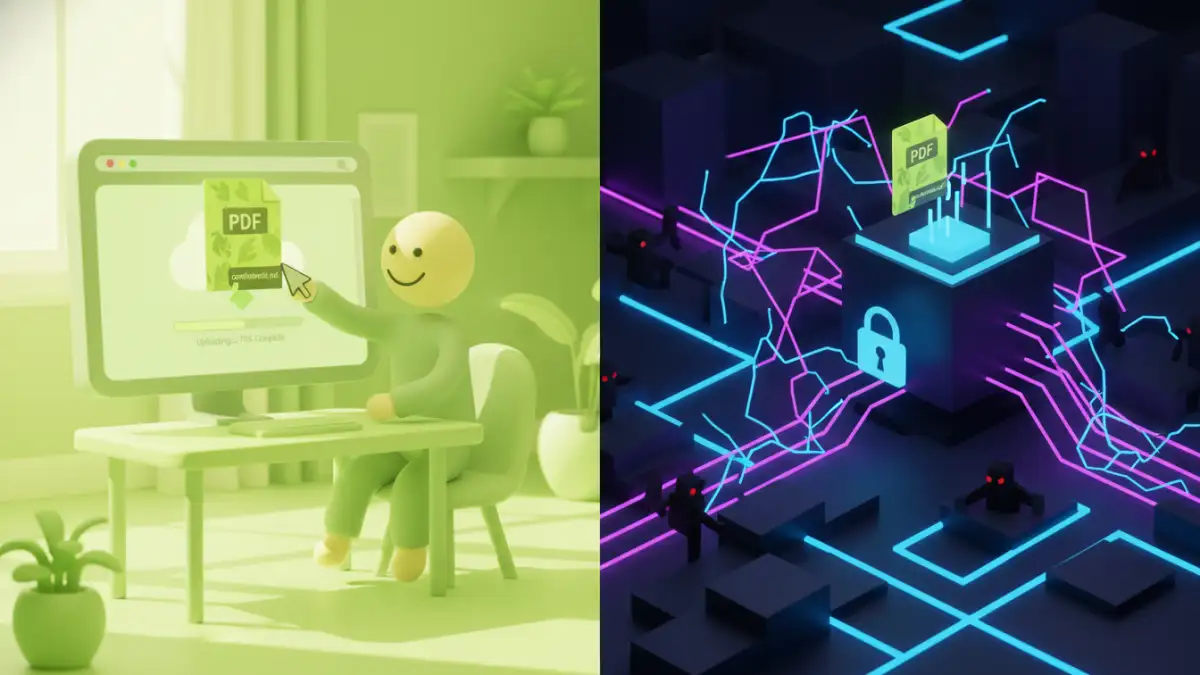
We've all been there. You receive a password-protected PDF—a contract, a report, an old pay stub—and you have the password, but you need to remove the protection for easier access or collaboration. A quick search reveals dozens of free online tools promising to unlock your file in seconds. It seems too good to be true, and as a software engineer, I can tell you that it often is.
The convenience of these tools hides significant privacy and security trade-offs. Before you upload a sensitive document to a random website, it's critical to understand what's happening behind the scenes and the potential risks you're taking.
Table of Contents
Understanding the Two Types of PDF Passwords
First, it's important to know that PDF files can have two different kinds of passwords. The type of password determines how difficult it is to remove and what methods will work. Understanding this distinction is key to assessing the claims made by online tools.
The Owner Password (Permissions Password)
This is the more common type of protection. An owner password doesn't prevent you from opening the file; instead, it restricts certain actions like printing, copying text, editing, or adding comments. If you can open and view the PDF, but some functions are grayed out, it's protected by an owner password. These are relatively easy to remove.
The User Password (Open Password)
This password encrypts the entire document and prevents anyone from opening it without the correct key. If a PDF prompts you for a password the moment you try to view it, it has a user password. Removing this without knowing the password requires brute-force attacks (trying millions of combinations), which is computationally expensive and often impossible for strong passwords.
How Free Online Unlockers Operate
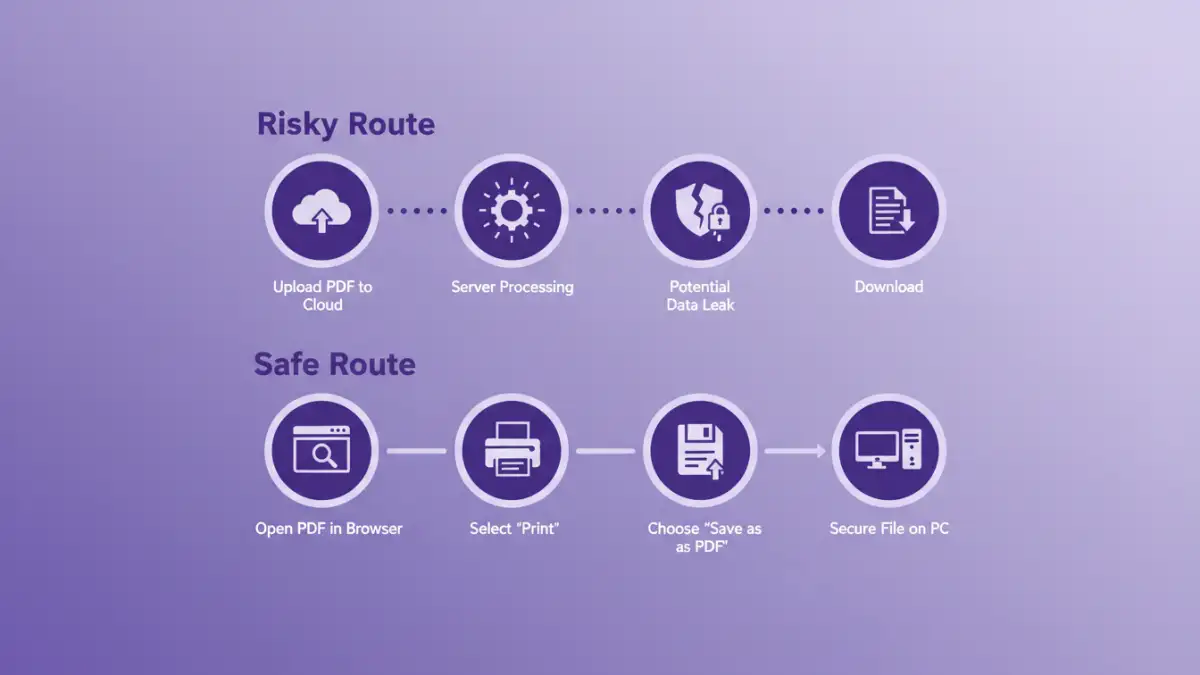
Most free online PDF tools follow a simple, predictable workflow. You visit the website, drag-and-drop or upload your password-protected PDF, and wait for their servers to process it. The site then provides a download link for the newly unlocked version of your file.
For owner passwords, the server simply strips away the restriction metadata, a trivial task. For user passwords, these services rarely succeed unless the password is very weak. The real question isn't about their effectiveness, but about the journey your data takes. When you upload that file, you are sending a copy of it to a third-party server you know nothing about.
A Security Audit: The Hidden Dangers
Using a free online service introduces several document security risks. My primary concern is always data handling. Once your file leaves your computer, you lose control over it. Here are the most significant issues I've seen.
Data Privacy and Confidentiality Breaches
The biggest red flag involves privacy concerns PDF documents often contain. Your uploaded files—which could be bank statements, legal contracts, or confidential business plans—are stored, at least temporarily, on their servers. Their privacy policy might be vague or non-existent. Can their employees access your data? Do they sell or analyze the data from uploaded documents? You have no way of knowing for sure.
Malware and Adware Distribution
Some less-reputable sites might use this as an opportunity to serve you malware. The "unlocked" file you download could be infected with a virus, ransomware, or spyware. The site itself could be littered with malicious ads that try to trick you into installing unwanted software. This is a classic bait-and-switch tactic.
Lack of Accountability
If your data is leaked or your computer is infected after using one of these services, who is responsible? These free tools are often operated anonymously, with no legal entity to hold accountable. You are essentially trusting your sensitive information to a complete stranger with no recourse if things go wrong.
Safer Alternatives for Unlocking PDFs
Fortunately, you don't need to risk your data to remove a password from a PDF you legally own. There are much safer methods available that keep your files entirely on your own machine.
Use Your Web Browser's Print Function
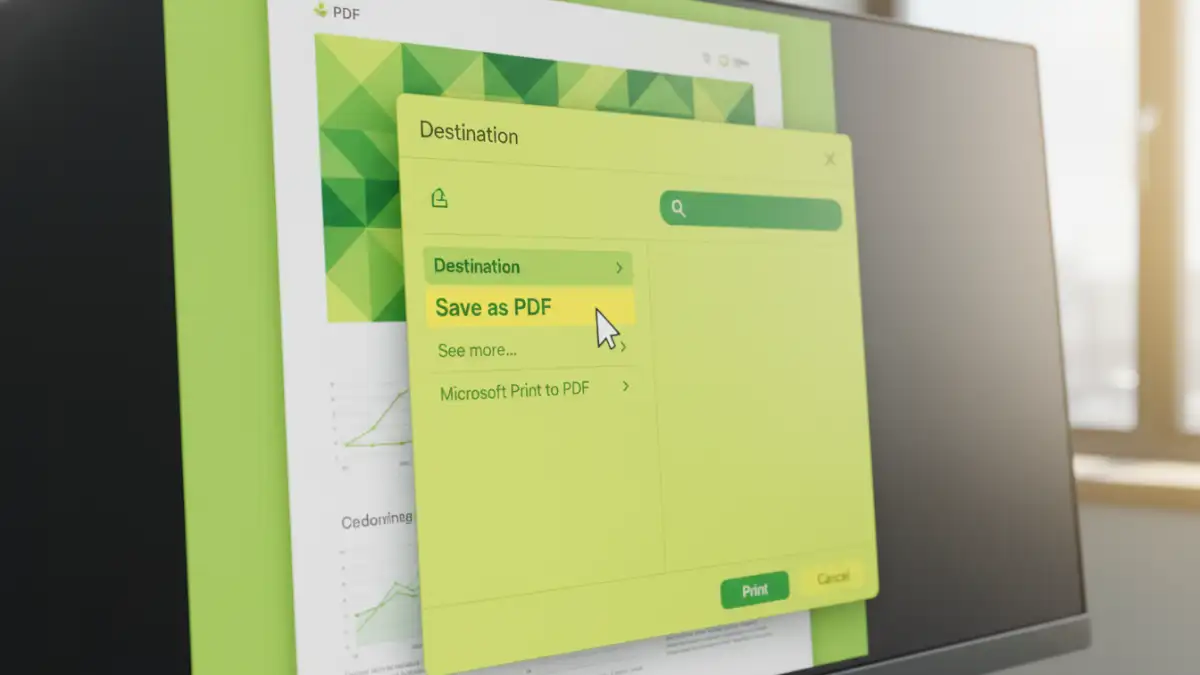
This is my go-to trick for removing owner (permissions) passwords. It's simple, free, and completely secure. Open the password-protected PDF in Google Chrome or Microsoft Edge (you may need the password to view it initially). Then, go to Print (Ctrl+P or Cmd+P) and, in the destination/printer dropdown, select "Save as PDF." This creates a new, flattened copy of the PDF without the printing or copying restrictions.
Reputable Desktop Software
For more complex needs or dealing with user passwords you own, dedicated desktop software is the safest bet. Adobe Acrobat Pro, the industry standard, can easily remove security settings if you have the password. Other trusted applications like Foxit PDF Editor or QPDF (a command-line tool for advanced users) also perform these actions locally, ensuring your files never leave your computer.
Tool Safety Comparison
| Method | Security Risk | Cost | Effectiveness |
|---|---|---|---|
| Free Online Tools | High (Data exposure, malware) | Free | Good for owner passwords, poor for user passwords |
| Browser "Print to PDF" | Very Low (Stays on your PC) | Free | Excellent for owner passwords only |
| Reputable Desktop Software | Very Low (Stays on your PC) | Paid (Often a subscription) | Excellent for both password types (if known) |
| Contacting the Author | None | Free | Guaranteed success |